If your Mac feels cluttered with scattered documents, downloads, and
screenshots, you’re not alone. Many users struggle to keep their files
structured and easy to find. Learning
how to organize files on a Mac can dramatically improve
productivity, reduce stress, and make everyday tasks faster. This guide
explains practical strategies that actually work, helping you build a clean
and efficient file system.
Part 1. Why Mac Files Get Out of Control & Why File Management on Mac
Matters
Many Mac users start with a clean system, but over time, files accumulate
everywhere, on the desktop, in the Downloads folder, and inside random
directories. Without a system for macOS file management, it becomes harder
to locate documents and maintain an organized workspace.
Common File Organization Problems on Mac
Here are some of the most common issues users experience:
Important documents are buried in deep folder structures
These problems often appear gradually. As you continue saving files and
installing apps, your system becomes cluttered.
Why Proper Mac File Management Matters
Good Macintosh file management helps you stay productive and prevents
storage problems. When files are organized properly, you can quickly locate
documents, reduce duplicate files, and maintain a cleaner system. Benefits
of organized file management include:
Faster file searching
Reduced storage waste
Easier backups
Improved productivity
A cleaner and more efficient Mac
Once you understand why file organization matters, the next step is learning
the best way to organize files on a Mac, so your system stays structured
long-term.
Part 2. The Best Way to Organize Files on Mac
Building a simple and consistent system is the foundation of an effective
MacBook organisation. Two of the most important techniques include creating
a clear folder structure and using consistent file names.
1. Create a Clear Folder Structure
A structured folder system makes it easier to manage files on a Mac and
quickly find important documents.
Instead of storing everything randomly, organize files into logical folders
such as: Work, Personal, Photos, Projects, Downloads Archive, etc. Inside
each folder, create subfolders when needed.
Steps to Create Organized Folders:
Open Finder and navigate to the location where you want to create a
folder.
Click “File” then “New Folder” and give the folder a clear and
descriptive name.
Move related files into the folder.
This simple structure helps keep files grouped logically and makes how to
organize folders on Mac much easier.
2. Use a Consistent File Naming System
Another major problem with file clutter is inconsistent naming. Files named
“Document1”, “Final”, or “Untitled” quickly become impossible to track.
Using a clear naming structure improves
Mac file organizer
efficiency and makes searching much easier. Example naming system:
ProjectName_Date_Version
When managing large numbers of files, manually renaming each one can be
time-consuming. Tools like
Tenorshare Cleamio
make the process much easier by allowing users to batch rename files
automatically. With Cleamio, you can rename multiple files at once using
information such as:
Install and open Tenorshare Cleamio on your Mac, then click the "AI File
Renamer" feature. Hit “Start” afterward.
Select one or more files (images or documents) you want to rename and
add them by clicking the “+” button.
Select an output language and renaming preferences such as
“Content_Owner_Date”. Then hit “Start Renaming” or “Start”.
Click “Confirm” to apply the changes to rename all files instantly after
previewing.
Batch renaming is especially useful when organizing photos, videos, or
project files.
Part 3. How to Organize Files in Finder on Mac
Finder is the central tool for macOS file management. Learning to use its
built-in features can greatly improve how you organize and access files.
1. Sort Files Quickly
Finder allows you to sort files by different attributes such as name, size,
type, or date.
Steps to Sort Files:
Open “Finder” and navigate to a folder.
Click “View” then “Show View Options," (or press
Command + J) and you can select the sorting method you
prefer.
In the pop-up, use the Sort By pop-up menu to choose an option like
Name, Date Modified, Date Added, Size, or
Kind.
Sorting files helps when you need to quickly locate recent downloads or
large files.
2. Use Finder Tags and Smart Folders
Tags are a powerful feature that allows users to categorize files visually.
Instead of moving files into multiple folders, tags help you label them for
quick access.
Steps to Use Finder Tags:
Right-click a file and hover over “Tags”.
Choose a color tag or create a new label.
Smart Folders take organization even further by automatically grouping files
based on rules such as file type or date created.
Steps to Create Smart Folders:
Open “Finder”, then click “File” and choose “New Smart Folder” (or press
Option + Command + N).
Add filters like file type or date, then save the Smart Folder.
Smart folders are extremely useful for how to organize music or video files
on a Mac, since they can automatically group media files.
Part 4. How to Organize Files on a Mac Desktop
A messy desktop is one of the biggest signs of poor file organization.
Fortunately, macOS provides tools that make desktop organization easy.
1. Use Mac Desktop Stacks to Auto-Organize in Seconds
Stacks automatically group similar files together, instantly cleaning your
desktop.
Right-click on the desktop and select “Use Stacks”.
Choose how files should be grouped.
To change grouping: Go to View > Group Stacks By and select Kind,
Date Added, Date Modified, Date Created, or Tags.
Click any stack to expand it and view/access files. Click the stack
again or outside to collapse.
Files will automatically group by type, date, or tags.
2. Align and Arrange Files on Mac Desktop
You can also organize icons neatly using the built-in arrangement tools.
Right-click the desktop and select “Sort By” or “Clean Up By”.
Choose Name, Kind, or Date, etc.
3. Keep Only Temporary Files on Desktop
A good rule for MacBook organisation is to treat the desktop as a temporary
workspace. Keep only the files you are currently using, and move completed
documents into organized folders. This keeps the desktop clean and reduces
visual clutter.
Review all items on your Desktop and decide what truly needs to be there
(e.g., current project files or downloads you're processing today).
For permanent items, drag them into your structured Documents folders
(or other organized locations).
Create a "Temp" or "Inbox" folder on the Desktop for short-term files,
then review and clear it weekly.
Enable Stacks (as above) to automatically manage whatever remains.
Part 5. How to Organize Downloads on Mac
The Downloads folder often becomes one of the messiest places on a Mac.
1. Create Simple Folders Inside the Downloads Folder
Instead of storing everything in one place, create subfolders such as:
Documents
Installers
Images
Videos
This makes it easier to organize computer files on a Mac.
Open “Downloads” in Finder and create new folders by clicking "File"
then "New Folder."
Move files into their appropriate categories.
2. Move Important Files Out of the Downloads Folder
Downloads should be temporary storage. Important documents should be moved
into permanent folders, such as:
Documents
Projects
Photos
This helps manage files on Mac more efficiently.
Open a "Finder" window, open "Downloads", and open the destination
folder in another Finder window.
Drag and drop the important files from Downloads to the destination
folder.
Over time, the Downloads folder fills with duplicate installers, images, and
documents. Tools like
Tenorshare Cleamio
can help declutter or
debloat Mac storage
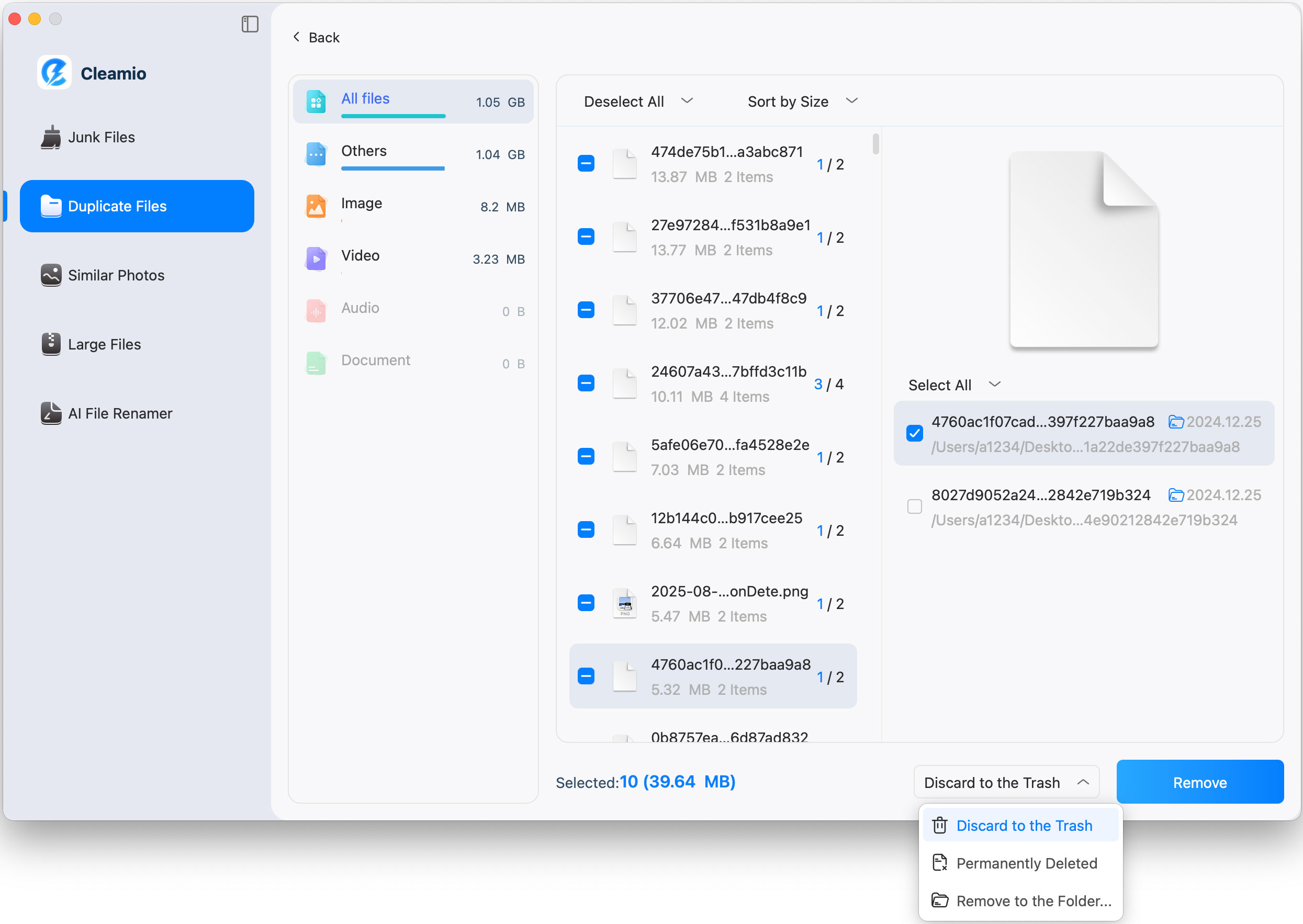
by scanning for duplicate files, junk files, and large, outdated files. The
software analyzes your system and suggests which files are safe to remove.
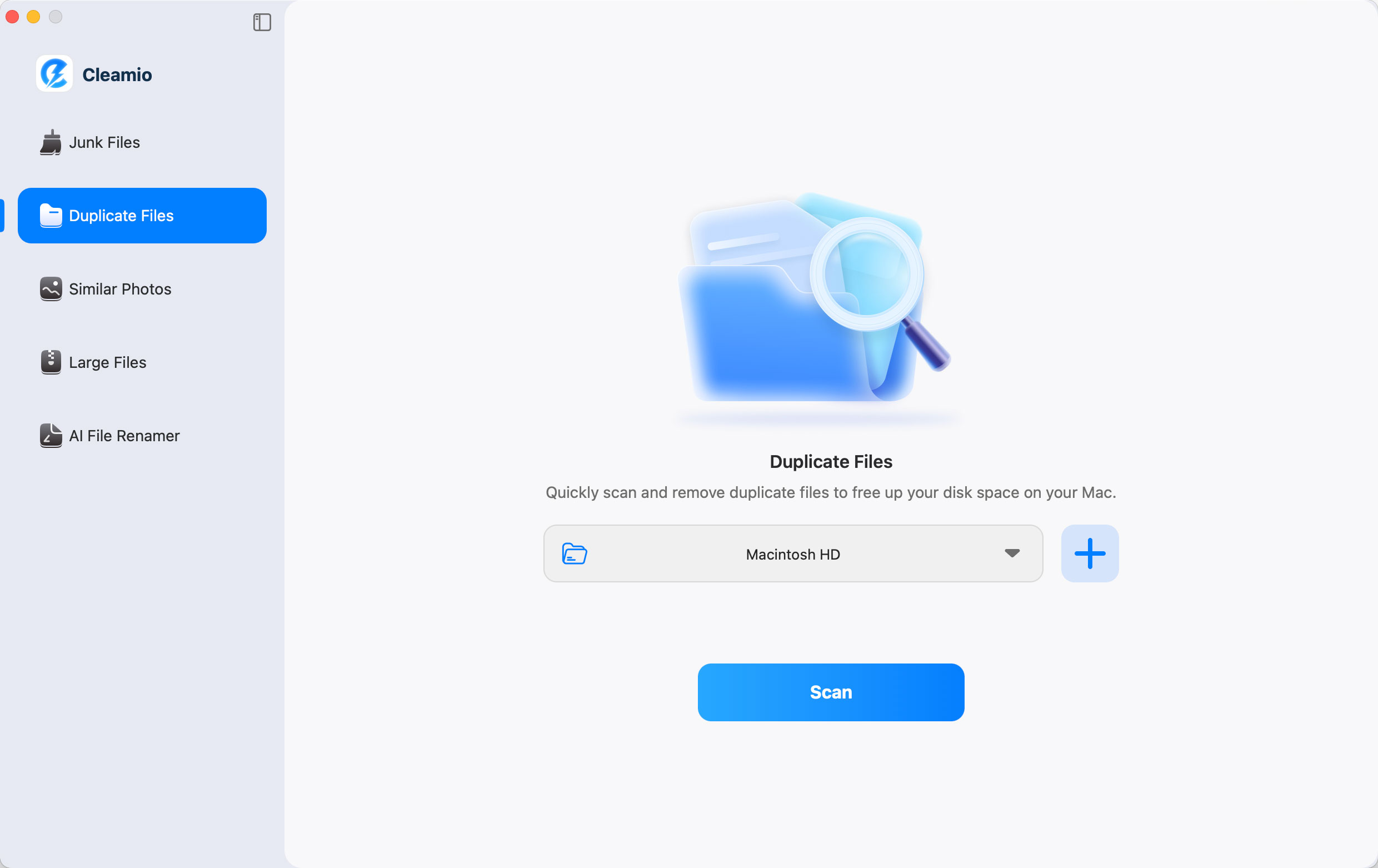
Install and open Tenorshare Cleamio. Select the “Duplicate Files”
feature and choose folders to scan, such as Downloads. Then click “Scan”
to let the tool analyze your files and preview the results.
Review the duplicates and delete unnecessary copies by selecting them
and clicking "Remove."
This process frees up storage and keeps your system organized.
Part 6. How to Declutter and Maintain an Organized Mac
Once your files are organized, maintaining the system becomes much easier.
Here are several habits that help maintain a clean Mac:
1. Weekly File Cleanup: Spend a few minutes each week
deleting unnecessary downloads, screenshots, and temporary files.
2. Archive Old File s: Move old projects or inactive files
into an Archive folder to keep active folders clean.
3. Use Spotlight to Find Files Faster: Press Command +
Space to open Spotlight search and quickly locate files.
4. Auto-Sort Files with Automator: Automator can create
workflows that automatically move files into specific folders.
5. Optimize Storage with iCloud Drive: iCloud Drive allows
files to remain accessible while freeing local storage space.
Additional Helpful Habits
Remove unused applications
Delete large, outdated files
Empty the Trash regularly
Organize media libraries periodically
Following these practices will help you maintain efficient Macintosh file
management long-term.
Conclusion
Learning how to organize files on a Mac can transform a
cluttered system into a productive workspace. By creating clear folder
structures, using consistent file names, organizing Finder and desktop
files, and cleaning the Downloads folder regularly, you can maintain an
efficient system.
Tools like Tenorshare Cleamio make the process even easier
by helping rename files, remove duplicates, and free up storage space
automatically.




 iOS Tips & Latest Updates
 Bug Fixes, Unlock Guides
 Giveaways & Freebies






By Jenefey Aaron
2026-09-28 / File Tips