
 iOS Tips & Latest Updates
 Bug Fixes, Unlock Guides
 Giveaways & Freebies

ReiBoot - No.1 Free iOS System Repair Software
Fix 150+ iOS Issues without Data Loss & Safely iOS 27 Upgrade/Downgrade
ReiBoot: No.1 iOS Repair Tool
Fix 150+ iOS Issues, No Data Loss
So you installed iOS 27 beta and things aren’t going as smoothly as you hoped. Maybe apps are crashing, your battery is draining faster than ever, or some features you rely on just aren’t working right. Whatever the reason, you want to get back to stable iOS 26 — and you want to do it without losing your data.
You’re in the right place. This guide covers every method to downgrade iOS 27 to 26, including options that don’t require a computer.
Before jumping in, there are a few important facts:
This is Apple’s official method. It works as long as iOS 26 is still being signed by Apple.
Step 1: Before starting the downgrade, make sure you have a recent backup of your iPhone before downgrading iOS 27. You can use iCloud or iTunes/Finder to back up your data.
Step 2: Download the iOS 26 IPSW file Go to ipsw.me, find your exact iPhone model, and download the iOS 26 firmware file. Make sure it’s the right one for your device — an incompatible IPSW will cause errors.
Step 3: Put your iPhone into Recovery Mode: Press and release Volume Up, press and release Volume Down, then press and hold the Side button until the Recovery Mode screen appears. -
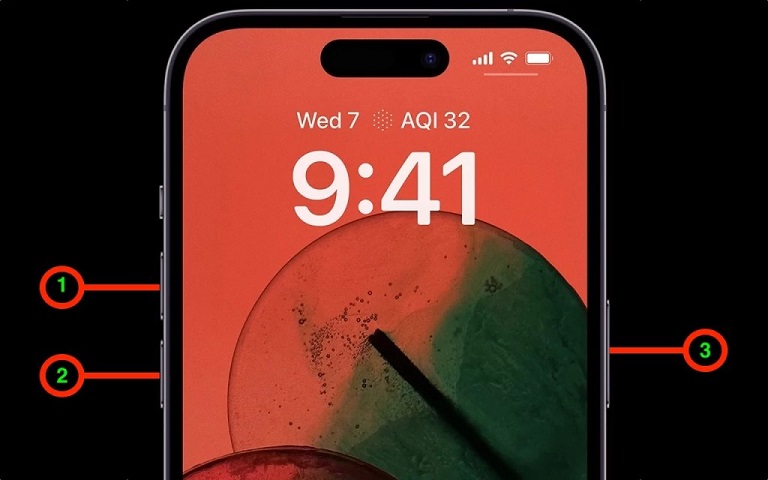
Step 4: Restore with the IPSW file - Open iTunes or Finder and select your device. - Hold Option (Mac) or Shift (Windows) and click Restore iPhone. - Select the iOS 26 IPSW file you downloaded. - Confirm and wait for the process to complete.


Step 5: Set up your iPhone from your backup.
If the iTunes method failed, Tenorshare ReiBoot is the best solution. ReiBoot is a professional iOS system repair and downgrade tool trusted by millions of users worldwide.




Download and install ReiBoot on your computer. Then, connect your iPhone/iPad to the same PC. Trust your iDevice when asked. Tap "iOS Upgrade/Downgrade" on the main interface.

Then, pick "Downgrade" to start the process.

Hit "Download" to get the current iOS 18 firmware package.

Tap "Initiating downgrade" once the package is downloaded.

ReiBoot will automatically uninstall iOS 27 beta and install the stable iOS 26 version on your device. Once the process is complete, simply click Done.
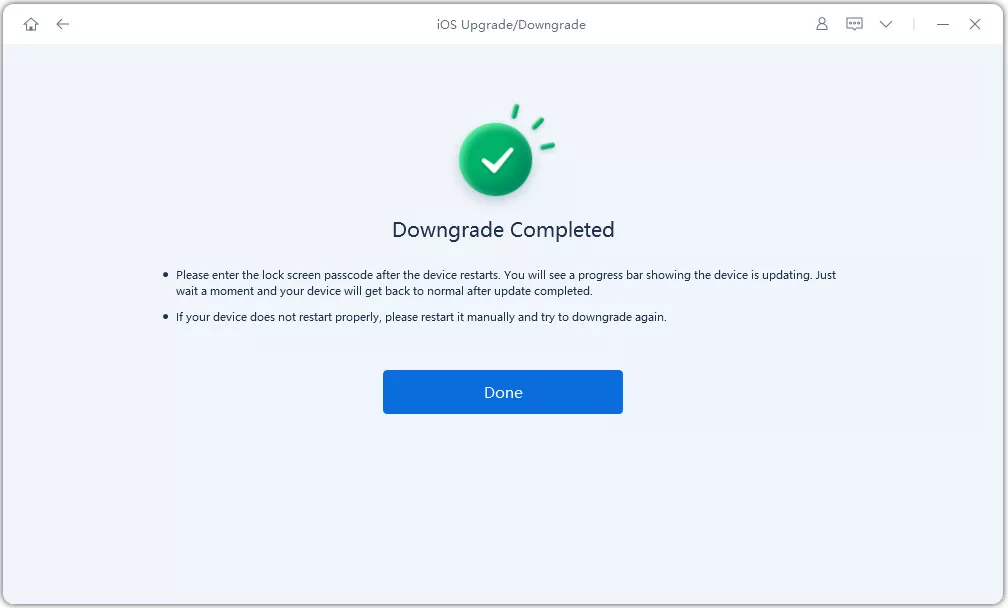

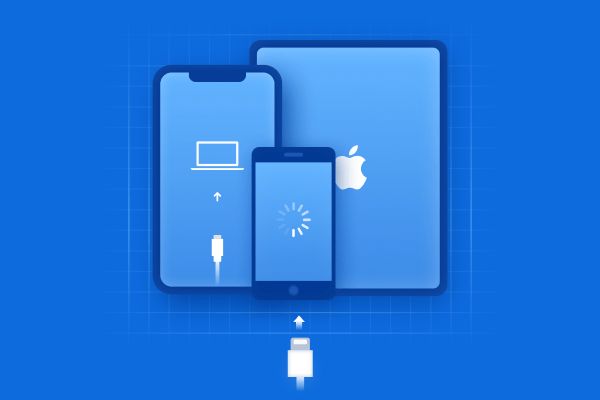
ReiBoot also handles situations where your iPhone is stuck in Recovery Mode, boot loops, or other system issues, making it a must-have tool for anyone who tests beta software regularly.
Losing data is the biggest fear with any iOS downgrade. Here’s how to minimize risk:

You downloaded the wrong IPSW for your model. Double-check your exact iPhone model in Settings → General → About, then re-download the correct IPSW from ipsw.me.
This usually indicates a hardware or USB connection issue. Try a different cable, a different USB port, or restart both your iPhone and computer. If the problem persists, use ReiBoot — it handles these error codes automatically.
Apple has stopped signing this version. The iTunes/Finder method will no longer work. ReiBoot may still be able to assist — check the Tenorshare website for the latest compatibility information.
This is where ReiBoot really shines. Its Exit Recovery Mode feature can get your device out of the loop in one click, without data loss.
The iTunes/Finder method takes 20–40 minutes. ReiBoot typically completes the downgrade in 10–20 minutes with a faster, more streamlined process.
A standard downgrade via iTunes/Finder will erase your device. That’s why backing up first is essential. ReiBoot offers a data-preserving option in certain scenarios.
Yes, it’s completely safe when done correctly using the methods described here. The risk is mainly data loss if you skip the backup step.
The standard Apple method requires a computer. However, tools like ReiBoot require a computer to run as well, but dramatically simplify the process. A purely on-device downgrade is generally not possible unless Apple provides an OTA path.
Once Apple closes the signing window, the official iTunes method stops working. Third-party tools like ReiBoot may have additional options. Check Tenorshare’s site for the most current information.
No. Changing your iOS version does not void Apple’s warranty.
 Please swipe to view
Our recommendation: If you want the fastest, most reliable downgrade experience with the least technical hassle, use Tenorshare ReiBoot. It handles IPSW sourcing, device mode switching, and error recovery automatically — steps that trip up many users in the manual process.


then write your review
Leave a Comment
Create your review for Tenorshare articles
Share this post


ReiBoot - No.1 Free iOS System Repair Software
Fix 150+ iOS Issues without Data Loss & Safely iOS 27 Upgrade/Downgrade
ReiBoot: No.1 iOS Repair Tool
Fix 150+ iOS Issues, No Data Loss
By Jenefey Aaron
2026-10-19 / iOS 27