Modern Macs from the MacBook Air M4 to the MacBook Pro M5 are incredibly fast, but even these powerful machines can slow down over time due to bloatware items, like: hidden background apps, leftover system components, and unnecessary pre-installed software. Many users don't realize how much space and CPU are wasted until performance noticeably drops.
If you want a smoother, faster machine, learning how to debloat macOS safely can make a massive difference, especially on macOS Sequoia and the latest macOS Tahoe.
Part 1. What Is macOS Bloatware & Common Bloatware Items What Is Bloatware on Mac
macOS bloatware refers to pre-installed or unnecessary software and background processes that consumes disk space, RAM, CPU cycles, or network bandwidth without offering meaningful value to the user. While macOS isn’t known for the extreme bloat seen on some Windows systems, even Apple includes apps and background services that many users never touch.
Understanding Mac bloatware and how it appears on your system makes it easier to remove or disable it.
Communication & Extras: FaceTime (if rarely used), Messages (for users who don’t use iMessage), Mail (if you use a web-based email client)
System Features Often Seen As Bloat: Preloaded language packs, Background daemons (like com.apple.Siri.plist, Photoanalysisd, and excessive iCloud sync components)
These apps are not harmful, but many users simply never use them, making them unnecessary space hogs.
How to Find Bloatware on macOS?
You can identify macOS bloatware by checking,
Applications folder for unused apps
System Settings > General > Login Items for background processes
Library folders for hidden helpers, language files, and leftover installers
These steps help you determine what to remove before you start debloating macOS Sequoia.
Part 2. Fastest Way to Debloat macOS Safely [Step-by-Step]
Before removing anything manually, the safest and fastest method is using a dedicated tool designed specifically to debloat macOS without breaking system files. Tenorshare Cleamio is an all-in-one Mac debloater that automatically detects unused installers, app leftovers, large caches, startup apps, and hidden background agents that drain system performance.
It also helps free CPU and RAM in real time, making the system noticeably faster within minutes, perfect for users who want to debloat macOS Sequoia or Tahoe without technical risk. Cleamio comes with a powerful set of macOS debloating features designed to remove clutter without risking system stability:
With beginner-friendly interface makes deep cleaning simple
Steps to Remove Junk Files & App Leftovers with Cleamio
A.Remove Junk Files & App Leftovers
Install Tenorshare Cleamio after downloading it and then launch it. Select "Junk Files" from the left menu pane and click "Scan" to begin detecting junk and stubborn bloatware items.
Select the bloatware files that you want to delete, such as: unused installers and app leftovers, junk files, online browsing data, Trash Bin items. Then click “Smart Cleanup”.
B.Release CPU & Stop Startup Items
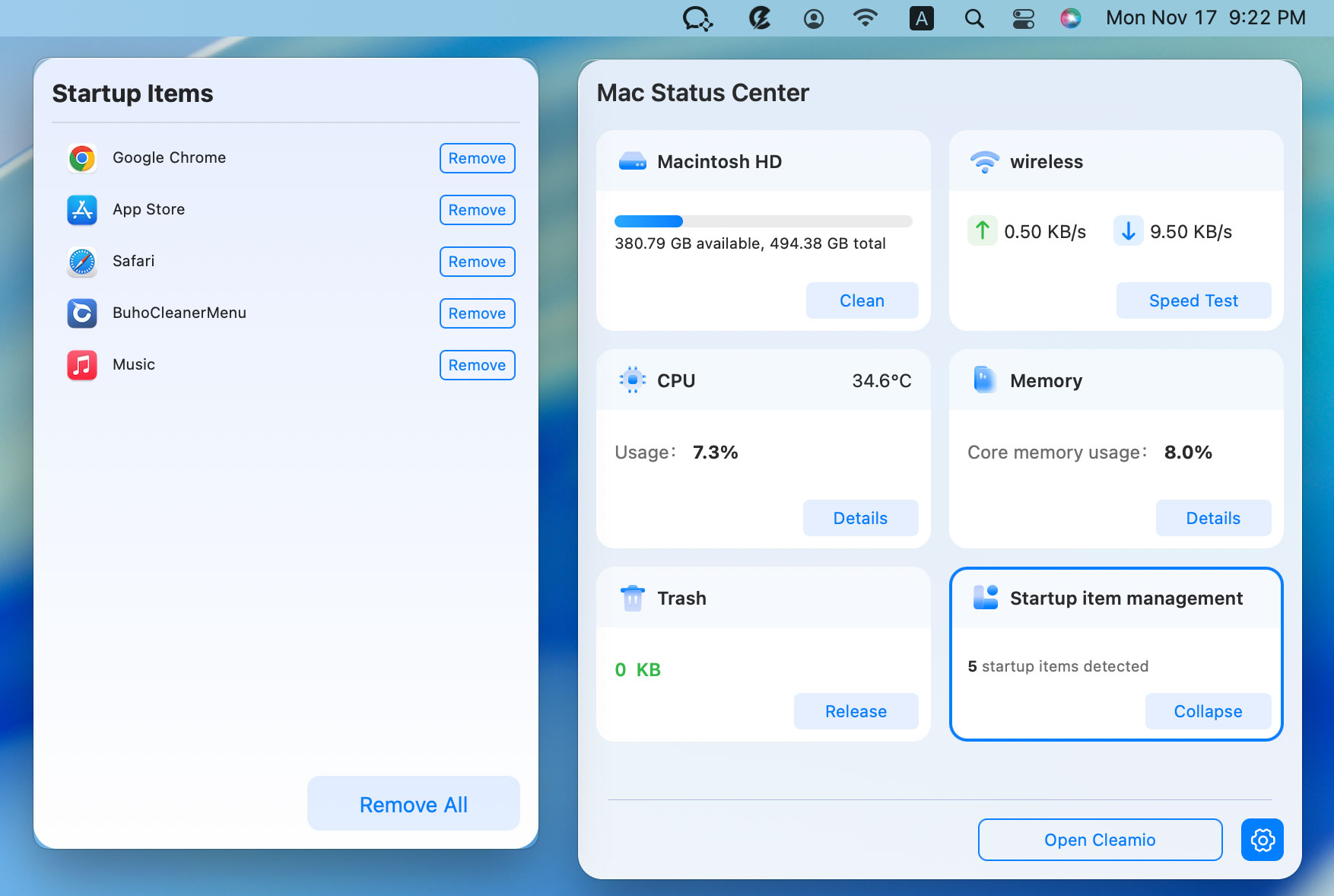
Tap on the Cleamio log on the top-right corner of Mac screen.
After opening its Mac Status Center, check and release the system metrics, such as: CPU, Memory, disk space, network speed, Trash, and startup items.
Part 3. 6 Quick Ways to Remove Mac Bloatware Manually
Manual debloating gives you more control but requires caution to avoid damaging system components. These methods are recommended for intermediate or advanced users who want deeper optimization beyond what automated tools provide.
Many macOS background services continue running even when you never use the apps tied to them. These daemons quietly consume RAM, CPU, and network activity, which slows down systems like macOS. Disabling the unnecessary ones is a powerful way to debloat macOS Sequoia and immediately free system resources.
Click “Go” from the top of your desktop and click "Go to Folder", then paste "/Library/LaunchAgents/”.
Move non-essential .plist files to another folder, like backup, etc.
Now click “Go” and “Go to Folder” once again and paste “/Library/LaunchDaemons/” and move its non-essential .plist files to the backup folder as well.
Onyx is the ultimate free debloater for Mac, which analyzes disk space, nukes caches, and zaps bloat daemons like nsurlsessiond leftovers without Terminal hassle. It reclaims 5-15GB on Tahoe installs by cleaning telemetry and app junk.
Isnatll Onyx and grant Full Disk Access in System Settings > Privacy & Security > Full Disk Access.
Open the Onyx app on your Mac and go to the "Maintenance" tab, then go to the “Cleaning” section.
Select all options (System, Applications, Internet, Others) in the Cleaning section and click "Run Tasks."
3. Disable SIP (System Integrity Protection) Partially or Fully
macOS protects critical system files with SIP, but this also prevents users from removing certain types of bloatware. If you need deeper control, such as deleting locked pre-installed apps, temporarily adjusting SIP may be required. This method to debloat MacBook Air is more advanced, but safe when done carefully and restored afterward.
Restart your Mac and keep holding the “power button” until you see startup options.
Click “Options” then “Continue” and enter your admin creds if asked, then click “Next”.
Now, go to “Utilities” and then “Terminal” and run the command “csrutil disable”. After this command runs, restart the Mac.
SIP disabling allows deeper debloating but reduces system protection temporarily.
4. Remove Pre-installed or Locked System Apps (Requires Disabling SIP)
Some macOS Sequoia system apps cannot be deleted until SIP is turned off, even if you never use them. Removing these pre-installed tools can help reclaim storage and reduce background processes tied to them. Once SIP is disabled, you gain full access to delete these locked apps manually and debloat macOS Tahoe more thoroughly.
Open Terminal on your Mac and run the command “sudo uninstall file://”
Now, drag the app you want to delete to get its path in the terminal and hit "Return," then enter your admin creds.
5. Disable or Remove Browser Extensions (Chrome, Firefox, Safari)
Browser extensions are one of the most overlooked causes of Mac slowdowns, especially when they run in the background or track activity. Cleaning them up can significantly improve browsing speed and reduce CPU load. It’s also a simple but highly effective debloater for Mac.
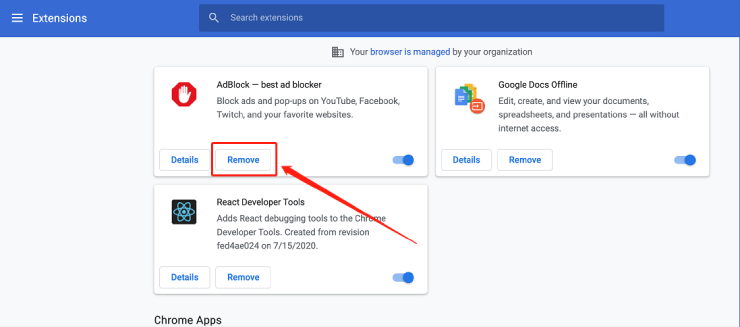
Open your browser and go to the “Extensions” page.
Click “Remove” for any extension that you want to remove, and once done, close the browser.
6. Use Mac Disk Utility to Erase Mac (Backup Before Erasing)
When a Mac becomes overloaded with years of apps, leftovers, and bloatware, a clean reset is sometimes the fastest way to restore performance. Disk Utility lets you wipe the system and start fresh, giving you a completely debloated macOS environment. Just make sure to back up your files first, because this method to debloat macOS Ventura erases everything.
Restart your Mac and keep holding the “Power Button”. Release when you see the startup options and click "Options" then "Continue."
Give your admin credentials if asked, and click "Next", then select "Disk Utility” from recovery options and click “Continue”.
Select the desired volume you want to erase and click "Erase," and provide your account information if asked. Wait as the process completes, and your disk will be wiped clean.
Part 3. How to Avoid and Get Rid of macOS Bloatware
Here are some tips to avoid and get rid of bloatware on your macOS.
Install apps only from trusted sources and skip Apple apps you’ll never use
Yes, XProtect runs in the background to detect harmful files.
Q5: How to clean up a Mac to make it run faster?
Use a disk cleaner like Cleamio, remove startup apps, clean caches, and debloat unused system services.
Conclusion
Debloating macOS is one of the most effective ways to speed up your Mac, reduce system clutter, and reclaim valuable storage. Whether you remove bloatware manually or use an intelligent tool, regular maintenance ensures your MacBook runs smoothly for years.
For the fastest and safest results, Tenorshare Cleamio is the best tool to remove macOS bloatware, clean leftovers, remove junk, manage startup apps, and boost overall performance in just one click.














By Jenefey Aaron
2026-09-15 / Mac Cleanup