
 iOS Tips & Latest Updates
 Bug Fixes, Unlock Guides
 Giveaways & Freebies


Cleamio: All-in-One Mac Cleaner & Optimizer
Clean junk files, free up space, and boost Mac performance
No.1 Mac Cleaner & Optimizer
Clean, speed up, and optimize your Mac
Stuck with a frozen app and searching for Ctrl Alt Delete on Mac? If you're coming from Windows, macOS can feel confusing at first because it doesn't use the same shortcut.
However, Macs offer smart, efficient alternatives to manage unresponsive applications and system tasks. MacOS makes it easy to regain control without restarting your computer, from quick keyboard shortcuts to built-in monitoring tools. This article explains the Mac equivalent of Ctrl Alt Del and how to manage tasks smoothly.

The Ctrl+Alt+Delete combination on Windows serves as an essential troubleshooting shortcut. It was originally designed as a system-reboot command. This keyboard combination evolved into a multifunctional tool across various Windows versions. When you press these keys together, Windows shows a security screen where you can:
This shortcut essentially functions as a system interrupt. It allows users to regain control when applications become unresponsive or when security features need to be accessed quickly.
Mac computers don't have Ctrl Alt Delete, but they offer a different shortcut with the same function.
This shortcut is the Mac equivalent of Ctrl-Alt-Delete. Pressing Command Option Escape opens the Force Quit window. It is not allowing you to force quit an app on a Mac quickly.
Press Command + Option + Escape together. The Force Quit window pops up.

Select the app that is not responding.
Click "Force Quit".
Although some users search for alt delete control Mac, the correct way on macOS is using Command Option Escape, not the Windows key combination.
There is no exact Ctrl Alt Delete on Mac, but Command Option Escape is the best replacement. It lets you quickly force quit an app on a Mac and manage frozen programs easily.
MacOS offers several methods to force quit unresponsive applications. Each approach offers users flexible options depending on their current workflow or the nature of the problem.
The Apple menu method offers a straightforward approach to closing stubborn applications without memorizing keyboard shortcuts. This technique works across all modern macOS versions and provides a visual interface for selecting problematic apps.
To force quit using the Apple menu:
Click the Apple icon (⌘) in the top-left corner of your screen
Select "Force Quit" from the dropdown menu.
In the Force Quit Applications window, click the app that's not responding.
Click the "Force Quit" button.

Click "Force Quit" again to confirm when the dialog appears.
The Dock method provides a quick alternative when you can visually identify the frozen application. This approach is especially useful when you're already working with multiple windows open.
To force quit from the Dock:
Locate the problematic or frozen app's icon in the Dock.
Right-click (or Control+click) on the app icon.
Press and hold the Option (⌥) key. The "Quit" option changes to "Force Quit".
Select "Force Quit" from the menu.

Activity Monitor is macOS's built-in alternative to Windows Task Manager. It offers detailed insights into system performance alongside application management capabilities. This method provides the most information about running processes.
To use Activity Monitor:
Open Activity Monitor (Applications from Utilities, then Activity Monitor).
Select the "CPU" tab to see resource usage.
Find the unresponsive application in the list.
Click on the application name to select it.
Click the "X" button in the toolbar.
Choose "Force Quit" in the confirmation dialog.

With these methods, Mac users can manage applications without needing the exact Windows Ctrl+Alt+Delete combination.
Many Mac users occasionally need to access Windows systems through remote connections or virtual machines. During these cross-platform interactions, knowing how to send the Ctrl+Alt+Delete command becomes essential for managing tasks.
When connected to a Windows machine via Microsoft Remote Desktop, accessing the Ctrl+Alt+Delete function requires a different key combination:
Launch Microsoft Remote Desktop app on your Mac and connect to your Windows PC.
Once connected, look at the top menu bar of your Mac screen.
Click on "Connection" in the menu bar.
Select "Send Ctrl+Alt+Delete" from the dropdown menu.

This combination triggers the Windows security screen just as if you pressed Ctrl+Alt+Delete directly on a Windows computer.
Each virtualization software handles the command differently:
VMware Fusion: Press Control+Option+Delete or use the Virtual Machine menu, then choose "Send Key", then click "Ctrl+Alt+Delete".
Parallels Desktop: Use Control+Option+Delete or click on the "Devices menu, then select "Keyboard" and then click "Send Ctrl+Alt+Delete".
VirtualBox: Press Host key (right Command) + Delete or use Input menu, then select "Keyboard" and then click "Insert Ctrl+Alt+Del'

When using a Windows keyboard connected to a Mac:
Press Ctrl+Alt+Delete as usual
The Mac interprets the Windows keyboard's Ctrl key as Command and Alt as Option
Sometimes, even the usual Command + Option + Escape doesn't help. Apps stay frozen, your Mac becomes slow, or the system won't respond properly. If you're wondering what if force quit doesn't work on my Mac, this is where an advanced solution is needed.
When normal force quit methods fail, Tenorshare Cleamio offers a more effective solution. Its Mac Status Center lets you monitor CPU and memory usage in real time, close running apps safely, and manage startup items that slow down your system.
Tenorshare Cleamio is designed to clean, optimize, and speed up your Mac with zero risk. It can remove junk files, system caches, app leftovers, and even detect apps that slow down your system in real time. This makes it especially useful when your Mac freezes and normal force quit methods fail.
Why Use Tenorshare Cleamio?
Steps to Force Quit Unresponsive Apps on Mac Using Cleamio
Option 1. From Startup Items:
Click the Cleamio logo in the top-right corner to open "Mac Status Center".

Select "Startup Item Management", then click "Manage" to see all apps that start when your Mac turns on.
Choose the apps you don't need at startup. Click "Remove" or "Remove All" to prevent them from running in the background.
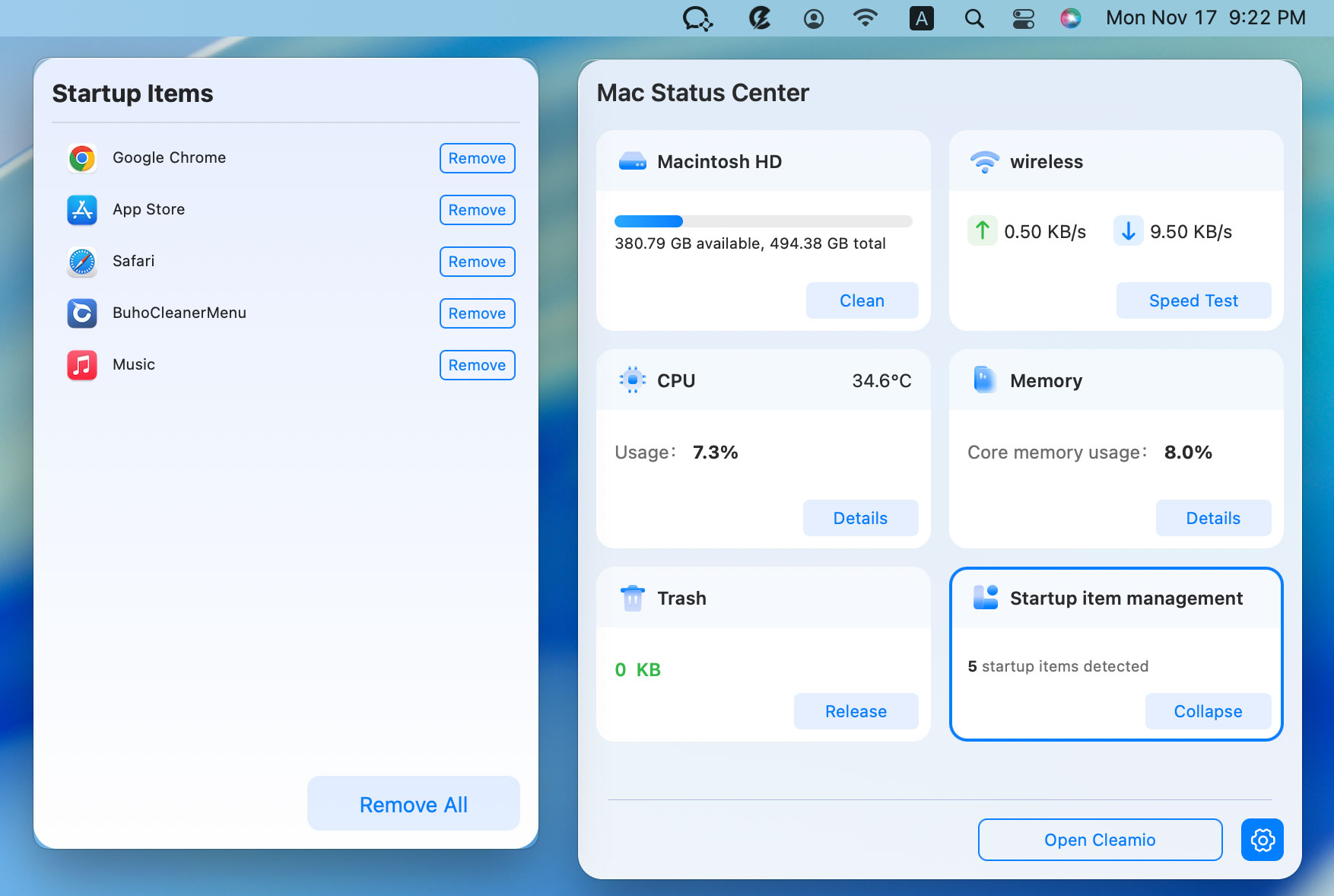

Do not remove essential system startup items, as this may affect macOS core functions.
Option 2. From CPU/Memory Usage
From Mac Status Center, click on the "CPU" or "Memory" module.
From the left pop-up panel, click "Remove" or "Remove All" to close any app consuming CPU or memory.
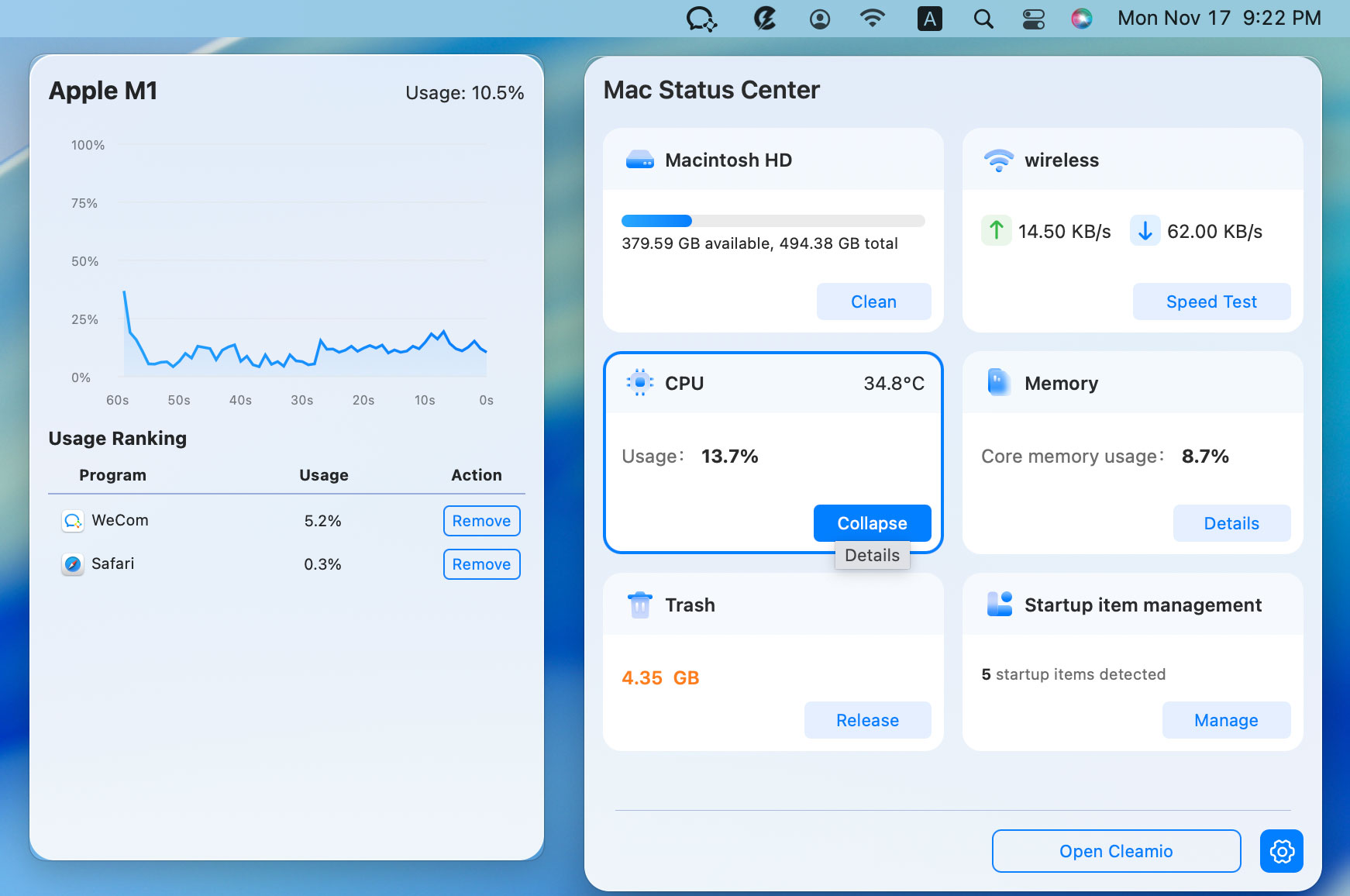
If no apps respond and your screen is completely frozen, a force restart may be the only option. This should be used as a last resort when all other methods fail.
To force restart your Mac:
Alternatively, use these keyboard shortcuts:
Consequently, you might lose unsaved data in open applications, thus making this approach suitable only when all other methods have failed.
There is no exact equivalent. The closest option is Command + Option + Escape, which opens the Force Quit window. macOS separates system functions across different tools instead of using a single shortcut.
In Remote Desktop sessions, use Fn + Control + Option + Right Arrow or the session menu options, depending on your configuration.
macOS does not use keyboard shortcuts for password changes. Passwords are managed through System Settings or Recovery Mode using the resetpassword command.
While there is no exact Ctrl Alt Delete on Mac, macOS offers powerful and intuitive alternatives like Command + Option + Escape, Activity Monitor, and Dock-based force quit options to manage frozen apps efficiently. For advanced control when built-in tools fall short, Tenorshare Cleamiois a smart recommendation. It helps monitor system performance, end stubborn processes, and prevent future slowdowns. Together, these solutions ensure Mac users can quickly regain control and keep their workflow running smoothly.


then write your review
Leave a Comment
Create your review for Tenorshare articles
 Cleamio
All-in-One Mac Cleaner & Optimizer
Share this post


Cleamio: All-in-One Mac Cleaner & Optimizer
Clean junk files, free up space, and boost Mac performance
No.1 Mac Cleaner & Optimizer
Clean, speed up, and optimize your Mac
By Jenefey Aaron
2026-09-28 / Mac Tips