Keeping a MacBook Pro or MacBook Air running smoothly often requires more
insight than macOS’s built-in tools provide. While Activity Monitor shows
basic system data, many users want clearer visuals with real-time alerts and
menu bar stats, and even cleanup tools.
That’s why more people are searching for a reliable
Mac Activity Monitor alternative that delivers better monitoring,
control, and performance optimization in 2025.
Part 1. What is Mac Activity Monitor, and Why Seek Alternatives?
Before choosing an alternative, it helps to understand what Activity Monitor
does and where it falls short.
1. What Is Activity Monitor on Mac?
Activity Monitor is macOS’s built-in
system monitoring utility. It allows users to view real-time information about CPU usage, memory
consumption, disk activity, network traffic, and running processes. For
basic troubleshooting, such as force-quitting frozen apps, it works well and
requires no additional software.
However, Activity Monitor is designed for technical transparency rather than
usability. It shows raw data without interpretation, recommendations, or
performance optimization features.
Overwhelming technical process lists for non-advanced users
No temperature, fan speed, or battery health monitoring
No startup app management or system optimization tools
These gaps explain why a more advanced Mac Activity Monitor alternative is
often the better long-term solution.
Part 2. Quick Comparison Table: Which Is the Best Alternative to Mac
Activity Monitor
Let's have a quick overview of the best alternatives to Mac Activity
Monitor:
Please swipe to view
Tool
Free
Menu Bar
Apple Silicon
Cleanup Tools
CPU
Network
Disk I/O
Temp
Fan Control
Stats
Yes
Yes
Yes
No
Yes
No
No
No
No
iStat Menus
Paid
Yes
Yes
No
Yes
Yes
Yes
Yes
No
Tenorshare Cleamio
Paid
Yes
Yes
Yes
Yes
Yes
Yes
No
No
TG Pro
Paid
No
Yes
No
No
No
No
Yes
Yes
Sensei
Paid
No
Yes
Yes
Yes
No
No
Yes
No
Macs Fan Control
Free
No
Yes
No
No
No
No
Yes
Yes
eul
Free
Yes
Yes
No
Yes
No
No
No
No
Part 3. The 7 Best Mac Activity Monitor Alternatives in 2025
If you are looking for the best Mac activity monitor alternative options for
your computer, here are the top 7 options you can try:
1. Stats – Best Free Menu Bar Monitor
Stats is a popular open-source utility that displays essential system
metrics directly in the macOS menu bar. It focuses on simplicity and
transparency, making it ideal for users who want lightweight, real-time
monitoring without clutter or advanced configuration.
Best for: Casual users who want basic system stats
Rating: 4.4/5
Key Features:
It offers CPU, GPU, memory, and battery stats
Menu bar widgets are also available
You will get apple Silicon optimized
It gives you open-source and free
Pros
Completely free
Minimal system impact
Clean interface
Cons
No cleanup or optimization tools
Limited customization
2. iStat Menus – Most Comprehensive Monitoring Suite
iStat Menus is a professional-grade monitoring tool offering deep insights
into nearly every Mac hardware component. It’s widely used by power users,
developers, and IT professionals who need granular data and customizable
alerts.
Best for: Advanced users and professionals
Rating: 4.6/5
Key Features:
CPU, RAM, disk, network tracking
Temperature and sensor monitoring
Custom alerts and widgets
Menu bar integration
Pros
Extremely detailed metrics
Highly customizable
Reliable performance
Cons
Paid software
No cleanup or optimization tools
3. Tenorshare Cleamio – Best Monitoring with One-Click Cleanup
Tenorshare Cleamio
goes beyond monitoring by combining system status tracking with one-click
performance optimization. Unlike traditional Activity Monitor alternatives,
Cleamio not only shows CPU and memory usage but also actively helps you free
resources instantly.
4. TG Pro – Top Temperature and Fan Control Expert
TG Pro is a specialized utility focused on thermal management. It provides
accurate temperature readings and manual fan control to prevent overheating,
especially useful for Intel-based Macs and heavy workloads.
Best for: Thermal control and overheating prevention
Rating: 4.5/5
Key Features:
CPU/GPU temperature tracking
Fan speed control
Overheat alerts
Hardware sensor monitoring
Pros
Excellent thermal accuracy
Prevents overheating damage
Cons
No cleanup tools
Limited general monitoring
5. Sensei – All-in-One System Optimizer
Sensei offers a balance between monitoring and optimization, presenting
system health insights in a modern interface. It includes storage analysis
and limited cleanup tools alongside performance monitoring.
Best for: Intermediate users
Rating: 4.3/5
Key Features:
CPU and disk health monitoring
Storage analysis
SSD performance tools
System optimization features
Pros
Modern UI
Good storage insights
Cons
Paid only
Less intuitive for beginners
6. Macs Fan Control – Temperature & Cooling Manager
Macs Fan Control is a focused utility designed to let users manually control
Mac fan speeds. It’s lightweight, effective, and widely used to manage heat
during heavy workloads.
Best for: Fan and temperature control
Rating: 4.4/5
Key Features:
Manual and automatic fan control
Temperature monitoring
Free version available
Pros
Free and reliable
Simple fan management
Cons
No CPU/RAM cleanup
Minimal system stats
7. eul – Best Lightweight and Minimalist Menu Bar Monitor
eul is a minimalist, open-source system monitor that lives entirely in the
menu bar. It focuses on speed, simplicity, and transparency without
unnecessary extras.
Best for: Minimalist users
Rating: 4.2/5
Key Features:
CPU, memory, and network stats
Menu bar display
Lightweight and free
Pros
Minimal system load
Clean UI
Cons
No optimization tools
Basic functionality
Part 4. How to Monitor Mac Status & Boost Its Performance Easily
If your goal is not just to observe performance but to improve it,
Tenorshare Cleamio
offers the most streamlined solution.
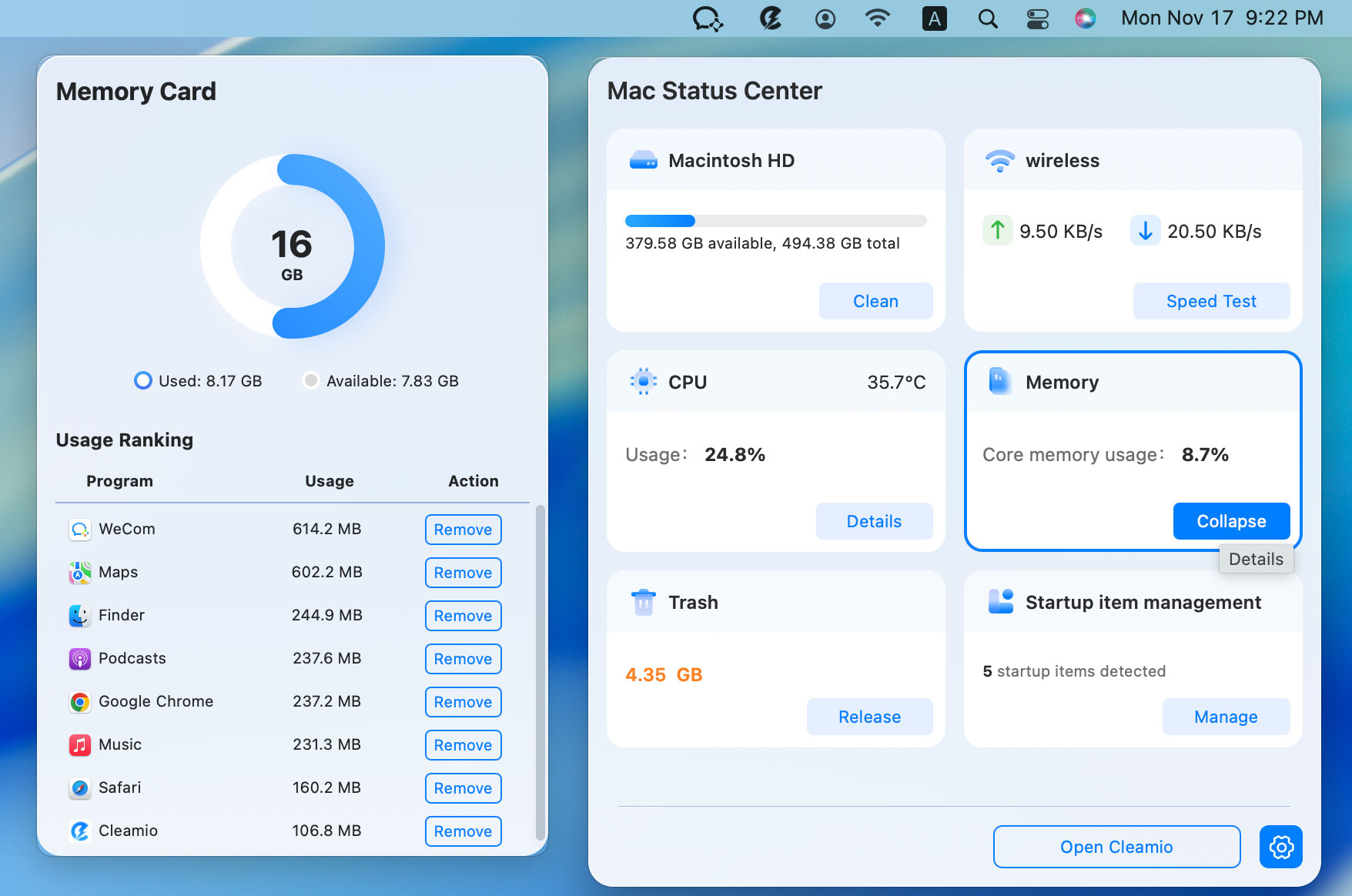
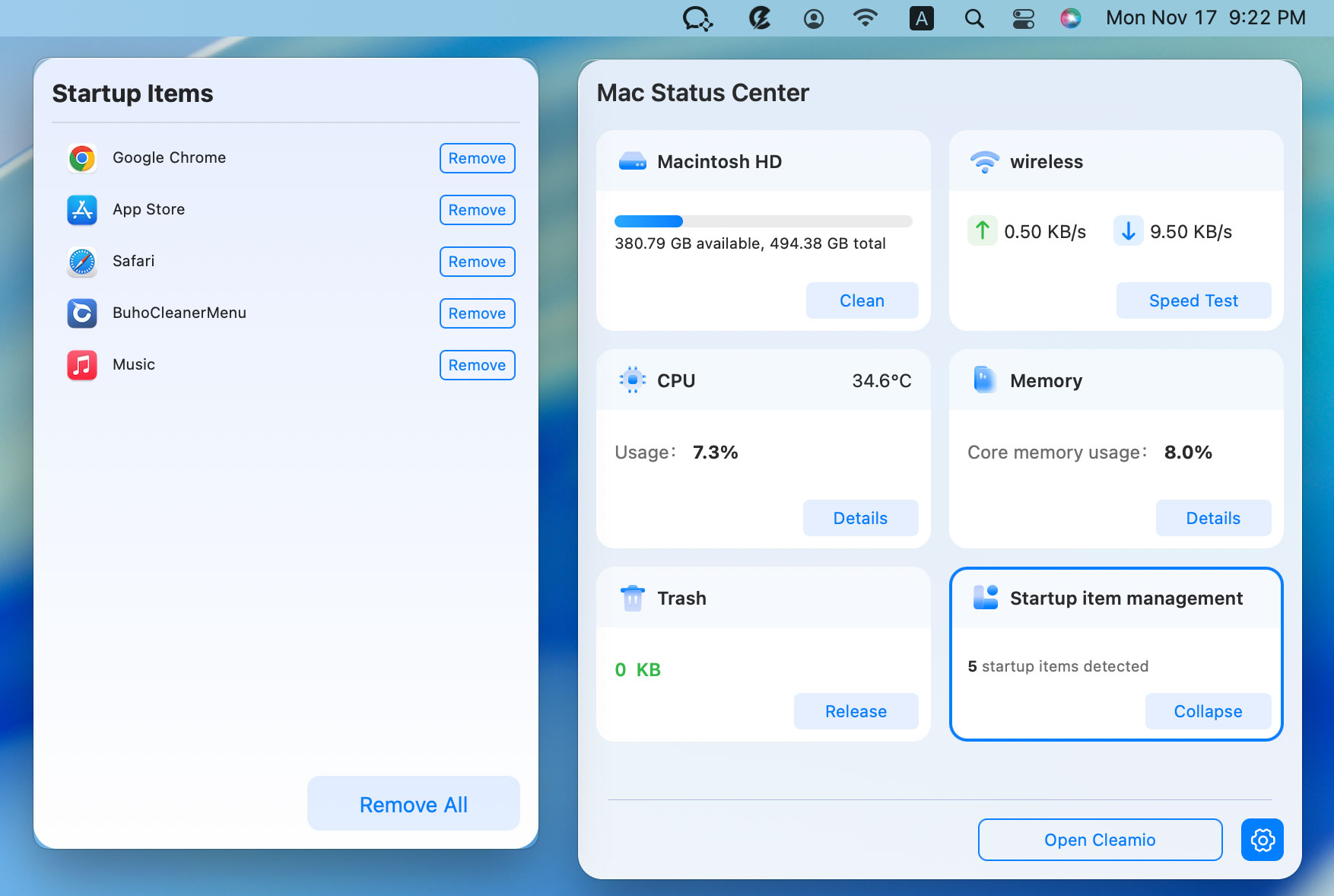
Open Cleamio Mac Status Center by clicking its menu bar icon and check
the status of your Mac performance (CPU, Memory, Trash,
Disk space usage analysis, startup items, network speed, etc.).
2.Take CPU and Memory for example: Monitor your RAM and CPU
usage and click the "Remove" button against processes to remove them and
boost your Mac's performance.
Similarly, you can monitor Trash, Disk Usage, and Memory with its clean
interface and remove/uninstall any unwanted app/file from your Mac to
boost its performance.
This approach removes the need to interpret raw Activity Monitor data or
manually close apps one by one.
FAQ about Mac Activity Monitor
Q1: What is the best Mac Activity Monitor alternative for iPhone?
iOS doesn’t support system-level monitoring like macOS, but apps like iStat
can remotely display Mac stats.
Q2: How to stop Activity Monitor on Mac?
Simply quit the Activity Monitor app; it doesn’t affect system processes.
Q3: How to find malware on Mac Activity Monitor?
Look for unfamiliar processes with high CPU usage, but dedicated security
tools are more reliable.
Q4: How to manage Activity Monitor on Mac?
Use sorting and filters, though third-party tools provide better usability.
Q5: What is swap used for in Activity Monitor?
Swap indicates disk space used as virtual memory when RAM is insufficient.
Q6: How to check Activity Monitor?
Open Activity Monitor using Spotlight or in Applications, then check
performance stats.
Conclusion
While macOS Activity Monitor provides basic insights, it lacks usability and
performance optimization features. A modern
Mac Activity Monitor alternative can offer clearer visuals, real-time
alerts, and even system cleanup.
Among all options in 2026, Tenorshare Cleamio stands out by combining
monitoring with one-click performance boosting. Hence, making it the most
practical choice for everyday Mac users who want speed, simplicity, and
stability.





 iOS Tips & Latest Updates
 Bug Fixes, Unlock Guides
 Giveaways & Freebies






By Jenefey Aaron
2026-09-28 / Mac Optimization