
 iOS Tips & Latest Updates
 Bug Fixes, Unlock Guides
 Giveaways & Freebies


Cleamio: All-in-One Mac Cleaner & Optimizer
Clean junk files, free up space, and boost Mac performance
No.1 Mac Cleaner & Optimizer
Clean, speed up, and optimize your Mac
Many Mac users notice that their system feels slow during startup which is reflected in automatic launch of apps, fans starting to spin more, and longer loading times. Users often search for how to stop apps from opening on startup Mac (even not in login items) and still feel confused after checking basic settings.
This guide explains what is really happening behind the scenes and shows practical ways to fix it. You will learn how to stop apps from opening on startup Mac using built-in tools and smarter system management.
If an app appears in Login Items, remove it from System Settings to stop apps from opening on startup Mac.
Quick Steps: Go to System Settings > General > Login Items & Extensions; Under Open at Login, select the app and click the - (minus) button to remove it.
If the app does not appear in Login Items, check Background Items in macOS or look for hidden startup services like Launch Agents.
Some applications can start right as soon as your system boots up. This can sometimes be necessary depending on what you require, but some apps can also be set to start up as default. Over time, these macOS startup apps can pile up and impact performance.
The impact of each app starting up can be different. Some developers make it easy for you to manage the behavior, but sometimes, it can be made complicated as the apps run in the background silently.
Understanding the different types of Mac programs that open on startup helps you choose the right fix. Common startup app types include:
Once you know which category an app belongs to, it becomes easier to remove it from the startup list safely.
Even if an app isn't listed in Login Items, it may still launch at startup. This often occurs because macOS permits apps to restore previous windows, run background services, or start silently via system-level permissions.
If you're trying to prevent apps from opening on startup on Mac, the issue typically lies in these hidden background behaviors rather than the visible login list.
Fortunately, adjusting a few key system settings can resolve this, allowing you to stop unwanted programs from running in the background and regain full control over apps that launch without permission.
Here are some ways to perform this:
When restarting or shutting down your Mac, macOS gives an option to reopen windows when logging back in. Apps left open during shutdown can automatically launch if this option is checked.
To disable: click the Apple menu → Restart or Shut Down → uncheck “Reopen windows when logging back in.
This prevents apps that were open during your last session from relaunching automatically.

macOS sometimes treats apps that are running during shutdown as approved startup apps. To prevent this:
Use Command + Q or right-click the app’s Dock icon > Quit or Force Quit.
Ensure no apps show a dot under their Dock icon (indicating they’re running) before shutting down.

Proper quitting ensures apps won’t reopen unintentionally on startup.
Background Items are services that run silently, even if the app is not listed in Login Items.
To manage them:
Open System Settings → General → Login Items → Allow in Background (or Background Items)
Review the list of apps running in the background and toggle off anything unnecessary.

This helps remove Mac startup programs that don’t appear in Login Items.
Many apps, especially cloud storage, messaging, or sync tools, have built-in auto-start settings. These override system rules.
○ Dropbox: Click the menu bar icon > Preferences > General > uncheck “Start Dropbox on system startup”.
○ Spotify: Settings > Advanced Settings > Startup and Window Behavior > select “No”.

Some apps install hidden scripts that run at startup, known as Launch Agents or Launch Daemons.
○ ~/Library/LaunchAgents/
○ /Library/LaunchAgents/
○ /Library/LaunchDaemons/
○ ~/Library/LaunchDaemons/
Look for .plist files related to the problematic app (e.g., containing “spotify,” “adobe,” etc.), move them to Trash.
Empty Trash and restart.


Do not touch anything inside /System/Library/.
Menu bar utilities (e.g., Bartender, Magnet, or cloud sync tools) often relaunch by design.
Click the menu bar icon > check for a “Launch at login” or Preferences option and disable it.
If the icon persists, you can Command-drag it off the menu bar (removes the icon but may not stop the process).
Combine with steps 3 and 4: disable in Background Items or app preferences.
For stubborn cloud services, turn off “Show menu bar icon” or background syncing in their settings.

These steps together cover most cases where users need to know how to stop applications from automatically opening on Mac even when Login Items are empty.
In Big Sur and Monterey, it was difficult to see all apps running in the background. However, with Ventura and onwards, the processes have become more visible and easier to control.
Many apps automatically start when you log in to your Mac, and the most obvious place to control them is Login Items. Learning how to stop applications from opening on startup Mac using this method is simple, safe, and effective. Below are two main ways to manage these startup programs.
When apps are listed in mac login items, macOS automatically opens them during startup. You can easily remove them without affecting app functionality.
Steps:
Open System Settings → go to General → Login Items.
Review the list of apps under Open at Login.
Select the apps you no longer want to launch automatically.
Click “-” (Remove) to delete them from Login Items.

When to use:
Some apps add themselves to startup directly via the Dock. You can disable them without going into System Settings.
Steps:
Locate the app icon in the Dock.
Right-click the icon → select Options → uncheck “Open at Login.”

When to use:
These two methods work best for visible startup apps and give you direct control over Mac login items without touching deeper system files.
However, it is important to know that if you have Big Sur and Monterey, not all items show up in the login list. This can prove to be troublesome as you may not be able to find all programs, but with the help of other applications, you can gain control of them.
Manually checking settings across macOS can be time-consuming, especially when multiple background services are involved. This is where a dedicated cleanup tool becomes useful for long-term startup control.
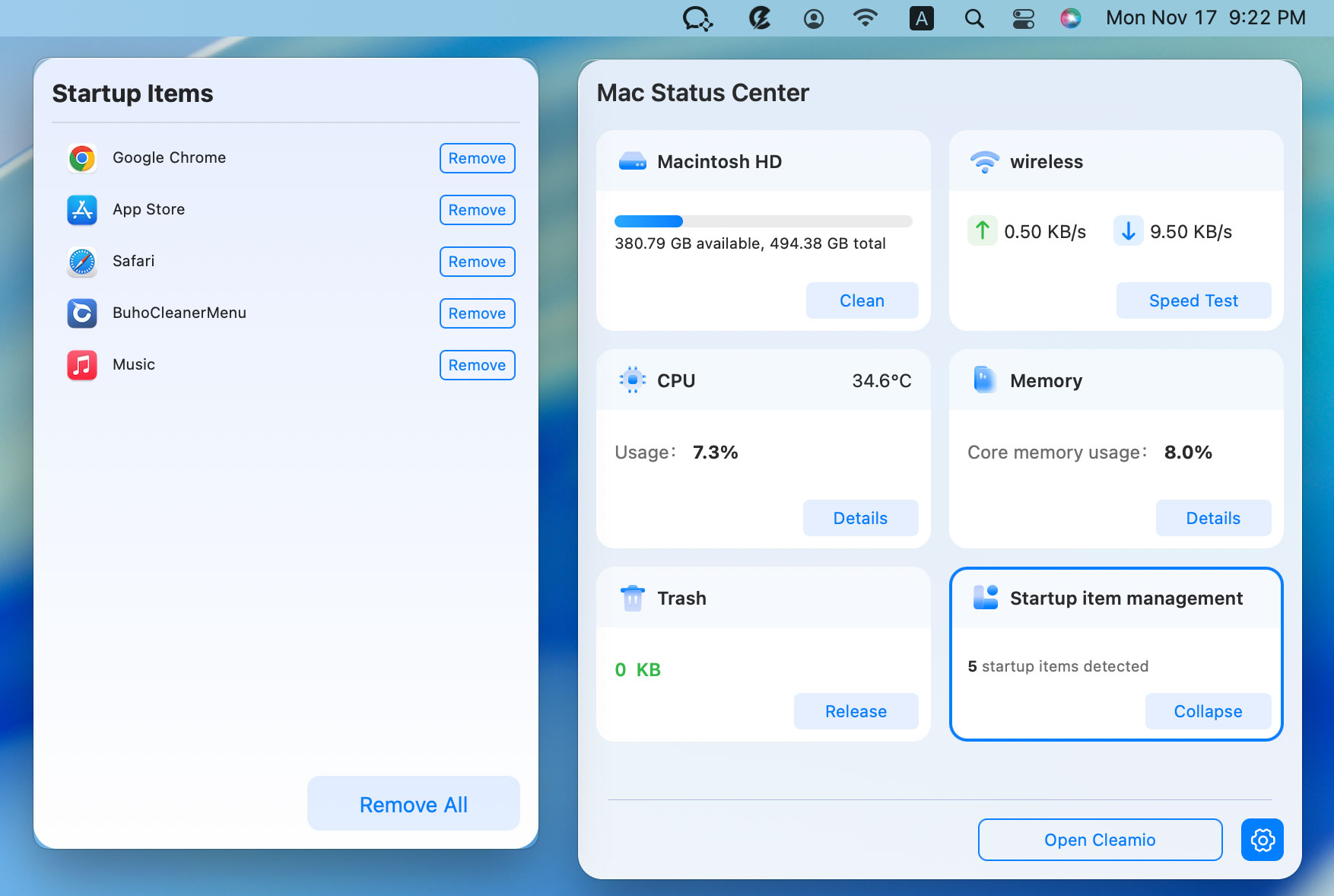
Tenorshare Cleamio includes a Startup Item Management feature inside its Mac Status Center. It scans your system and shows all startup-related items, including hidden background services. This simplifies stop apps from opening on startup Mac into one clear view.
With Cleamio, you can:
Detect all startup and background items automatically
Disable or remove them with one click
Avoid risky manual folder edits

Steps to Manage Startup Items on Mac Using Cleamio:
Install and open Tenorshare Cleamio on your Mac. Then click on the Cleamio logo at the top-right corner.

When the Mac Status Center opens, tap on the “Startup item management” module and click “Remove” or “Remove All” button to stop applications from opening on startup Mac in one click.
A. This usually happens because macOS is reopening previous windows or apps have background permissions enabled. Adjusting these settings helps how to prevent apps from opening on startup Mac.
A. You can manage startup apps through Login Items, Background Items, and app preferences. A management tool can also simplify this process.
A. Review Login Items first, then background services. This approach gives full control over how to stop applications from automatically opening on Mac.
A. Disable auto-launch in Word’s preferences and remove it from Login Items if listed.
A. Turn off startup options inside the EA app and check Background Items.
A. If it opens every login, it’s a startup item. If it opens only after restart, it’s likely reopening windows.
A. Hidden Launch Agents or background services may still be active. Removing them solves most cases.
Startup apps can quietly slow down your Mac and affect daily performance. Knowing how to stop apps from opening on startup Mac (even not in login items) can help your Mac perform better and allow you control over what runs in your system.
By taking small steps to configure your macOS settings properly, or using a convenient solution like Tenorshare Cleamio, you can ensure that no unwanted apps launch on start, giving you a smoother experience.


then write your review
Leave a Comment
Create your review for Tenorshare articles
 Cleamio
All-in-One Mac Cleaner & Optimizer
Share this post


Cleamio: All-in-One Mac Cleaner & Optimizer
Clean junk files, free up space, and boost Mac performance
No.1 Mac Cleaner & Optimizer
Clean, speed up, and optimize your Mac
By Jenefey Aaron
2026-09-28 / Mac Tips