If you're switching from Windows or trying to manage slow or frozen apps on a
MacBook Pro or MacBook Air, one question often arises:
how to open the Task Manager on a Mac. macOS doesn’t label it the same
way Windows does, but it offers a powerful equivalent for monitoring
performance and ending unresponsive apps. This guide explains the Mac task
manager equivalent, shortcuts, and better alternatives for 2026.
Part 1. What Is the Task Manager for Mac (Task Manager Equivalent for Mac)?
The Mac task manager equivalent is Activity Monitor. It is a built-in macOS
utility that allows users to view running processes, monitor system resource
usage, and
force quit applications
that are frozen or consuming too many resources. Activity Monitor performs
many of the same functions as Windows Task Manager, including:
Viewing active applications and background processes
For users asking, “Is there a task manager equivalent for Mac?”, Activity
Monitor is the direct answer.
macOS Activity Monitor vs Windows Task Manager
While Activity Monitor and Windows Task Manager serve similar purposes,
their interfaces and depth of control differ.
Please swipe to view
Feature
macOS Activity Monitor
Windows Task Manager
Force Quit / End Task
Yes
Yes
CPU Monitoring
Yes (Detailed)
Yes
Memory Monitoring
Yes (Includes swap & pressure)
Yes
Disk & Network Usage
Yes
Yes
Energy / Battery Impact
Yes (Energy tab)
Limited
Advanced Process Control
Moderate
Moderate
Ease of Use
Medium (technical terms)
Beginner-friendly
Extra Features
System diagnostics
Startup impact
Activity Monitor provides deeper insights into system health, but many users
find it less intuitive than Windows Task Manager, which is why Activity Monitor alternatives
are increasingly popular.
Part 2. How to Open Task Manager (Activity Monitor) in Mac: 5 Methods
There are several ways to access Activity Monitor depending on your workflow
preference.
Method 1: Using Spotlight Search (Fastest, Recommended)
This is the quickest and most commonly used method.
Press “Command + Space” to open Spotlight Search.
Type “Activity Monitor” and open it by pressing “Return”.
Method 2: Via Finder
Useful if you prefer navigating through folders.
Open Finder and go to “Applications.
Open the “Utilities” folder and open Activity Monitor.
Open Launchpad (renamed to Apps in macOS Tahoe update) from the Dock
Open the Other folder and click Activity Monitor
Method 4: Add to Dock for One-Click Access
This method is best for users who frequently use Activity Monitor.
Open "Activity Monitor" with any of the above methods and right-click
its dock icon.
Go to "Options" and click "Keep in Dock."
Method 5: Using Siri or Terminal (for Tech Savvy)
If you are still wondering where the task manager or Mac is, you can ask
Siri to open it by saying, "Siri, Open Activity Monitor. For the terminal,
follow the steps below:
Open Terminal and type the command: open -a "Activity Monitor".
Press Return to run the command and open it.
Part 3. Mac Task Manager Shortcuts You Need to Know (Hotkeys & Quick
Access)
Keyboard shortcuts are essential for fast system control.
1. Force Quit Shortcut - The Mac Equivalent of Ctrl+Alt+Delete (Quickest Mac
Task Manager Shortcut)
When to use: To force quit a frozen application immediately.
Steps:
Press the shortcut on your keyboard
Select the frozen app and click “Force Quit."
2. Open Activity Monitor Fast with Keyboard: Spotlight Search Shortcut
Shortcut: Command + Space, then type Activity Monitor
When to use: The fastest way to open the Mac task manager equivalent.
3. Other Useful Shortcuts
Please swipe to view
Action
Shortcut
Quit the active app
Command + Q
Hide app
Command + H
Switch apps
Command + Tab
Force quit the current app
Command + Option + Shift + Esc
4. Pro Tip: Create a Custom Keyboard Shortcut for Activity Monitor
Some users need to create an activity monitor Mac shortcut, but don't know
how to do it. So, this pro tip explains how you can do it effectively:
Go to System Settings, then "Keyboard" and open "Keyboard Shortcuts."
Select “App Shortcuts” to add a shortcut for Activity Monitor.
Assign a custom key combination that you want
Part 4. How to Use Activity Monitor Like a Pro
Activity Monitor contains five main tabs:
CPU Tab: Shows real-time CPU usage by each process. Ideal for
identifying apps causing system slowdown.
Memory Tab: Displays RAM usage, memory pressure, and swap usage.
Critical for diagnosing performance issues.
Energy Tab: Shows energy impact, especially useful for MacBook
users concerned about battery life.
Disk Tab: Tracks read/write activity and identifies disk-intensive
processes.
Network Tab: Monitors data sent and received by applications.
Learning to read these tabs helps you manage performance proactively rather
than reactively.
Part 5. Best Mac Task Manager Alternative in 2026 & How to Force Quit
Apps with It (More Portable & Powerful)
If you want to force quit apps with the easiest experience and most
efficient usage, here is all you need to know as follows. If you wanna know
more equivalents, please check:
7 Best Mac Activity Monitor Alternatives in 2026.
Tool Used: Tenorshare Cleamio
While Activity Monitor is powerful, it's not always user-friendly.
Tenorshare Cleamio
provides a modern Mac task manager alternative with simplified controls and
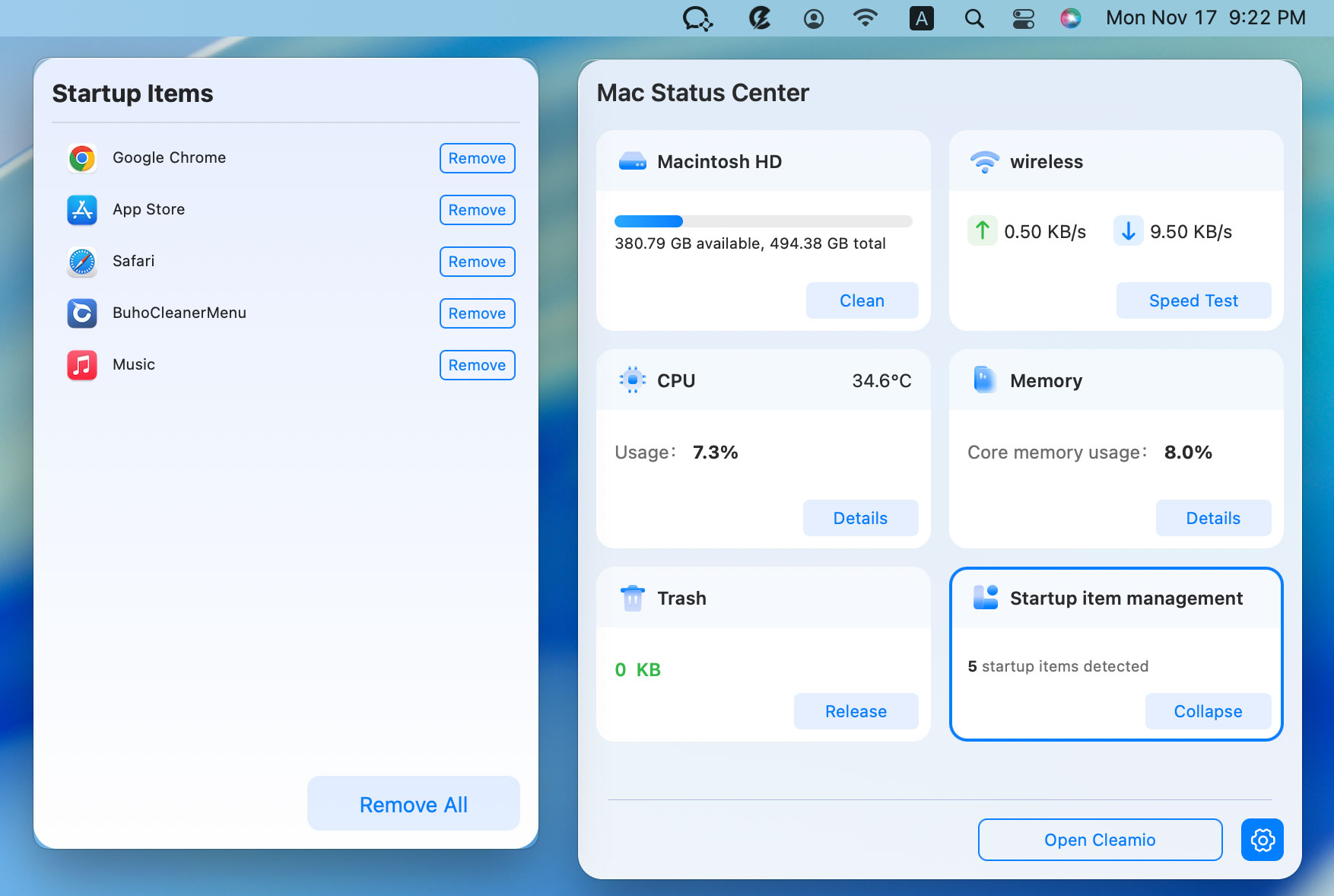
built-in system optimization tools. It features a Mac Status Center for
real-time monitoring of CPU, memory, disk, startup apps, and storage, plus
one-click force quit for problematic apps.
Its intuitive interface allows instant CPU and memory release, making it
ideal for beginners to optimize and
debloat macOS. Cleamio also includes extras like junk cleanup, duplicate and large file
removal, batch file renaming, complete app uninstallation with leftover
cleanup, and application updates. Perfect for users seeking combined
monitoring and performance optimization in one easy-to-use app.
How to Force Quit Apps on Mac Using Cleamio
After installing
Cleamio
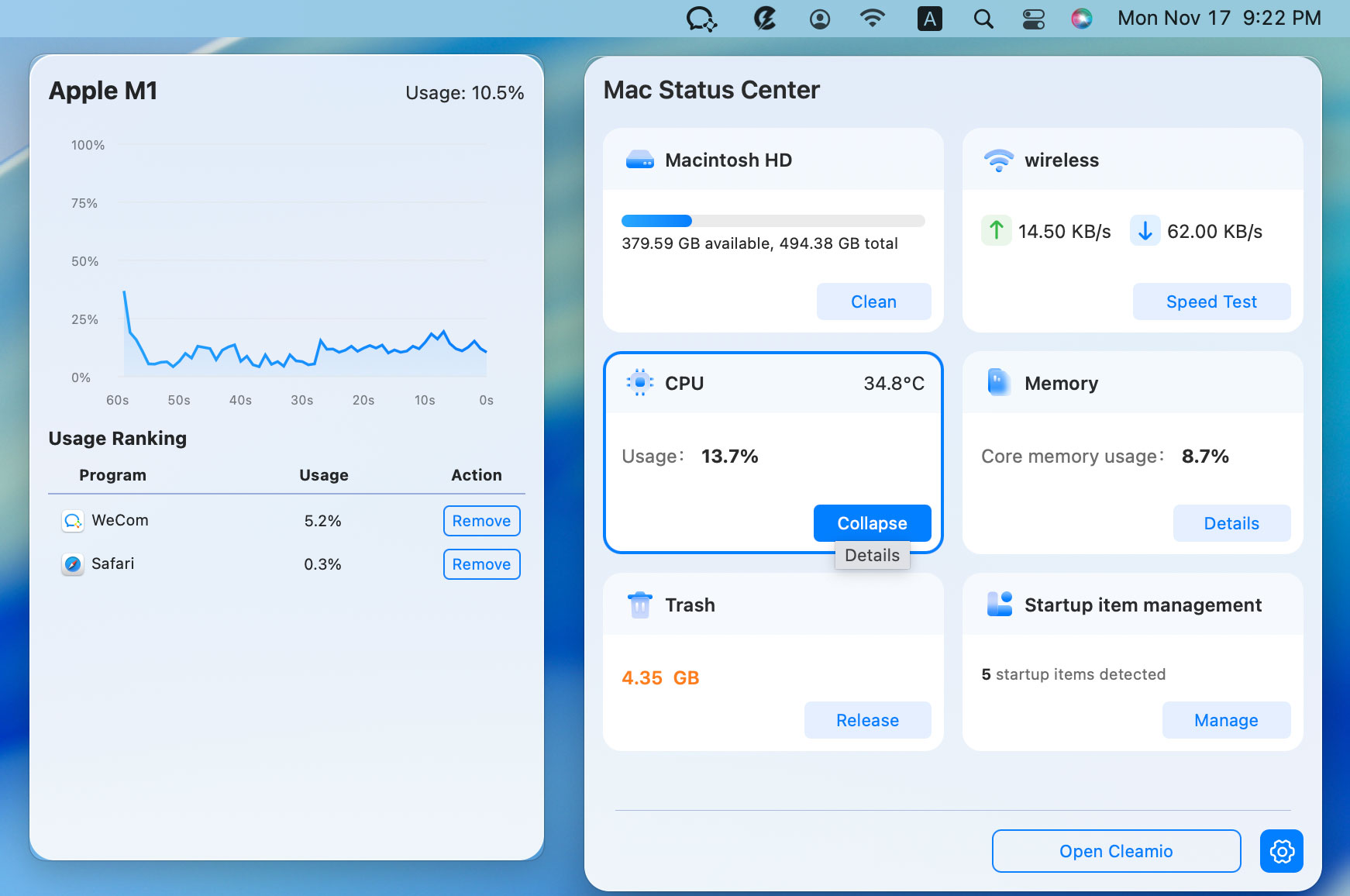
on your Mac, click its status-bar icon and click “Details” on “Memory”
or “CPU” sections.
Click "Remove" on the apps taking too much memory to quit them, and
click "OK" to confirm.
Likewise, choose relevant module like “CPU, “Memory”, “Network”, or
“Trash”, you can release CPU and memory usage, check network speed, and
free up Trash.
People Also Ask about Mac Task Manager
Q1: Is there a task manager equivalent for Mac?
Yes. Activity Monitor is the built-in Mac task manager equivalent.
Q2: What is the Apple equivalent of Ctrl+Alt+Delete?
Command + Option + Esc opens the Force Quit window.
Q3: What is the Mac version of Alt F4?
Command + Q quits the active app.
Q4: How to end the task manager on Mac?
Quit Activity Monitor like any other application using Command + Q.
Conclusion
Understanding how to open Task Manager on Mac, use the right Mac task
manager shortcut, and manage system resources effectively is essential for
smooth performance. While Activity Monitor is the default Mac task manager
equivalent, it can feel complex for everyday users.
For a simpler, more powerful solution that combines monitoring, cleanup, and
force quitting in one place, Tenorshare Cleamio is the recommended
choice for 2026.




 iOS Tips & Latest Updates
 Bug Fixes, Unlock Guides
 Giveaways & Freebies






By Jenefey Aaron
2026-09-28 / Mac Tips