Apps freezing on macOS is frustrating, especially when clicks stop responding,
and the spinning beach ball won’t go away. Knowing
how to force quit an app on Mac can save you time, prevent system
slowdowns, and avoid unnecessary restarts.
Whether you’re using a MacBook Air, MacBook Pro, iMac, or Mac mini, this guide
walks you through every effective method. Here we will explain everything from
instant keyboard shortcuts to advanced fixes when nothing seems to work.
Part 1. The Fastest Way: Force Quit App on Mac Using Keyboard Shortcut
(Quick Answer)
When speed matters, built-in Mac force close shortcuts are the most reliable
way to force close a frozen app. This works instantly on all Mac models
(including Intel and Apple Silicon like M1/M2/M3/M4) and doesn't require
clicking through menus.
Activity Monitor is macOS’s built-in tool for monitoring and controlling
running processes. Activity Monitor shows all running apps, background
services, CPU usage, memory consumption, and stuck processes.
Steps:
You can force quit a frozen app on a Mac with the steps below.
Press “Cmd + Space” and search for “Activity Monitor," then open it.
Find the frozen app or process.
Select it and click the “X” button at the top and choose “Force Quit.”
When to Use
App runs in the background
App keeps relaunching
System feels slow but responsive
Limitations: It can be overwhelming for beginners; Doesn’t always
stop relaunching services.
Part 3. How to Force Quick Multiple/Unresponsive Apps on Mac Using Terminal
(Advanced Tips)
When multiple apps freeze, or macOS ignores standard commands, Terminal
gives you direct system-level control. Terminal bypasses the user interface
and kills the processes directly. Here is how to force quit all apps on Mac
with Terminal:
Press "Command + Space" and search for "Terminal," then open it.
Run the command “killall[AppName]" followed by the name
of the app (e.g., killall Safari).
Part 4. Can't Force Quit an App on Mac? Follow This Fix Order!
Sometimes force quit fails. Follow this order to regain control.
1. Restart Your Mac Properly
Restart your Mac using the Apple Menu “Restart” option. If your Mac is
completely unresponsive, you may hold the power button to restart it.
2. Kill All App Processes Using Tenorshare Cleamio
Are you also wondering why you can't force-quit an app on a Mac? The chances
are that the built-in methods are failing again and again. When built-in
tools fail,
Tenorshare Cleamio
offers the simplest and safest solution. It offers a simple solution to quit
any stubborn applications or processes, and also works on hidden background
processes and services.
With Cleamio, you can prevent apps from starting again automatically, and it
does not require you to go through the complex terminal commands.
How to use Teorshare Cleamio
Download and install the
Cleamio app
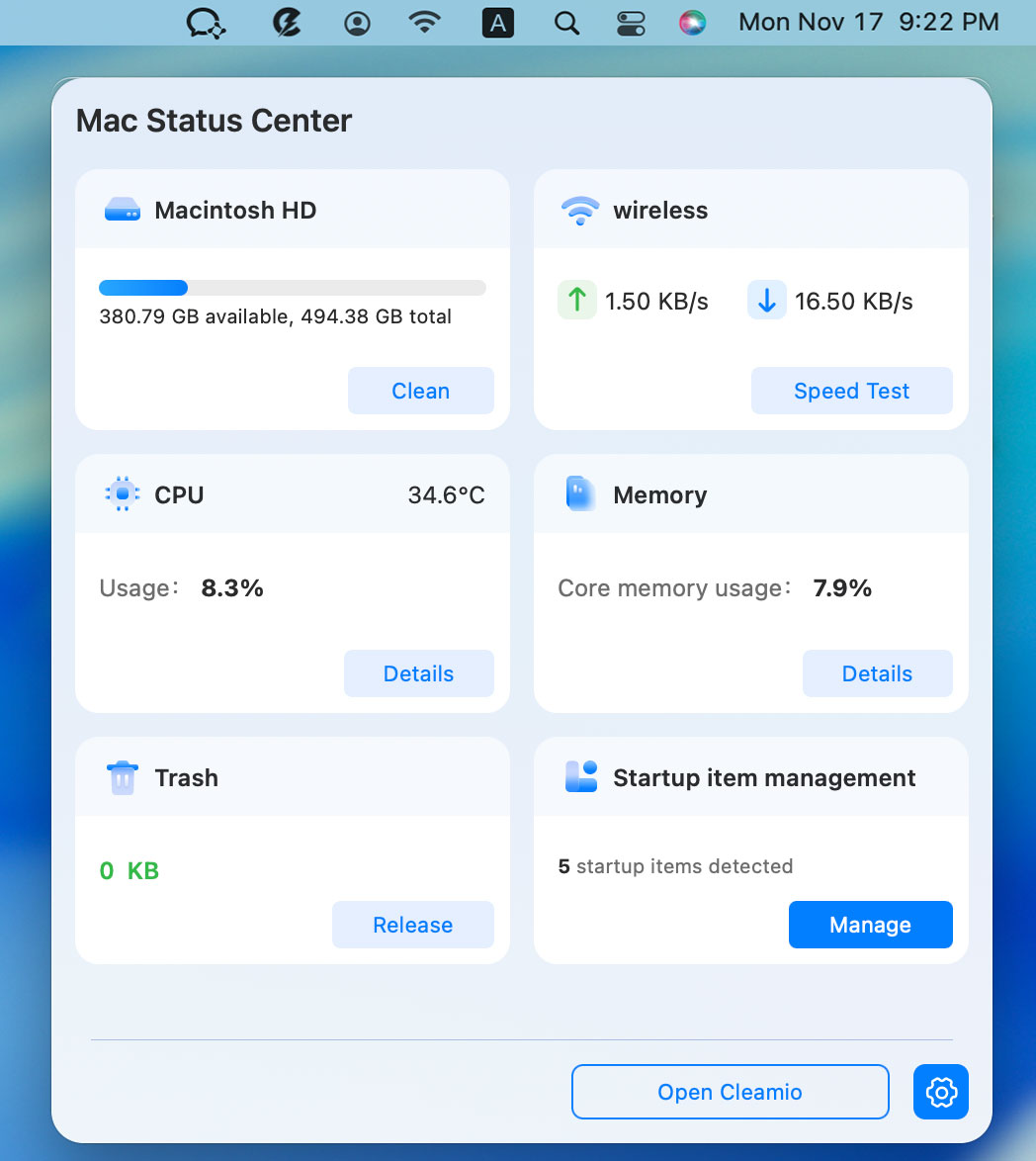
on your Mac and launch it. Then tap on the top-right Cleamio logo
to launch its Mac Status Center.
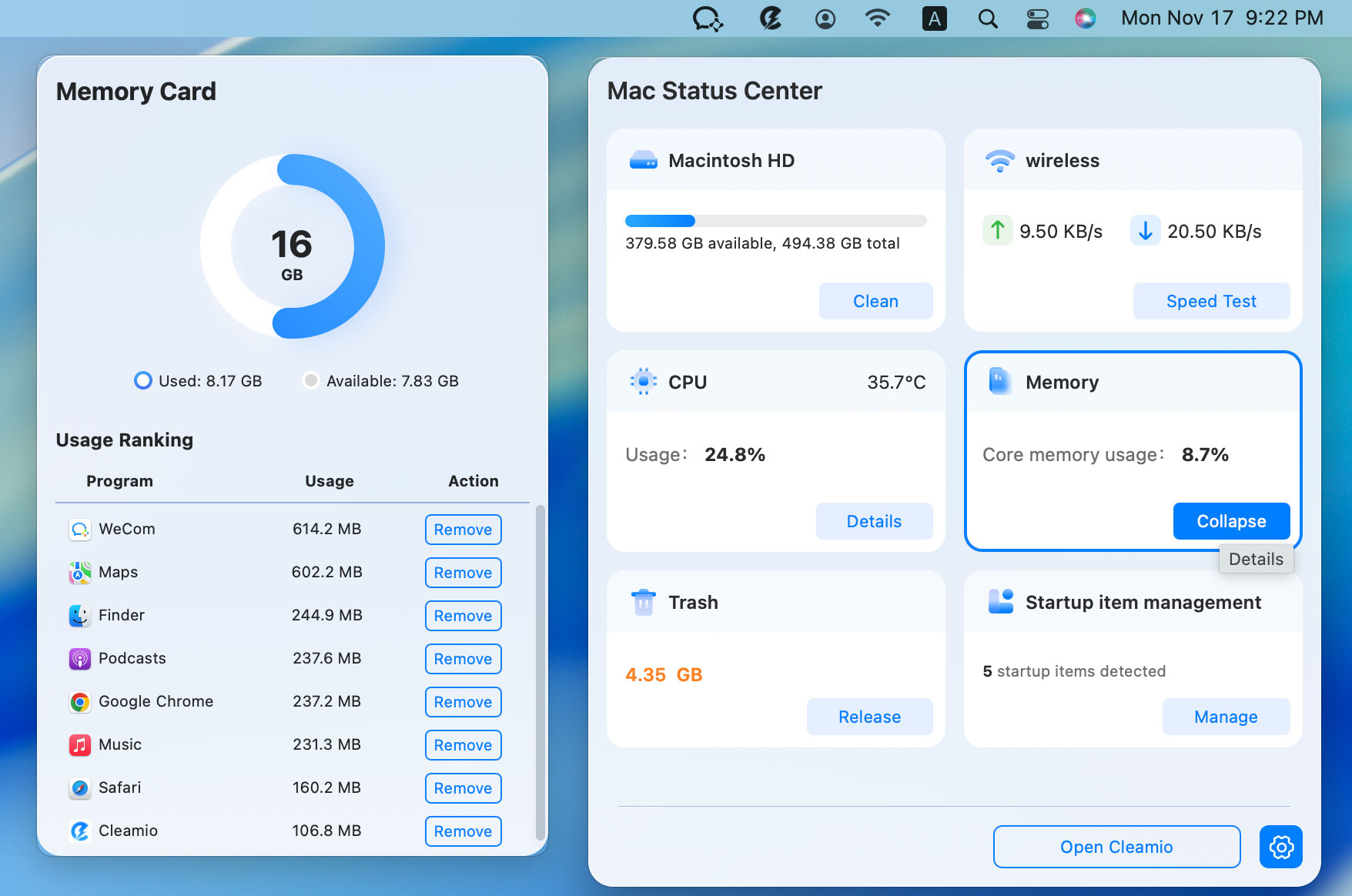
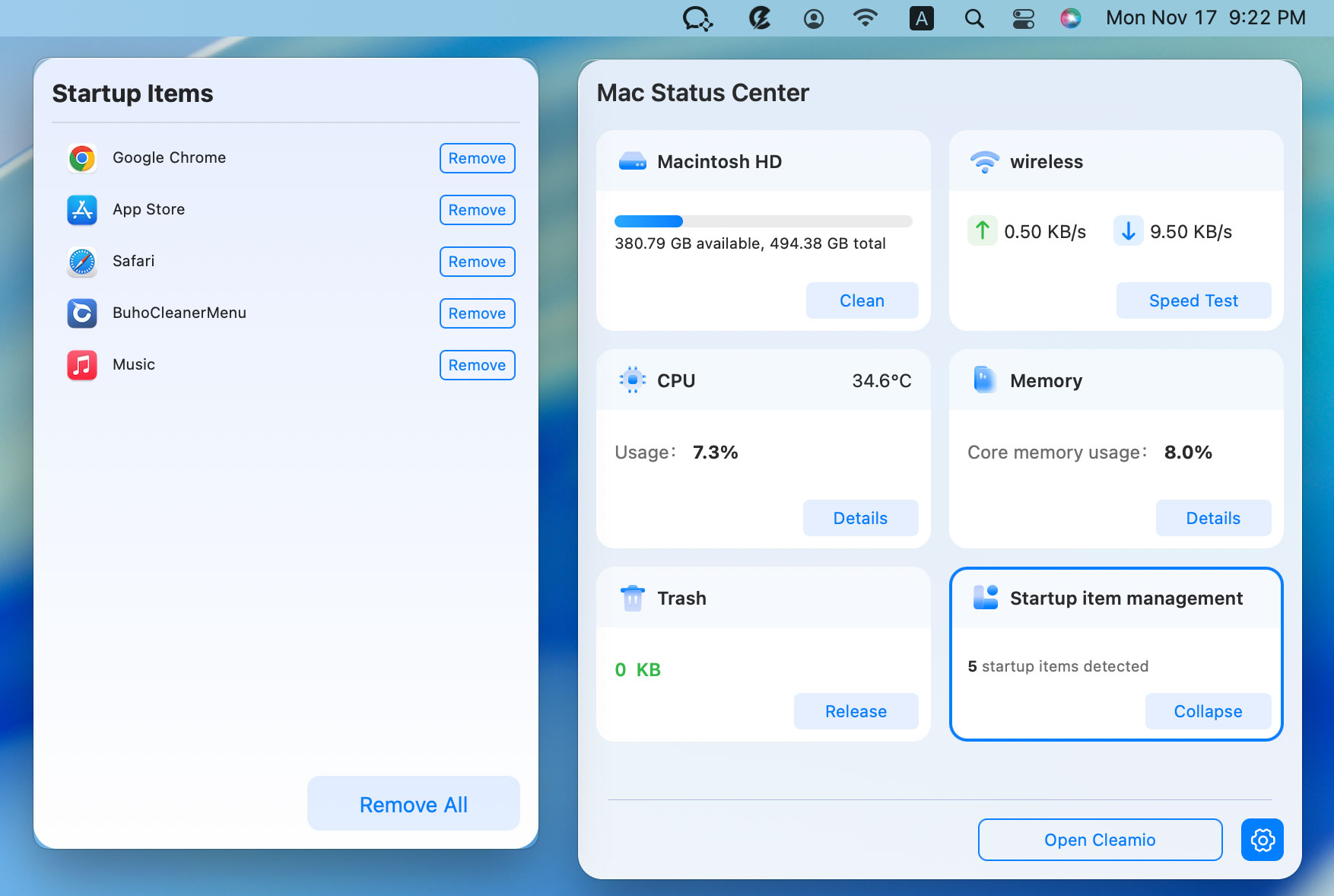
Click on the “CPU”, “Memory” or “Startup item management” section and
click “Remove” or “Remove All” to force quit process.
Fore CPU and Memory
For Startup Item Management
3. Use Activity Monitor to Diagnose Stuck or Relaunching Processes (Mac's
Built-in Task Manager)
Activity Monitor is the Mac version of the task manager that shows all
running processes and their resource usage. Using it can help you diagnose
stuck programs or relaunch processes on your Mac. You will need to use it
when you see the abnormal signs listed below, and you are unable to force
close the app normally.
Unusual energy impact or relaunching after quitting.
What to Do (Same Steps as Way 2)
Force quit all related processes to that specific app or service by
selecting the app in Activity Monitor, pressing the "X" button at the
top, and then choosing "Force Close."
Disable auto-launch in System Settings and search for "Login Items",
then disable the specific app.
4. Boot into Safe Mode
Safe Mode loads macOS with minimal services. Here is how to force quit an
application on a Mac that keeps popping up with the Safe Mode method:
Shut down your Mac and power it on by holding the "Power Button."
Select “Startup Disk” and hold the “Shift Key” then click "Continue in
Safe Mode."
Part 5. How to Prevent Frozen Apps on Mac and Close Apps Properly
Prevention saves time and protects system stability.
Keep macOS updated
Avoid running too many heavy apps
Close apps normally with the Command + Q shortcut
Remove unused or buggy software
Use Cleamio to monitor startup items
People Also Ask about Force-Closing an App on Mac
Q1: Is it bad to force-quit apps on a Mac?
If you have unsaved work on that app, then force quitting will not save it,
but if the app is making the Mac stuck, then it is the right thing to do.
Q2: What happens when you force-quit an app on a Mac?
The app closes immediately without saving progress. Force quitting
immediately ends the processes, and it helps if the app was making your Mac
unresponsive.
Q3: What to do if the force-quit application on Mac keeps popping up?
It usually indicates background services. You can use tools like Cleamio to
stop them permanently.
Q4: How do I close running apps on my Mac?
Use Cmd + Q to quit apps that are open in the interface or Activity Monitor
for background apps.
Q5: Why can't I force quit an app on Mac?
System-level processes or corrupted services may block you from
force-quitting an app on a Mac.
Conclusion
Knowing how to force quit an app on a Mac gives you control when apps
freeze, lag, or refuse to close. From keyboard shortcuts to Activity Monitor
and Terminal, macOS offers multiple solutions.
When those methods fail, or apps keep relaunching,
Tenorshare Cleamio provides a cleaner, safer, and faster way to stop
stubborn apps for good, without technical hassle.





 iOS Tips & Latest Updates
 Bug Fixes, Unlock Guides
 Giveaways & Freebies






By Jenefey Aaron
2026-09-28 / Mac Tips