
 iOS Tips & Latest Updates
 Bug Fixes, Unlock Guides
 Giveaways & Freebies


UltData - Best iPhone Data Recovery Tool
Recover Deleted & Lost Data from iOS Devices Easily, No Backup Needed!
UltData: Best iPhone Recovery Tool
Recover Lost iPhone Data without Backup
Need to recover lost data after iOS 27 upgrade? If photos, messages, contacts, notes, or documents are missing after updating, the cause may be iCloud sync issues, indexing delays, or an interrupted update.
Fortunately, missing data is not always permanently lost. This guide explains why data disappears and shows the most effective ways to recover it, with or without a backup.
Before attempting iOS 27 data recovery, it's important to determine whether your data is actually deleted or simply not visible.
Many users assume the update erased their files when the data is actually still stored on the device or in iCloud. Common indicators include:
After upgrading, iCloud may need time to synchronize photos, messages, contacts, and notes. Depending on your internet connection and data volume, synchronization can take several hours.
Following a major iOS update, the system rebuilds internal databases and search indexes. During this process, photos, notes, or messages may temporarily disappear from search results or apps.
If your device signs out of iCloud during the update or encounters an authentication problem, your synced data may stop appearing until you sign back in.
Photos may be moved into Hidden Albums, while notes or files may appear under different folders after the upgrade.
Some situations suggest the data may no longer exist on the device.
If the same photos, messages, or contacts are missing from every device connected to your Apple ID, the data may have been deleted or removed from iCloud.
If neither iCloud nor local backups contain the missing information, recovery becomes more challenging.
When deleted items are no longer available in Recently Deleted folders, they may have exceeded the retention period or been permanently removed.
After an iOS 27 update, the system may spend time rebuilding databases and search indexes. As a result, photos, messages, notes, or search results may temporarily disappear before reappearing once the process is finished.
iCloud synchronization issues are one of the most common reasons for iPhone and iPad data missing after iOS 27. Problems such as unstable network connections, Apple ID sign-in errors, low iCloud storage, or sync conflicts between devices can prevent data from displaying correctly.
In many cases, the data still exists in iCloud but appears temporarily missing on the device.
If the update process is interrupted by:
some local data may become corrupted or inaccessible.
iOS automatically manages storage to free up space, which may remove local photo copies, delete downloaded files, or clear cached app data. This optimization can sometimes be mistaken for permanent data loss.
Photos and videos are often the most valuable data affected after an iOS 27 upgrade. Users may lose recent photos, downloaded videos, screenshots, or entire albums if files are accidentally deleted during the update process or if photo libraries become corrupted.
Text messages and iMessage conversations may be lost after an upgrade, especially when message databases are damaged or overwritten. This can include chat history, attachments, and important personal or business conversations.
Contact information may be lost if account data becomes corrupted or if sync errors remove records during the update. Missing data may include phone numbers, email addresses, and contact groups.
Notes may be affected when database issues occur during an update. Users may lose text notes, attachments, scanned files, or other stored content.
Documents and app data can also be affected after an iOS 27 update. This includes PDFs, downloads, app content, game progress, and files stored within third-party apps.
Before using advanced recovery solutions, check Apple's built-in Recently Deleted folders. Photos, notes, and files that appear lost after an iOS 27 update may still be stored there temporarily. Open the corresponding app and look for the Recently Deleted section to restore any missing content.
Since Apple usually retains deleted items for up to 30 days, this simple check is often the fastest way to recover lost data after iOS 27 upgrade without using a backup or third-party recovery tool.
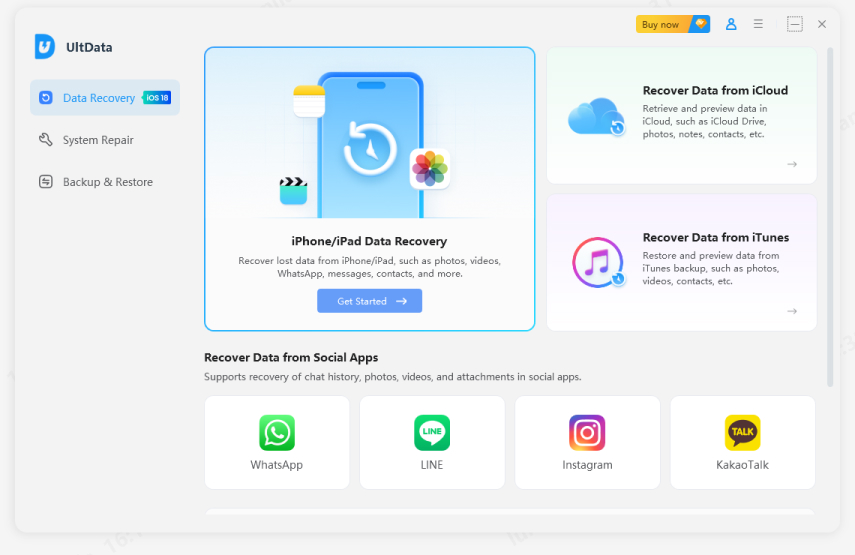
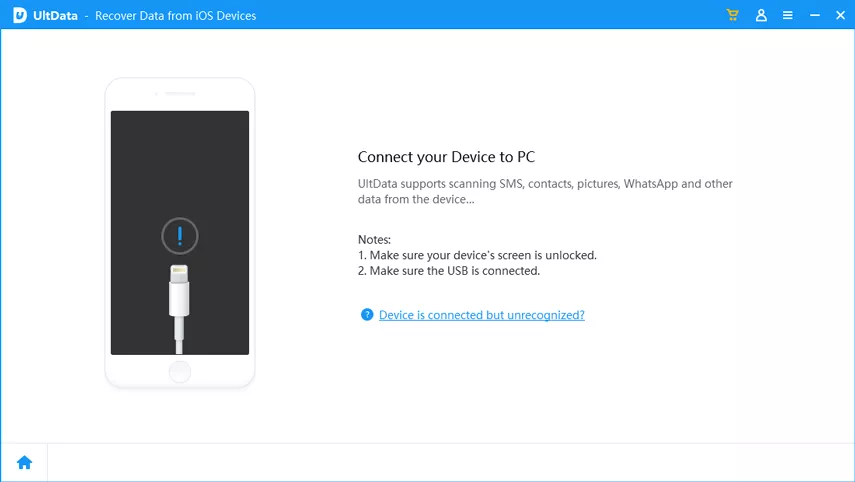
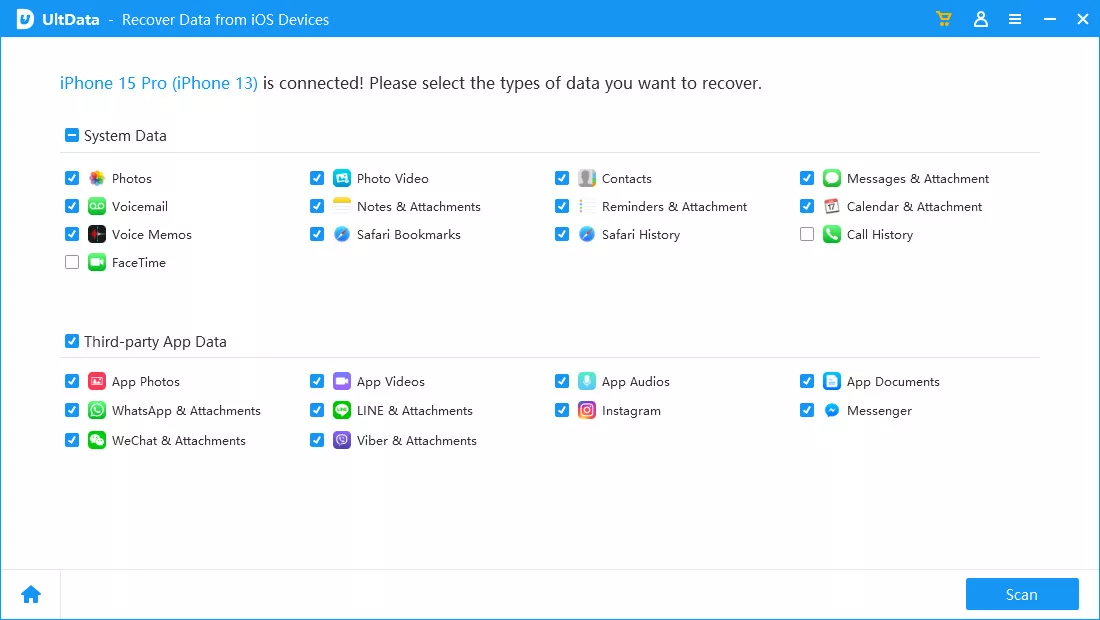
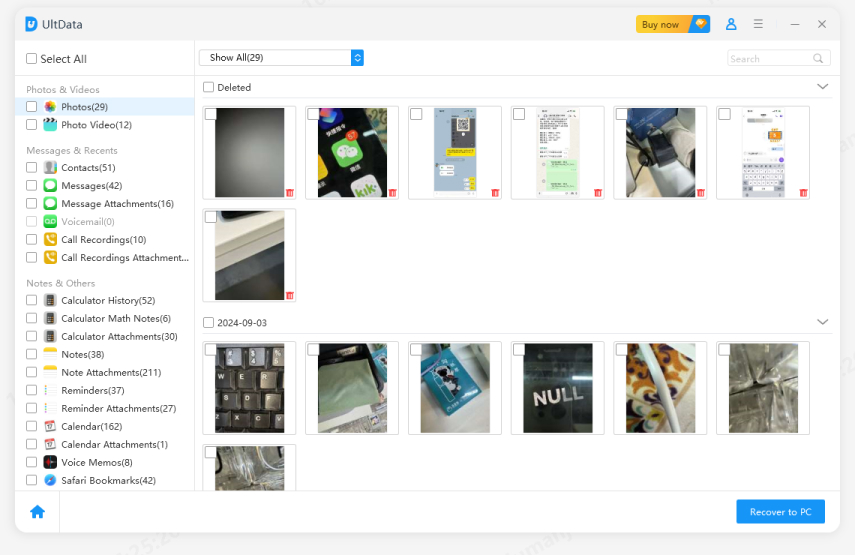
If you do not have an iCloud or iTunes backup, a professional recovery solution may help recover lost data after iOS 27 without backup.
Tenorshare UltData can scan your device for recoverable information, including:
This makes it useful for users seeking iOS 27 data recovery after accidental deletion or failed updates.




If iCloud Backup or iCloud synchronization was enabled before the upgrade, you may be able to recover lost data from iCloud after iOS 27.

This is one of the most reliable ways to recover lost data after iOS 27 upgrade when a backup is available.


If your device is already set up, you must erase it before restoring a backup. This removes all existing data and restarts the device to the Hello screen.

If your iPhone or iPad data is missing after iOS 27 update, don't panic. Many cases are caused by sync issues or temporary system processes rather than permanent data loss.
To recover lost data after iOS 27 upgrade, start by checking Recently Deleted folders, iCloud, and available backups. If no backup exists, tools like UltData may help recover missing data after iOS 27 and get your important files back.


then write your review
Leave a Comment
Create your review for Tenorshare articles

Share this post


UltData - Best iPhone Data Recovery Tool
Recover Deleted & Lost Data from iOS Devices Easily, No Backup Needed!
UltData: Best iPhone Recovery Tool
Recover Lost iPhone Data without Backup
By Jenefey Aaron
2026-09-28 / iOS Data Recovery