

 iOS Tips & Latest Updates
 Bug Fixes, Unlock Guides
 Giveaways & Freebies

UltData - Best iPhone Data Recovery Tool
Recover Deleted & Lost Data from iOS Devices Easily, No Backup Needed!
UltData: Best iPhone Recovery Tool
Recover Lost iPhone Data without Backup
It might feel like a total nightmare losing a multi-track session or songs. As you might have put a lot of effort into creating that song. If you accidentally remove a track, learning how to recover deleted files from GarageBand on iPhone might save you from re-recording everything from the word go.
The good thing is that you can get your work back by using GarageBand's built-in browser, iCloud and the iOS Files app. If native options do not restore your files, desktop software like Tenorshare UltData can scan your phone and backups for additional recovery options.

GarageBand projects (.band files) and exported audio mixes (like .m4a, .wav, or .aiff) live in Apple's file system or your iCloud account. By default, GarageBand saves your active working files inside a dedicated GarageBand folder, which you can find under either On My iPhone or iCloud Drive in the Files app.
Knowing where your files are kept makes it much easier to recover GarageBand files when something goes missing. Standard audio bounces and full multi-track project folders are handled differently, so knowing which type of file you lost helps you choose the right approach to recover it.
Before installing any recovery tools on your computer, check your iPhone's built-in options. Apple provides a few safe places where recently removed files hang around before they disappear permanently.

If you deleted a project file or exported a song from the Files app, iOS keeps it in a temporary folder for 30 days before deleting it forever.

If you turned on iCloud sync for GarageBand, your deleted files might still be stored in cloud backups:

If you delete a synced file, it will be removed from all your connected devices, so check iCloud as soon as possible.
If you regularly back up your iPhone to iCloud or your computer via iTunes or Finder, you can restore your phone to a point in time when your songs were still there.
iCloud Backup
Go to Settings General, Transfer or Reset iPhone Erase All Content and Settings. During setup, choose Restore from iCloud Backup.
Computer Backup
Plug your iPhone into your computer, open Finder (or iTunes), choose your device, and click Restore Backup...

Warning
Performing a full system restore replaces everything currently on your phone with the contents of your backup. Make sure your current personal data is saved before restoring.
If Apple's standard steps do not restore your songs, or if you want to avoid wiping your iPhone to restore an old backup, third-party software can help. Tenorshare UltData is a desktop recovery tool that scans your iPhone's storage and backup files directly without wiping your phone.


Tenorshare UltData provides a straightforward way to search for lost files when built-in options fall short:
Multiple Scan Modes
It can scan your iPhone directly, inspect local iTunes/Finder backups, or retrieve backed-up items from iCloud.
Selective Recovery
You can preview files before recovering them, which means you don't have to perform a full device restore just to get one file back.
Safe and Read-Only
The program scans your files without altering or overwriting your phone's current data.
Wide Compatibility
It supports recent iOS versions and modern iPhone models.
Follow these steps from the UltData iOS Recovery Guide to check your phone for missing data:
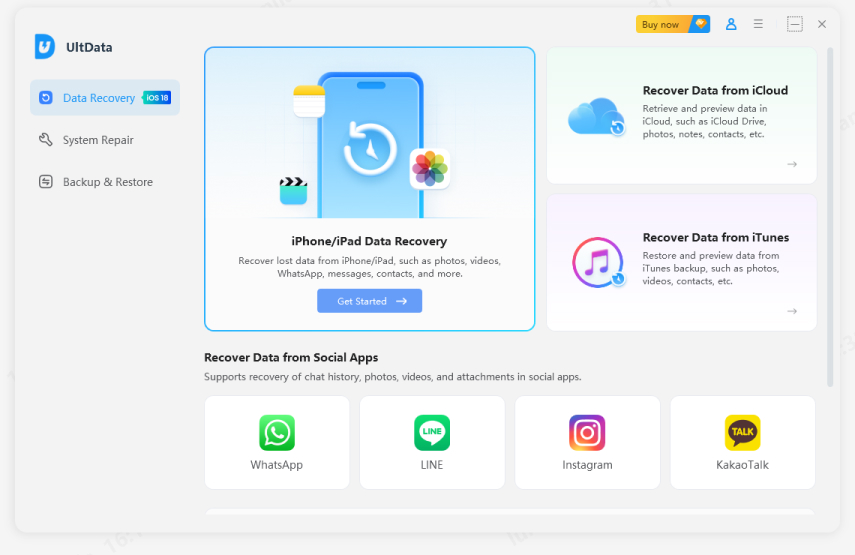
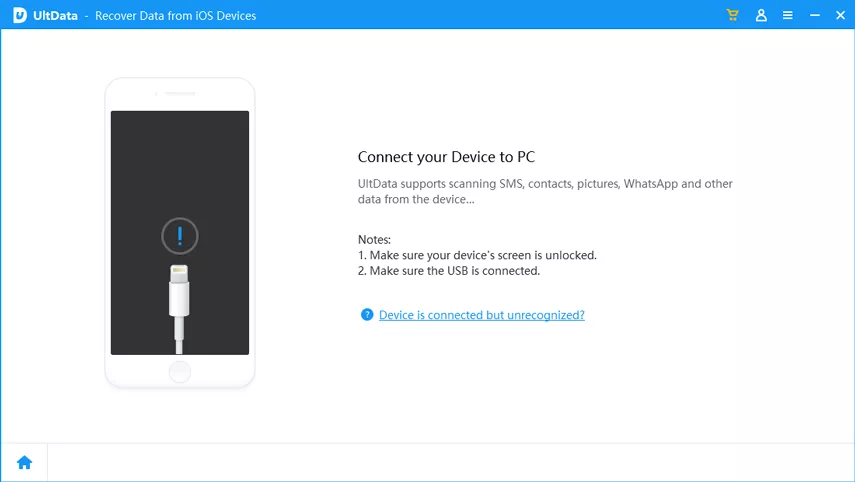
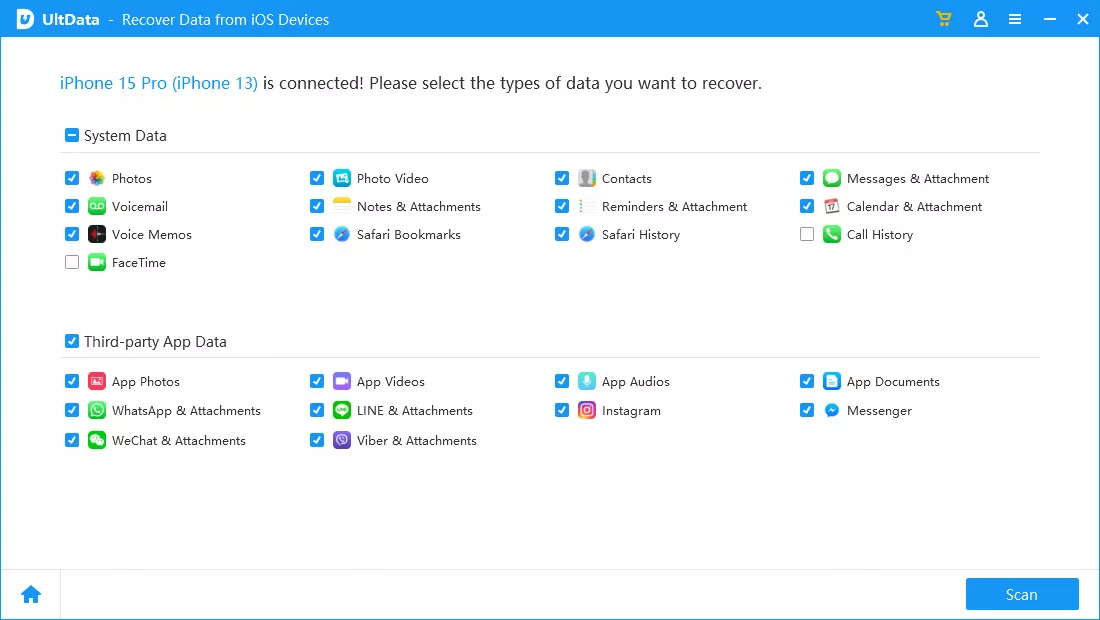
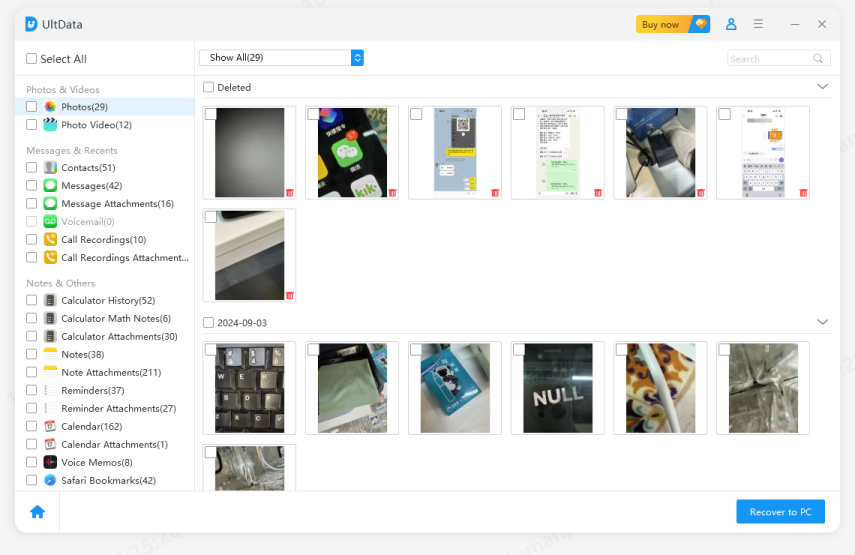
GarageBand project files (.band) are multi-file folders rather than simple single files, so recovering a whole project directly from phone storage depends on how much memory has been overwritten. However, UltData is great at extracting raw audio recordings, exported mixes, and project files saved inside unencrypted iTunes backups. You can run a free scan to see what files the tool finds before deciding to recover them.
Taking a few quick steps now can save you from losing your music in the future:
Yes. You can recover deleted garageband files iphone by checking the Recently Deleted folder in the Files app, restoring an iCloud Drive copy, or pulling files out of computer backups using software like Tenorshare UltData.
If you do not have a backup, open the Files app and check your Recently Deleted folder right away. If the files are gone from there, you can run a desktop recovery tool to scan your iPhone storage for remaining audio fragments.
By default, GarageBand saves your active projects inside Files -> On My iPhone -> GarageBand or Files -> iCloud Drive -> GarageBand. Exported audio tracks go to whichever folder you selected when saving them.
Deleting the GarageBand app removes local files stored inside the app's temporary data. However, any projects saved to iCloud Drive or stored in other folders in your Files app will stay safe.
If a file has been permanently emptied from Recently Deleted and isn't included in any backup, direct recovery can be tough on iOS. However, scanning your old computer backup files with UltData often lets you locate earlier versions of your songs.
Losing a song project is frustrating, but knowing how to recover deleted files from GarageBand on iPhone gives you a solid plan to get your tracks back. Start by checking standard locations like the Recently Deleted folder and iCloud Drive.
If those turn up empty, tools like Tenorshare UltData let you scan your device and backup files without wiping your phone. Be sure to back up your device regularly so your future tracks stay safe!


UltData - Best iPhone Data Recovery Software




then write your review
Leave a Comment
Create your review for Tenorshare articles
Share this post


UltData - Best iPhone Data Recovery Tool
Recover Deleted & Lost Data from iOS Devices Easily, No Backup Needed!
UltData: Best iPhone Recovery Tool
Recover Lost iPhone Data without Backup
By Jenefey Aaron
2026-11-03 / iOS Data Recovery