























Home > Tenorshare UltData > iCloud Data Recovery
iOS/iPadOS 26 Supported

Smart iCloud Data Recovery
Without Limits

iOS/iPadOS 26 Supported
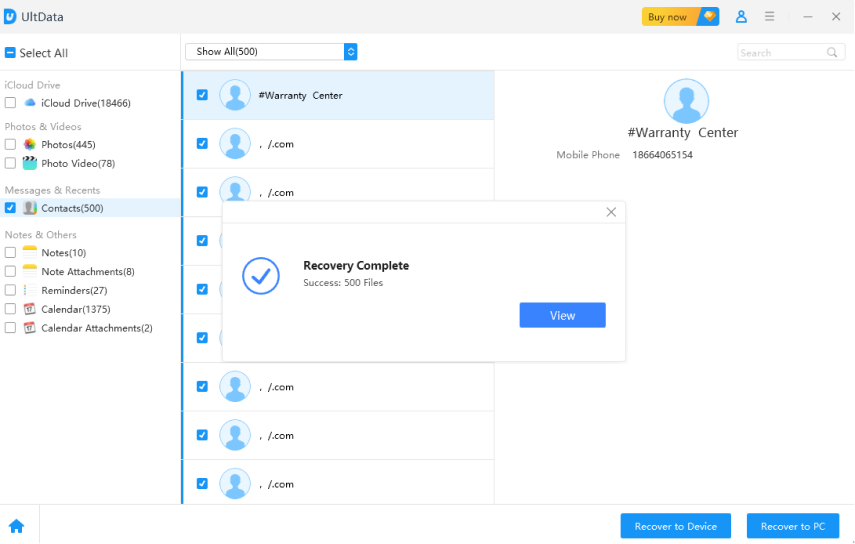
  • Selective iCloud recovery without data overwrite
  • Restore data directly from iPhone or iPad, even with no iCloud backup
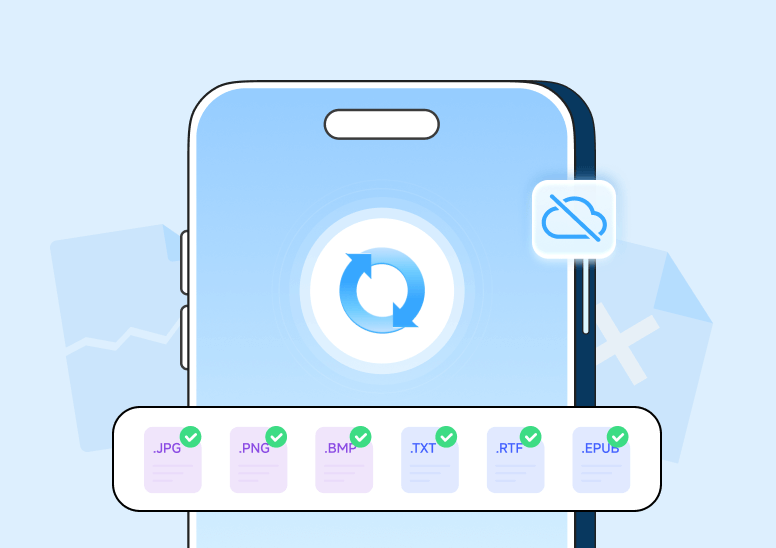
  • Support for 35+ data types including WhatsApp & LINE
  • Free preview before recovery, high success rate
Available for:
  • 99% Recovery Rate
  • 30% Faster Than Average
  • 50M+ PDF Processed
Media Logo 1 Media Logo 2 Media Logo 3 Media Logo 4

iCloud Data Loss Scenarios: Why Your Data
Disappears

iCloud data loss can happen for many reasons, from accidental deletion to syncing issues. When your iCloud data disappears,
understanding the cause helps with recovery. Let’s explore common scenarios and recovery options.

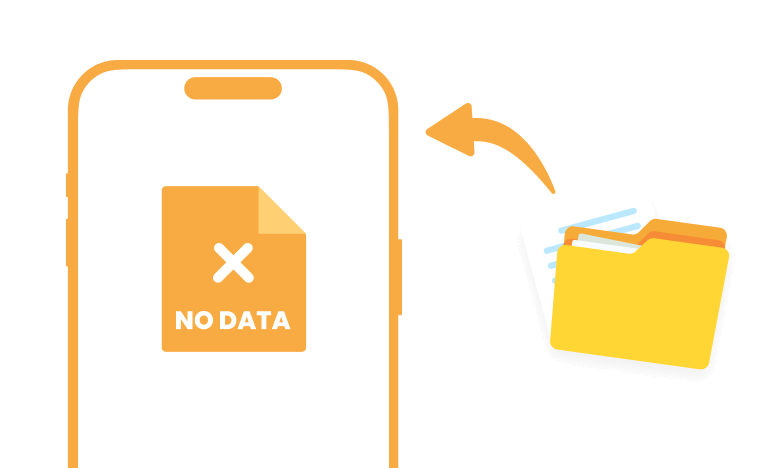
Accidental Deletion of Photos or Files

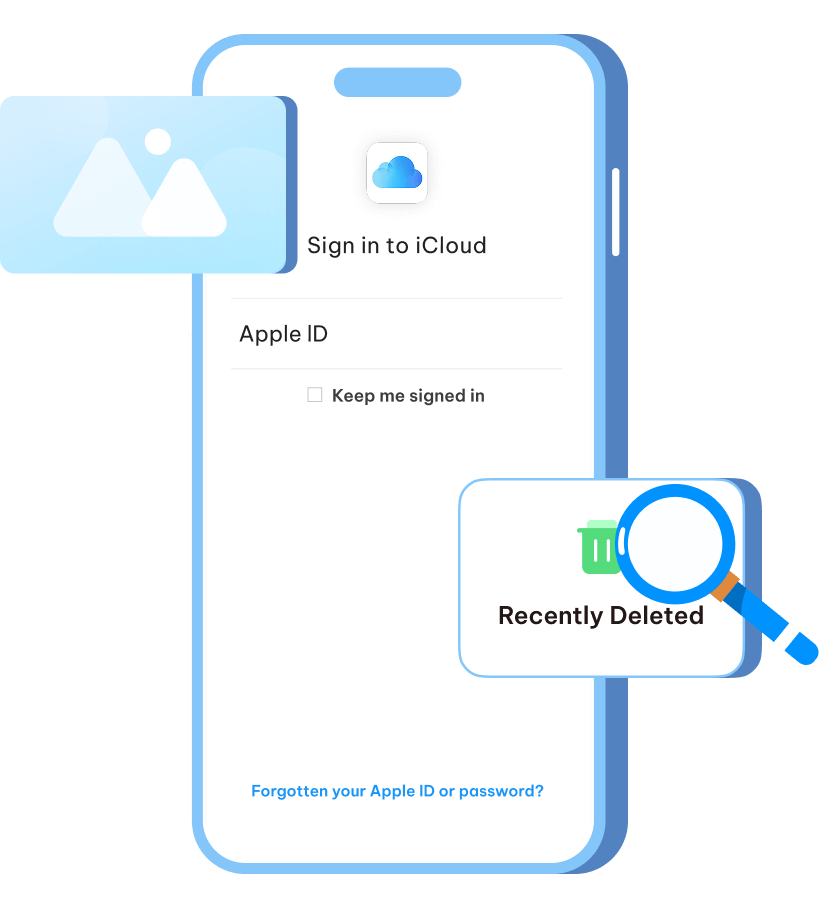
When photos or files are deleted by mistake, many users try to retrieve photos from iCloud via iCloud Photos or the “Recently Deleted” folder on iCloud.com. After 30 days, recovery is no longer possible.

iPhone/iPad Locked to Owner

Syncing Errors Between Devices

Syncing problems may cause missing data across iPhone, iPad, or Mac. The solution is often to restore an iCloud backup on iPhone, though this replaces all current content.

iPhone/iPad Locked to Owner

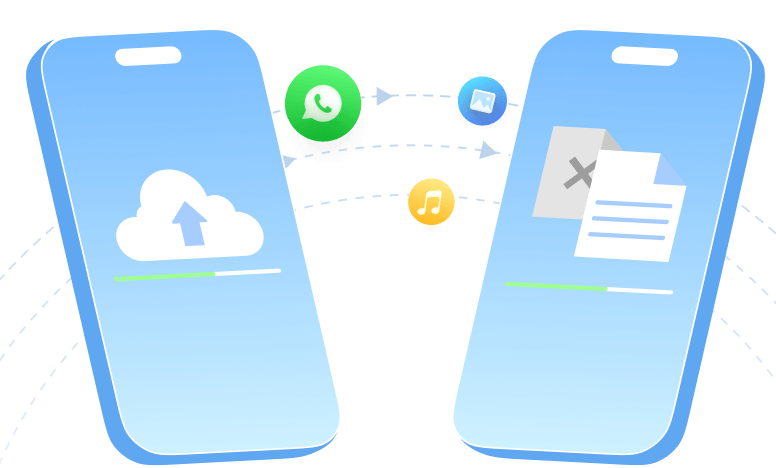
Data Loss During iPhone Transfer

Data can be lost during an iPhone switch if the backup was incomplete. In these cases, users often look for ways to recover deleted files from iCloud to bring back documents or app data that didn’t carry over.

iPhone/iPad Locked to Owner

Missing Data After Restoring from Backup

Sometimes restoring from iCloud doesn’t bring everything back. Notes are a common issue, and users often look for ways to restore notes from iCloud before deleted items are gone for good.

iPhone/iPad Locked to Owner

iCloud Backup Fails to Include Certain Files

Not all files are saved in iCloud Backup. Large files or unsynced app data may never upload, and once missing, they can’t be recovered from iCloud alone.

iPhone/iPad Locked to Owner

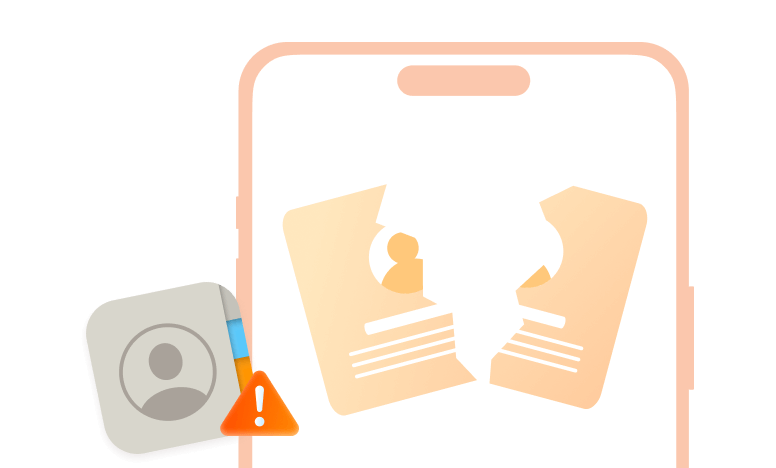
Contacts Disappeared After iCloud Sync

Sync errors can make contacts vanish or be replaced. The easiest option is checking iCloud.com, where users can recover contacts stored in iCloud if they were synced before.

iPhone/iPad Locked to Owner

Messages Lost During Device Upgrade

Messages may disappear during an iOS upgrade if iCloud Messages wasn’t enabled. Recovery is only possible through earlier backups, leading users to retrieve text messages via iCloud restore.

iPhone/iPad Locked to Owner

Data Overwritten During Full Device Restore

A complete restore overwrites the device with the backup version. For WhatsApp, reinstalling with cloud support is still the best way to restore WhatsApp chats from iCloud, but only the latest backup is available.

iPhone/iPad Locked to Owner

How to Recover Data from iCloud

iCloud is Apple’s cloud service for syncing and storing data like photos, files, contacts, notes, and messages. You can recover data through
iCloud.com, iCloud Drive, or by doing a full iCloud backup restore. It covers most everyday content, but not all files or app data are
included. The main drawback is that a full restore resets the device and may overwrite newer information.

  • Recover Data from iCloud via iCloud.com

    The simplest way to restore deleted items is by logging into iCloud.com, where photos, files, contacts, calendars, and notes can be recovered. However, this option only works for data already synced online, and anything missing from iCloud.com cannot be recovered.

    Learn more→
  • Restore Data Using iCloud Backup on iPhone

    For large-scale data loss, a full iCloud backup restore resets the device and reloads everything from the last backup. While effective, it erases the current phone and may overwrite newer files not included in that backup.

    Learn more→
  • Retrieve Lost Files Through iCloud Drive

    Documents stored in iCloud Drive can often be found in the “Recently Deleted” folder, where they remain for 30 days before permanent removal. This makes recovery straightforward, but time-limited.

    Learn more→
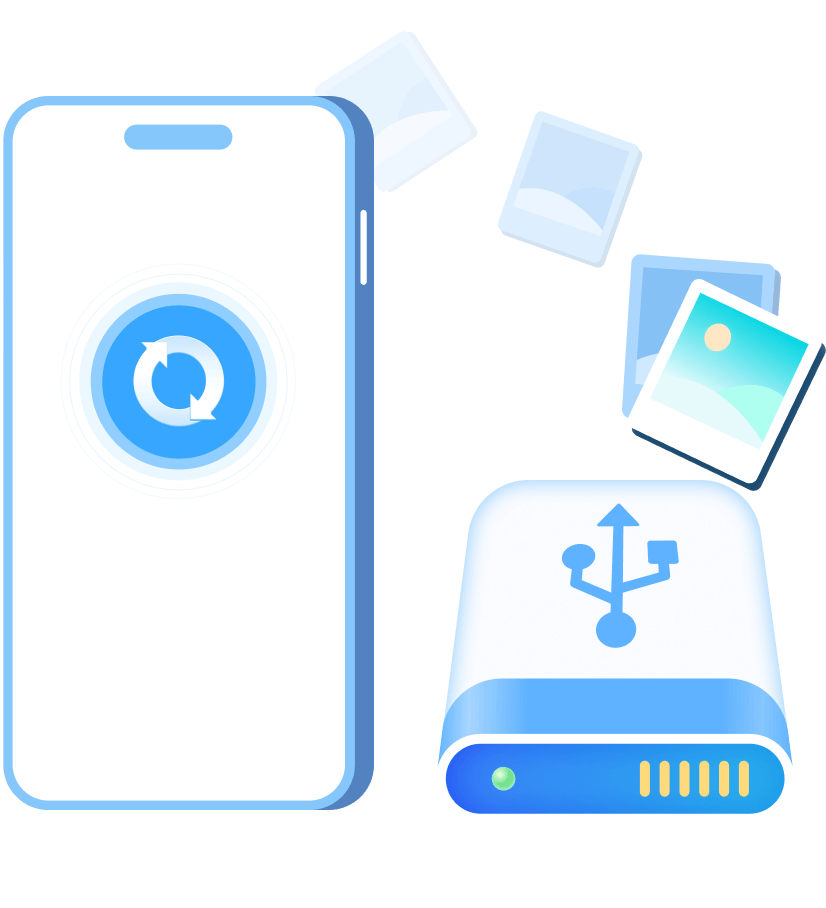
  • Recover Data from iTunes or Finder Backup

    When iCloud does not cover certain data, restoring from an iTunes or Finder backup on a computer is another option. These backups may contain older or larger files, though restoring them replaces all content on the device rather than allowing selective recovery.

    Learn more→
  • Selective iCloud Recovery with Ultdata

    Some users prefer selective recovery without a full device reset. UltData iPhone Data Recovery lets you recover specific data like photos, messages, and WhatsApp from iTunes backups or directly from the device, without needing iCloud.

    Learn more→

Tips to Increase Your iCloud Data Recovery Success

To improve iCloud recovery success, quickly stop using the device, start recovery as soon as possible,
check iCloud.com for recently deleted items, and save restored data to a new location. These steps help,
but Apple’s methods are limited — a professional tool like UltData iCloud Data Recovery makes the process safer and more effective.

111
111
111
111
111
Stop Using the Device

Once you notice data loss, stop using your iPhone, iPad, or Mac. Avoid saving new files, installing apps, or updating the system, as this can overwrite deleted data and make it unrecoverable.

Start Recovery Early

Begin the recovery process as soon as possible. The longer you wait, the higher the risk that system operations will overwrite the deleted data, reducing the likelihood of successful recovery.

Use Reliable iCloud Data Recovery Software

If iCloud Recovery fails or backups are missing, a tool like UltData iCloud Data Recovery lets you recover photos, contacts, messages, and more without wiping your device.

Save to New Location

Always restore recovered files to a new folder or an external drive. Saving them back to the original location can overwrite other recoverable files and lower your overall success rate.

Check iCloud.com First

Before trying advanced methods, log in to iCloud.com or check iCloud Drive. Deleted items are often stored in the “Recently Deleted” folder for up to 30 days, making it the easiest and fastest way to get them back.

iCloud Data Recovery

Stop Using the Device

Once you notice data loss, stop using your iPhone, iPad, or Mac. Avoid saving new files, installing apps, or updating the system, as this can overwrite deleted data and make it unrecoverable.

iCloud Data Recovery

Start Recovery Early

Once you notice data loss, stop using your iPhone, iPad, or Mac. Avoid saving new files, installing apps, or updating the system, as this can overwrite deleted data and make it unrecoverable.

iCloud Data Recovery

Use Reliable iCloud Data Recovery Software

If iCloud Recovery fail or backups are missing, a tool like UltData iCloud Data Recovery lets you recover photos, contacts, messages, and more without wiping your device.

iCloud Data Recovery

Save to New Location

Always restore recovered files to a new folder or an external drive. Saving them back to the original location can overwrite other recoverable files and lower your overall success rate.

iCloud Data Recovery

Check iCloud.com First

Before trying advanced methods, log in to iCloud.com or check iCloud Drive. Deleted items are often stored in the “Recently Deleted” folder for up to 30 days, making it the easiest and fastest way to get them back.

Best iCloud Data  Recovery Software

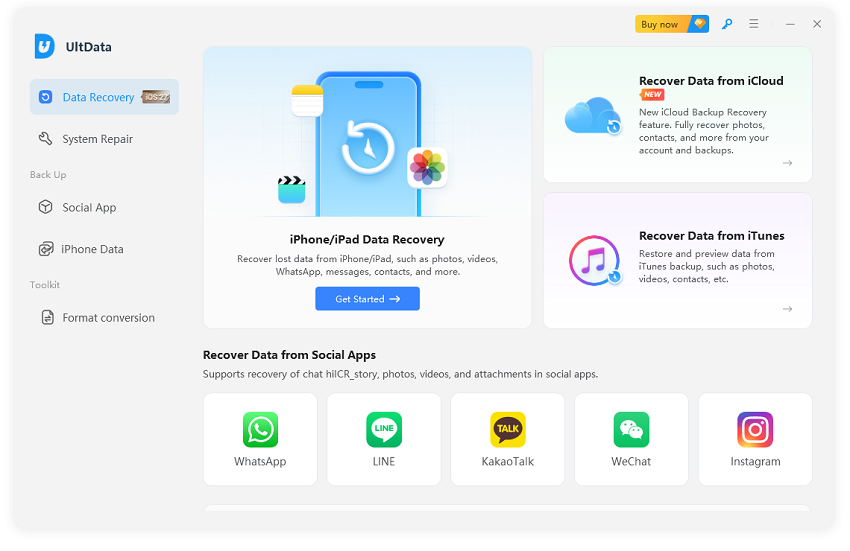
Apple's built-in options like iCloud.com, iCloud Drive, and iCloud backup all have limitations. ,With UltData iCloud Data Recovery Software,
you get selective recovery, no data overwrite, and even recovery without an iCloud backup.

No iCloud Backup Required

No iCloud Backup Required

Scan your iPhone directly and perform selective data recovery without going through iCloud backup. Get immediate access to deleted files with precision control.

iCloud Data Recovery

iCloud Data Recovery

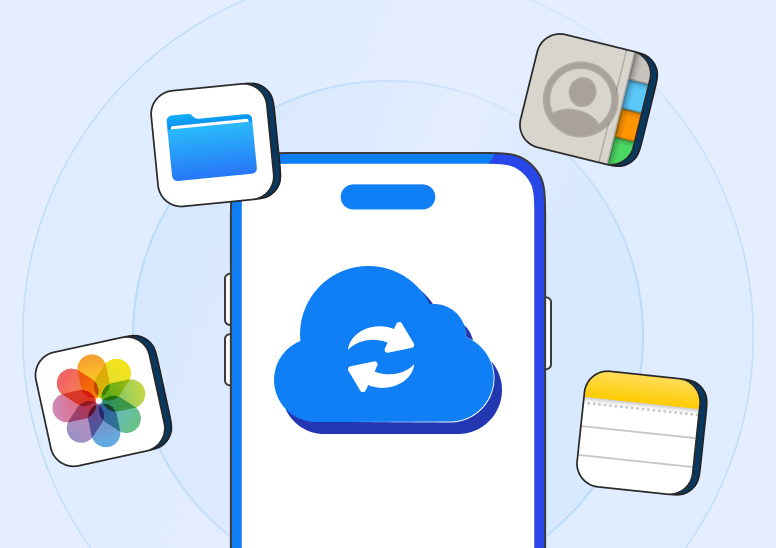
Access and recover data that has been synced to your iCloud account. Download specific data types and selectively restore without affecting current device data.

iCloud Drive Recovery

iCloud Drive Recovery

Recover deleted documents, PDFs, presentations, and other files from iCloud Drive that aren't available through standard methods.

iTunes Recovery

iTunes Recovery

Extract and recover data from iTunes/Finder backups stored on your computer. Safely preview and selectively restore files.

Why Choose UltData iCloud Data Recovery

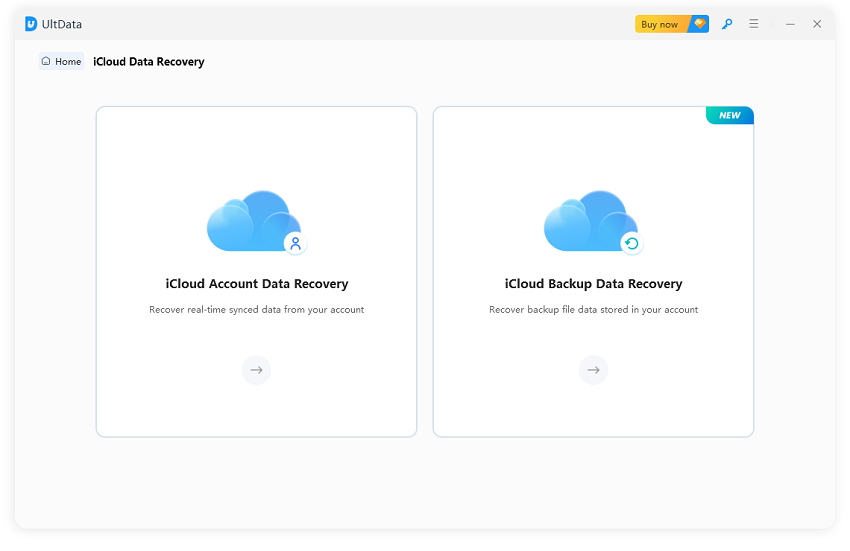
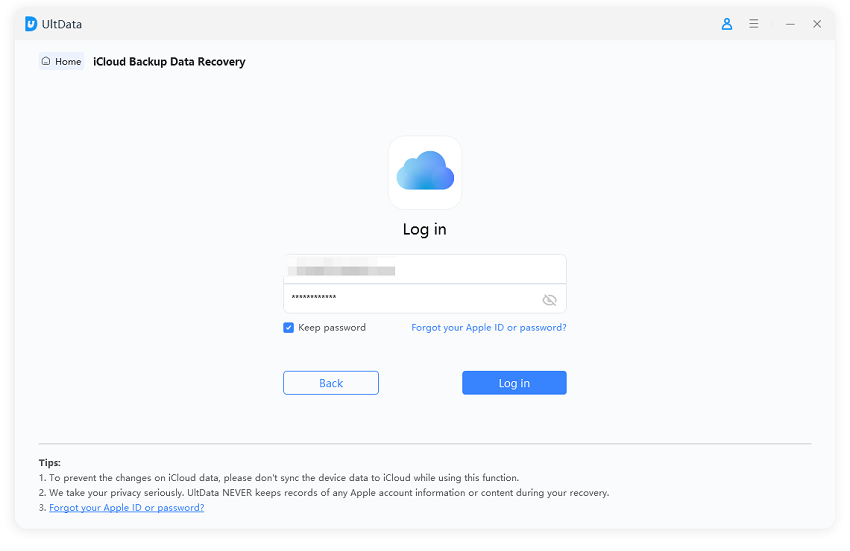
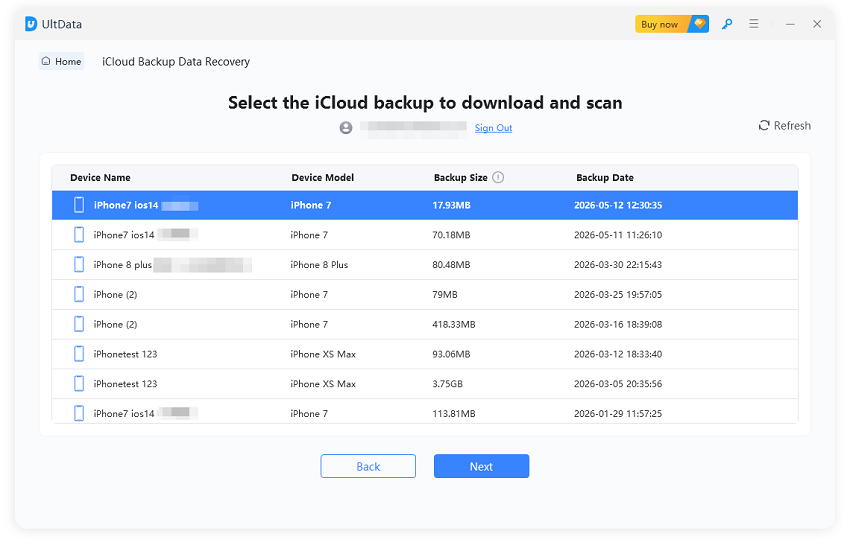
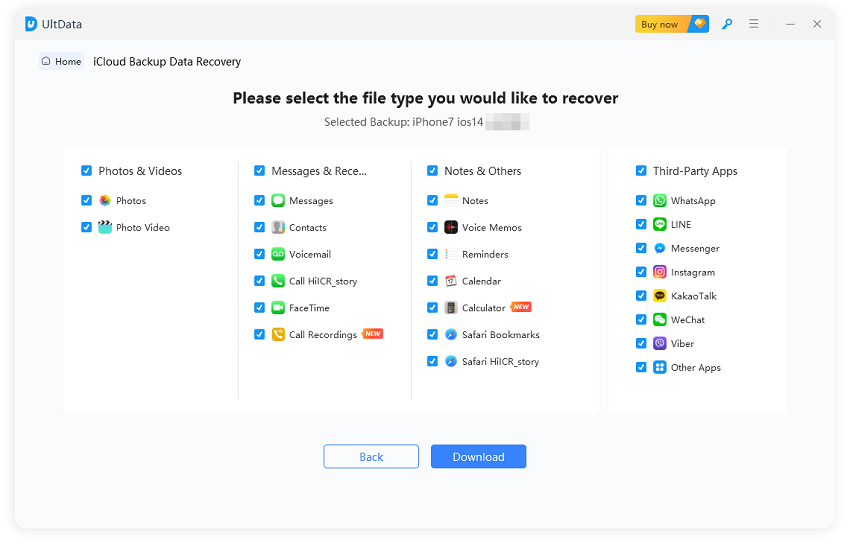
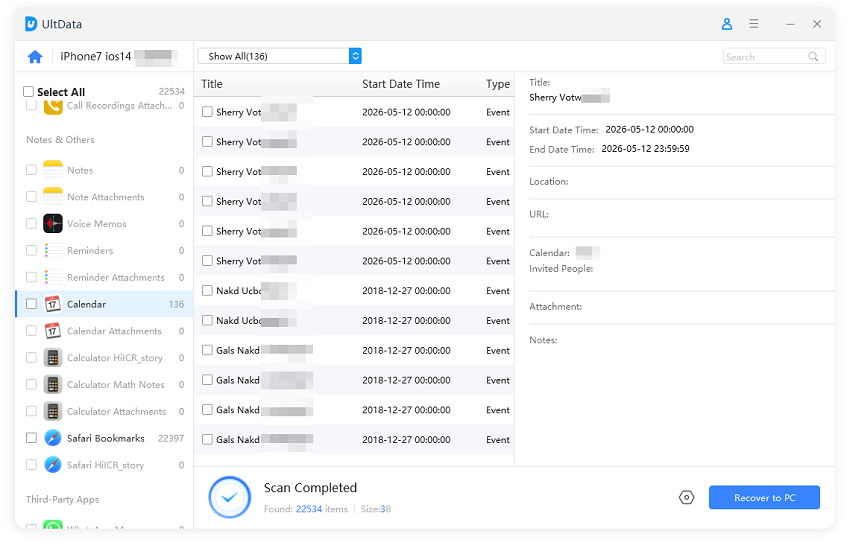
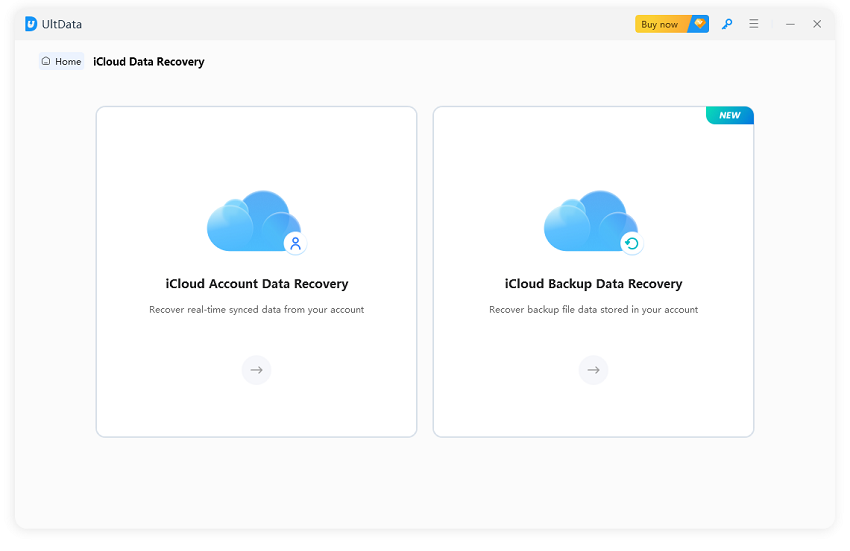
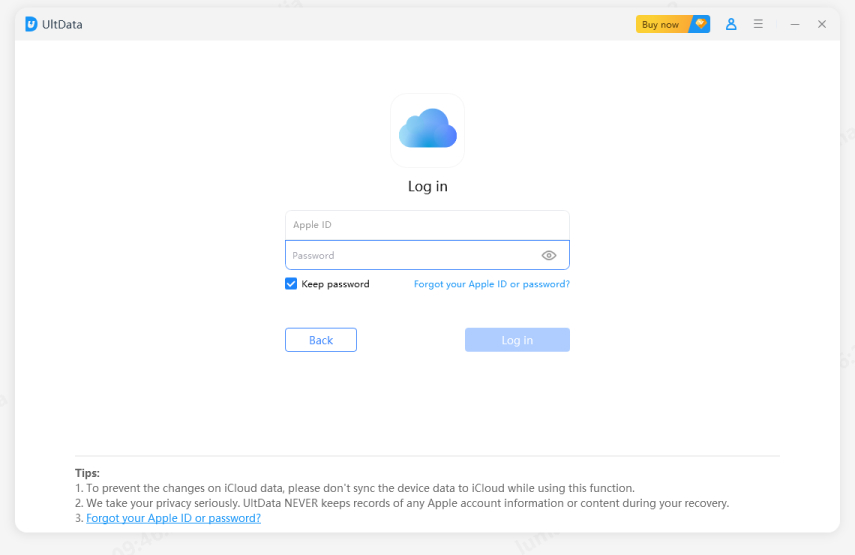
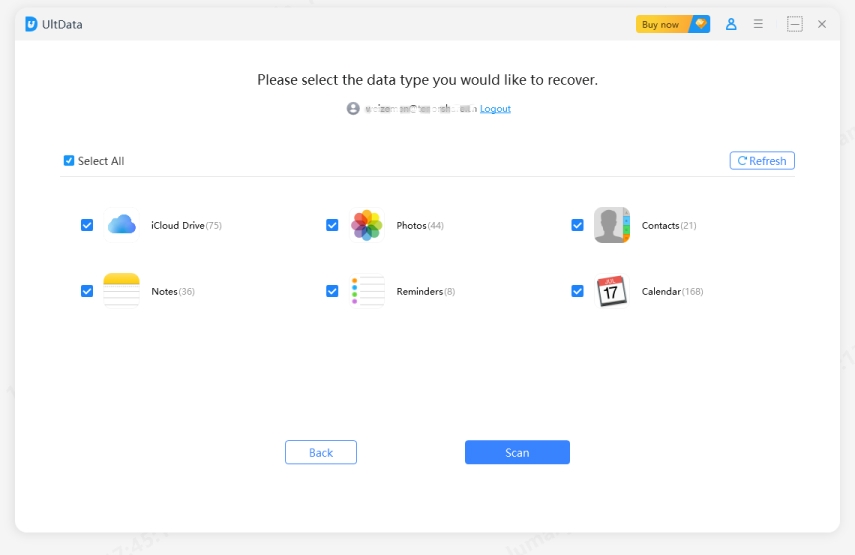
Perform iCloud Data Recovery in 4 Steps

Step 1.
Select iCloud Recovery Mode

111

Step 2.
Log in to iCloud

111

Step 3.
Select Data Type

111

Step 4.
Preview and Recover Lost iCloud Data

111

What iCloud Users Are Saying About UltData

Read More UltData Reviews >
Fast iCloud Photo Recovery

I accidentally deleted over 500 photos from my iPhone. With UltData iCloud Data Recovery Software, I quickly recovered all my pictures from iCloud backup in just 10 minutes. Highly recommended!

Recovered Without iCloud Backup

I had no iCloud backup and thought my contacts were gone forever. UltData scanned my iPhone directly and brought back all my contacts and WhatsApp chats in minutes.

Selective Recovery Made Simple

I didn’t want to overwrite my current data with a full restore. UltData iCloud Data Recovery Software let me preview and recover only what I needed — no data loss, no stress.

Safe and Risk-Free Recovery

I tried restoring from iTunes, but it would erase everything. With UltData, I recovered my iCloud files without overwriting any existing data. So much safer than Apple’s built-in options.

FAQs about iCloud Recovery

Yes, UltDatacan recover permanently deleted data from iCloud backups. Even if files were deleted from your device and iCloud recently deleted folder, they may still exist in older iCloud backup files that UltData-iOS can access and restore.

Absolutely. UltData only accesses your own iCloud account with your credentials. The process is completely safe, legal, and respects Apple's terms of service. Your data privacy is fully protected.

Recovery time depends on your backup size and internet speed. Typically, scanning takes 10-30 minutes, and recovery is completed within an hour for most users.

No! UltData-iOS allows selective recovery. You can preview all data and choose exactly what to recover, saving time and storage space.

UltData-iOS offers multiple recovery modes. You can recover directly from your iPhone, from iTunes backups, or use our advanced deep scan technology to recover data even without backups.

The repair time depends on the severity of the issue and the repair mode you choose. For most common problems — like iPhone stuck on Apple logo, boot loop, or black screen — tools from Tenorshare can complete the Standard Repair in about 10 to 15 minutes on average.
111

Try Tenorshare UltData for iOS Now!

Whether it's photos, messages, videos, or documents, UltData for iOS ensures a comprehensive recovery of all your iPhone data.Download now and get everything back!