

 iOS Tips & Latest Updates
 Bug Fixes, Unlock Guides
 Giveaways & Freebies

UltData - Best iPhone Data Recovery Tool
Recover Deleted & Lost Data from iOS Devices Easily, No Backup Needed!
UltData: Best iPhone Recovery Tool
Recover Lost iPhone Data without Backup
You open Notability, and a notebook you swear was there has vanished. Don't panic yet. Missing notes are rarely gone for good. More often, they're hiding behind a sync hiccup, the wrong Apple Account, a changed backup setting, or a freshly restored phone. Below is how to recover Notability notes from iCloud, starting with the safest checks and ending with a desktop tool. Which fix works depends on whether your notes were synced, backed up, or only ever lived on the device.

Before trying to restore missing files, it helps to narrow down what caused them to drop out of sight in the first place.
Notability may have stopped syncing, or got interrupted halfway through.
Notes saved under another account simply won't show up.
Automatic Backup might be switched off or pointed somewhere new.
Check Trash and your other subjects first.
The notes may not have come across, or the backup was out of date.
One thing trips people up all the time is that iCloud sync, iCloud device backup, and Notability's own backup are three separate things. Not every note is automatically included in an iCloud Backup, so don't assume yours is.
Work through these in order, starting with the gentlest first. Hold off on anything that overwrites your current notes until you know whether another copy exists.
Open the app and look through your library, subjects, and folders. Search for the note by title or any word you remember. Half the time, it has just been dragged into another subject. If it's sitting in Trash, use the app's restore option. And if the note still shows up on another device, leave it alone and don't delete or edit it. Menus differ a little between Notability versions.

Make sure you're signed in with the same Apple Account you used before, then look at Notability's iCloud sync setting and your iCloud settings. Stay on stable Wi-Fi and give it a few minutes to catch up. If an old iPad or iPhone on that account still has the notes, protect that copy first, because deletions can spread across synced devices. Also, switching sync off and on won't bring back anything that's already been deleted.

Wondering how to restore Notability notes from iCloud? Notability's Automatic Backup is often the answer. Open the app's settings, find Automatic Backup, and see where it saves, such as iCloud Drive if your version supports it. Open that folder, look for exported notes, and import them following the app's current instructions.
This backup isn't the same as sync. It's an exported copy, not a live library. And turning it on today won't recover notes that were deleted before any backup existed.

Go to Settings > Apple Account > iCloud > iCloud Backup and check when the last successful backup ran. It only helps if it was made while your notes still existed, and whether Notability's data was included depends on how the app stores it.
Heads-up: restoring a full iCloud backup to a phone you already use generally means erasing it first, and everything on it gets replaced by the backup. Back up your current data separately before you even consider it, and don't count on every note coming back.

Before you reach for third-party tools, hunt for copies elsewhere. Try any old iPhone or iPad, iCloud Drive, other cloud folders you used for backup, and a Mac or PC where you may have exported files. If you're still asking where to find Notability notes on iCloud, iCloud Drive is the place to look for exported PDFs and backup files. A PDF keeps your writing readable, though you lose the editable Notability layout.
If you've been through all of that and nothing has turned up, it's worth checking whether any related data is still detectable on your iPhone. A desktop recovery tool is another option, though it can't guarantee recovery of Notability notes, especially if the notes were never stored in a supported location or backup.
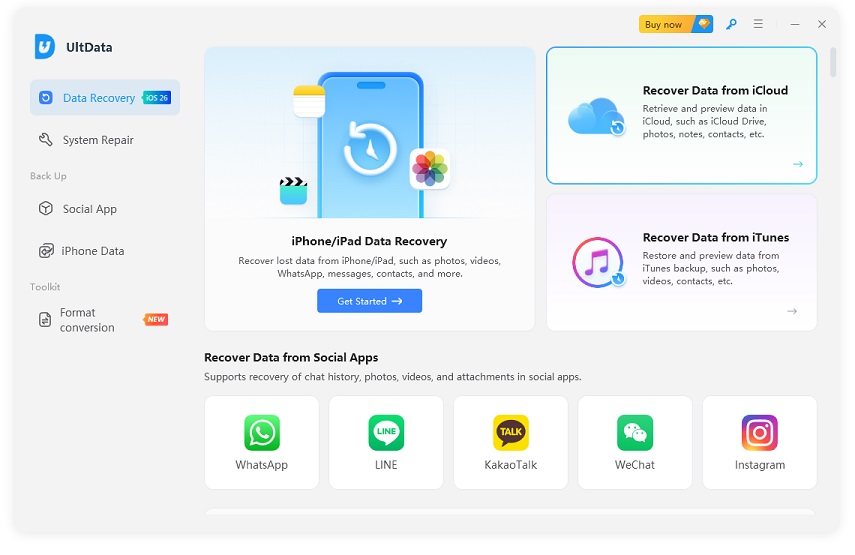
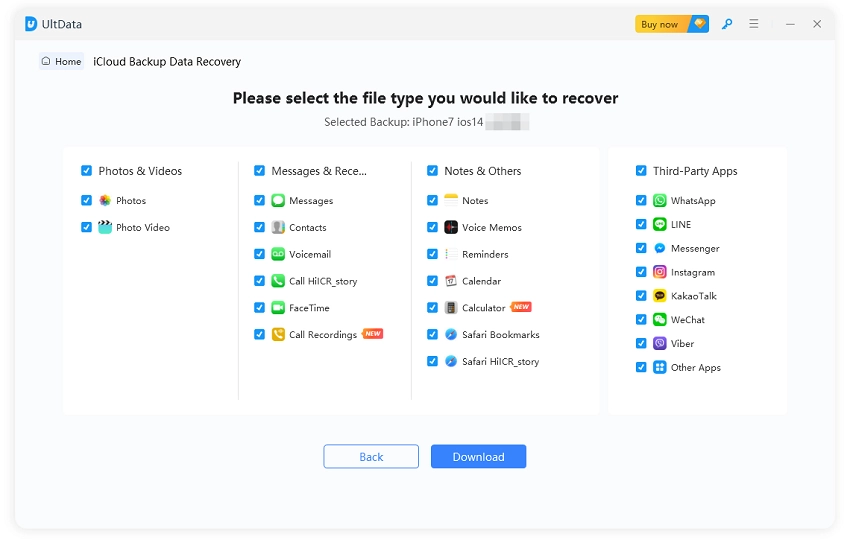
Tenorshare UltData iPhone Data Recovery runs on Windows and Mac. For people looking for another way to retrieve missing data, it offers two main recovery options: scanning the iPhone directly and extracting supported data from existing backups.


1. Three ways to recover
scan the iPhone directly, or pull data out of iTunes and iCloud backups.
2. Preview first
See what it found and restore only what you need.
3. No phone wipe
Selective recovery leaves your current data alone, unlike a full iCloud restore.
4. Lots of data types
Photos, messages, contacts, notes, and more.
5. Easy to use
The same simple flow on Windows and Mac.
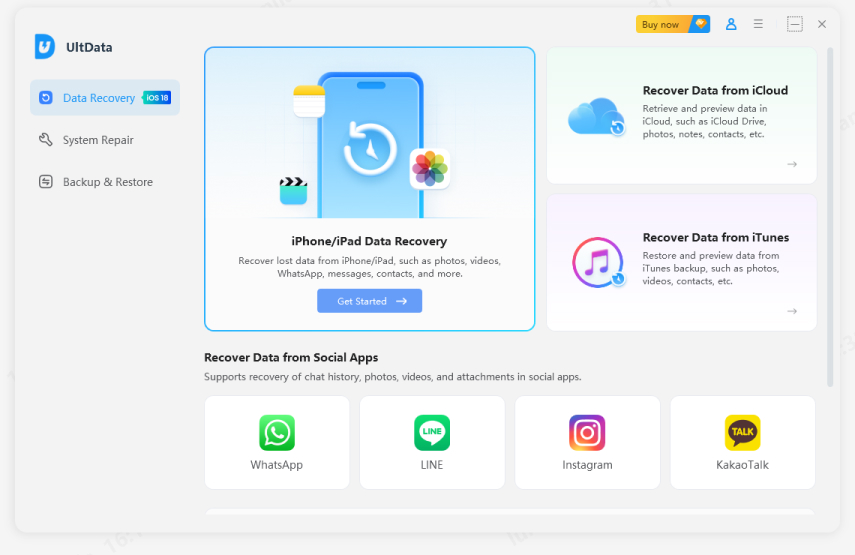
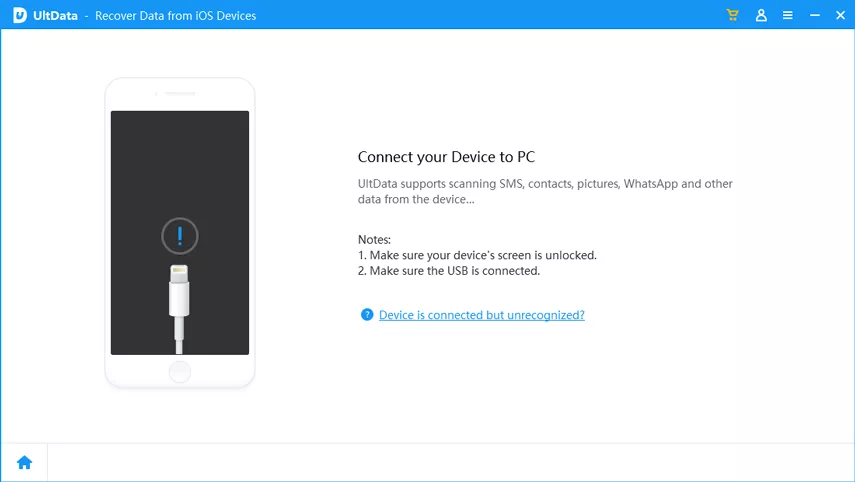
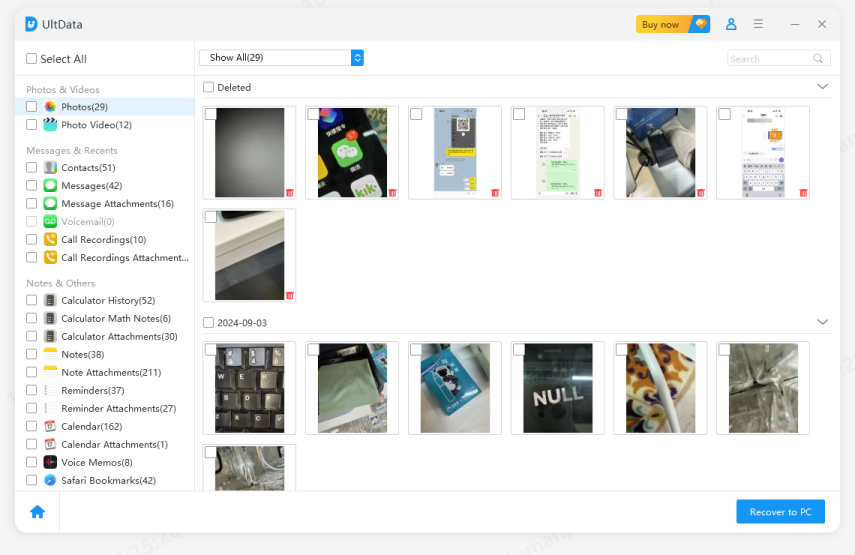
Unlike Apple's official iCloud recovery method, which typically requires restoring an entire backup to your iPhone, Tenorshare UltData offers a more flexible way to retrieve data from iCloud backups. You can preview the available backup contents, select only the files you need, and recover them to your computer without resetting your iPhone or replacing your current data with a full backup restoration.
This makes UltData a convenient option when you want to recover specific missing files while keeping the data currently stored on your device intact.


To see how to back up Notability to iCloud, open Notability's settings, turn on iCloud sync for live syncing, and switch on Automatic Backup with iCloud Drive as the destination if your version offers it. It also helps to keep iCloud Backup enabled in your iPhone settings. Menu names can vary.
Start with the library and Trash, confirm iCloud sync, then check Automatic Backup files in iCloud Drive and any other devices. Save a full iCloud device restore for last, since it replaces your current data.
If you're asking how to get old Notability back, first work out whether you mean old notes or an older version of the app. Old notes usually come from backups, exported files, Trash, or an older device. Back up your current notes before changing anything.
Find your Automatic Backup files or exported notes in the cloud folder or local storage you set up, then import the copy that fits its file format and your app version. Keep a separate copy of the backup first, and remember that changes made after it was created may not come back.
Installing an older app version won't restore deleted notes or their history. Look for old notes in backups, exported files, Trash, or older devices, and back up what you can still open before changing the app or your device setup.
The safest order is simple: check the library and Trash, confirm iCloud sync, look for Notability backups, try your other devices, and only then think about a full iCloud restore.
That's the most reliable way to approach how to recover Notability notes from iCloud without making things worse. If none of it works, Tenorshare UltData is worth a try for supported iPhone data recovery, but it's no guarantee for Notability notes. Whatever you do, keep every existing copy and backup safe before trying anything that can't be undone.


UltData - Best iPhone Data Recovery Software




then write your review
Leave a Comment
Create your review for Tenorshare articles
Share this post


UltData - Best iPhone Data Recovery Tool
Recover Deleted & Lost Data from iOS Devices Easily, No Backup Needed!
UltData: Best iPhone Recovery Tool
Recover Lost iPhone Data without Backup
By Jenefey Aaron
2026-11-03 / iOS Data Recovery