The only official way to
transfer WhatsApp from Android to iPhone Duo is Apple's free
Move to iOS app, and it works only while you set up the iPhone. Already
finished setup, or using WhatsApp Business? Move to iOS can't help, but a
third-party tool such as Tenorshare iCareFone Transfer can. A Google Drive
backup can't be restored on an iPhone at all. This guide compares 5 methods
with steps, limits, and fixes, so you can move your chats without losing them.
Part 1. Which WhatsApp Transfer Method Fits Your iPhone Duo?
Before you start, choose a method that matches your phone's setup status,
WhatsApp account, and backup needs. Not every method transfers your complete
chat history.
Please swipe to view
Method
Free/Paid
Setup status
Reset needed?
Cable/Wireless
WhatsApp Business support
Main limitation
Move to iOS
Free
Initial setup
Yes, if already set up
Temporary Wi-Fi from the iPhone, or USB-C cable
Not supported for this cross-platform transfer
Requires a fresh iPhone setup
iCareFone WhatsApp Transfer
Usually paid for full transfer
New or already set-up iPhone
Generally no
USB cables and computer
Advertises support; check current compatibility
Paid features and device requirements may apply
Google Drive backup
Free
Android backup already exists
No direct restore to iPhone
Internet
Does not directly restore to iPhone
iPhone WhatsApp restores from iCloud and cannot read Android Google
Drive backups
WhatsApp Business migration
Paid tool
Depends on the tool
No, per the tool
Not supported by Move to iOS; listed by iCareFone Transfer (confirm
current version
Business-specific compatibility required
No official method
Email chat export
Free
Any setup status
Internet
Individual chats can be exported
Creates a readable archive, not restorable WhatsApp history
For most users, Move to iOS is the first choice because it is free and comes
from Apple. If your iPhone is already set up, consider a supported transfer
tool instead of erasing your phone without a verified backup.
Part 2. How to Transfer WhatsApp from Android to iPhone Duo: 5 Ways
You can choose from five methods to transfer WhatsApp from Android to iPhone
Duo, depending on your iPhone's setup and backup status. The following
guides explain each option, its requirements, and the steps to move or save
your chats.
Method 1. Transfer WhatsApp with Move to iOS (Free, During Setup)
Move to iOS is Apple's free, official way to move WhatsApp chats from
Android to a new or factory-reset iPhone.
Transfers: account info, profile photo, individual and
group chats, chat history, media, settings.
Does not transfer: call history, display name, Channel
media, or WhatsApp Business chats.
Requirements: Android 5.0+, iOS 15.5+ (iPhone Duo ships
with iOS 27.1), the latest WhatsApp on both phones, the same phone number,
and WhatsApp not yet activated on the iPhone. Because iPhone Duo is
eSIM-only, activate your number as an eSIM first so WhatsApp can verify
it.
Steps to transfer WhatsApp messages from Android to iPhone Duo free:
Turn on your new or factory-reset iPhone and follow the setup instructions
until you reach the Transfer Your Apps & Data screen.
Select From Android and tap Continue if
prompted. Note the one-time code displayed on your iPhone.
On your Android phone, open the Move to iOS app, tap
Continue, accept the terms if prompted, and enter the
code displayed on your iPhone.
When the data transfer screen appears, select
WhatsApp and follow the on-screen instructions to prepare
your chats and media for migration.
In WhatsApp on your Android phone, tap Start when
prompted to prepare your chat history. Once the preparation finishes,
return to Move to iOS and continue the transfer.
Keep both phones connected to power and avoid switching away from Move to
iOS until the transfer finishes. Complete your iPhone setup, install
WhatsApp, and sign in using the same phone number.
Follow WhatsApp's on-screen prompt to import your chats. After the import
finishes, open your conversations and check that your messages and media
have transferred correctly.
This method is suitable if you want to know how to transfer WhatsApp from
Android to iPhone Duo free without purchasing additional software.
Note:
Chats can only be moved before WhatsApp is activated on the iPhone. If you
have already finished setup or logged in to WhatsApp, the only official
route is to back up and factory-reset the iPhone. New iPhone chats cannot
be merged with old Android chats.
Method 2. Transfer WhatsApp After Setup Without a Factory Reset
If your iPhone already contains photos, contacts, apps, and other personal
data, resetting it just to move WhatsApp may not be convenient. In that
case, a third-party desktop tool can be an alternative.
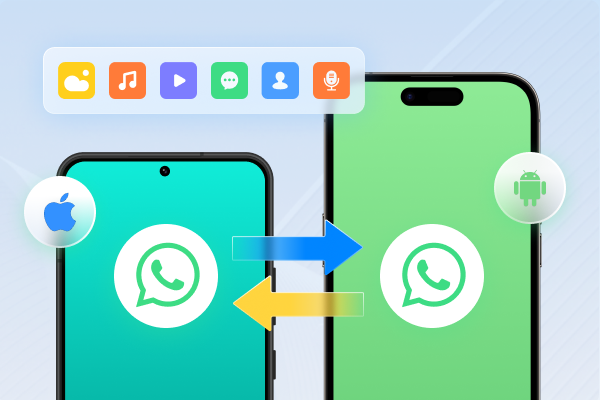
iCareFone WhatsApp Transfer
supports WhatsApp migration between Android and iPhone without requiring a
factory reset. It also advertises WhatsApp Business transfer, backup, and
restore features. Check the current product documentation before proceeding
because supported devices, software versions, and individual features can
change. iCareFone WhatsApp Transfer is a desktop program designed to move
WhatsApp data between supported phones.
Key Features
Transfer after setup: Move supported WhatsApp data
between Android and iPhone without repeating the iPhone setup, so you can
transfer WhatsApp after setup
and keep your existing iPhone data.
WhatsApp Business support: Tenorshare lists migration for
WhatsApp Business, which Move to iOS does not support.
Google Drive restore: Tenorshare lists restoring WhatsApp
backups from Google Drive to an iPhone, which WhatsApp itself does not
allow.
Steps to Transfer WhatsApp from Android to iPhone Duo Using iCareFone
Download and install iCareFone WhatsApp Transfer on your
Windows PC or Mac. Open the program, connect your Android phone and iPhone
using USB cables, and select the WhatsApp transfer option.
Follow the on-screen instructions to create a WhatsApp backup on your
Android phone. If the software asks you to change end-to-end encrypted
backup settings, follow its instructions carefully before continuing.
Allow iCareFone to retrieve your WhatsApp data from the Android phone.
Complete the account verification steps when prompted so the software can
prepare your chat history for transfer.
Choose the supported WhatsApp data types you want to move to your iPhone,
such as chats and attachments. Make sure your iPhone has enough storage
and review any warning about existing WhatsApp data before proceeding.
Follow the on-screen instructions to restore the prepared data to your
iPhone. Keep both phones connected until the process finishes. Then open
WhatsApp on your iPhone, verify your account, and check your chats and
media.
If prompted, temporarily turn off Find My iPhone before restoring.
Note:
The transfer may overwrite existing WhatsApp data on the destination
iPhone. Back up your current chats first, and check the software's
instructions before proceeding.
The exact screens may differ by software version. Do not disconnect your
devices during the process, and do not proceed if you cannot confirm what
will happen to existing chats on the iPhone.
Method 3. Transfer WhatsApp Messages from Android to iPhone Duo Using Google
Drive
WhatsApp on Android can back up chats to Google Drive, but iPhone WhatsApp
uses iCloud for its normal cloud chat backups. Therefore, you cannot simply
install WhatsApp on an iPhone, sign in to Google Drive, and restore an
Android backup. If you already have a Google Drive backup, keep it as a
safety copy while you choose a compatible migration method.
What You Should Do:
Open WhatsApp on your Android phone and go to
Settings > Chats > Chat backup. Check your latest
backup date and create a fresh backup if needed.
Make sure you can access the Google account that stores your WhatsApp
backup. Remember that iPhone WhatsApp cannot directly restore an Android
Google Drive backup.
If your iPhone is new or reset, use Move to iOS during
the initial setup to transfer your supported WhatsApp data. If your iPhone
is already set up, consider a compatible third-party transfer tool that
supports your device and data.
After the transfer, open WhatsApp on your iPhone and verify your chats and
media. Then go to
Settings > Chats > Chat Backup and tap
Back Up Now to create a new iCloud backup.
Warning:
Do not uninstall WhatsApp on Android or factory-reset the iPhone until you
have verified your chats.
Method 4. Transfer WhatsApp Business from Android to iPhone Duo
WhatsApp Business needs extra care because its chat history may contain
customer messages, order details, addresses, and other business records.
WhatsApp's official guidance says chat transfer to or from the WhatsApp
Business app is currently not possible with Move to iOS. Third-party tools
such as iCareFone Transfer list WhatsApp Business support; confirm your
version before relying on them.
If you need to learn
how to transfer WhatsApp Business from Android to iPhone Duo, first confirm whether your selected migration tool explicitly supports
WhatsApp Business on both devices.
What Moves and What Needs Manual Backup?
Please swipe to view
Data type
What to check
Individual and group chats
Confirm that the selected method supports Business chat migration
Photos and videos
Check whether media files transfer with the conversations
Documents and voice notes
Open important files after migration
Business profile
Review the business name, description, address, and contact details
Catalog and business settings
Check each item separately; do not assume every setting transfers
Labels and quick replies
Verify availability and recreate anything missing
Call history
Keep a separate record if you need it; cross-platform migration may
not transfer it
If you use the standard WhatsApp app on Android and want to switch to
WhatsApp Business on iPhone, do not assume the two apps follow identical
migration rules. Confirm compatibility with the software provider before
starting.
Method 5. Export a WhatsApp Chat by Email (Archive Only)
Email export is useful when you only need a copy of a particular
conversation. It does not transfer your complete WhatsApp account or restore
messages inside the iPhone app.
Steps to export a chat:
Open the WhatsApp ChatDo this on your Android phone,
before you wipe it. Open the chat, tap ⋮ > More > Export chat,
choose Without media or Include media, then choose your email app and send
the archive to yourself.
Export the ChatFind and select
Export Chat. If this option is available in your chat
settings, choose whether to include media or export the conversation
without media. Select Mail from the sharing options to
prepare an email containing the exported chat.
Send the Chat Archive by EmailEnter your email address as
the recipient and tap Send. Open the email on your iPhone
or another device to access the exported conversation and any included
attachments.
Note:
The export is a readable archive. It cannot be imported back into
WhatsApp.
Part 3. After the Transfer: Verify Chats and Create a New Backup
After you transfer WhatsApp from Android to iPhone Duo, check your data
before removing WhatsApp or resetting your old phone. A transfer may finish
while some media files still need time to load. Use this checklist to review
your chat history:
Please swipe to view
Item to check
What to verify
Recent chats
Open your latest conversations and confirm the messages appear
Old chats
Check older conversations and search for specific messages
Groups
Confirm your important group chats are present
Photos and videos
Open several files to check whether they load
Voice notes
Play a few old voice messages
Documents
Open important PDFs and other attachments
Starred messages
Check whether your saved messages remain available
Profile
Confirm your phone number, name, and profile photo
Create a New WhatsApp Backup on Your iPhone
Your Android Google Drive backup does not automatically become an iCloud
backup. After migration, create a fresh backup on your iPhone so you can
restore your chats later.
Open WhatsApp on your iPhone.
Go to Settings > Chats > Chat Backup.
Tap Back Up Now.
Enable Include Videos if you want videos included in the
backup and have enough iCloud storage.
Wait for the backup to finish and check its latest backup date.
Also, re-link any WhatsApp Linked Devices you use and review your iPhone's
notification, camera, microphone, and contacts permissions. Keep your
Android phone untouched until you have verified your important chats and
media.
If you need another way to protect your conversations,
iCareFone WhatsApp Transfer
offers WhatsApp backup and restore features, including computer backups.
Review the current feature and pricing details before choosing a paid
option.
Part 4. How to Fix Common WhatsApp Transfer Problems on iPhone Duo
If you cannot transfer WhatsApp messages from Android to iPhone Duo, check
the error before repeating the process. The cause may involve your phone's
setup, network connection, account details, or backup compatibility.
Please swipe to view
Symptom
Likely cause
Next action
WhatsApp is missing in Move to iOS
Outdated apps or an incomplete setup
Update WhatsApp on both phones, update Move to iOS, and restart the
setup process if needed
Transfer gets stuck
Unstable Wi-Fi, low battery, or the app moving to the background
Keep Move to iOS in the foreground, connect both phones to power, and
check the Wi-Fi or hotspot connection
iPhone is already set up
Official migration requires a new or reset iPhone
Use a compatible third-party tool or back up your iPhone and consider
resetting it only if you accept the data-loss risk
Google Drive backup will not restore
Android and iOS use different native backup systems
Use Move to iOS for eligible migrations or a compatible tool that
supports Google Drive backup restoration
Chats or media are missing
Incomplete import, different phone number, limited storage, or media
still loading
Confirm the same number, free up storage, check older chats, and
inspect media after the import finishes
WhatsApp Business is not transferring
The selected method does not support Business migration
Confirm WhatsApp Business support with the transfer tool before trying
again
Call history is missing
Cross-platform migration does not transfer WhatsApp call history
Keep a separate record if you need it; the official migration cannot
restore this history
Important:
Do not repeatedly erase your iPhone to solve a transfer error. First,
verify your iPhone backup, confirm that you can access it, and understand
what the next reset will remove. If you have already transferred some data
successfully, protect that data before trying another method.
Part 5. FAQs: WhatsApp Transfer from Android to iPhone Duo
1. How to transfer dual WhatsApp from Android to iPhone Duo?
First, identify whether you use two separate WhatsApp accounts, standard
WhatsApp and WhatsApp Business, or a dual-app feature provided by your
Android phone. Move to iOS does not guarantee that it will migrate both app
instances or accounts. Transfer each account only through a method that
explicitly supports its app type, then verify both accounts separately on
the iPhone.
2. Can I transfer WhatsApp from Android to iPhone Duo without Move to iOS?
Yes. A third-party desktop tool such as iCareFone WhatsApp Transfer
advertises cross-platform migration without requiring a factory reset. It
may suit users who have already set up their iPhones. However, check the
supported devices, transfer requirements, and price before using it.
3. Can I transfer data from Android to iPhone Duo after setup?
Yes, you can transfer supported types of data after setup using several
methods. For WhatsApp specifically, Move to iOS requires the iPhone to be
new or reset. A compatible third-party tool may transfer chats after setup
without erasing the phone. Other data, such as contacts and photos, may have
separate transfer options.
4. How do I restore WhatsApp chats from my Android phone to my iPhone Duo?
If you have not set up your iPhone, use Move to iOS and follow WhatsApp's
import instructions. If you already have a Google Drive backup, remember
that the iPhone cannot restore it directly through WhatsApp's standard
iCloud restore process. You need a compatible migration method. After
restoring your chats, create a new iCloud backup from WhatsApp settings.
Conclusion
If your iPhone Duo is new or freshly reset, Move to iOS is the best way to
transfer WhatsApp from Android to iPhone Duo. It's free and official, but
you need the same phone number, and Business chats are not supported. If
you've already set up your iPhone, use WhatsApp Business, or only have a
Google Drive backup, a tool like
Tenorshare iCareFone Transfer
can move your chats without a factory reset (confirm current compatibility
first).
Whichever you choose, keep your Android untouched until you've checked your
chats, then tap Back Up Now in WhatsApp on your iPhone to create a fresh
iCloud backup.



 iOS Tips & Latest Updates
 Bug Fixes, Unlock Guides
 Giveaways & Freebies


 Please swipe to view












By Jenefey Aaron
2026-10-20 / iPhone 18