
 iOS Tips & Latest Updates
 Bug Fixes, Unlock Guides
 Giveaways & Freebies


UltData - Best iPhone Data Recovery Tool
Recover Deleted & Lost Data from iOS Devices Easily, No Backup Needed!
UltData: Best iPhone Recovery Tool
Recover Lost iPhone Data without Backup

"I mistakenly deleted a folder containing around 10 GB of images, videos, MP3s and PDFs from my 'Files' app and immediately deleted it from recently deleted part." This desperate plea from a Apple user perfectly captures the panic many iPhone users feel when they realize their precious data is gone forever—or is it?
If you're wondering how to recover deleted files from iPhone without backup free, you're not alone. The good news? Even permanently deleted files can often be recovered. While Apple's Recently Deleted folder keeps files for 30 days, deleted data isn't immediately erased from your device. In this 2026 guide, we'll show you how to recover deleted files using both free methods and professional tools like Tenorshare UltData—which can retrieve permanently deleted files even after 30 days, without requiring any backup or jailbreak.
Yes, you absolutely can recover deleted files from iPhone without backup—but your success depends on several factors.
When you delete a file on your iPhone, it doesn't vanish instantly. For the first 30 days, deleted files move to the Recently Deleted folder where recovery is instant and free. After 30 days, files are "permanently deleted" from this folder, but the actual data remains on your iPhone's storage chip—it's just invisible to the operating system. The space is marked as "available," but the data stays intact until new files overwrite it, giving you a window of opportunity for recovery.
Time is critical—the sooner you attempt recovery, the better your chances. Every photo you take, app you download, or message you send could potentially overwrite your deleted files. Larger files like videos are more vulnerable to being overwritten because they need more storage space, while smaller files like documents have a better chance of staying intact. Phone usage after deletion dramatically impacts recovery odds, so if you've been actively using your iPhone, the chances of overwriting deleted data increase significantly.
While free methods work for recently deleted files (within 30 days), recovering permanently deleted data typically requires professional recovery software. The good news is that with the right approach, many users successfully recover files they thought were gone forever.
This is the million-dollar question, and the answer is: Yes, you absolutely can recover deleted files from iPhone without backup—but your success depends on several factors. Let's explore all the proven methods to get your data back.
If you've deleted files recently, the Recently Deleted folder is your first stop. This is the easiest and completely free way to recover deleted files from iPhone without backup.
Apple's Files app includes a built-in Recently Deleted folder that stores deleted items for 30 days. Simply open the Files app, tap Browse, scroll to Recently Deleted under Locations (you may need to authenticate with Face ID/Touch ID), then tap and hold any file to select Recover, or use the three-dot menu to recover multiple files at once—they'll instantly return to their original locations.


Files in the Recently Deleted folder are automatically erased after 30 days. Don't wait—recover them as soon as you realize you need them back.
If you have iCloud Drive enabled on your iPhone, there's another free method to recover deleted files from iPhone without backup. iCloud.com has its own Recently Deleted section that might contain your files.

How can I recover deleted files from my iPhone without backup? Interestingly, even if you don't think you have a backup, you might actually have one. Many users have iTunes or Finder backups on their computers without realizing it.

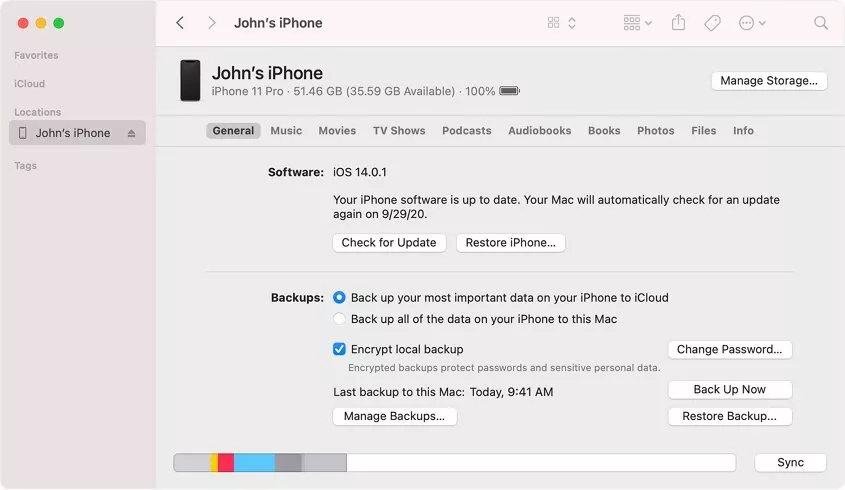
While this method is free and reliable, it has significant drawbacks: you can't choose specific files (it's all or nothing), current iPhone data will be erased during restoration, you need access to the computer that created the backup, large backups can take hours to restore, and there's no way to preview what's in the backup beforehand. If you need more control over what you recover or want to avoid erasing your current data, the professional recovery tool in Method 4 offers a better solution.

When free methods fall short, or when you need to recover permanently deleted files on iPhone after 30 days, professional recovery software becomes necessary. Among all available options, Tenorshare UltData stands out as the most effective solution.




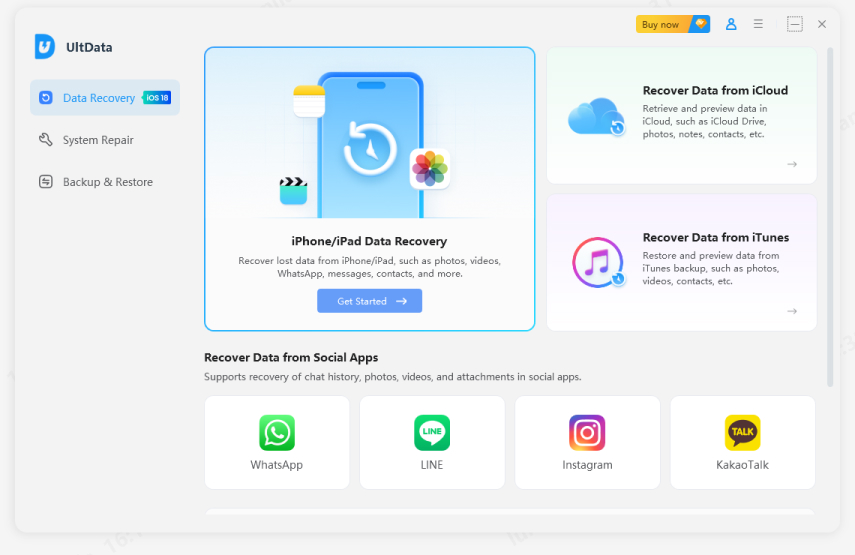
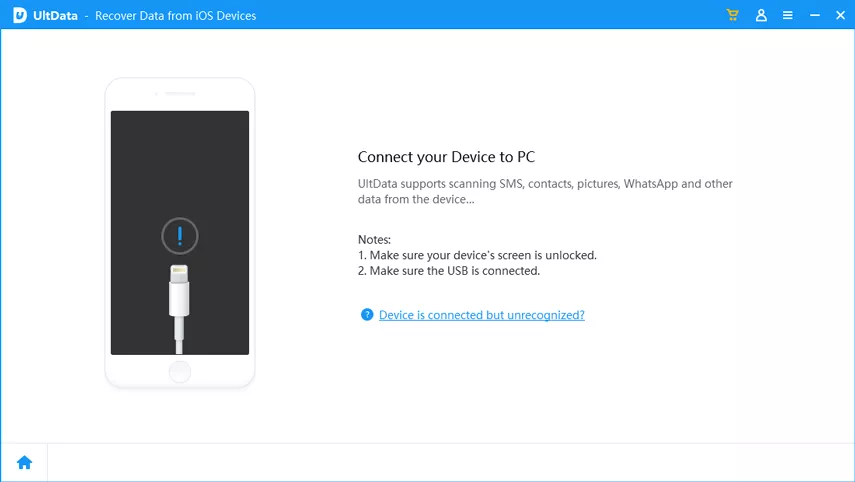
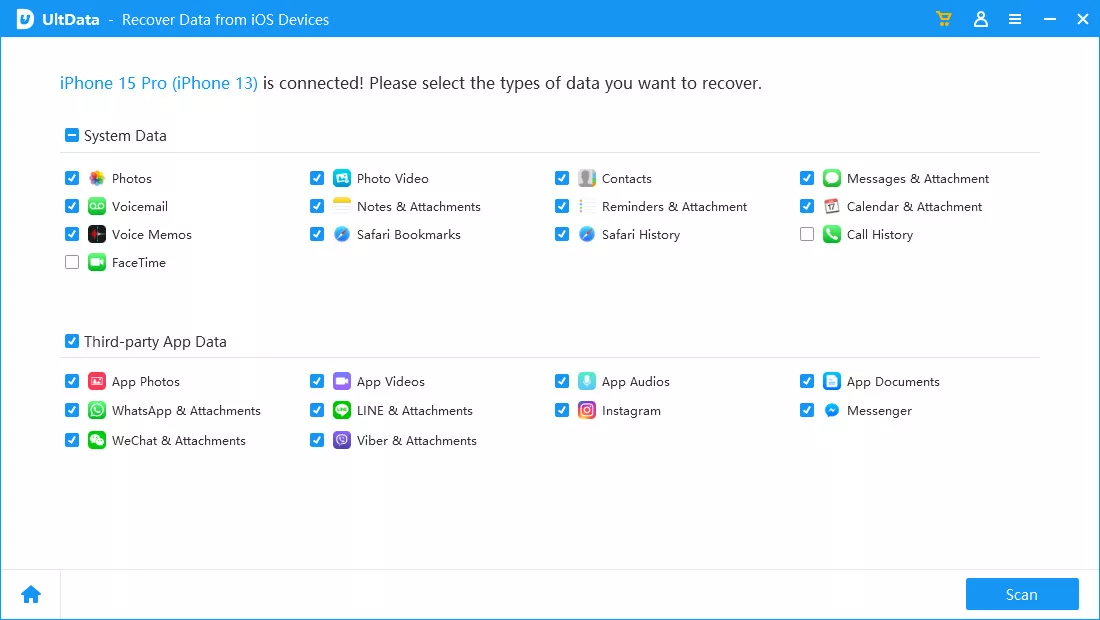
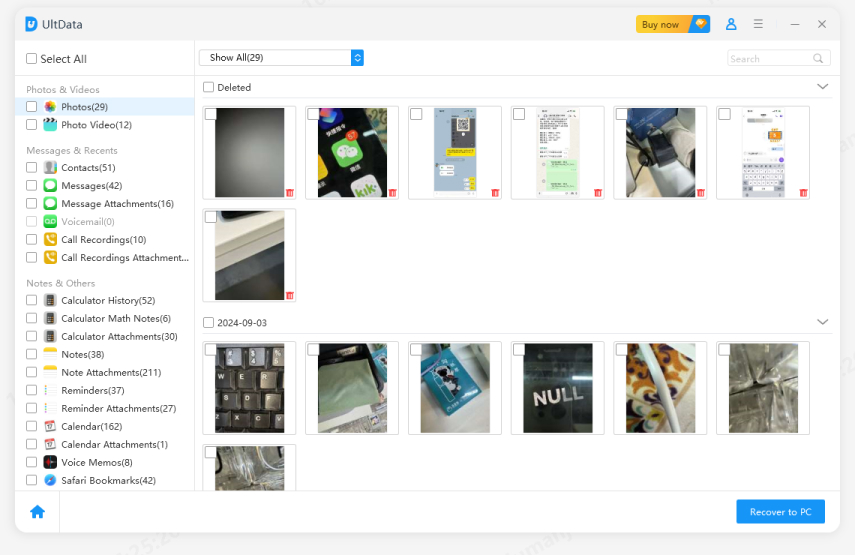
Unlike the previous methods that have strict time limits or require you to erase your iPhone, UltData offers a fundamentally different approach to data recovery:

Compared to Free Alternatives: Most free recovery software either don't work properly, contain malware, or severely limit what you can recover. UltData's paid model ensures quality, security, and reliable results.
You've learned how to recover deleted files from iPhone without backup free—but prevention is always better than cure. Here are practical strategies to protect your data and avoid future panic.
This is your most important safety net:

Don't put all your eggs in one basket:
iCloud backups are convenient but limited by storage space (5GB free, then paid plans required).
iTunes/Finder backups store everything locally on your computer with no storage limits.
Third-party cloud services like Google Drive, Dropbox, or OneDrive add another layer of protection.
Use both iCloud and iTunes/Finder backups. This gives you local and cloud redundancy.
Consider using dedicated backup apps for extra protection:
These apps automatically back up your content in the background, creating an additional safety net independent of iCloud.
If you need to recover deleted files from iPhone without backup, your options depend on timing. For files deleted within 30 days, simply check the Recently Deleted folder in your Files app or Photos app—this is completely free and works instantly. For permanently deleted files beyond 30 days, you'll need professional recovery software like Tenorshare UltData, which scans your iPhone's storage directly to find files that haven't been overwritten yet. Your success depends on how long ago files were deleted and how much you've used your iPhone since, so act quickly for the best results.
Yes, recovering permanently deleted files on iPhone is possible, though not guaranteed. Within 30 days, recovery through Recently Deleted folders is nearly 100% successful. After 30 days, professional recovery software can still recover files with 70-90% success rates. This works because deleted files aren't immediately erased—your iPhone just marks that storage space as available until new data overwrites it. Stop using your iPhone immediately after realizing you need recovery, as every action increases the risk of overwriting the data you're trying to recover.
The best free method depends on your situation. For recent deletions within 30 days, check the Recently Deleted folders in Files and Photos apps—this is the easiest and most reliable approach. If you have iCloud Drive enabled, visit iCloud.com's Recently Deleted section. Users with iTunes or Finder backups can restore for free, but this erases current iPhone data. Free methods only work for files deleted within 30 days—for older deletions, you'll need professional recovery software, though tools like UltData offer free trials to scan and preview files before purchasing.
Deleted files remain in Recently Deleted folders for 30 days (Files app) or 30-40 days (Photos app), with iCloud.com also keeping items for 30 days. After this period, files are "permanently deleted" from these folders but remain physically stored on your iPhone's memory until overwritten—which could take days or months depending on usage. Don't rely on these timeframes as guarantees; check Recently Deleted folders within a few days of any accidental deletion to recover files while they're easily accessible.
You can recover certain files without a computer, but options are limited. Recently Deleted folders in Files and Photos apps are fully accessible on your iPhone, and you can access iCloud.com through any web browser. However, professional recovery software requires a computer because deep scanning needs more processing power, requires USB connection, and installing software on your iPhone risks overwriting deleted data. If you don't have a computer, borrow one from a friend or visit a library—just clear any cached data afterward for privacy.
Losing important files on your iPhone doesn't have to be permanent. This guide has shown you how to recover deleted files from iPhone without backup free using multiple effective methods. For files deleted within 30 days, Apple's built-in Recently Deleted folders offer instant, free recovery. For permanently deleted files beyond that window, professional tools like Tenorshare UltData can scan your iPhone's storage directly and recover data without requiring backups or erasing your device.
The key to success is acting quickly—every action on your iPhone risks overwriting deleted data. Start with free methods first, then try UltData's free trial to preview recoverable files before purchasing. Once you've recovered your files, prevent future loss by enabling automatic iCloud backups and creating regular computer backups. Your irreplaceable memories and important documents deserve this protection.


Tenorshare UltData - Best iPhone Data Recovery Software






then write your review
Leave a Comment
Create your review for Tenorshare articles

Share this post


UltData - Best iPhone Data Recovery Tool
Recover Deleted & Lost Data from iOS Devices Easily, No Backup Needed!
UltData: Best iPhone Recovery Tool
Recover Lost iPhone Data without Backup
By Jenefey Aaron
2026-09-24 / iOS Data Recovery