

 iOS Tips & Latest Updates
 Bug Fixes, Unlock Guides
 Giveaways & Freebies


UltData - Best iPhone Data Recovery Tool
Recover Deleted & Lost Data from iOS Devices Easily, No Backup Needed!
UltData: Best iPhone Recovery Tool
Recover Lost iPhone Data without Backup
An iPhone holds photos, messages, app data, and settings. Knowing what iCloud backup is helps protect this data against loss, damage, or transfer failures.
Many users confuse iCloud Backup with iCloud Sync, assuming that enabling iCloud automatically saves every file in a restorable image.
This guide covers what iCloud backup is, what is in an iCloud backup, how to back up an iPhone to iCloud step by step, native limitations, and how to selectively recover data using Tenorshare UltData.

iCloud Backup is Apple's cloud-based storage service that creates a snapshot of your iPhone's system settings, app data, home screen layout, and internal device organization, storing it securely on Apple's servers.
An iCloud Backup helps you restore your environment when:
Unlike real-time syncing services, an iCloud Backup saves a static copy of your device at a specific moment. It does not continuously update individual files as changes occur.
The two features sound similar but work differently, and that matters for how you protect your data:
 Please swipe to view
Understanding what is in the iCloud backup ensures you know which files are protected and which rely on separate synchronization settings.
What is included
What is excluded

Does iCloud backup include all photos? If "iCloud Photos" is turned on, your photos sync to the cloud and are not included in the snapshot. If "iCloud Photos" is off, photos are stored directly inside the snapshot backup.
Setting up a manual or automatic backup ensures your files remain safe. If you're preparing to downgrade iOS 27, backing up your iPhone before the downgrade can help protect your data. If you are asking how to back up an iPhone to iCloud, follow these official steps.

When asking "Is iCloud backup automatically turned on?", the answer depends on your initial setup. While iOS prompts you to enable it during initial setup, check your settings to confirm. Automatic backups occur daily when connected to power, locked, and on Wi-Fi.
To use Apple's official restore process, you must reset your iPhone to factory settings before applying the saved snapshot.

Limitations of Restoring from iCloud Backup
Cannot restore without erasing all current data on your iPhone.
Selective recovery of specific files is impossible.
The restore process can take hours over slow internet connections.
If you want to view backup contents or extract specific files without wiping your device, using a third-party recovery tool is the most efficient solution.
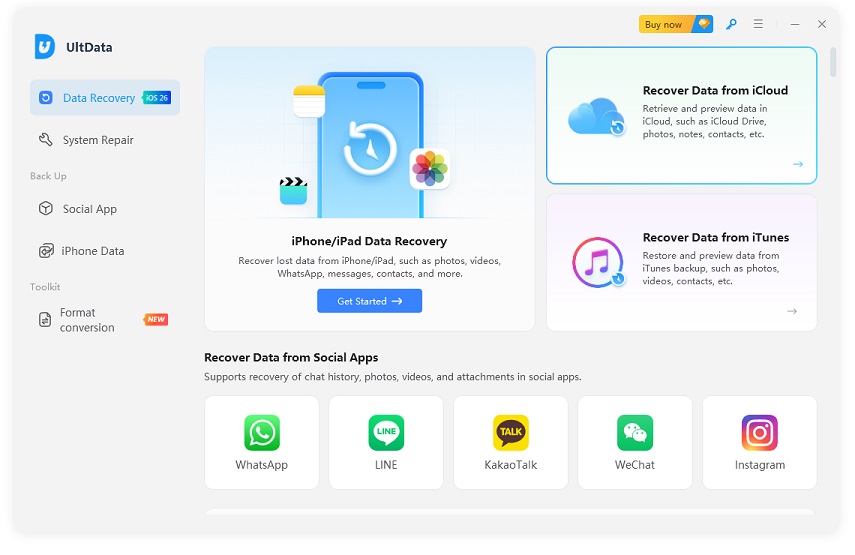
Tenorshare UltData resolves the native limitations of Apple's traditional restore process by offering a direct iCloud Data Recovery solution.




UltData Features
Supported Data Types
UltData recovers photos, messages and attachments, contacts, call history, notes, WhatsApp and WeChat data, Safari bookmarks, calendar entries, and voice memos directly from an iCloud Backup.


Deleting old backups can free up iCloud storage space. It is safe to delete the backup if it is no longer needed. However, avoid deleting your only backup if you may need it later.
Automatic backups stop immediately. Existing backups remain unless manually deleted, but new iPhone data will no longer be backed up to iCloud.
Yes, it is recommended for most iPhone users. It helps protect important data if your device is lost, damaged, or replaced.
Creating an iCloud Backup does not delete data from your iPhone. Restoring from a backup may overwrite current device data, and deleting an iCloud Backup only removes the cloud copy.
It depends on your setup process and settings. Check iCloud Backup settings to confirm it is enabled.
Knowing what iCloud backup is empowers you to safeguard your digital life, prevent unexpected data loss, and handle device upgrades seamlessly. While Apple's native tools provide essential overall protection, third-party recovery software like Tenorshare UltData offers flexible, selective recovery without resetting your device. Keeping your backup strategy active and regularly monitored ensures your iPhone files, photos, and settings remain permanently secure.


UltData - Best iPhone Data Recovery Software






then write your review
Leave a Comment
Create your review for Tenorshare articles

Share this post


UltData - Best iPhone Data Recovery Tool
Recover Deleted & Lost Data from iOS Devices Easily, No Backup Needed!
UltData: Best iPhone Recovery Tool
Recover Lost iPhone Data without Backup
By Jenefey Aaron
2026-09-28 / iOS Data Recovery