

 iOS Tips & Latest Updates
 Bug Fixes, Unlock Guides
 Giveaways & Freebies


UltData - Best iPhone Data Recovery Tool
Recover Deleted & Lost Data from iOS Devices Easily, No Backup Needed!
UltData: Best iPhone Recovery Tool
Recover Lost iPhone Data without Backup
Many iPhone users use iCloud every day but don't know what exactly is stored there. You may wonder:
You can view most iCloud data in your iPhone settings, dedicated apps, or on iCloud.com. However, the data in iCloud backups works differently. You cannot directly browse backed-up data like regular files.
Let's get this all sorted in this guide, where you will learn how to see what is stored in iCloud along with some useful tips for managing your iCloud storage.

iCloud is not just ordinary cloud storage. Apple offers iCloud for two related but different functions. First, it synchronizes data:

Considering the diverse functionality of iCloud, it stores different types of data (depending on the enabled features):
iCloud Backups: Device settings, app data, messages, and other iPhone/iPad data for a full snapshot of the device.
This explains why searching for how to check what is on iCloud can produce different answers. A file stored in iCloud Drive can be opened like a normal file, but information contained inside an iCloud Backup cannot normally be browsed as a folder.
iCloud Sync keeps supported information updated across your Apple devices. For example, when iCloud Photos is enabled, changes to your photo library are synchronized with iCloud.
iCloud Backup creates periodic snapshots of information on your device. It includes system settings, app/device data, and more. Its purpose is to save device information and restore it when required.
This distinction is important because deleting synced information can synchronize that deletion across devices, while older information may still exist in an available backup.
 Please swipe to view
There are different ways on how to see what's stored on iCloud, depending on whether the data is synced or backed up.
Since iCloud Sync can synchronize a lot of data types, you can check that data through their specific apps or settings on your iPhone.
Check iCloud Photos
Navigate to Settings → [Your Name] → iCloud → Photos. This screen shows whether iCloud Photos is enabled and how much storage your library is using.

To view photos available in iCloud Photos, open the Photos app on your iPhone. When iCloud Photos is turned on, every photo and video will already be there, fully synced and viewable just like locally stored images. You can also view them from icloud.com/photos.
Check iCloud Drive Files
Navigate to Files app → Browse → iCloud Drive. Every document, folder, and app file synced to iCloud appears here, just like a regular folder.

Check Other Synced Data
Under Settings → [Your Name] → iCloud → Show All, you can toggle and review Contacts, Notes, Calendars, Mail, and Messages (if Messages in iCloud is enabled).
Each toggle shows whether that category is syncing, but it won't show individual items (only the on/off status).

This is still the fastest way to confirm how to see whats on iCloud, especially if you are trying to figure out why one app keeps asking you to free up space.

While synced iCloud data can be viewed directly, not all iCloud data is accessible this way. Many users expect to open their iCloud backup and browse files like a folder, but Apple does not provide this option.
An iCloud Backup actually contains a full snapshot of the device, including:
Apple only lets you use iCloud Backup by restoring it to an iPhone during setup. You can't preview individual files inside it first.
When Apple won't let you view your iCloud backup, the Tenorshare UltData iPhone Data Recovery tool solves the problem.
Tenorshare UltData is a dedicated iPhone and iCloud data recovery tool that provides built-in functionality to preview what's stored in iCloud backup without blindly restoring. It lets you look inside first before making the decision to restore the backup.




With UltData iPhone Data Recovery, you can:
This is the most practical answer to how do I view what is stored on my iCloud when the data is locked inside a backup. Now let's look at how to use UltData iPhone Data Recovery:
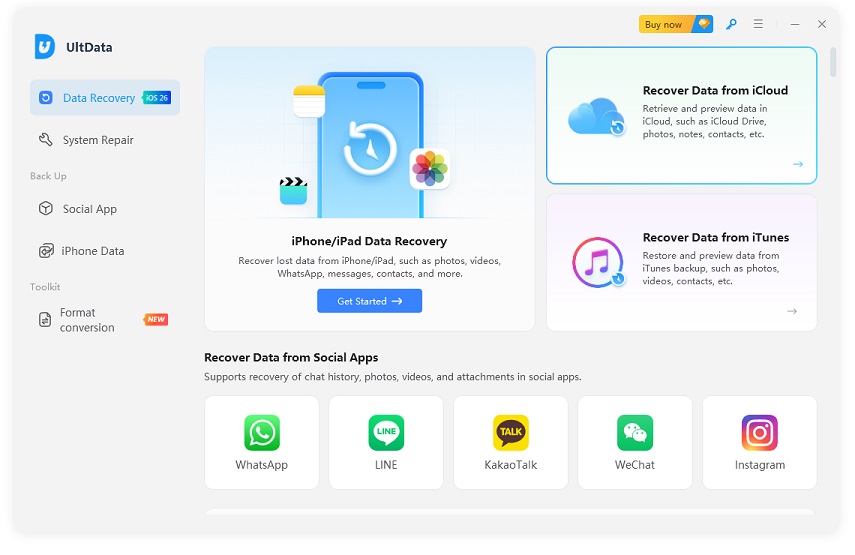


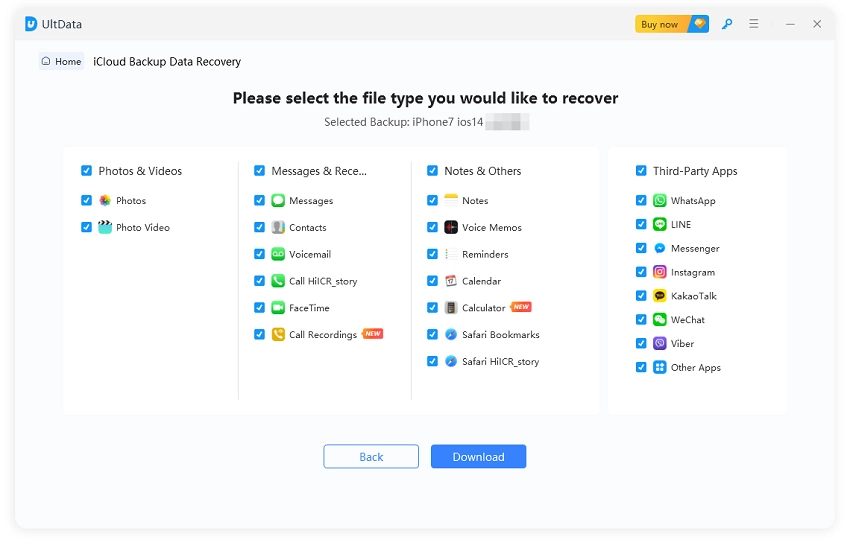


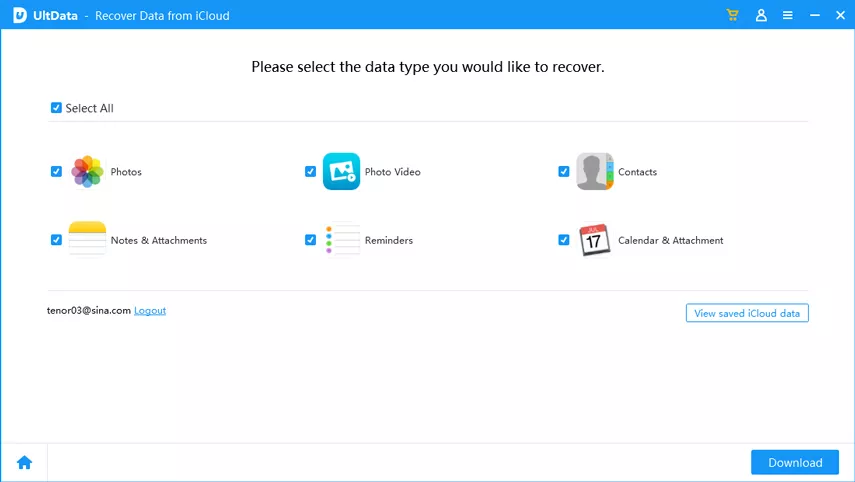
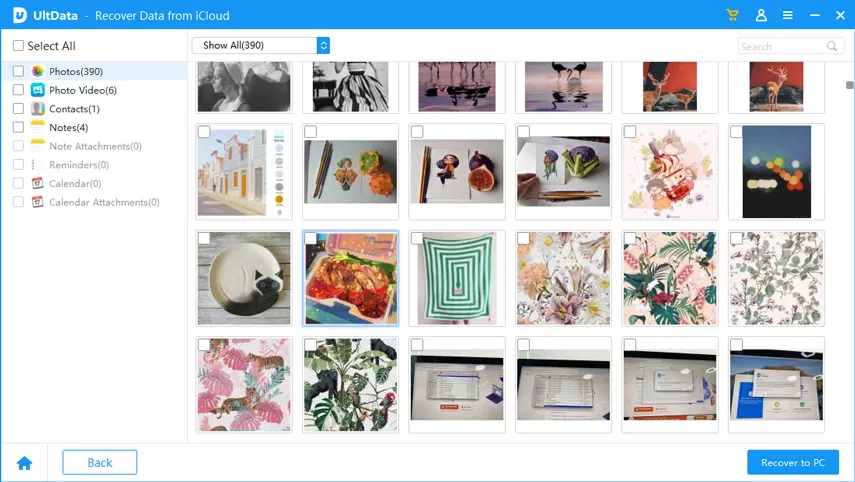
Since everything happens in preview mode first, there's no risk of overwriting your current iPhone data. UltData also supports a wide range of file types, including photos, videos, messages, WhatsApp chats, contacts, call history, and notes. So, you are not limited to just a few basic categories.
Download UltData now and use this go-to tool for checking old iCloud backups.
Now that you know how can I see what I have saved in the cloud, the next thing is to manage iCloud storage. The following are some useful tips to declutter iCloud storage:
Go to Settings → [Your Name] → iCloud → Manage Account Storage → Backups, and remove backups from devices you no longer use.


Before doing this, you can use Tenorshare UltData to preview the files in those iCloud backups and then make the decision.
Photos and videos can take up significant iCloud storage. Use the Photos app or iCloud.com/photos to view existing photos/videos and delete large ones.

Under iCloud → Storage → Backups, select your device to see which apps contribute to the backup. Turning off unnecessary apps can reduce the size of future backups.

If you find files you want to keep but no longer need in iCloud, download or copy them elsewhere first. For important backup data, use UltData to preview, select, and export those files without a full backup restore.

No. You can view synchronized data, such as photos, files, notes, and contacts. However, iCloud Backup contents cannot normally be opened and browsed individually. You can view backup details, such as the device, backup date, and storage usage, but you generally need to restore the backup to access its contents.
The official method only shows you how many backup files you have, but you cannot view what data these backups contain. You have to restore a full backup on your iPhone to view data. Alternatively, you can use UltData to scan your iCloud backup and let you preview all the data stored in it without the need for restoration.
Go to Settings >your name > iCloud > Storage on your iPhone. You can see which categories, such as Photos, Backups, Messages, and apps, are using your iCloud space.
It depends on how the data was stored. If iCloud Sync is enabled, you can usually find data in the related apps or iCloud.com. However, some data may only exist inside an iCloud Backup, which cannot be directly browsed.
Go to Settings> your name] > iCloud > iCloud Backup. You can check whether iCloud Backup is enabled, the last backup time, and the device backup information.
You can download some synced data, such as photos and files, from iCloud.com. However, iCloud Backup cannot be downloaded as a normal folder because Apple stores it as a complete device backup.
The solution for how to see what is stored in iCloud doesn't have to involve guesswork or a risky restore. The synced data is easy to preview through the relevant apps or iCloud.com, while iCloud Backup details can be checked in your device's iCloud settings. However, if you want to view backup content without restoring it to an Apple device, Tenorshare UltData provides a click-based workflow to scan and preview backed-up data and even restore selective files.


UltData - Best iPhone Data Recovery Software






then write your review
Leave a Comment
Create your review for Tenorshare articles

Share this post


UltData - Best iPhone Data Recovery Tool
Recover Deleted & Lost Data from iOS Devices Easily, No Backup Needed!
UltData: Best iPhone Recovery Tool
Recover Lost iPhone Data without Backup
By Jenefey Aaron
2026-09-28 / iOS Data Recovery