



UltData - Best iPhone Data Recovery Tool
Recover Deleted & Lost Data from iOS Devices Easily, No Backup Needed!
UltData: Best iPhone Recovery Tool
Recover Lost iPhone Data without Backup
If you're wondering how to find archived chats in ChatGPT, you're not alone. Many users archive conversations to keep their sidebar organized, then later struggle to locate those chats again. Fortunately, ChatGPT includes a built-in archive feature that lets you hide conversations without deleting them.
In this guide, you'll learn how to access archived chats, recover archived conversations, fix common access issues, and find backup copies of your ChatGPT history when needed.

Before learning how to access archived chats in ChatGPT, it helps to understand what the archive feature actually does. When you archive a conversation, ChatGPT removes it from your main chat list. The conversation remains stored in your account and is not permanently deleted. Think of archiving as moving a file into a storage folder rather than throwing it away.
Many users archive chats to reduce clutter, especially if they have hundreds of conversations. Archived chats stay linked to your account and can usually be restored at any time. So, what does archiving a chat in ChatGPT do? It simply hides the conversation from the main sidebar while keeping the data saved in your account.
Archiving offers several benefits:
A common misunderstanding is that archived chats are deleted chats. This is not true. Archived conversations remain stored unless they are manually deleted. If you're asking where are archived chats in ChatGPT, they're stored inside your account settings rather than appearing in the regular chat list.
If you need to know how to find archived chats in ChatGPT, OpenAI provides a simple way to access them through your account settings. The process works similarly on most desktop browsers and the web version of ChatGPT. Once you open the archive manager, you can review, restore, or manage archived conversations.
Open ChatGPT and sign in to your account. Look at the bottom-left corner of the screen and click your profile picture or account name. This opens the account menu where ChatGPT settings and account options are located.

After opening the account menu, select "Settings." The Settings section contains personalization, data controls, security options, and archive management tools.

Inside Settings, locate the Archived Chats section. Click "Manage" to open the archive manager. You can now see archived conversations, review them, and restore any chat you want back into the main sidebar.

Sometimes users know how to see archived chats on ChatGPT but still cannot access them. This can happen because of syncing delays, browser issues, account problems, or temporary service interruptions. Before assuming your chats are lost, try the following solutions.
Start with the simplest test. Log into the same ChatGPT account on another device. Try a different browser, another computer, or the mobile app. If archived chats appear on the second device, the issue is probably related to your browser rather than your account. This method often helps users determine whether the problem involves local settings or account synchronization.
ChatGPT continuously syncs data between OpenAI's servers and your account. Occasionally, cached account information becomes outdated. Signing out and signing back in forces ChatGPT to refresh account data.
To do this:
Many users regain access to archived conversations after performing this simple refresh.
When troubleshooting, some users immediately clear browser cache and cookies. While clearing cache can solve display issues, it can also remove locally stored session data that may help diagnose the problem. Before clearing anything:
Only clear browser data after completing these checks.
If archived chats are not visible inside ChatGPT, there may still be other ways to recover previous conversations. OpenAI allows users to export account data, which often contains conversation records stored within downloadable files. These exports can serve as a backup copy of your ChatGPT history.
Many users forget they previously requested a data export. When you request an export, OpenAI generates a download package and sends a secure link to your email address.

Search your email inbox for messages from OpenAI containing terms such as:
If you previously downloaded one of these archives, it may contain conversation records that are no longer easy to locate through the interface. This approach can be especially useful if you're trying to understand where archived chats in ChatGPT are stored outside the application itself.
If you find an exported archive, download and unzip the file.
Inside the package, you may see files such as:
The exact contents can vary depending on the export date. Open chat.html in a web browser or review conversations.json with a text editor. These files often contain conversation records that allow you to view archived chats in ChatGPT history, search previous discussions, and locate important information that may not currently appear in your account dashboard. For many users, exported data provides the most complete backup of ChatGPT conversations.
Even after learning how to find archived chats in ChatGPT and trying the built-in archive tools, some conversations may still seem impossible to locate.
In many cases, the issue is not with ChatGPT itself but with files stored on your device. Exported chat archives, browser data, downloaded conversation records, or cached files can disappear because of accidental deletion, software crashes, storage errors, or system updates.
When this happens, a data recovery tool may help recover those missing files. Tenorshare UltData Data Recovery is one such solution that can scan your device and help restore lost ChatGPT-related files before they are permanently overwritten.




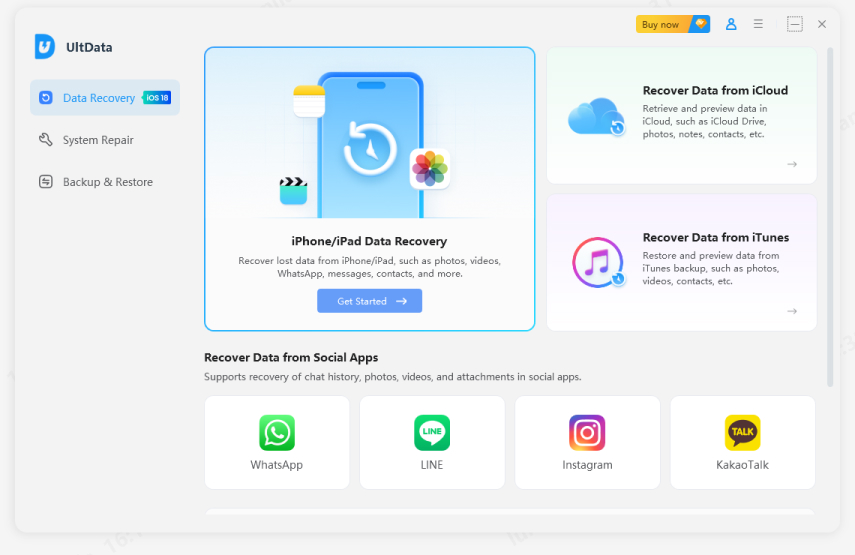
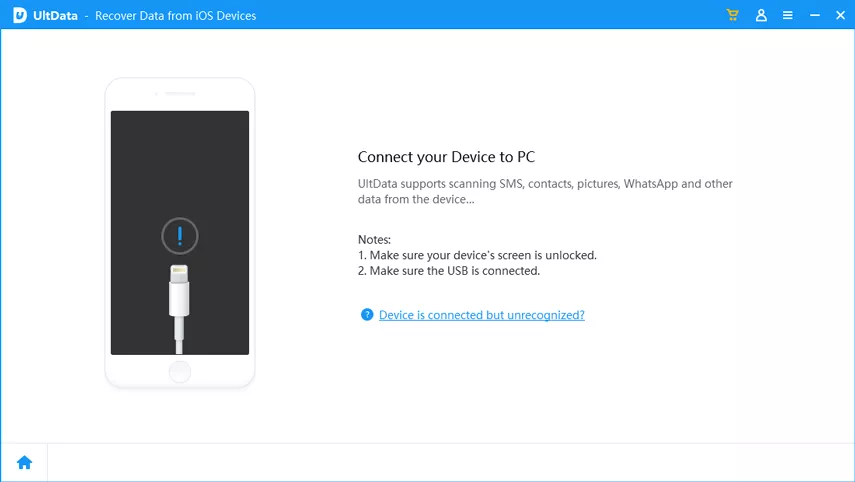
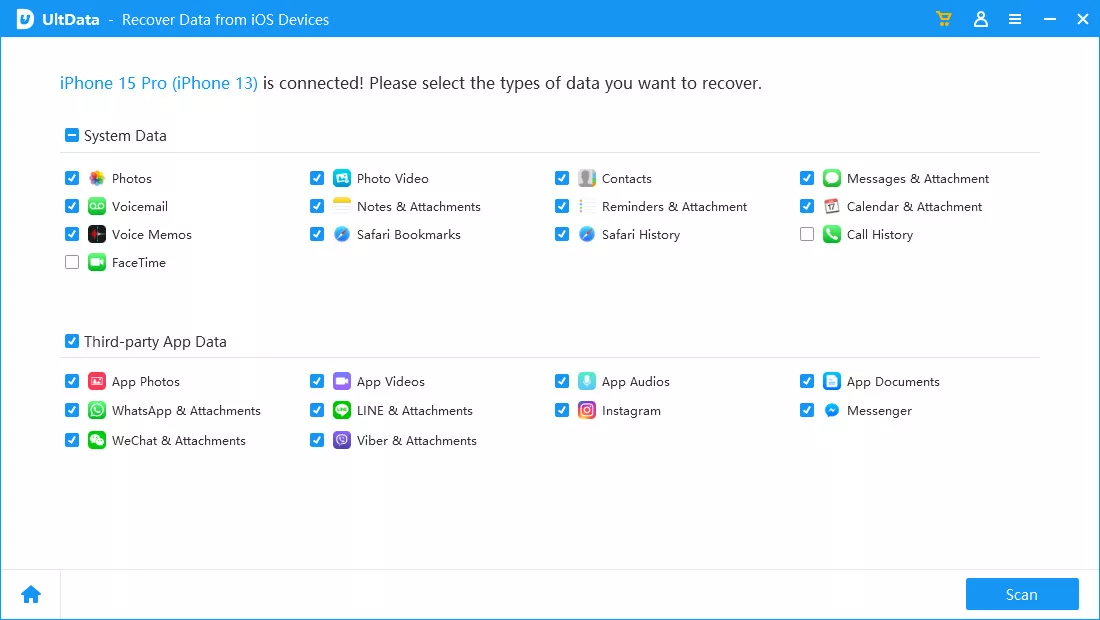
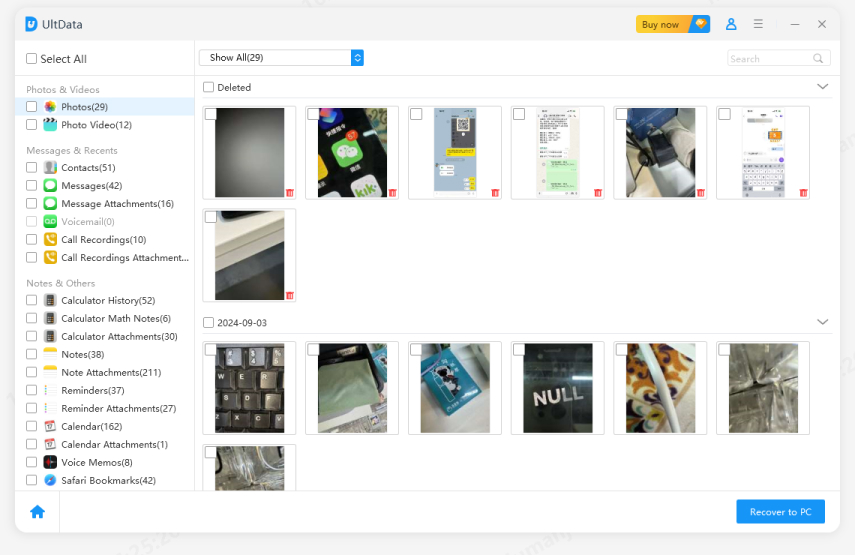

Recovery software cannot retrieve conversations that were permanently deleted from OpenAI's servers and never exported. However, it can be extremely useful when exported archives, browser downloads, or locally stored files have been accidentally removed from your device.
Knowing how to find archived chats in ChatGPT can save a lot of time when important conversations seem to disappear. Archived chats are usually not deleted; they are simply hidden from your main chat list. If archived chats or exported files were accidentally removed from your computer, Tenorshare UltData Data Recovery may help recover those files and restore access to valuable ChatGPT records.


UltData - Best iPhone Data Recovery Software




then write your review
Leave a Comment
Create your review for Tenorshare articles
Share this post


UltData - Best iPhone Data Recovery Tool
Recover Deleted & Lost Data from iOS Devices Easily, No Backup Needed!
UltData: Best iPhone Recovery Tool
Recover Lost iPhone Data without Backup
By Jenefey Aaron
2026-09-15 / AI Recovery