

 iOS Tips & Latest Updates
 Bug Fixes, Unlock Guides
 Giveaways & Freebies


UltData - Best iPhone Data Recovery Tool
Recover Deleted & Lost Data from iOS Devices Easily, No Backup Needed!
UltData: Best iPhone Recovery Tool
Recover Lost iPhone Data without Backup
Restoring apps after setting up a new or reset iPhone is a common need for many users. While iCloud can help bring back previously installed apps, it does not store the apps themselves in the backup. Instead, iOS re-downloads apps from the App Store and restores available app data and settings based on what was included in your iCloud backup.
This guide provides a step-by-step overview of how to restore apps from iCloud on iPhone, covering Apple's official methods as well as alternative solutions when the standard restore process does not work.

Yes, but not by restoring the apps directly from the backup. iCloud Backup does not store the actual apps. Instead, Apple saves information about your installed apps, and your iPhone downloads them again from the App Store during the restore process.
Basically, Apple saves information about the apps on your device, and the apps are downloaded again from the App Store when you restore your backup. So, iCloud backup keeps a lightweight record of important data that needs to come back, including:
Most apps will automatically redownload during the restoration process, provided they are still available in the App Store and compatible with your device.
To restore your apps and their data, you need to start from an iCloud backup during iPhone initial setup. If your device is already set up, you will need to erase it first (factory reset) before you can restore apps from iCloud.

Before you begin, make sure you have:
Follow these steps on how to restore apps from iCloud:

Stay connected to Wi-Fi and keep the phone plugged in while iOS downloads your data, apps, and settings.

Once setup finishes, your Home Screen layout appears immediately. Individual apps may take a few minutes to fully re-download, depending on your library size and connection speed.
Looking at the official method discussed in Part 2, are you thinking: how do I restore apps from iCloud without the need to reset/erase the iPhone?
Don't worry, you are not alone. Let's get it answered and find the best solution.
Apple does not provide a direct way to restore all apps from an iCloud backup without resetting the device. There is also no built-in setting that lets you pull individual apps or app data back onto a phone that's already in use. It's an all-or-nothing process tied to a full reset.
However, don't lose hope. You can restore specific app data from iCloud without erasing the iPhone by using an alternative and safe iCloud data recovery tool.
Tenorshare UltData is a trusted iOS data recovery tool that provides an advanced and modernized way to restore apps and other data from iCloud backup without erasing the iPhone. You can select which data types to restore, preview them after scanning, and restore only the files you need.




Why Use UltData?
Feel impressed? Here are the simple three steps on how to restore apps from iCloud using Tenorshare UltData:
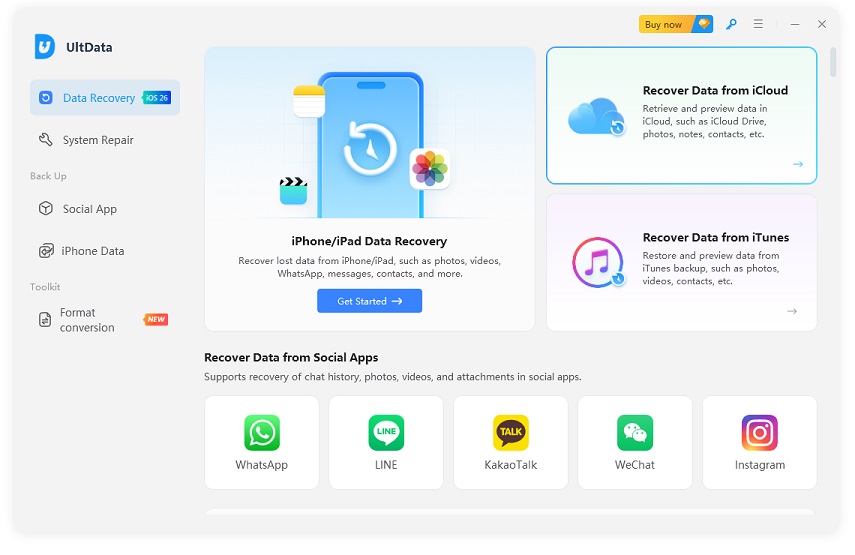


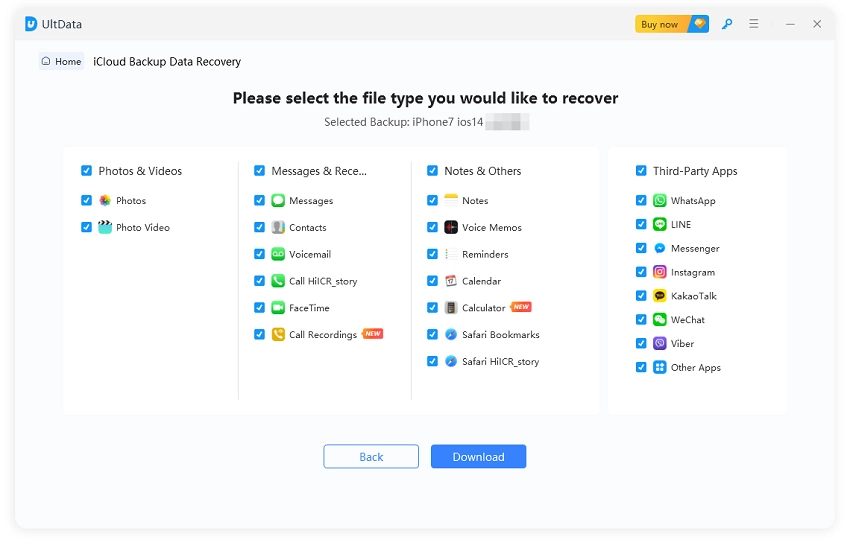

That's how you address the question "Will iCloud restore my apps?" without worrying about erasing your iPhone. Download Tenorshare UltData and get back the apps from iCloud within minutes.
iCloud Backup does not save the actual app installation files. It saves app-related data, settings, and the list of installed apps. Apps are downloaded again from the App Store during restoration.
Yes, after restoring an iCloud backup, your iPhone automatically redownloads apps from the App Store. The process happens in the background after setup. Keep in mind that you need to sign in with the same Apple ID.
If your apps are not restoring from iCloud, some of the possible reasons are:
Restoring apps from iCloud may take a few minutes to several hours. The actual duration depends on your backup size, the number of apps, the size of each app, and your internet speed. Basic data appears first, while apps continue downloading in the background.
No, Apple's official iCloud Backup restore requires erasing the device first. If you only need specific app data, use a selective recovery method using Tenorshare UltData instead of a full restore.
An iCloud backup created before an app was deleted can provide a secure way to recover its data. Apple's official restore process can restore apps from iCloud but requires erasing the iPhone. In contrast, Tenorshare UltData helps retrieve selected app data without resetting the device. So, if you don't want to wipe out your existing data, install UltData and restore with ease.


UltData - Best iPhone Data Recovery Software






then write your review
Leave a Comment
Create your review for Tenorshare articles

Share this post


UltData - Best iPhone Data Recovery Tool
Recover Deleted & Lost Data from iOS Devices Easily, No Backup Needed!
UltData: Best iPhone Recovery Tool
Recover Lost iPhone Data without Backup
By Jenefey Aaron
2026-09-28 / iOS Data Recovery