

 iOS Tips & Latest Updates
 Bug Fixes, Unlock Guides
 Giveaways & Freebies


UltData - Best iPhone Data Recovery Tool
Recover Deleted & Lost Data from iOS Devices Easily, No Backup Needed!
UltData: Best iPhone Recovery Tool
Recover Lost iPhone Data without Backup
Wondering how to view messages on iCloud? Unlike photos or files, iPhone messages cannot be directly browsed on iCloud.com . Depending on your settings, messages may be stored through Messages in iCloud for syncing or included in an iCloud Backup for restoration. This guide explains how to access, check, and recover iPhone messages from iCloud.

Many users search for how to view messages on iCloud when they want to check old iPhone conversations or find important texts from the past. However, iCloud does not work like a traditional cloud storage service where you can simply open a folder and browse all your messages. Apple stores messages differently depending on whether you use Messages in iCloud or iCloud Backup, which determines how you can access and restore your conversations.
Apple stores messages in different ways depending on your settings:
This difference determines whether you can directly view messages or need to restore/extract them from a backup.
Yes, iCloud can store your iPhone messages, but the storage method depends on your iCloud settings.
Messages in iCloud keeps your iMessage and SMS conversations synchronized across devices. When enabled, messages are uploaded to iCloud and appear automatically on other Apple devices signed in with the same Apple Account.
iCloud Backup works differently. It saves a complete snapshot of your iPhone, including messages if they are not already stored through Messages in iCloud. These messages are not individually viewable in iCloud. Instead, they can only be accessed by restoring the backup or extracting its contents with a third-party tool.

Your iPhone messages can exist in different locations depending on how iCloud is configured.
 Please swipe to view
Messages in iCloud is designed for synchronization, not file storage. If it is enabled, your conversations are synced between supported Apple devices, such as iPhone, iPad, and Mac.
iCloud Backup stores your messages as part of a full device backup. You cannot open the backup and browse individual conversations on iCloud.com. To access these messages, you need to restore the backup or use a backup extraction tool.
iPhone storage contains the messages currently available on your device. If a message has been deleted and is no longer available through iCloud sync or a backup, it may not be accessible through Apple's built-in methods.
Before trying the methods below, keep in mind that each option has specific requirements. You can only view messages if they were already synced to iCloud or included in a previous backup. Deleted messages, unavailable backups, or unsynced conversations may not be recoverable through Apple's official methods.
To view messages through Messages in iCloud, you must have enabled this feature before, use the same Apple Account, and have an active internet connection. Only messages that are still synced with iCloud can be viewed. Deleted messages or unsynced conversations cannot be accessed this way.
Steps:

Suitable for:
Limitations:
To check iCloud messages on another Apple device, it must be signed in with the same Apple Account and have Messages in iCloud enabled. After synchronization, you can view available conversations in the Messages app. However, this method cannot access messages stored only in an iCloud Backup.
Steps:

Suitable for:
Limitations:
To view messages from an iCloud Backup, you need a backup created before the messages disappeared and access to the same Apple Account. Since Apple requires a full device restore, you cannot preview or recover only specific messages during the restore process.
Steps:
Suitable for:
Limitations:
Unlike photos, files, and notes, iCloud.com does not provide a dedicated Messages viewer.
You cannot:
Messages can usually only be accessed through:
The official methods work when messages are still synced or when you have a suitable backup. However, Apple's iCloud restore process has several limitations: you cannot preview backup contents, select specific conversations, or recover messages without replacing the current device data.
If you want to recover deleted text messages from an iCloud backup without resetting your iPhone, a dedicated iCloud data recovery tool can provide a more flexible solution.

Tenorshare UltData for iOS provides a way to access iCloud backup data without performing a full device restore.




Unlike Apple's restore method, UltData allows you to:
This is useful when you only need specific conversations but do not want to erase your current iPhone.
Download and install Tenorshare UltData. Switch to "Recover Data from iCloud" .
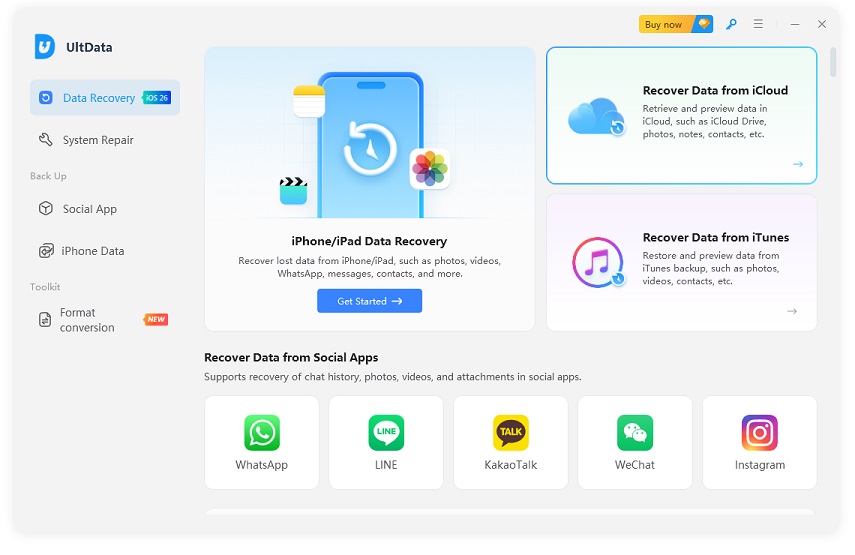
Enter your Apple ID and password to securely log in to your account.

Browse the list of available backups, choose the specific file you wish to download and scan, then click "Next".

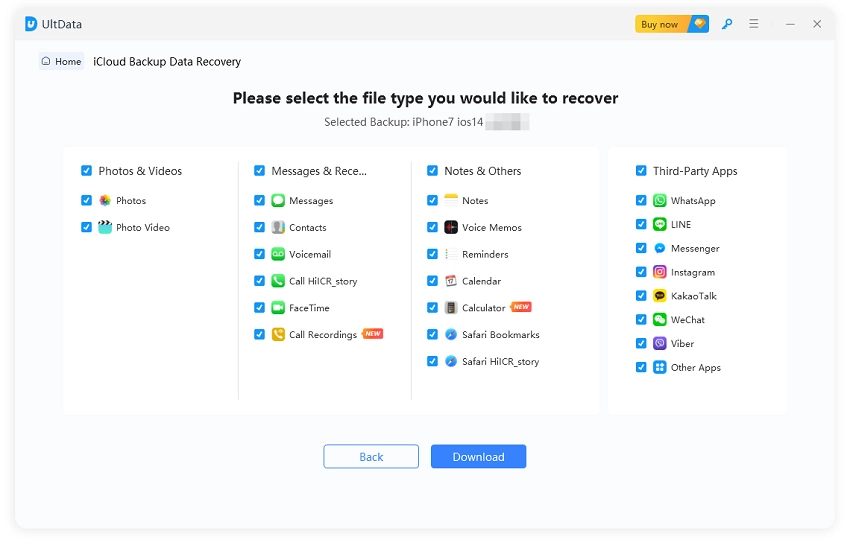
Select the specific categories of data you need to recover (such as Photos, Videos, Contacts, etc.) and click "Download".
Once the scan is complete, preview your data, select the items you wish to save, and click "Recover to PC" to export the files.

Viewing messages on iCloud depends on where they are stored. Synced messages can be accessed through Apple devices with Messages in iCloud enabled, while messages in an iCloud Backup require restoration or extraction.
Since Apple does not allow previewing or selectively recovering backup messages, tools like UltData for iOS can provide a simpler way to preview and recover specific conversations without resetting your iPhone.


UltData - Best iPhone Data Recovery Software






then write your review
Leave a Comment
Create your review for Tenorshare articles

Share this post


UltData - Best iPhone Data Recovery Tool
Recover Deleted & Lost Data from iOS Devices Easily, No Backup Needed!
UltData: Best iPhone Recovery Tool
Recover Lost iPhone Data without Backup
By Jenefey Aaron
2026-09-28 / iOS Data Recovery