

 iOS Tips & Latest Updates
 Bug Fixes, Unlock Guides
 Giveaways & Freebies


UltData - Best iPhone Data Recovery Tool
Recover Deleted & Lost Data from iOS Devices Easily, No Backup Needed!
UltData: Best iPhone Recovery Tool
Recover Lost iPhone Data without Backup
Want to download an iCloud backup to your computer? Although many users search for "how do you download a backup from iCloud", Apple doesn't provide a direct way to save iCloud backups as files. iCloud backups are mainly used for full iPhone restoration, which may require erasing your device.
This guide explains what iCloud Backup stores, how to access it, and how to extract iCloud backup to PC without a full restore.

iCloud Backup is Apple's cloud backup service that saves important iPhone data and settings. It allows users to restore their device when switching to a new iPhone, resetting a device, or recovering lost information.
However, iCloud Backup is not a complete copy of everything on your iPhone. It only stores selected data that is not already synced with iCloud.
Understanding what is included in an iCloud backup is important before trying to download iPhone backup from iCloud or perform iCloud data recovery.
No. iCloud does not save all your iPhone data in a backup.
Some information is stored in iCloud Backup, while other data is managed separately through iCloud Sync.
Depending on your settings, an iCloud Backup may include:
Some data is not included in iCloud Backup because it is already synced and stored separately in iCloud. This may include:
If iCloud Sync is disabled for these services, some data may instead be included in your iCloud Backup.
Therefore, an iCloud Backup should be viewed as a device recovery snapshot, not a complete copy of everything stored on your iPhone.
Many users confuse iCloud Backup with iCloud Sync, but they serve different purposes.
iCloud Sync continuously updates information across Apple devices using the same Apple ID.
For example:
Unlike sync, iCloud Backup saves a snapshot of your device at a specific time.
It is mainly used when:
The main difference is:
Apple does not provide a direct way to download an iCloud backup to a computer as a standalone file. Instead, the official method is to restore the backup directly to an iPhone during the device setup process.
If your iPhone has already been configured, go to:
Settings → General → Transfer or Reset iPhone → Erase All Content and Settings
This removes existing content and returns the device to the setup screen.

Turn on your iPhone and follow the setup instructions until you see:
Transfer Your Apps & Data
Then select:
From iCloud Backup
Enter the Apple Account credentials associated with your iCloud backup.
Choose the backup you want to restore based on:
After selecting a backup, the transfer process will begin.

Although Apple's iCloud restore method can recover your device, it has several limitations.
Apple does not provide a way to open an iCloud backup and view individual files before restoring. You cannot check exactly what data is available inside the backup, such as:
The official restore process works as a full device recovery. You cannot choose to restore only certain files or categories, such as:
If your iPhone has already been set up, you need to erase all content and settings before restoring from an iCloud backup. This can be inconvenient if you already have new data stored on your device.
Restoring an iCloud backup returns your iPhone to the state captured at the backup date. Any new data created after that backup may not be restored.
If you only need specific files from an iCloud backup, Tenorshare UltData for iOS provides a more flexible way to access and recover your data without restoring the entire backup.
Instead of erasing your iPhone and performing a full restore, UltData allows you to access iCloud backup files on your computer, preview the available data, and selectively recover the files you need.




With Tenorshare UltData for iOS, you can:
Common recoverable data includes:
This makes it easier to find and recover important files from an iCloud backup while keeping your current iPhone data intact.
Tenorshare UltData for iOS provides a way to access iCloud backup data without restoring the entire device.
Download and install Tenorshare UltData. Switch to "Recover Data from iCloud" .
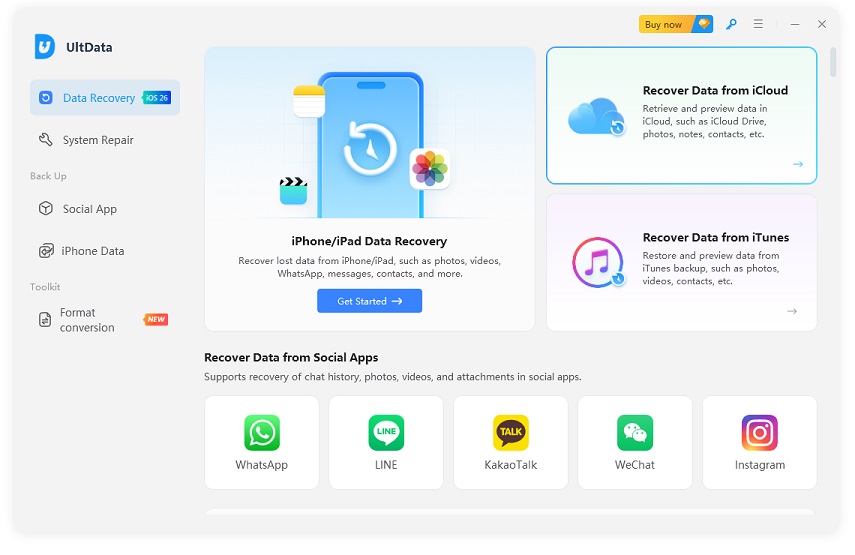
Enter your Apple ID and password to securely log in to your account.

Browse the list of available backups, choose the specific file you wish to download and scan, then click "Next".

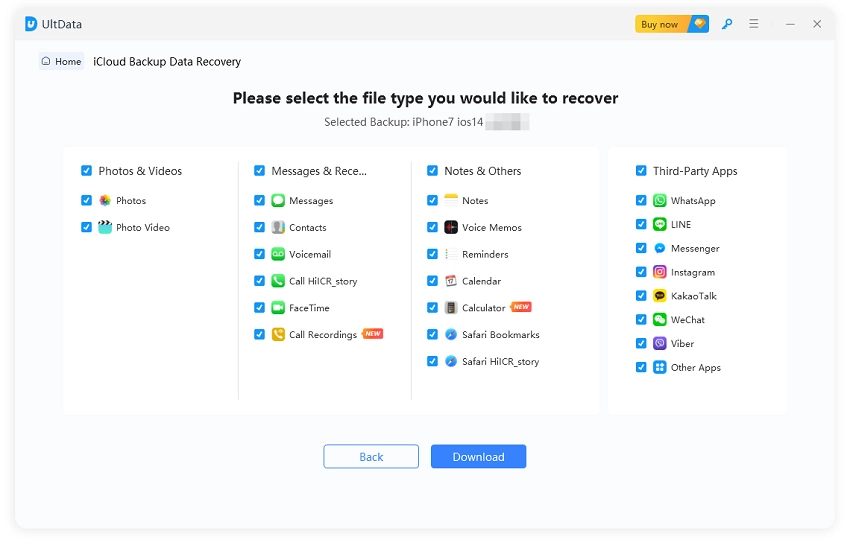
Select the specific categories of data you need to recover (such as Photos, Videos, Contacts, etc.) and click "Download".
Once the scan is complete, preview your data, select the items you wish to save, and click "Recover to PC" to export the files.

This makes it easier to extract data from iCloud backup when you only need specific files instead of a complete device restore.
So,how do you download a backup from iCloud? The answer depends on your goal.
If you want to restore your entire iPhone, Apple's official iCloud restore method is the recommended option.
However, if you want to download iCloud backup to PC, preview backup contents, or recover only specific files, selective extraction provides a more flexible solution. Before restoring any backup, always check what data is stored and choose the recovery method that matches your needs.


UltData - Best iPhone Data Recovery Software






then write your review
Leave a Comment
Create your review for Tenorshare articles

Share this post


UltData - Best iPhone Data Recovery Tool
Recover Deleted & Lost Data from iOS Devices Easily, No Backup Needed!
UltData: Best iPhone Recovery Tool
Recover Lost iPhone Data without Backup
By Jenefey Aaron
2026-09-28 / iOS Data Recovery