

 iOS Tips & Latest Updates
 Bug Fixes, Unlock Guides
 Giveaways & Freebies


UltData - Best iPhone Data Recovery Tool
Recover Deleted & Lost Data from iOS Devices Easily, No Backup Needed!
UltData: Best iPhone Recovery Tool
Recover Lost iPhone Data without Backup
Claude AI works on a unique feature called artifacts, which is responsible for allowing users to create, edit, and display content such as code, documents, websites, and visual outputs in a dedicated workspace. While these features work to improve productivity, users often need to clean up the outdated files that are no longer in use.
If you are looking to find out how to delete Claude artifacts, this guide will clear all your doubts and concerns about how to remove them, and whether you can recover the deleted artifacts or not. You will also explore certain conditions through which you can recover the artifacts easily.

Artifacts in Claude help its users to work with generated content outside the normal chat stream. Artifacts look like mini app streams that appear in the right side panel of the screen. It can place the larger outputs aside where they can be viewed, edited, and reused easily.
Artifacts are the interactive output streams that Claude AI generates. They can include multiple outputs, including:
These artifacts are designed to be managed independently. Moreover, it is easy to edit them, unlike the standard chat messages.
A chat is a simple conversation that happens between you and Claude AI. However, artifacts are separate work products that are generated during that conversation as a special work project that needs special assistance.
Key differences include:
 Please swipe to view
This partition between chats and artifacts helps users manage their larger projects efficiently.
Users often clear their workspace by deleting the artifacts to manage new artifacts. This creates a harmony for new projects. The common reasons include:
If your workspace seems to contain a lot of old files and duplicate outputs, deleting artifacts is usually a straightforward and most-needed step. The exact interface may vary as Claude continues to update its platform and features.

Removing an artifact that is generated within a conversation is straightforward. Follow the given steps to delete an artifact from a chat successfully.
The artifact will be successfully deleted from that conversation workspace.
If you are looking for a way to remove artifacts from the Project Workspace, then follow the given steps:
This action will remove the artifact directly from the project repository.
During testing, users often generate multiple versions of the same file, which can be annoying to deal with.
To remove duplicate files and versions:

If you perform regular clean-up, it will prevent confusion and improve project management.
Many users are concerned about whether deleted artifacts are permanently removed or if there is any way to recover them.
Recovery may be possible, but under certain circumstances:
In these cases, users may be able to retrieve portions of the content.
In many situations, deleted artifacts cannot be restored directly from Claude once they have been permanently removed from your account. Unlike active conversations, permanently deleted artifacts are generally no longer accessible through Claude’s interface or built-in recovery options.
However, if you previously exported or downloaded the artifact and the exported files were later deleted from your device, recovery may still be possible. A professional data recovery solution can scan your phone, tablet, or computer for recoverable files and help retrieve deleted documents, code files, PDFs, images, or other artifact-related data before they are permanently overwritten.
If important Claude-generated files were saved locally and later deleted, Tenorshare UltData provides a practical recovery solution.
The software is designed to recover lost files, documents, photos, messages, and other data from devices and backups. It supports selective recovery, preview functionality, and multiple recovery modes.




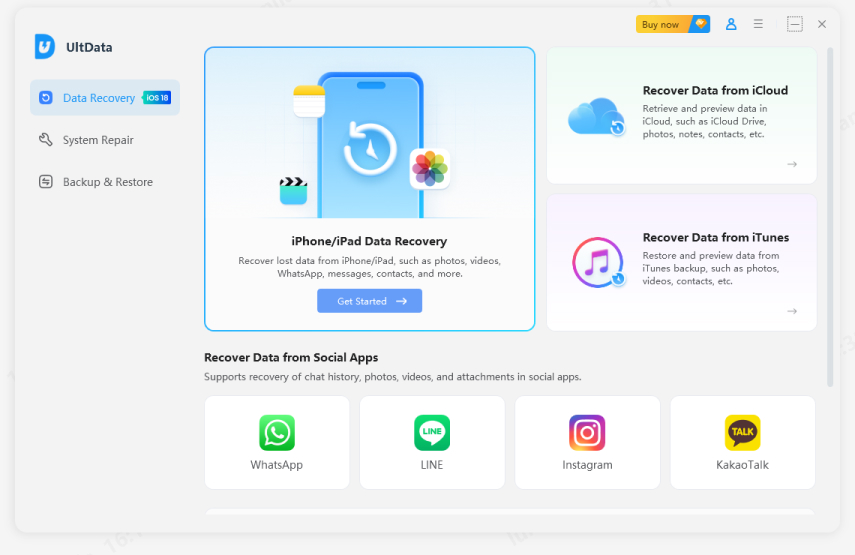
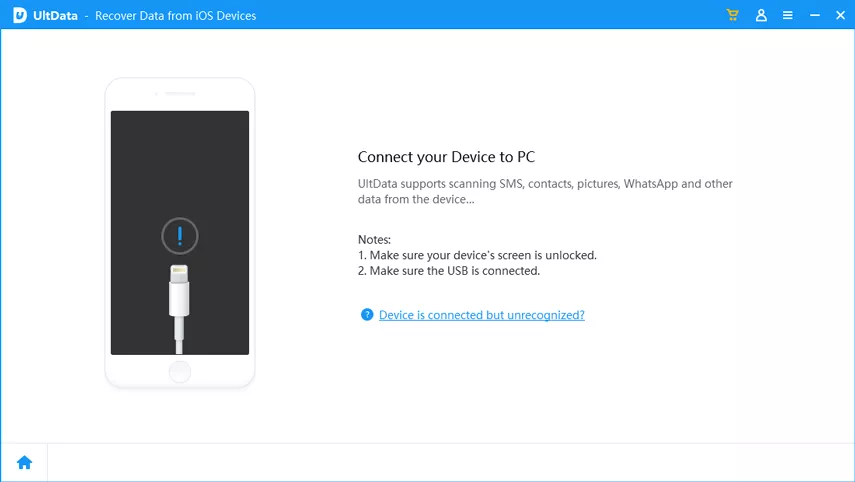
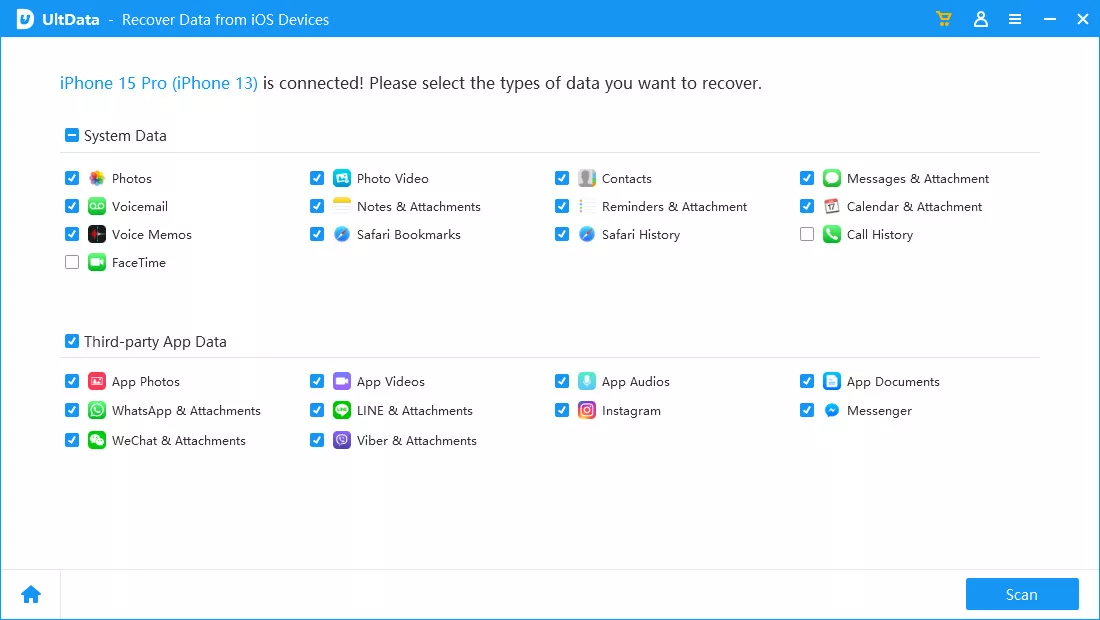
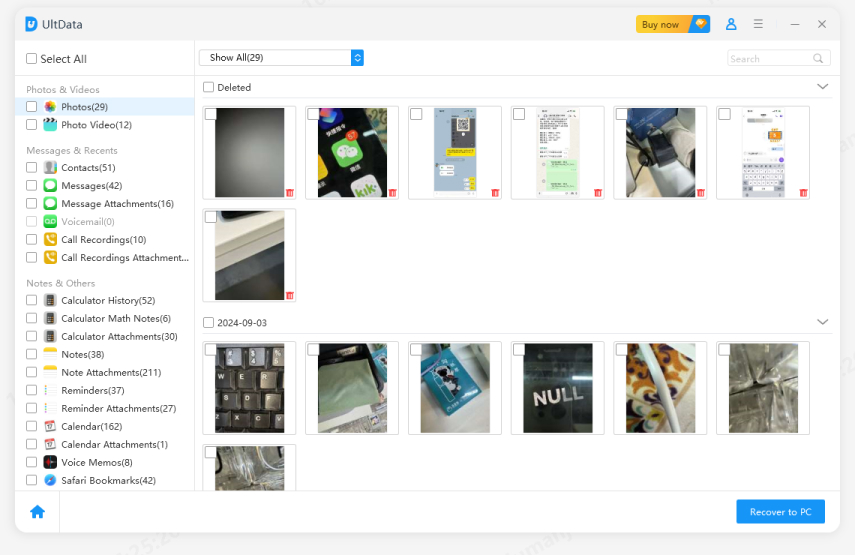
This approach can be useful if Claude-generated content was exported and later accidentally deleted from your device.
A chat contains the conversation history between you and Claude. An artifact is a separate generated output, such as code, documents, websites, or visual content, that can be edited and managed independently.
No, by default Claude artifacts are not public. They remain associated with your Claude account and workspace. They are not publicly visible unless you intentionally share or export them.
Are you wondering what happens after deletion; Claude does not publicly guarantee a recovery period for deleted artifacts. Once permanently removed, access may no longer be available. Users should export important files before deleting them and maintain backups when necessary.
Understanding how to delete Claude artifacts helps keep your Claude workspace organized and efficient. Whether you're removing outdated versions, cleaning project folders, or managing duplicate outputs, regular artifact maintenance improves productivity.
If important exported Claude files are accidentally deleted from your device, Tenorshare UltData offers a convenient way to scan, preview, and recover lost data, helping you restore valuable work when backups are unavailable.


UltData - Best iPhone Data Recovery Software






then write your review
Leave a Comment
Create your review for Tenorshare articles
Share this post


UltData - Best iPhone Data Recovery Tool
Recover Deleted & Lost Data from iOS Devices Easily, No Backup Needed!
UltData: Best iPhone Recovery Tool
Recover Lost iPhone Data without Backup
By Jenefey Aaron
2026-09-28 / AI Recovery