

 iOS Tips & Latest Updates
 Bug Fixes, Unlock Guides
 Giveaways & Freebies


UltData - Best iPhone Data Recovery Tool
Recover Deleted & Lost Data from iOS Devices Easily, No Backup Needed!
UltData: Best iPhone Recovery Tool
Recover Lost iPhone Data without Backup
Google has evolved over the years and replaced Google Assistant with Gemini for most devices. Gemini offers more features and functionalities, making it a suitable option for AI users. However, there are users who do not find it a good fit for them and want to shift back to the normal Google Assistant. They prefer Google Assistant for smart uses like smart home controls, voice commands, and other daily tasks.

In this guide, we are going to help you learn how to switch back to Google Assistant from Gemini and help you recover the list data or file with the help of a certified tool. Let's dive deep into it!
Yes, it is possible for you to switch back to the Google Assistant from Gemini. However, it can't be done for all devices, as it depends on the current Android version you are using or the Google account you might be logged into on your device.
The newer versions of Android devices might not help you in this case, as they might have shifted to Gemini as their AI assistant. To be precise, if your device still supports Google Assistant, you can switch to Google Assistant from Gemini anytime. If not, you may not get it.
Yes, Google Assistant is still available. Although Google is bringing Gemini to its ecosystem, the older versions still support Google Assistant.
The availability of the option depends on device, Android version, region, and Google account settings.
Here are a few of the devices that allow switching back to Google Assistant.
Although Gemini comes with excellent capabilities and advanced features, people still look to use Google Assistant as it fits their daily habits. Here are a few of the reasons that people want to stick to the Google Assistant.
However, if switching back is available on the user's device, the process is really straightforward. It can be completed through Android or Gemini settings.
Here is a step-by-step guide for you to change your Default Assistant app.


Here is a step-by-step guide for you to switch your default assistant app through Gemini settings.


There are different ways to check if your Google Assistant is active or not.
After switching back, many users wonder whether their Gemini chats, saved conversations, and exported content will remain available.
If you have successfully switched to the Google Assistant from Gemini, the Gemini data doesn't disappear, especially the chats and prompts. Changing assistants does not necessarily remove existing Gemini content.
The Gemini chats are not deleted when you switch your default assistant for your device. The chats remain associated with the Google account. So, there is no need to worry about the data saved on your Google account.
Yes, there are different ways to do it. Let's check how to access your Gemini chats after switching.
Here are a few methods to help save your Gemini chats before switching to the Google Assistant.
Don't forget, while most Gemini data remains available, exported files, PDFs, screenshots, and related documents can still be accidentally deleted or misplaced
There are a few common situations where users lose Gemini-related content after exporting, downloading, organizing files, switching devices, or cleaning storage.
Common situations include:
There are a few files that you can save from Gemini.
The possibility of recovering Gemini chats directly from your account might be different. However, the exported files are easier to recover even when they are deleted from your device.
Even if Gemini conversations themselves are no longer accessible, recovering the files connected to those conversations may help restore important information and project materials.
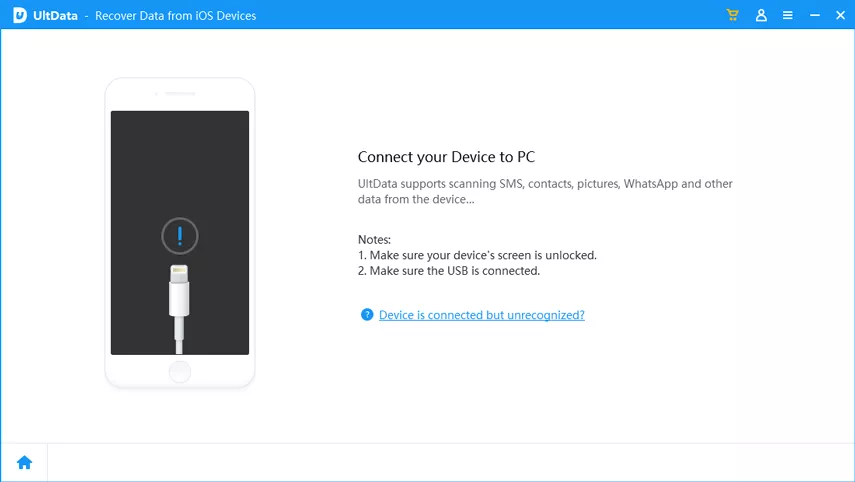
Tenorshare UltData is a desktop-based data recovery tool that helps restore a wide range of deleted or lost files from your device. It can recover lost exports, PDFs, screenshots, documents, research materials, work files, AI-generated content, and exported Gemini chat files, along with common data like photos, notes, and downloads.




It also supports advanced recovery for iPhone data, including photos, videos, messages, contacts, call history, and app data from WhatsApp, LINE, and WeChat, covering 35+ data types in total.
UltData works by scanning your iPhone storage to recover deleted files before they are permanently overwritten. If you accidentally delete something important, it's best to act quickly to improve recovery success.



Users prefer Google Assistant over Gemini due to its ease of use. It has been working for the past few years, making it suitable for users. This guide has helped you learn how to switch to Google Assistant from Gemini. So, by doing so, you might lose Gemini data, which is equally important and relevant. When lost, it is important for a user to recover it as soon as possible.
Tenorshare UltData recovery tool is a tool that will help you recover the lost data with ease, even when it is deleted permanently or overwritten. So, quickly download it and start the recovery process ASAP!


UltData - Best iPhone Data Recovery Software






then write your review
Leave a Comment
Create your review for Tenorshare articles

Share this post


UltData - Best iPhone Data Recovery Tool
Recover Deleted & Lost Data from iOS Devices Easily, No Backup Needed!
UltData: Best iPhone Recovery Tool
Recover Lost iPhone Data without Backup
By Jenefey Aaron
2026-09-28 / AI Recovery