4 Best WhatsApp Backup Alternatives to iCloud on iPhone

authorPic

By Jenefey Aaron

2026-07-24 / Transfer

Relying only on iCloud to back up your WhatsApp chats isn't always the best option. Backups can fail without warning, limited iCloud storage fills up quickly, and restoring chats to a new iPhone doesn't always go as smoothly as expected. These common issues are why many users start looking for a reliable WhatsApp alternative iCloud backup iOS solution.

Fortunately, you don't have to depend on iCloud alone. Several reliable tools let you back up your WhatsApp chats and media without relying on iCloud or worrying about storage limits. In this guide, we'll compare the 4 best WhatsApp backup alternatives to iCloud for iPhone.

Part 1. Can You Backup WhatsApp on iPhone Without iCloud?

The short answer is yes. WhatsApp may recommend iCloud for backups, but you don't have to depend on it. If you're looking for a WhatsApp backup without iCloud storage, several reliable alternatives are available.

With these methods, you can securely save your chats, photos, videos, and other WhatsApp data to your computer or another location. This offers more control over your backups and eliminates the need for additional iCloud storage.

Part 2. Best WhatsApp iCloud Backup Alternatives for iPhone

Running out of iCloud storage doesn't mean you have to stop backing up your WhatsApp data. Several reliable options let you create a WhatsApp alternative iCloud backup iOS solution. Each method offers different features, so choosing the right one depends on how you plan to back up and restore your data.

swiper icon Please swipe to view
Method
Cross-platform
Preview Backup
Selective Restore
Ease of Use
Tenorshare iCareFone Whatsapp Transfer
iPhone ↔ Android
Very Easy
WhatsApp Cloud Backup
iPhone only
Easy
iTunes/Finder Local Backup
iPhone only
Moderate
Export via Email/AirDrop
Chat export only
Yes (Exported chats)
Individual chats only
Time-Consuming

1. Backup WhatsApp Without iCloud Using Tenorshare iCareFone Transfer

iCareFone Whatsapp Transfer is one of the best tools for creating a WhatsApp backup without iCloud storage. It lets you securely back up your WhatsApp chats and media directly to a Windows PC or Mac, removing the need for extra iCloud storage. Your messages, photos, videos, voice notes, documents, and other files stay safe and can be restored whenever needed.


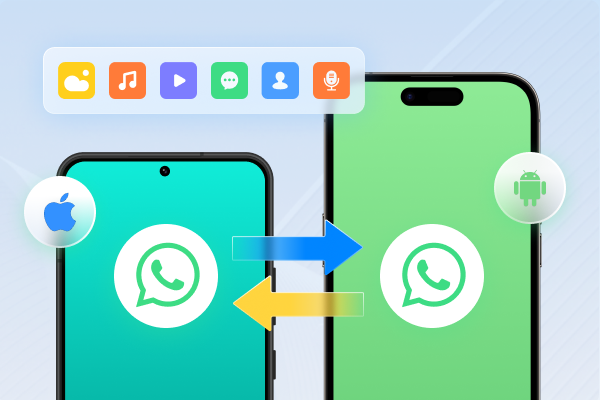
Beyond backups, iCareFone whatsapp Transfer also supports WhatsApp transfer between iPhone and Android, backup restoration, chat merging, and WhatsApp Business. Compatible with the latest iOS/iPadOS 27 and Android 16, it offers an easy and reliable way to manage your WhatsApp data.

Key Features

  • Back up WhatsApp and WhatsApp Business directly to your Windows PC or Mac without using iCloud.
  • Create free WhatsApp backups for iPhone with no storage limitations.
  • Transfer WhatsApp between iPhone and Android without a factory reset.
  • Restore WhatsApp backups from Google Drive to iPhone with ease.
  • Restore iCloud WhatsApp backups to Android devices.
  • Preview and export chats, photos, videos, documents, and other media.
  • Protect your backups with password encryption for enhanced privacy.
  • Supports WhatsApp, WhatsApp Business, GBWhatsApp, Kik, and Viber.

How to backup whatsapp to pc without icloud Using iCareFone Whatsapp Transfer:

  • Install iCareFone Whatsapp Transfer on your Windows PC or Mac. Connect your iPhone using a USB cable, tap Trust on your device, and select WhatsApp from the main interface.
  • Install Icarefone Connect Iphone Trust Select Whatsapp
  • Open the Back Up section, choose your connected iPhone, and click Back Up Now to begin saving your WhatsApp data.
  • Back Up Iphone Whatsapp Data Now
  • The software securely copies your chats, photos, videos, documents, voice notes, and other WhatsApp data to your computer. Keep the device connected until the process finishes.
  • Securely Copying Whatsapp Data to Computer
  • A confirmation message appears once the backup is complete. Your WhatsApp data is now safely stored on your computer and can be restored or exported whenever needed without relying on iCloud.
  • Whatsapp Backup Complete and Stored on Computer

2. WhatsApp Cloud Backup (New Official Method)

WhatsApp has started introducing its own whatsapp backup cloud provider for ios, giving users another way to protect their chats without depending entirely on iCloud. Although this feature is still being rolled out, it aims to make backup WhatsApp on iPhone without iCloud easier by offering an official backup option managed through WhatsApp.

Requirements:

  • Latest version of WhatsApp installed
  • Feature rollout may be region- or account-dependent (not yet available to all users)
  • Active internet connection for initial sync

Limitations:

  • Still rolling out gradually, so availability may vary by device and region
  • Backup size and history retention policies may differ from iCloud
  • Limited third-party control compared to a manual PC backup

Steps to use whatsapp alternative icloud backup ios:

  • Go to WhatsApp > Settings > Chats > Chat Backup.
  • Navigate to Whatsapp Chat Backup Settings
  • If available on your account, you'll see an option for WhatsApp's native cloud backup instead of the standard iCloud toggle.
  • Whatsapp Cloud Backup Option Available
  • Choose how often you want your chats backed up daily, weekly, or monthly and confirm.
  • Select Backup Frequency Daily Weekly Monthly
  • WhatsApp will back up your chats and media directly to its own cloud, independent of your iCloud storage.
  • Whatsapp Backs Up to Own Cloud

3. iTunes/Finder Local Backup

Saving your WhatsApp data directly to a computer is a practical alternative to iCloud. iTunes and Finder create a complete backup of your iPhone, including WhatsApp messages, photos, videos, and other app data. Since everything is stored locally, you won't need additional iCloud storage. This makes it a dependable option for users who prefer managing backups offline.

Requirements:

  • A PC or Mac with the latest iTunes (Windows) or Finder (macOS Catalina and later)
  • A USB cable to connect your iPhone
  • Enough free storage on your computer for the full backup

Limitations:

  • Backs up your entire iPhone, not just WhatsApp so it's larger and slower
  • Restoring requires overwriting your device with the full backup, not just WhatsApp data
  • No selective preview of WhatsApp chats before restoring

Steps to back up WhatsApp using iTunes/Finder:

  • Download and install the latest version of iTunes on your Windows PC. Mac users running macOS Catalina or later can use Finder, which is already built in.
  • Use a USB cable to connect your iPhone to the computer. Unlock your iPhone and tap Trust This Computer if prompted.
  • Launch iTunes on Windows or open Finder on your Mac. Then, select your iPhone.
  • Launch Itunes or Finder Then Select Iphone
  • Under the Backups section, select This Computer. For better security, check Encrypt Local Backup and create a password.
  • Enable Encrypted Backup for This Computer
  • Click Back Up Now and wait for the process to finish. Keep your iPhone connected until the backup is complete.
  • Back Up Now Button
  • Once the backup is finished, check the latest backup date and time to make sure it was created successfully. Your WhatsApp data is now stored on your computer without using iCloud.

4. Export WhatsApp via Email/AirDrop

WhatsApp's built-in chat export feature offers a simple way to save individual conversations without using iCloud or additional software, while WhatsApp is building its own iCloud alternative for chat backups.

It isn't designed to create a full WhatsApp backup without iCloud storage, but it works well for keeping important chats, photos, and shared files. Email is ideal for archiving selected conversations that you want to keep for future reference.

Requirements:

  • WhatsApp installed on your iPhone
  • Email account or AirDrop-enabled nearby device
  • Sufficient storage space if exporting chats with media

Limitations:

  • Only backs up one chat at a time, not your entire WhatsApp history
  • Media-heavy chats may be capped or compressed during export
  • Not ideal as your only backup method best used alongside another option

Steps of whatsapp backup without icloud storage using email:

  • Launch WhatsApp and tap on the individual or group conversation you want to back up.
  • Tap the contact's name or group name at the top of the chat screen to open their info page.
  • Scroll to the bottom of the info screen and tap "Export Chat." A pop-up will ask how you'd like to proceed.
  • Tap Export Chat at Bottom
    note icon
    Choose "Attach Media" if you want photos, videos, and voice notes included:
    Choose Media Attachment or Text Export
  • A share sheet will appear. Select Mail to email the chat file to yourself, or select AirDrop to send it directly to a nearby Mac or iPhone.
  • Share Chat Via Mail or Airdrop
  • If emailing, save the attachment to a folder on your computer or a cloud drive of your choice. If using AirDrop, accept the transfer on the receiving device and store the file somewhere safe.

Part 3. FAQs About WhatsApp iCloud Backup Alternatives

Q1. What is the best alternative to WhatsApp iCloud backup?

The best WhatsApp alternative iCloud backup iOS is a dedicated backup tool like icarefone whatsapp transfer that saves your chats directly to a computer. It offers more storage flexibility, easier backup management, and additional features like previewing and restoring WhatsApp data.

Q2. Can I restore WhatsApp without iCloud backup?

Yes. You can restore WhatsApp without iCloud by using a backup created with a compatible WhatsApp backup tool. Some tools also support restoring backups from other sources, such as Google Drive.

Q3. Is there a free alternative to WhatsApp iCloud backup?

Yes. You can backup WhatsApp on iPhone without iCloud using iTunes, Finder, or WhatsApp's chat export feature. These methods are free but offer fewer features than dedicated WhatsApp backup software.

Conclusion:

Your WhatsApp memories deserve better than a full iCloud storage warning. From native cloud backups to local PC saves, you now have real WhatsApp alternative iCloud backup iOS options that put you in control. For a fast, free, and hassle-free backup experience, iCareFone Whatsapp Transfer is worth considering. It offers one of the easiest ways to back up your WhatsApp data without iCloud storage limits.


Speak Your Mind

Registrer/ Login

then write your review

Speak Your Mind

Leave a Comment

Create your review for Tenorshare articles
Related articles

All topics

Tenorshare iCareFone Transfer

iCareFone Transfer - No.1 Solution for WhatsApp Transfer

Transfer, Backup & Restore WhatsApp without Reset in Clicks

Transfe WhatsApp without Reset

Easily Transfer WhatsApp without Reset