Many iPhone users search for
how to view text messages on iCloud from PC when they want to
check old conversations, access important messages, or transfer iPhone texts
to a computer.
However, after signing into
iCloud.com
from a PC, many users find that there is no Messages option available. Unlike
photos, notes, and iCloud Drive files, Apple does not provide a direct way to
browse iPhone text messages through a web browser.
This guide explains why you cannot view messages directly on
iCloud.com and what methods you can use to access your iPhone messages from a PC.
If you are searching for
how to view text messages on iCloud from PC, the first
thing to understand is that Apple does not provide a direct Messages viewer
on
iCloud.com.
After logging into
Cloud.com
, you can access several Apple services, including:
Photos
Mail
Notes
Contacts
iCloud Drive
Calendar
However, there is no Messages app available.
This means you cannot simply open a browser on your Windows computer, sign
in with your Apple ID, and read your iPhone conversations online.
The reason is that
Messages in iCloud and iCloud Backup are different services.
Please swipe to view
Feature
Messages in iCloud
iCloud Backup
Purpose
Sync messages between Apple devices
Backup iPhone data
View on iCloud.com
Access method
Apple devices with the same Apple ID
Restore or extract backup
Works with PC browser
No direct access
Messages in iCloud is designed to synchronize your
conversations across Apple devices. When enabled, your messages stay updated
between your iPhone, iPad, and Mac.
iCloud Backup, on the other hand, stores a snapshot of your
device data. It can include messages depending on your settings, but Apple
does not allow users to open and browse the backup contents directly.
Why Can't I See Messages on
iCloud.com?
iCloud Messages Are Not Stored Like Photos or Files
Many users assume:
"If my messages are saved in iCloud, I should be able to open them on
iCloud.com."
However, this is not how iCloud Messages works.
Unlike iCloud Photos or iCloud Drive, which provide online access to stored
files, Messages in iCloud works mainly as a synchronization service.
For example:
Photos stored in iCloud Photos can be viewed from
iCloud.com
Documents stored in iCloud Drive can be accessed online
Messages synced with iCloud can only be accessed through supported Apple
devices
When Messages in iCloud is enabled, your conversations are updated across
devices using the same Apple ID. But Apple does not create a public online
message database that can be opened from a PC browser.
This is why users searching
how to view messages on iCloud from PC often cannot find a
direct method.
Apple Protects Messages With End-to-End Encryption
Another reason you cannot view messages through
iCloud.com
is security.
iMessage conversations may contain private information, including:
Personal conversations
Photos and attachments
Sensitive details
To protect user privacy, Apple does not provide a web-based iMessage viewer.
Messages are designed to be accessed only on trusted Apple devices.
This means:
iCloud.com
cannot display your messages
A Windows browser cannot open your conversations
You need an Apple device or a backup-based solution to access messages
So, if you are wondering
Can I see texts on iCloud without my phone?, the answer is:
not directly through
iCloud.com.
How to View iPhone Text Messages on PC (Windows)
If you want to know
How can I see my iPhone text messages on my PC?, there are
two main options depending on whether you have an
iCloud backup.
Method 1: Restore Messages from iCloud Backup to iPhone (PC/Mac)
If your text messages are included in an iCloud Backup, Apple provides an
official way to restore them.
However, this method requires restoring the entire backup to an iPhone.
Steps to restore messages from iCloud Backup:
Open Settings on your iPhone
Go to General > Transfer or Reset iPhone
Select Erase All Content and Settings
Set up your iPhone again
Choose Restore from iCloud Backup
Select the backup containing your messages
After the restore process finishes, your messages will appear on the iPhone.
Limitations:
Requires resetting the device
Cannot preview backup contents before restoring
Existing data may be replaced
You cannot restore only messages
This method is useful if you want to recover messages back to your iPhone,
but it is not convenient if your goal is to view messages on a computer.
Method 2: View iCloud Messages on PC Without Reset Using iPhone Data
Recovery Software
Tenorshare UltData
provides a more flexible way to access and recover iCloud data without
performing a factory reset. It allows you to preview available backup
contents first and selectively recover the files you need instead of
restoring the entire backup to your device.
It can be useful in situations such as:
You only need to recover specific data, such as deleted photos or
messages.
The official iCloud restore process fails or does not work as expected.
You want to avoid replacing your current iPhone data with an older backup.
Steps to view iCloud messages on PC
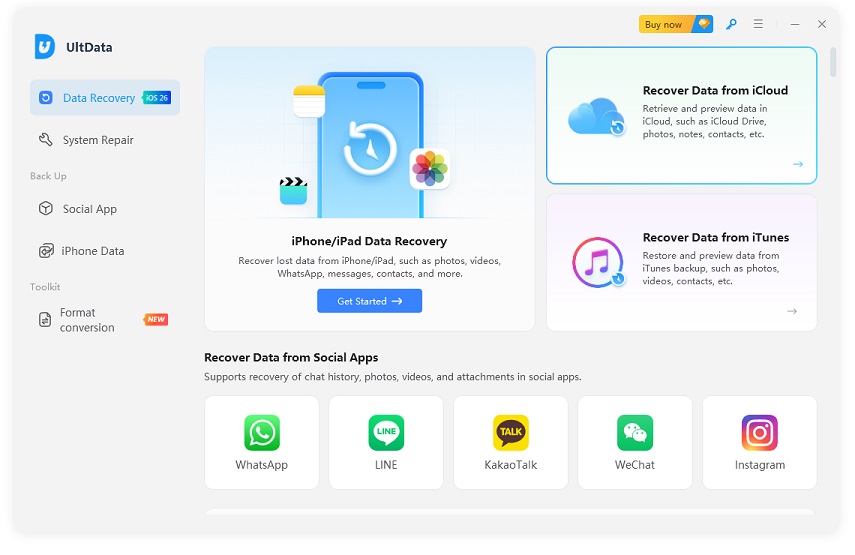
Select Recovery Mode
Download and install Tenorshare UltData. Switch to "Recover Data from
iCloud" . This function supports recovering data from iCloud backups you
have already created.
If you have previously created an iCloud backup, select "iCloud Backup
Data Recovery" to access your backup files. This option allows you to
preview and recover data from existing iCloud backups without restoring
your entire device.
Log in to iCloud
Log in with your Apple ID and password to securely access your iCloud
backup and continue the recovery process.
Select Backup File
Browse the list of available backups, choose the specific file you wish to
download and scan, then click "Next".
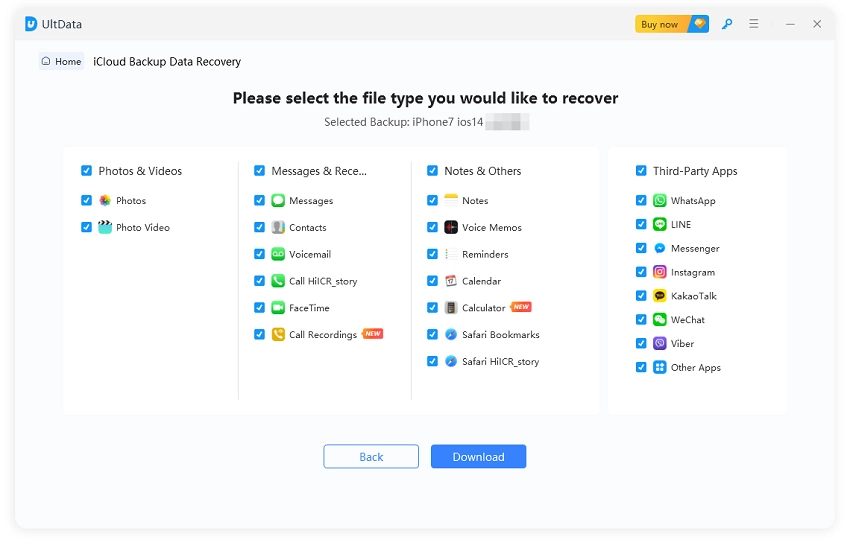
Choose File Types
Select the specific categories of data you need to recover (such as
Photos, Videos, Contacts, etc.) and click "Download".
Select, Preview, and Recover Data
After choosing the required file types, click "Download" to
scan the selected iCloud backup data. Once the scan is complete, preview the
available files, select the items you want to recover, and click
"Recover to PC" to export them to your computer.
FAQs About Viewing Messages on iCloud from PC
Q1: Does iCloud save text messages?
Yes, iCloud can save your text messages depending on your settings. If you
enable Messages in iCloud, your conversations are synced
across Apple devices using the same Apple ID. If you use
iCloud Backup, your messages may be included in the backup
snapshot and can be restored or extracted later.
Q2: Can I view iMessages online?
No,
iCloud.com
does not provide an iMessage viewer, so you cannot open a browser and read
your conversations directly. However, if you have an existing iCloud backup
that contains your messages, tools like Tenorshare UltData can help preview
available messages before recovery. Keep in mind that the backup must exist
and the data should not have been overwritten.
Q3: Can I access messages on iCloud from PC?
No, you cannot directly access Messages on iCloud from a PC browser because
Apple does not provide a web-based Messages interface. To check your
conversations, you need another Apple device signed in with the same Apple
ID or use a tool that can extract messages from an available iCloud backup.
Q4: Can I see texts on iCloud without my phone?
Yes, but not directly through
iCloud.com. If you do not have your iPhone, you can still access messages through
another Apple device connected to the same Apple ID or by extracting
messages from an existing iCloud backup. A Windows PC alone cannot open and
view iCloud messages.
Conclusion
Although many users search for
how to view text messages on iCloud from PC, Apple does not
currently provide a direct way to read iPhone messages through
iCloud.com.
Messages in iCloud are designed for syncing across Apple devices, while
iCloud Backup works as a backup solution rather than an online message
viewer.
If you need to access conversations on a computer, you can restore messages
from an iCloud backup or use a recovery tool to preview and export available
messages without resetting your iPhone.











 iOS Tips & Latest Updates
 Bug Fixes, Unlock Guides
 Giveaways & Freebies






By Jenefey Aaron
2026-10-20 / iOS Data Recovery