

 iOS Tips & Latest Updates
 Bug Fixes, Unlock Guides
 Giveaways & Freebies
then write your review


4uKey - One-Click Easy iPhone/iPad Unlocker
Unlock Screen Lock/Apple ID/MDM/Screen Time Passcode Instantly
Easy iPhone/iPad Unlocker
Unlock iPhone Passcode Instantly
Managing Apple devices at work or school is much easier with Managed Apple IDs, but they can also be confusing for new users. Many people don't know how these accounts differ from personal Apple IDs. They also don't understand what features are restricted, or what to do if they forget their password or get locked out.
This guide explains everything about Managed Apple IDs, including how to set them up, their limitations, and how they compare with personal Apple IDs. You'll also learn the best ways to reset or recover your password if you lose access.

A "Managed Apple ID," now called the "Managed Apple Account," is an Apple account created and managed by a business, school, or nonprofit for its employees or students. It functions like a regular Apple ID for signing into Apple devices and using services such as iCloud, Notes, Messages, and FaceTime.
But the organization owns and controls the account instead of the individual. These accounts help keep work or school data separate from personal data. IT teams can create them in bulk, connect them to systems like Microsoft Entra or Google Workspace, and assign them to devices before users receive them.
At first glance, a Managed Apple ID and a personal Apple ID look almost the same, but they function very differently. The biggest difference is who owns and controls the account, which also affects the features you can use and how the account is managed. The table beneath compares the two side by side so you can quickly see the core differences:
 Please swipe to view
Managed Apple IDs include many of the Apple features employees and students need every day, but they don't offer everything a personal Apple ID does. Knowing what's supported and what's restricted can help you avoid surprises when using a work or school device:
Managed Apple IDs aren't as stripped-down as people assume. Since Apple's 2023 WWDC updates, they've picked up a meaningful portion of the consumer feature set:
The restrictions exist deliberately, mostly to stop company devices from becoming entangled with someone's personal Apple ecosystem. Find My and Health are disabled, and all iCloud+ services such as Private Relay, and Apple Pay are unavailable. On top of that:
Yes. But users cannot buy apps or other content themselves. They can browse the App Store, iTunes Store, and Apple Books. Though paid apps must be purchased in bulk by the organization through Apple Business Manager and assigned to devices using MDM. Free apps can usually be installed directly, while paid apps must be approved and assigned by IT first.
Setting up a Managed Apple ID isn't something an end user does on their own. It runs through the organization's admin console. Here's how:


As the organization owns the account, recovery doesn't function the same way it does for a personal Apple ID. There's no "forgot password" flow tied to a personal recovery email you control. So, here's what you can do:
This is the first and most dependable route, since admins can reset a Managed Apple ID password directly from Apple Business Manager or Apple School Manager. Here's how:

When your organization federates "Managed Apple IDs" with "Google Workspace" or "Microsoft Entra ID," your Apple password is really just your regular work password. Thus, you reset it the same way you'd reset any other work account credential. Here's how:


When you previously saved the password in iCloud Keychain or Safari on a device you still have access to, you may be able to view it. This lets you recover the password without contacting your IT team.
In case Keychain access itself is what's locked, or the device isn't unlocking at all, that's where a dedicated recovery tool becomes useful. Here's how to examine logic details on an iPad/iPhone:


In case none of the other methods work, Tenorshare 4uKey for iOS can help. It's especially useful if you're locked out of a personal or Managed Apple Account, forgot your device passcode, or have a used iPhone/iPad that's still linked to a previous Apple ID or MDM profile. The tool is designed to recover saved credentials and handle Apple ID, passcode, and device lock issues that Apple's standard recovery process may not cover.




Here's how to check a saved Apple ID passcode with 4uKey:


Yes. They can browse and install apps from the App Store, but they can't make purchases directly. Paid apps have to be bought in bulk by the organization through Apple Business Manager and assigned to the account. So, the user never enters payment details themselves.
Yes, through User Enrollment. You sign in with your personal Apple ID first, then add the Managed Apple ID as a secondary account. The organization can only manage the work-related partition of the device. It can't see personal photos, messages, or browsing history.
Usually your organization's IT administrator, through Apple Business Manager or Apple School Manager. If the account is federated with Google Workspace or Microsoft Entra ID, resetting your regular work password resets your Apple sign-in too, since the credentials are linked.
Managed Apple IDs or Accounts help keep work or school data separate from personal iCloud accounts while providing the same Apple experience on everyday devices. However, organizations control these accounts, so features like Find My, personal iCloud storage upgrades, and self-service password resets are not available.
If you forgot the Apple passcode, are using a second-hand device, or are dealing with an old MDM profile, Tenorshare 4uKey for iOS can help. It can recover saved passwords, remove an old Apple ID, or bypass certain device locks when standard recovery options aren't enough.


then write your review
Leave a Comment
Create your review for Tenorshare articles
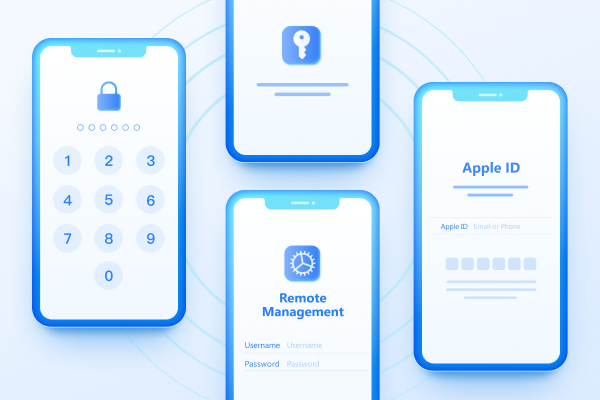
Easily Unlock iPhone passcode/Apple ID/iCloud Activation Lock/MDM
100% successful unlockShare this post


4uKey - One-Click Easy iPhone/iPad Unlocker
Unlock Screen Lock/Apple ID/MDM/Screen Time Passcode Instantly
Easy iPhone/iPad Unlocker
Unlock iPhone Passcode Instantly
By Jenefey Aaron
2026-10-26 / Unlock iPhone