How to Recover iPhone Photos from iCloud After Permanent Deletion
Losing important photos from your iPhone can be devastating, especially when they've been permanently deleted from iCloud after 30 days. Many users wonder: is it possible to recover permanently deleted photos from iCloud? The good news is that with the right methods and tools, iCloud permanently deleted photos recovery is achievable. This comprehensive guide will show you exactly how to recover permanently deleted photos from iCloud, including photos deleted years ago.
- Whether you can recover permanently deleted photos from iCloud
- How to recover iPhone photos from iCloud after permanent deletion
- 3 proven methods for iCloud permanently deleted photos recovery
- How to recover permanently deleted photos from iCloud after years
Part 1: Can You Recover Permanently Deleted Photos from iCloud?
Yes, you can recover permanently deleted photos from iCloud in most cases, but success depends on several factors. Understanding how iCloud photo deletion works is crucial to maximize your recovery chances.
Understanding iCloud's Photo Deletion Timeline
When you delete photos from your iPhone, they don't disappear immediately from iCloud. Here's the timeline:
- Days 1-30: Photos move to the "Recently Deleted" folder and can be easily restored
- After 30 days: Photos are permanently removed from Recently Deleted
- After 40 days: Complete permanent deletion from iCloud servers (in most cases)
If you have iCloud Photo Library enabled and iCloud backup activated before deletion, there's still hope to recover permanently deleted photos from iCloud after years. The key is having a backup that contains those photos.
When Is iCloud Permanently Deleted Photos Recovery Possible?
You can recover permanently deleted photos from iCloud if:
- You have an iCloud backup created before the photos were deleted
- The photos were synced to iCloud Photo Library before deletion
- You act quickly within the 30-day Recently Deleted period
- You use professional recovery software like UltData that can extract photos from iCloud backups
Recovery becomes impossible if:
- No iCloud backup exists from before the deletion
- iCloud Photo Library was never enabled
- All backups have been overwritten with newer ones
- More than 40 days have passed without any backup containing the photos
Recently Deleted Folder: 100% success (within 30 days)
iCloud Backup Restore: 85-95% success (requires full device reset)
Professional Software (UltData): 90-98% success (selective recovery, no data loss)
Now that you understand whether recovery is possible, let's explore how to recover iPhone photos from iCloud after permanent deletion using three proven methods.
Part 2: How to Recover Permanently Deleted Photos from iCloud [3 Methods]
If you're wondering how to recover deleted photos from iCloud, we've compiled three reliable methods below. Choose the one that best fits your situation.
Method 1: Using iCloud's Recently Deleted Folder for Photo Recovery
The simplest way to recover permanently deleted photos iPhone iCloud is through iCloud's Recently Deleted folder. This method works perfectly if your photos were deleted within the last 30 days. You can access this feature through iCloud.com, and the chances of successfully recovering your photos are extremely high during this grace period.
- Photos deleted within the last 30 days
- Users who need immediate recovery
- Quick restoration without software installation
Complete step-by-step guide to recover permanently deleted photos from iCloud:
- Open your web browser and visit iCloud.com. Sign in with your Apple ID and password—make sure you use the same Apple ID that was syncing your photos.
- After successfully logging in, locate and click on the Photos icon from the main dashboard. This will open your iCloud Photo Library where all your synced photos are stored.
- In the left sidebar, find and click on Recently Deleted. Browse through all the photos in this folder carefully. You can use the search function if you're looking for specific photos. Select all the photos you want to recover by clicking on them (hold Ctrl/Cmd to select multiple photos).
- Once you've selected all desired photos, click the Recover button at the top of the screen. The photos will be instantly restored to your iCloud Photo Library and will sync back to all your devices connected to the same Apple ID.
If you don't see your photos in the Recently Deleted folder, they may have already been permanently removed after 30 days. In this case, proceed to Method 2 or Method 3 for iCloud permanently deleted photos recovery.
Method 2: Recover Permanently Deleted Photos from iPhone via iCloud Backup
If the Recently Deleted folder doesn't contain your photos, you can still recover permanently deleted photos from iCloud by restoring from an iCloud backup. This method requires you to factory reset your iPhone, which will erase all current data on your device. Therefore, it's crucial to backup any important data you've created after the photos were deleted before proceeding with this method.
This method will completely erase your iPhone and restore it to the state it was in when the backup was created. Any data (messages, apps, photos) added after that backup will be lost unless you back it up separately first.
- Users who have regular iCloud backups
- Those comfortable with device reset
- Recovering multiple data types simultaneously
Detailed guide on how to recover iPhone photos from iCloud after permanent deletion:
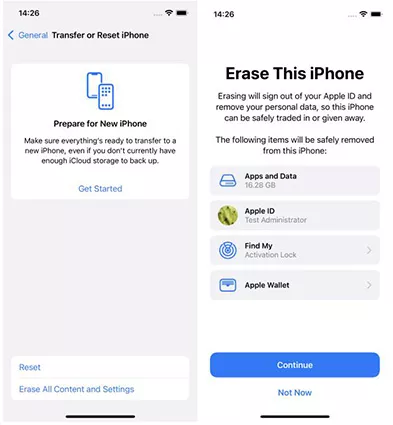
- Before starting, ensure you have a recent backup of your current data. Then open Settings on your iPhone, tap your name at the top, then go to General → Transfer or Reset iPhone.
- Tap Erase All Content and Settings. You'll be asked to confirm—tap Continue. Enter your passcode and Apple ID password when prompted. The erasing process will begin and may take 15-30 minutes depending on your iPhone model.
- Your iPhone will restart and display the "Hello" screen. Follow the on-screen setup instructions (select language, region, WiFi network). When you reach the Apps & Data screen, select Restore from iCloud Backup. Make sure you're connected to a stable WiFi network as the restore process requires internet connection.
- Sign in with your Apple ID credentials. You'll see a list of available iCloud backups with dates. Choose the backup that was created before your photos were deleted—check the date carefully! Tap Restore and wait patiently. The restoration time varies based on backup size and internet speed (typically 20 minutes to 2 hours).
- After the restore completes, your iPhone will restart. Complete the remaining setup steps. Your photos will appear in the Photos app within a few minutes as iCloud Photo Library syncs. Apps will download automatically in the background.
While this method can successfully recover permanently deleted photos from iCloud, it has significant limitations. You cannot selectively choose which data to restore, and you'll lose all data created after the backup date. If you need more control over the recovery process, Method 3 offers you a better solution for restoring iCloud data.
Method 3: Selectively Recover Permanently Deleted Photos from iCloud after Years RECOMMENDED
If you need to recover permanently deleted photos from iCloud after years without losing your current iPhone data, Tenorshare UltData is your best solution. Unlike the official iCloud restore method that forces you to erase your iPhone completely, UltData allows you to selectively recover only the photos you need while keeping all your current data intact.
Why UltData is the Best Choice:
- No Data Loss: Recover photos without erasing your iPhone
- Selective Recovery: Choose exactly which photos to restore
- Fast Scanning: Complete the process in minutes, not hours
- High Success Rate: 90-98% recovery rate even for years-old photos
- Preview Before Recovery: See your photos before restoring
- Multiple Recovery Modes: From device, iTunes, or iCloud backup
This professional third-party data recovery software is specifically designed for iCloud permanently deleted photos recovery. It accesses your iCloud backups directly and extracts only the photos you want, making it the safest and most efficient method available.
Complete step-by-step guide to recover permanently deleted photos from iCloud using UltData:
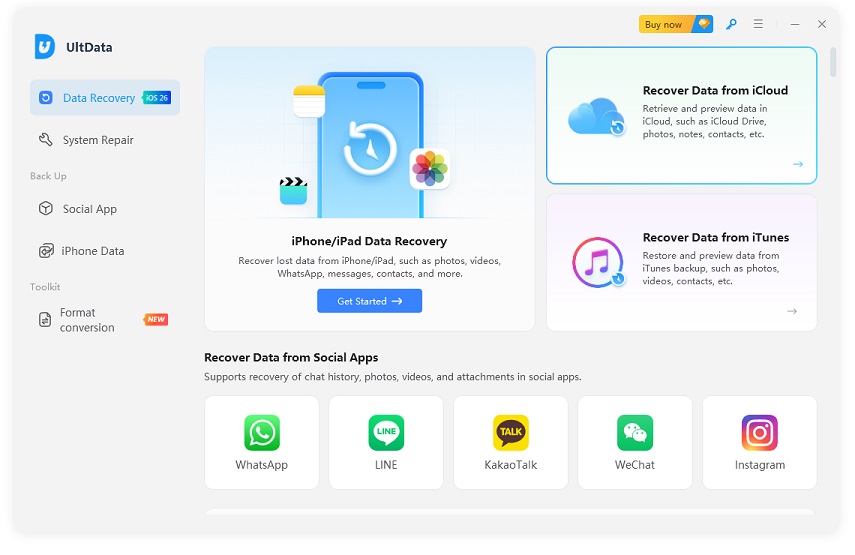
- Download and install Tenorshare UltData from the official website (links above). Launch the program on your computer. You don't need to connect your iPhone at this stage. From the main interface, click on "Recover Data From iCloud" mode. This mode allows you to extract photos directly from your iCloud backup without affecting your current iPhone data.
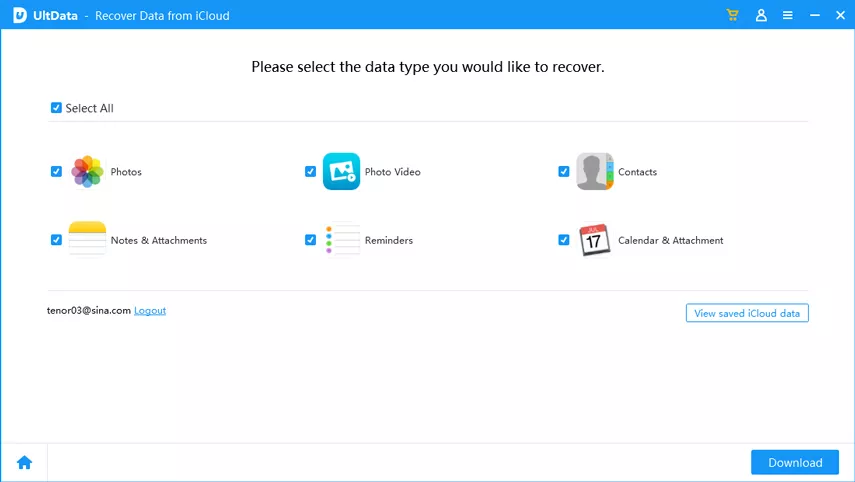
- Enter your Apple ID and password when prompted. Your credentials are processed securely and locally on your computer. If you have two-factor authentication enabled, you'll receive a verification code on your trusted devices—enter it to proceed. After successful login, UltData will display all file types available in your iCloud backup. Since you want to recover photos, select Photos and App Photos (if you want to recover photos from apps like WhatsApp or Instagram). Click Download to begin downloading your iCloud backup data.
- UltData will now download and scan your iCloud backup. The scanning process is remarkably fast—typically completing in 3-10 minutes depending on your backup size and internet speed. You'll see a progress bar showing the download and scan status. This is significantly faster than Apple's official restore method which can take 1-2 hours.
- Once scanning completes, you'll see all recoverable photos organized by date and type. Use the preview feature to view each photo before recovery—this ensures you're recovering exactly what you need. You can:
- Click on any photo to see it in full size
- Use filters to find photos by date range
- Search for photos by file name
- Select individual photos or use "Select All" for batch recovery
After selecting all desired photos, click the Recover button. Choose a location on your computer to save the recovered photos. The photos will be saved to your computer in seconds, and you can then transfer them back to your iPhone via iTunes, iCloud, or AirDrop.
Real User Success Stories:
"I deleted my wedding photos 2 years ago and thought they were gone forever. UltData recovered all 847 photos from my old iCloud backup in just 15 minutes. Absolutely worth it!" - Sarah M., Verified User
"Tried the official iCloud restore but didn't want to lose my current data. UltData let me recover my deleted photos without touching anything else on my phone. Perfect solution!" - James T., Verified User
Pro Tip for Maximum Success:
For the best results when trying to recover permanently deleted photos from iCloud:
1. Use UltData as soon as you realize your photos are missing
2. Don't create new iCloud backups before attempting recovery
3. Ensure you have a stable internet connection during the download phase
4. Select the oldest available backup if you're recovering very old photos
Part 3: Common Issues & Troubleshooting When Recovering iCloud Photos
While learning how to recover deleted photos from iCloud, you might encounter some common issues. Here are the most frequent problems and their solutions:
Issue 1: "Recently Deleted" Folder is Empty
Why this happens: Your photos have exceeded the 30-day retention period or iCloud Photo Library wasn't enabled when photos were deleted.
Solution: Use Method 2 (iCloud Backup Restore) or Method 3 (UltData) to access older backups. UltData can recover photos from backups created even years ago.
Issue 2: iCloud Backup Doesn't Contain Your Photos
Why this happens: iCloud Photo Library and iCloud Backup are separate features. If only iCloud Backup was enabled (without Photo Library), photos won't be in the backup.
Solution: Check if you have iTunes backups on your computer. UltData can also recover photos from local iTunes backups with a higher success rate.
Issue 3: Very Slow iCloud Restore Process
Why this happens: Apple's official iCloud restore downloads ALL data from your backup, not just photos.
Solution: Use UltData's selective recovery feature, which downloads only the photo data you need. This reduces restore time from 2+ hours to just 5-15 minutes.
Issue 4: Can't Remember When Photos Were Deleted
Why this happens: Without knowing the deletion date, choosing the right backup becomes difficult.
Solution: With UltData, you can:
- Scan multiple iCloud backups sequentially
- Preview photos before recovery to verify they're the right ones
- Recover photos from the oldest backup if unsure about timing
Recovery Scenario
Best Solution
Success Rate
Deleted within 30 days
Recently Deleted Folder (Method 1)
100%
Deleted 1-12 months ago
UltData iCloud Recovery (Method 3)
95-98%
Deleted over 1 year ago
UltData iCloud Recovery (Method 3)
85-90%
No concern about data loss
iCloud Backup Restore (Method 2)
90-95%
Must keep current data
UltData Selective Recovery (Method 3)
95-98%
Prevention Tips: Avoid Future Photo Loss
Now that you know how to recover permanently deleted photos from iCloud, here are essential tips to prevent future data loss:
- Enable iCloud Photo Library: Go to Settings → [Your Name] → iCloud → Photos → Toggle on "iCloud Photos"
- Enable iCloud Backup: Settings → [Your Name] → iCloud → iCloud Backup → Turn On
- Use Multiple Backup Methods: Combine iCloud, iTunes, and third-party cloud storage (Google Photos, Dropbox)
- Check Recently Deleted regularly: Don't let photos expire past 30 days
- Keep UltData handy: Even if you're careful, accidents happen. Having UltData installed can save you in emergencies
Conclusion: Your Complete Guide to iCloud Photo Recovery
Throughout this comprehensive guide, you've learned exactly how to recover permanently deleted photos from iCloud using three proven methods. Whether your photos were deleted yesterday or years ago, recovery is possible with the right approach.
Quick Recap - Choose Your Method:
- Method 1 (Recently Deleted): Perfect for photos deleted within 30 days - free and instant
- Method 2 (iCloud Restore): Works for older photos but requires device reset and data loss
- Method 3 (UltData): Best overall solution - recovers photos from any time period without data loss
For most users asking "can you recover permanently deleted photos from iCloud", we strongly recommend Tenorshare UltData (Method 3). It offers the perfect balance of success rate, speed, and safety—allowing you to recover permanently deleted photos from iCloud after years without any data loss or device reset.
With UltData, iCloud permanently deleted photos recovery becomes remarkably simple. The software's selective recovery feature, fast scanning speed, and intuitive preview function make it the most user-friendly solution available. You can recover unlimited photos from your iCloud backups in just minutes, not hours.
Don't wait until it's too late. The sooner you attempt recovery after discovering deleted photos, the higher your success rate. With the methods outlined in this guide, you now have everything you need to successfully recover iPhone photos from iCloud after permanent deletion.
Start your photo recovery today and bring back those precious memories you thought were lost forever. Whether you're recovering family photos, vacation memories, or important documents, you now have the knowledge and tools to succeed.
UltData - Best iPhone Data Recovery Software
- Restore data from iPhone/iPad without backup or selectively from iCloud & iTunes backup (support preview before recovery).
- Recover 35+ iOS data types, including photos, messages, videos, call history, notes, social app data, and more.
Speak Your Mind
Leave a Comment
Create your review for Tenorshare articles























By Jenefey Aaron
2026-09-15 / iPhone Recovery