


 iOS Tips & Latest Updates
 Bug Fixes, Unlock Guides
 Giveaways & Freebies


UltData - Best iPhone Data Recovery Tool
Recover Deleted & Lost Data from iOS Devices Easily, No Backup Needed!
UltData: Best iPhone Recovery Tool
Recover Lost iPhone Data without Backup
Lost important text messages on your iPhone 17, 16, 15, 14, 13, 12, or 11? Whether you accidentally deleted conversations, performed a factory reset, or upgraded to a new device, recovering your messages from iCloud is possible. However, many users struggle with how to restore messages from iCloud effectively, especially when they only need specific conversations instead of restoring the entire backup. In this comprehensive guide, we'll show you two expert-tested methods to restore text messages from iCloud: Apple's official method and a more advanced selective recovery solution that saves you time and prevents data loss.
When you are looking for how to restore messages from iCloud, Apple's built-in recovery method has one major limitation: it follows an “all-or-nothing” approach. You cannot selectively restore only specific iMessages or text messages from an iCloud Backup. Instead, you must erase your iPhone and restore the entire backup, which may replace your current data with an older backup version.
Tenorshare UltData provides a more flexible way to restore messages from iCloud Backup without resetting your iPhone . It allows you to preview available messages before recovery and selectively choose the conversations you want to restore. Whether you need to recover deleted text messages, retrieve iMessages from an iCloud Backup, or restore specific SMS conversations, UltData helps you recover the data you need while keeping your existing iPhone data intact.

Before starting the recovery process, it is important to check how your messages are stored. Make sure you have either enabled Messages in iCloud sync or created an iCloud Backup that may contain your messages. You can check your iCloud settings and backup date first to confirm whether your data is available for recovery.
Follow this comprehensive tutorial to learn how to retrieve messages from iCloud using UltData. This method works for recovering text messages, iMessages, SMS, and even WhatsApp messages from your iCloud. Click the download button below to get started with the free trial version.




Install the Tenorshare UltData on the computer and select the ''Recover Data from iCloud'' icon.
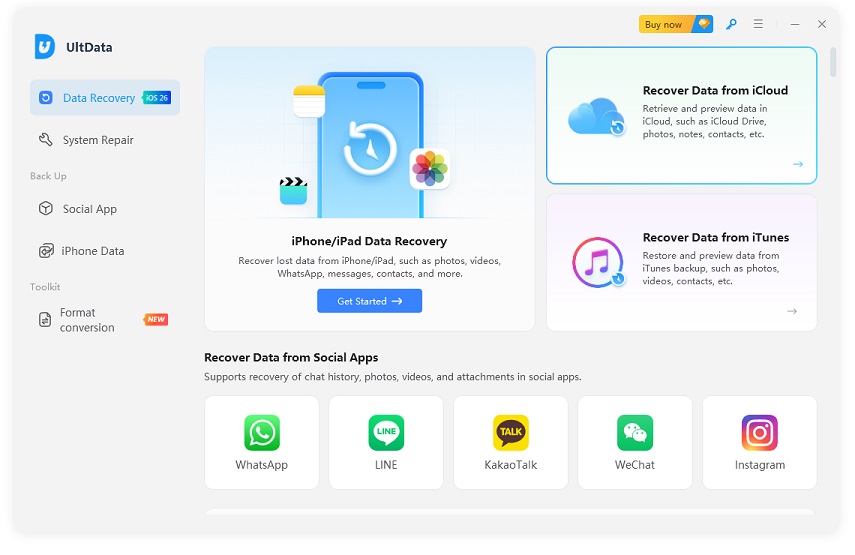
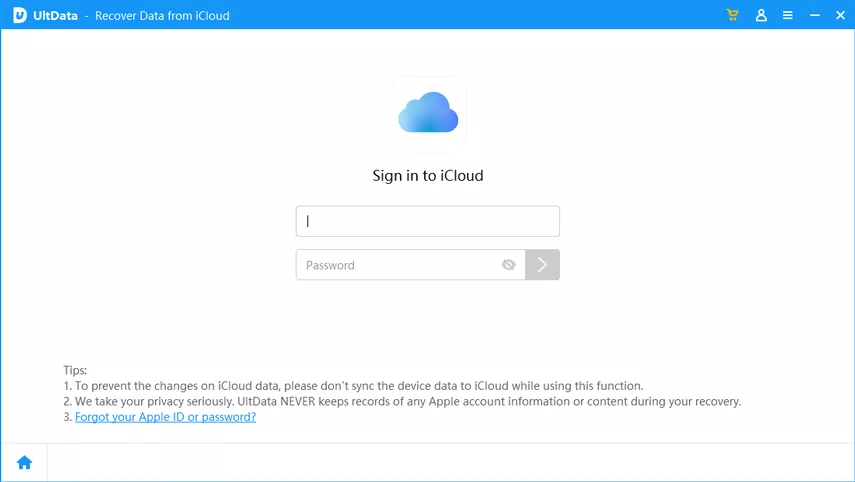
Log in with the Apple ID credentials to begin the proceedings.
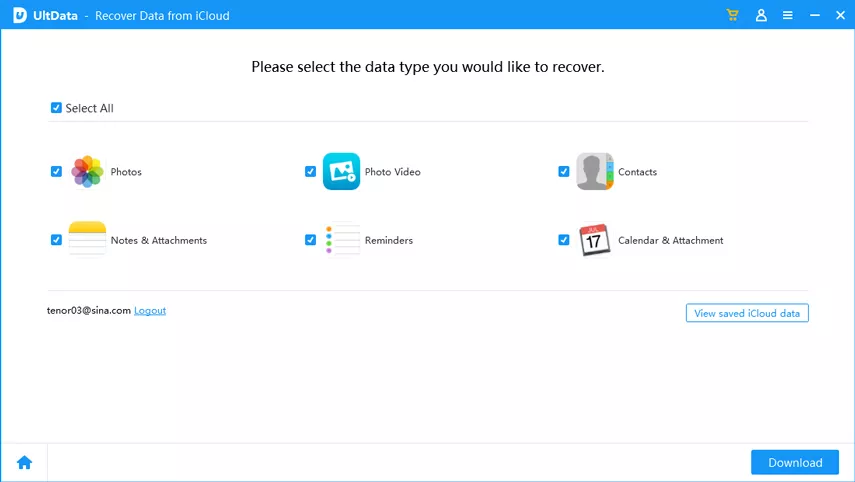
In this phase, you can see available file types, select the most appropriate one and choose the Download button.
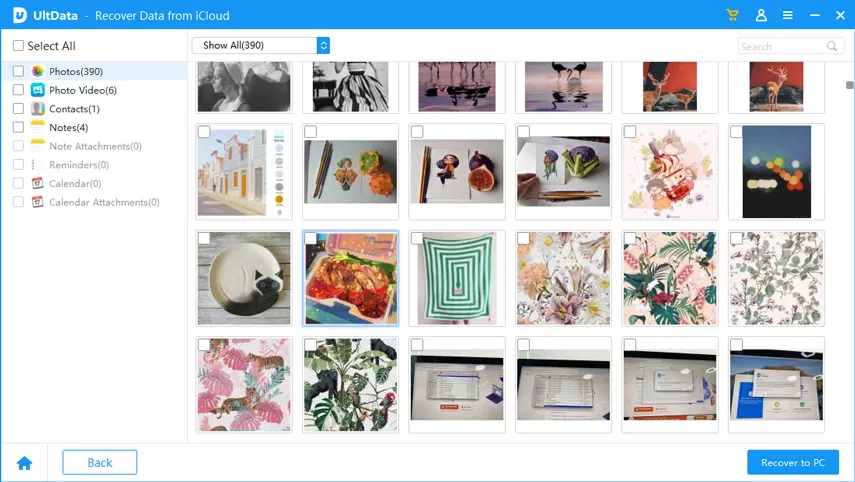
After selecting the data type you want to get back to, click on the Recover to PC icon.
The methods above focus on recovering messages from your iCloud account. If you have not enabled Messages in iCloud sync but have iCloud Backup turned on, you can still try recovering your messages from an existing backup. Even if you are not sure whether the messages you need are included in a specific backup, Tenorshare UltData allows you to preview the backup contents first and selectively recover messages without restoring the entire iPhone.
Return to the main interface of Tenorshare UltData and select "Recover Data from iCloud". This feature supports recovering data from iCloud backups you have already created.
If you have previously created an iCloud backup, select iCloud Backup Data Recovery to access your backup files. This option allows you to preview and recover data from existing iCloud backups without restoring your entire device.

Log in with your Apple ID and password to securely access your iCloud backup and continue the recovery process.

Browse the list of available iCloud backups, select the backup you want to download and scan, then click "Next" to continue.

Select the specific data types you want to recover
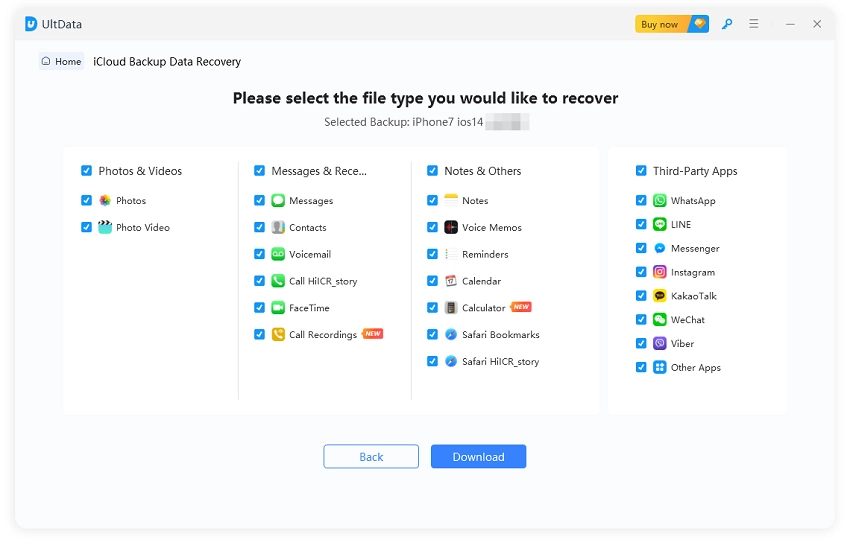
Once the scan is complete, preview the found data, select the items you want to recover, and click "Recover to PC" to save them to your computer.
 UltData - No.1 iCloud data recovery software
The fastest and safest way to recover lost contacts, messages, photos, and more from iCloud.
Apple's official method to restore text messages from iCloud requires that you have previously backed up your iPhone to iCloud with Messages enabled in the backup settings. This method will restore all your iPhone data including text messages, iMessages, photos, apps, and settings from your chosen iCloud backup file. However, it's important to understand that this is a complete device restoration process that will erase all current data on your iPhone.

Prerequisites for restoring messages from iCloud backup:
Follow these detailed steps to restore iPhone messages from iCloud using Apple's official restoration method. This process works for all iPhone models running iOS 11 or later, including iPhone 16, 15, 14, 13, 12, and 11.


If you want to restore from iTunes backup instead, select "Restore from Mac or PC". If you want to set up as a new iPhone without restoring any backup, select "Don't Transfer Apps & Data" (but this won't restore your messages).

After completing the iCloud restoration, allow sufficient time for all apps and data to fully download. Some messages with attachments may take longer to appear. Keep your iPhone connected to Wi-Fi and plugged in overnight if needed to ensure complete restoration of all message content and media files.
While Apple's method is free and built into iOS, it comes with significant limitations that you should understand before proceeding:
Due to these significant limitations, many iPhone users prefer using professional tools like Tenorshare UltData, which allows selective message recovery without erasing the device and provides a preview before restoration.
To help you decide which method to use when you need to restore text messages from iCloud, we've created a comprehensive comparison table based on our extensive testing with both methods. This comparison reflects real-world usage scenarios and expert evaluation.
Based on our experience helping thousands of users restore messages from iCloud, here are the most common issues and their proven solutions:
Symptoms: iCloud backup list is empty, or you receive an error saying "Unable to verify backup."
Solutions: First, verify that iCloud Backup is enabled on your device (Settings > [Your Name] > iCloud > iCloud Backup). Check if you have sufficient iCloud storage space. If backups are not showing up, sign out of iCloud and sign back in. For persistent issues, use UltData which can access iCloud backups even when the device cannot.
Symptoms: The restore progress bar is stuck, or the process stops midway.
Solutions: Ensure stable Wi-Fi connection throughout the process. Keep iPhone connected to power. If using Apple's method and it gets stuck, restart the device and try again. If problems persist, UltData provides a more reliable restoration process with automatic retry capabilities and doesn't require continuous Wi-Fi connection after initial download.
Symptoms: Restoration completed but text messages are still missing.
Solutions: Check if Messages in iCloud is enabled, as this may prevent messages from being included in iCloud backups. Go to Settings > [Your Name] > iCloud > Messages and toggle it on. Wait a few minutes for messages to sync. If messages still don't appear, the backup may not have included them. Use UltData to verify backup contents before attempting restoration.
Symptoms: Error message stating insufficient storage to complete restore.
Solutions: Free up space on your iPhone by deleting unnecessary apps and files. Alternatively, use UltData's selective recovery to restore only messages without requiring space for the entire backup.
Yes, you can restore text messages from iCloud without resetting your iPhone using Tenorshare UltData, which allows selective message recovery without erasing any current data on your device, making it the safest and most convenient method.
Go to Settings > [Your Name] > iCloud > Manage Storage > Backups > [Your Device] to see the last backup date and whether Messages is included in your iCloud backup, or check if "Messages in iCloud" is enabled under Settings > [Your Name] > iCloud > Messages.
If messages were deleted after your last iCloud backup and Messages in iCloud was disabled, UltData can scan your iPhone directly to recover recently deleted text messages even without any backup, using advanced data recovery algorithms.
Using Apple's method takes 1-3 hours for complete device restoration, while UltData's selective recovery takes only 10-20 minutes to restore text messages from iCloud backup, making it significantly faster and more efficient.
Apple's official restore method will erase all current data including messages before restoring from backup, but UltData allows you to restore messages from iCloud without deleting any current data, and you can even choose to merge or replace existing messages.
Yes, both methods allow you to restore messages from iCloud to a different iPhone, but UltData offers more flexibility by letting you transfer specific conversations between devices without affecting other data.
Messages in iCloud syncs messages across all your devices in real-time and stores them in iCloud separately, while iCloud Backup creates periodic snapshots of your entire iPhone including messages (if Messages in iCloud is disabled), and UltData can recover from both sources.
After testing both methods to restore messages from iCloud, our recommendation is clear: Tenorshare UltData is a more flexible solution for users who need to recover iMessages from iCloud or restore deleted text messages. While Apple's official method is free, it requires erasing your device, restoring the entire backup, and does not allow previewing or selectively recovering messages.
UltData solves these limitations by allowing you to preview recoverable messages, select specific conversations, and recover data without resetting your iPhone. Whether you need to restore a single conversation or recover deleted messages, UltData provides a simple and efficient recovery solution.
Ready to restore your messages safely? Download UltData and preview your recoverable messages before recovery.


then write your review
Leave a Comment
Create your review for Tenorshare articles
Share this post


UltData - Best iPhone Data Recovery Tool
Recover Deleted & Lost Data from iOS Devices Easily, No Backup Needed!
UltData: Best iPhone Recovery Tool
Recover Lost iPhone Data without Backup
By Jenefey Aaron
2026-10-20 / iOS Data Recovery