

 iOS Tips & Latest Updates
 Bug Fixes, Unlock Guides
 Giveaways & Freebies


UltData - Best iPhone Data Recovery Tool
Recover Deleted & Lost Data from iOS Devices Easily, No Backup Needed!
UltData: Best iPhone Recovery Tool
Recover Lost iPhone Data without Backup
When a phone breaks, losing access to important contacts and personal data can be frustrating. Whether the screen is cracked or completely black, the phone won't turn on, the touchscreen is unresponsive, or you can't unlock the device, your contacts and other files may still be recoverable.
The recovery method depends on where your contacts were stored. They may be available through Google Account or iCloud sync, stored directly on the phone, or saved in a backup file. This guide covers several common ways to recover contacts from a broken phone, including official solutions and recovery tools that can help you retrieve your data efficiently. Let's get started!

If you previously enabled Google Contacts sync, your contacts may already be stored in your Google Account. All you need is a new Android phone and to sign in with the Google account and synchronize the new device.
Steps:
Here is the step-by-step guide to get back contacts from the Google account.

Limitations:
Tenorshare UltData Android Data Recovery Tool is used to recover the contacts and other data when it is not backed up. It offers data recovery for both Android and iOS devices.
Use this method when:
Here is the step-by-step guide to recover the lost data with the UltData recovery tool.





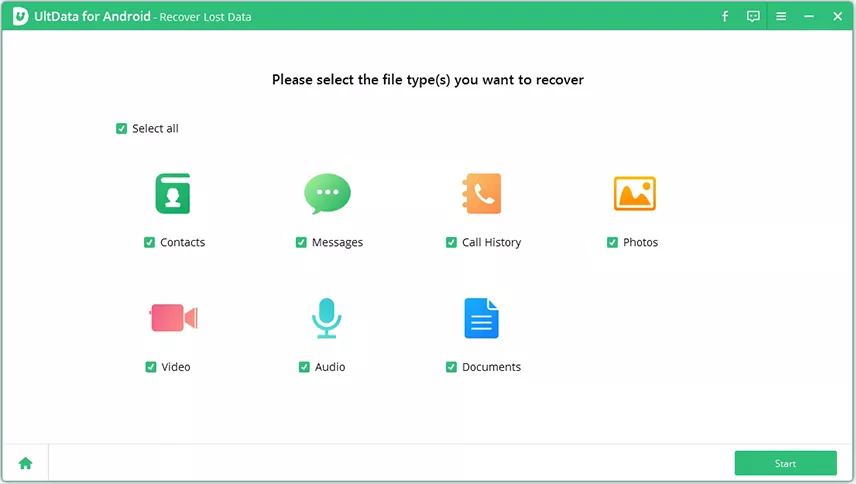
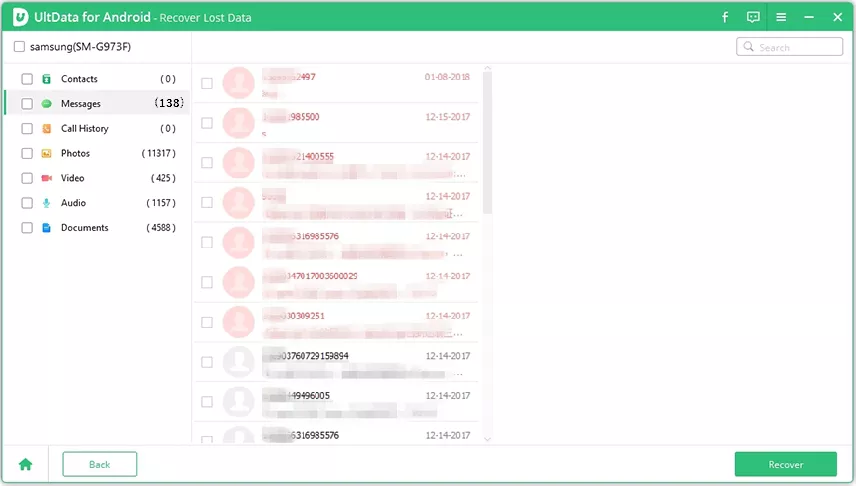
Key benefits:
If iCloud Contacts was enabled before your iPhone broke, your contacts may be stored in iCloud. Here is the step-by-step guide for you to follow to make the recovery process even smoother.


Limitations:
If your contacts were included in an iCloud Backup, you can restore them by restoring the entire backup. Before that, you need to delete or erase all the data from the device for iCloud to work perfectly fine.
Let's check out how to restore contacts from a broken phone with iCloud.

Limitations:
If the iPhone is damaged but still accessible to a computer, UltData may provide another way to look for recoverable contacts.
Best for:



Advantages:
The general process is to install the recovery software like UltData recovery tool, sign in or provide the required iCloud backup information, select the relevant backup, and scan for contacts. You can then preview available data and export the contacts you need.
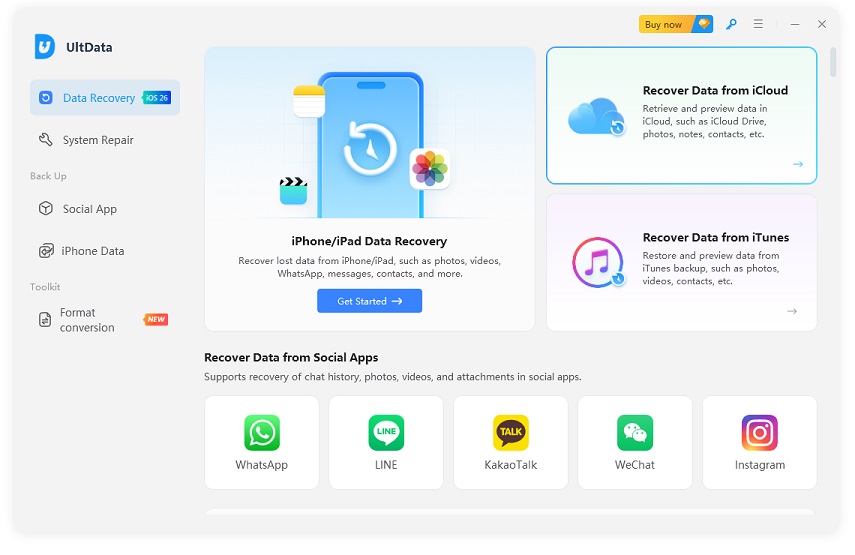


Browse the list of available backups, choose the specific file you wish to download and scan, then click "Next".

Select the specific categories of data you need to recover (such as Photos, Videos, Contacts, etc.) and click "Download".
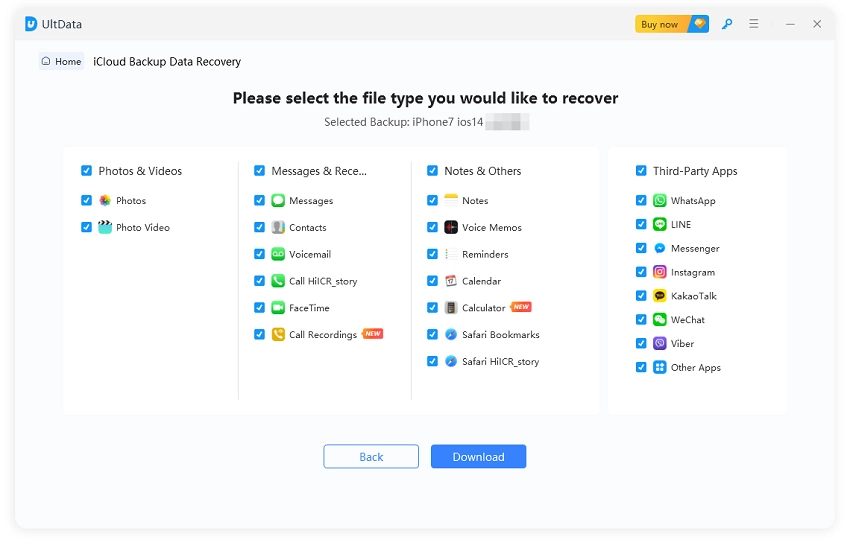
After choosing the required file types, click "Download" to scan the selected iCloud backup data. Once the scan is complete, preview the available files, select the items you want to recover, and click "Recover to PC" to export them to your computer.

Recovering contacts from a broken phone is often possible, but the best method depends on how the contacts were stored and how severely the phone is damaged. Cloud synchronization should always be your first option because it is usually the safest and easiest approach.
For Android devices, check your Google Account for synchronized contacts. For iPhones, check iCloud Contacts and available iCloud backups. If your contacts were stored only on the device, recovery software such as UltData may be worth trying when the broken phone can still be detected or accessed.


UltData - Best iPhone Data Recovery Software






then write your review
Leave a Comment
Create your review for Tenorshare articles

Share this post


UltData - Best iPhone Data Recovery Tool
Recover Deleted & Lost Data from iOS Devices Easily, No Backup Needed!
UltData: Best iPhone Recovery Tool
Recover Lost iPhone Data without Backup
By Jenefey Aaron
2026-09-28 / iOS Data Recovery