

 iOS Tips & Latest Updates
 Bug Fixes, Unlock Guides
 Giveaways & Freebies


UltData - Best iPhone Data Recovery Tool
Recover Deleted & Lost Data from iOS Devices Easily, No Backup Needed!
UltData: Best iPhone Recovery Tool
Recover Lost iPhone Data without Backup
iOS 27 is supposed to make Apple Mail smarter. However, many iPhone owners are now reporting Apple Mail not showing emails after iOS 27. Some are seeing their entire mailboxes appear blank right after the update finishes installing.
Before assuming anything is gone for good, it is important to understand what changed inside Mail and why messages seem to vanish. This guide covers all these aspects and also provides fixes to restore them, including a reliable option when no backup exists.

Apple didn't rebuild Mail from scratch, but the iOS 27 Apple Mail features focus on making an already crowded inbox easier to manage. Most of the changes happen quietly in the background, which is why the app can feel like something's missing the first time you open it post-update.
Finding older emails on an iPhone has remained a crucial problem for many users for years. So, Apple has completely updated the on-device search in this year's OS upgrade.
"We've all had that moment where you search for something you know is there, but it just won't show up," said Stacey Ford, Apple's vice president of OS program management, during WWDC26 keynote. "So on iOS, iPadOS and macOS, we've rebuilt the foundation of search that powers Spotlight, Photos and Mail."
iOS 27 brings a device-side, persistent catalog that provides Mail insights related to your inbox. This is replacing the ineffective local cache that the app used before.
If you open the Mail search, you will see an "Expanded Search Results" banner. This means the app now searches based on intent instead of just keywords. For example, searching "receipt" could surface an order confirmation from an online store even if the word "receipt" never appears in the email.
Mail app is also changing how it ranks the search results. Now, it won't just show the newest messages first. Instead, the systems will surface the most relevant emails at the top. The goal is to make users spend less time searching through their crowded inboxes to find important data.

Priority Messages continue to surface time-sensitive emails, while a new Call Context feature pulls relevant details (like a confirmation code) straight from Mail during a phone call.

Smart Filters automatically sort routine senders out of the main view, which is convenient day-to-day, but it's also a common reason an inbox looks thinner than expected right after an update.
If you noticed that iPhone Mail emails are gone after the iOS 27 update finishes, the cause is hardly a true deletion. It's usually short-term side effects of the update process itself.
The most frequent culprit behind Apple Mail emails missing after iOS 27 is that messages haven't disappeared, but have been re-sorted. For example, newsletters, receipts, and notifications can shift into Updates, Transactions, or Promotions instead of staying in Primary. So, senders might have been recategorized automatically.

Major iOS updates trigger fresh background indexing across Mail and iCloud. Until that process finishes, iCloud sync can lag behind. Emails that already exist on the server may not have loaded into the app yet. This is more common on accounts with years of mail history.
Sometimes the problem isn't Mail at all. An expired Apple ID session or a glitch loading one specific mailbox can make iCloud Mail or a third-party inbox appear empty even though nothing was actually removed.
A permanent loss of emails is far less common than a simple visibility issue. While you are stuck in the thought that "all my emails disappeared after updating my iPhone", put your mind at ease for a few minutes and check whether they are simply sitting in a different category/folder or sync queue before assuming the worst.
If a quick glance hasn't explained the gap in your inbox, it's time to work through these steps in order. They resolve most instances of Apple Mail not showing emails after iOS 27, before you would need to use recovery software.
After a major iOS update, the Mail app may fail to sync correctly with your email provider. This can make emails appear missing even though they still exist on the server. Here's how to fix the Mail app not showing emails after iOS 27 issue:


This process forces iOS 27 to reconnect with the email server and rebuild synchronization data.
Sometimes, the emails you are looking for are in a folder you least imagined, such as Trash or Archive. So, give it a check:

Many providers retain deleted messages for 30 days before permanent removal, so you have plenty of time to move them back manually.
Most modern email services, including iCloud Mail, Gmail, Outlook, and Yahoo Mail, store messages on their servers. Even if the Mail app loses track of them after an update, the emails may be recoverable through the provider.

If messages show up there but not on-device, the issue is local syncing. Reopen Mail on your iPhone and wait for the synchronization to complete.
A backup made before the update can bring everything back through Finder or iTunes. So, if you believe iPhone mail emails are gone after the iOS 27 update and are no longer available on the mail server, these steps will help restore from iTunes/Finder backup:

Keep in mind that restoring a full backup replaces current device data with the contents of the selected backup.
Feel frustrated if none of the above has worked, or if you don't have a prior backup to restore? It's time that you let a data recovery tool handle the matter for you.
Tenorshare UltData is built exactly for this scenario. It scans your iPhone's storage directly and recovers all lost emails without needing an existing backup file at all.




Tenorshare UltData can recover more than 35 types of iPhone data directly from iOS devices, iCloud backups, and iTunes backups. Supported data includes photos, videos, messages, contacts, notes, call history, voice memos, calendars, reminders, Safari data, and app documents.
It also supports recovery of chat data and attachments from popular social apps such as WhatsApp, LINE, WeChat, Messenger, Instagram, Viber, and KakaoTalk. According to Tenorshare, the software offers up to a 98% recovery success rate when the original data has not yet been overwritten.
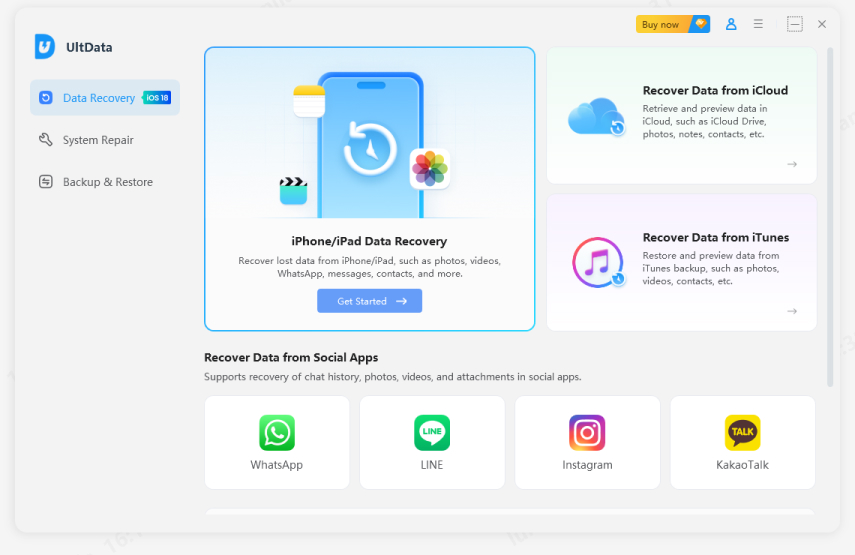
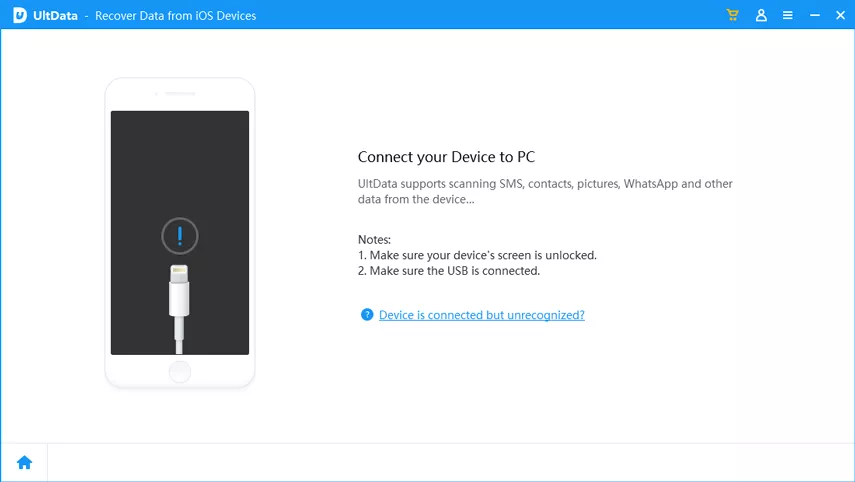
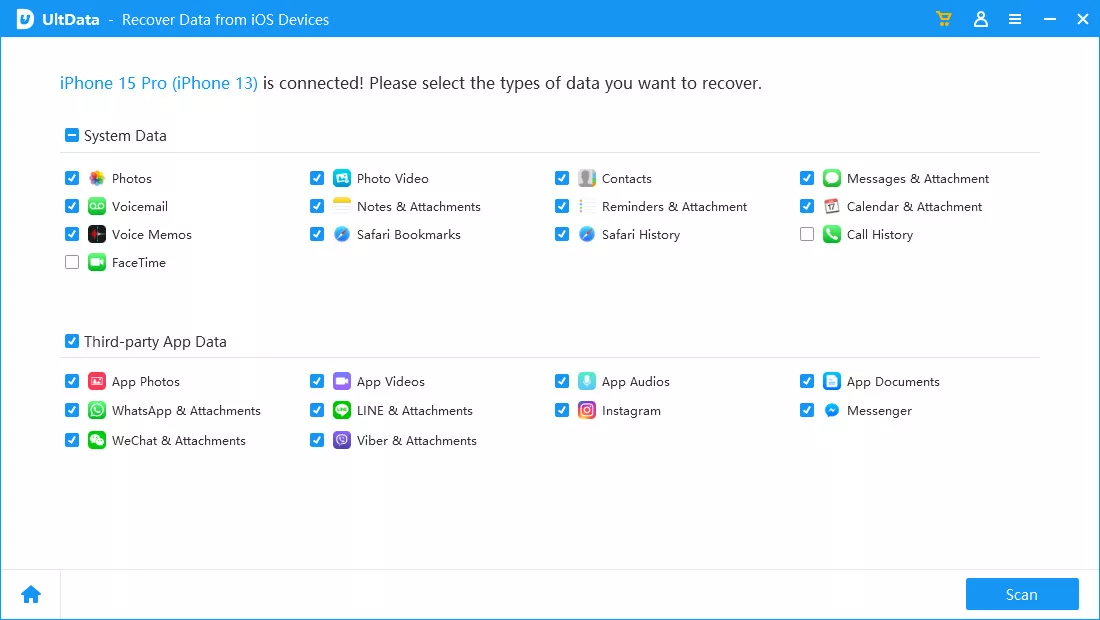
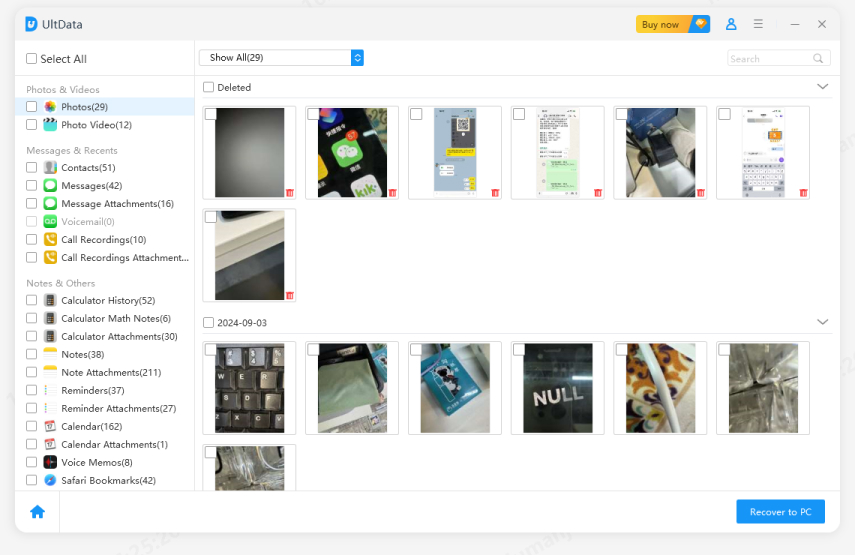
UltData scans the iPhone's own internal storage for data that hasn't been overwritten, including deleted messages that most backups never capture in the first place. So, it does not need a backup to retrieve the data. Plus, everything can be previewed before recovery, so nothing on the device gets reset or erased in the process.
Apple Mail not showing emails after iOS 27 usually occurs due to recategorized messages, a slow re-index, or a sync issue. It is rarely a real data loss, so the steps in Part 3 resolve most of the cases. However, if the emails are truly gone and no backup exists, Tenorshare UltData is the best way to scan the iPhone directly and recover those emails with a few simple clicks.


UltData - Best iPhone Data Recovery Software






then write your review
Leave a Comment
Create your review for Tenorshare articles
Share this post


UltData - Best iPhone Data Recovery Tool
Recover Deleted & Lost Data from iOS Devices Easily, No Backup Needed!
UltData: Best iPhone Recovery Tool
Recover Lost iPhone Data without Backup
By Jenefey Aaron
2026-09-28 / iOS Data Recovery