Many users are panicking and asking: how to see deleted chats on chatgpt after a sudden app crash or system update? Whether you clicked delete by mistake or your prompt history vanished, is it actually possible to recover deleted chatgpt chats? Don't panic just yet. In this comprehensive guide, we have outlined actionable solutions below for you to refer to and successfully bring your data back.
It depends on your situation. If your chats were permanently deleted, recovery may be difficult. But if they disappeared because of a temporary sync issue or cache problem, you may still be able to recover deleted ChatGPT chats before the data is fully overwritten.
Many users think deleting a conversation removes it instantly everywhere, but delays between local devices and OpenAI’s servers can sometimes create a short recovery window. If you act fast, there’s still a chance to restore deleted ChatGPT history and find deleted ChatGPT chats that have not been fully removed yet.
How to Recover Deleted ChatGPT Chats
Before jumping into advanced data recovery, you must rule out soft deletion or interface glitches. Follow these chronological methods to see if your data is still accessible within your account environment.
Method 1: Check the Archive Folder First
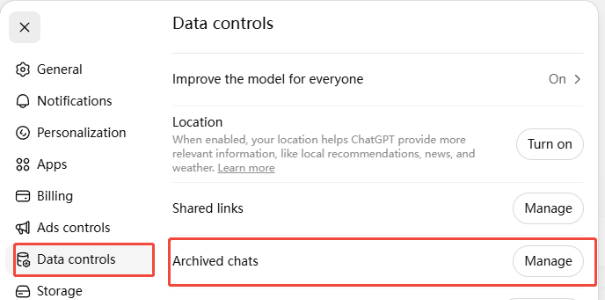
Often, what looks like a permanent deletion is just an accidental archive. ChatGPT features a separate storage layer for hidden conversations.
To find deleted chatgpt chats inside this folder, navigate to your account settings profile, select "Archived Chats," and manage the list. If your conversation is resting there, simply unarchive it to return it to your main sidebar instantly.
Method 2: Verify Your Account & Refresh the Browser
Sometimes your ChatGPT sidebar may suddenly appear empty because of a sync problem, not because your chats were permanently deleted. If you are trying to recover deleted chats on ChatGPT, first log out of your OpenAI account, clear your browser cookies, and then sign in again.
This simple refresh can force ChatGPT to reload your conversation history from the server and may bring back missing chats.
Method 3: Check for Prompt Memory
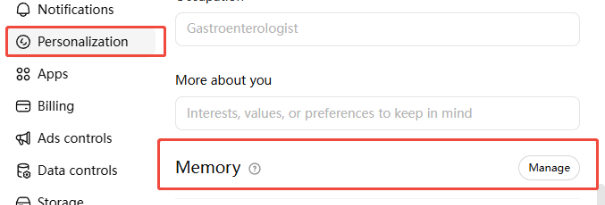
If you use the ChatGPT Custom Instructions or Memory features, the AI might still retain the core context of your deleted workflows. Check the "Manage Memory" section under your Personalization settings.
While this won't bring back the exact timestamped message logs, it allows you to see the key facts and data schemas ChatGPT preserved from your past interactions.
Recover Deleted ChatGPT Export Files via Professional Software
If normal methods fail, you may still be able to retrieve deleted chats on ChatGPT using an exported backup.
OpenAI usually provides chat exports as a .zip file. Many users also save chats as PDFs or Word documents, which can help recover deleted ChatGPT chats later.
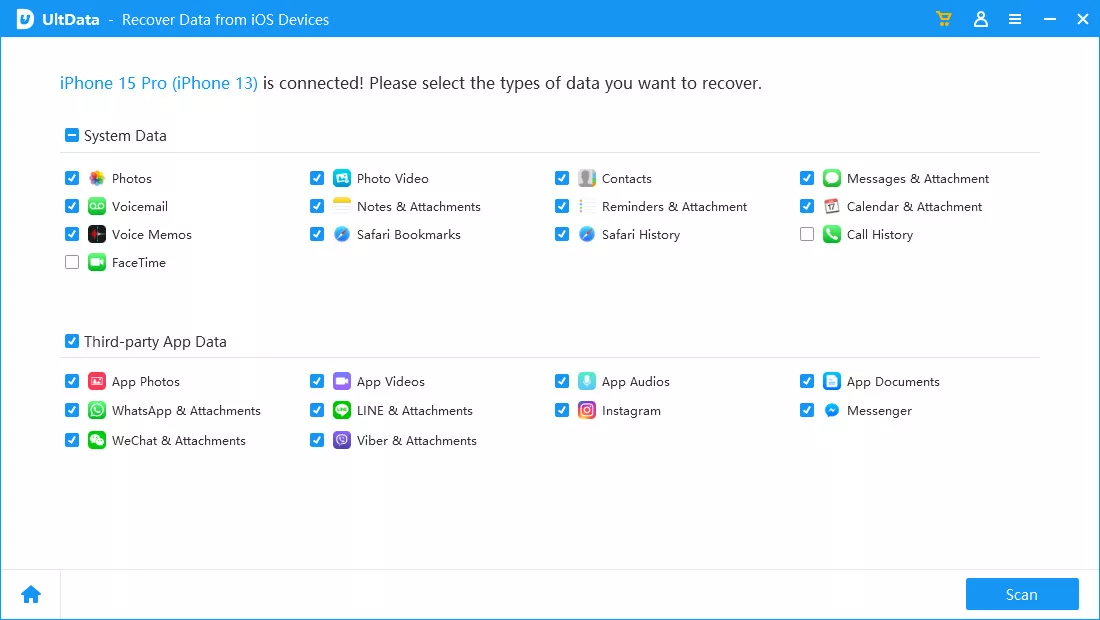
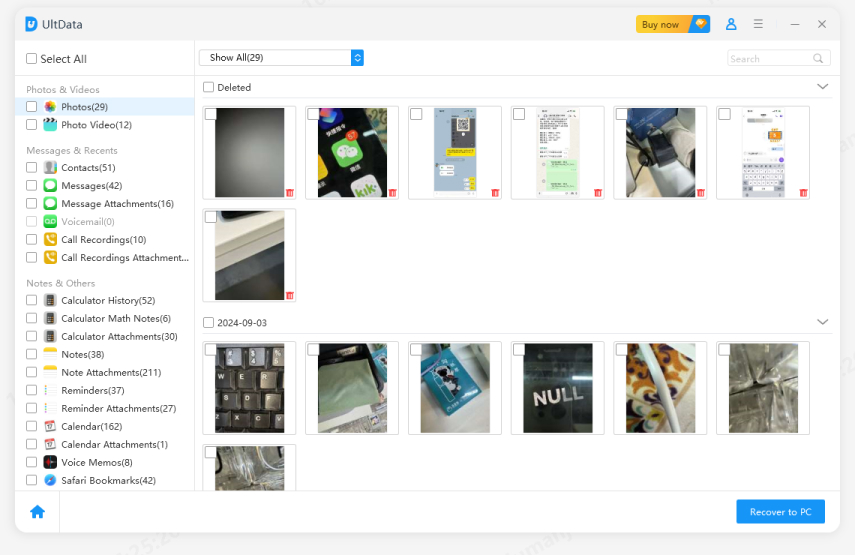
But if those backup files are deleted too, Tenorshare UltData can scan your device storage and recover hidden or removed export files. Even if the files no longer appear in normal folders, the tool can help restore deleted ChatGPT history and find deleted ChatGPT chats from old backups.
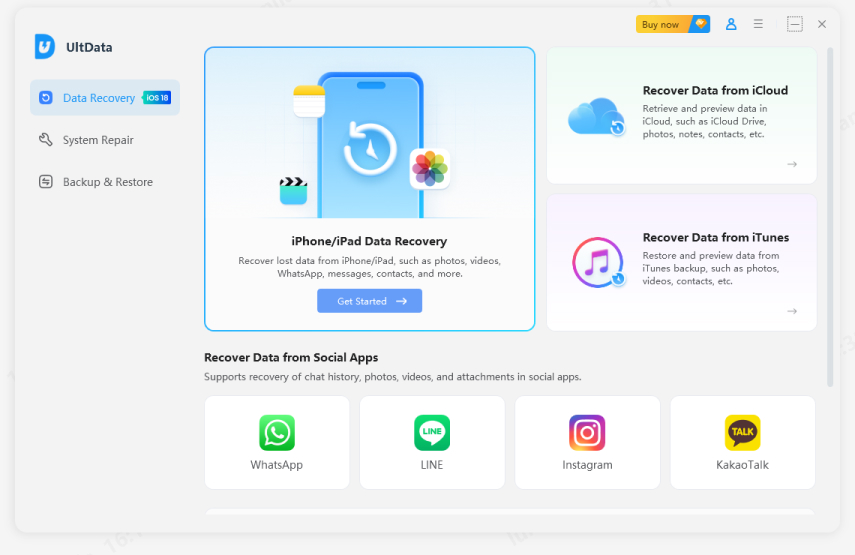
Once recovered, you can reopen your conversations or upload the files back into ChatGPT to continue your work. Below are the simple steps to use Tenorshare UltData for iOS.
After downloading the software, click “Data Recovery”.
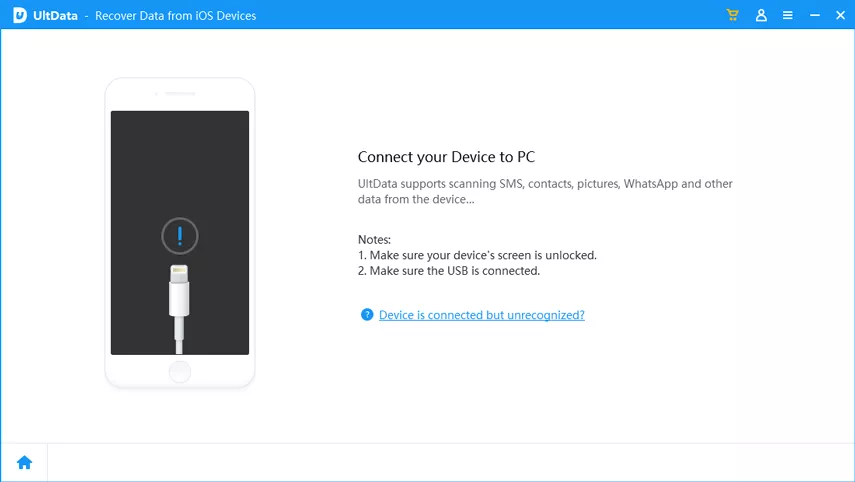
Connect your phone to the computer using a USB cable.
Choose the data you want to recover.
Select the files you want to recover.
Click the “View” button to open the folder where your data is saved.
Retrieve Deleted ChatGPT Chat Logs: A Clever Trick Approved by Users
If cloud data is wiped and no local backups exist, a time-sensitive community workaround can help. This requires having the exact same session open in a unrefreshed, duplicate browser tab. Quick Execution Steps:
Capture the Ghost Cache.
Do not refresh! Even if typing throws an error, the screen text remains readable. Copy the full text instantly to retrieve deleted chatgpt chat logs.
Save as PDF
Paste the text into a Word file and save it as a PDF. This builds a clean, static archive to recover deleted chatgpt conversation files.
Train a New Session.
Start a new chat, upload the PDF, and use this exact prompt to how to see deleted chats on chatgpt:
"Hey ChatGPT, I accidentally deleted our conversation. Please read this file containing our previous chat history and continue the conversation as if nothing happened."
Re-upload Media.
Flat text cannot copy raw images or charts. Manually re-upload these visual elements to restore full context and how to find deleted chatgpt chats effectively.
Prevent Accidental ChatGPT Deletion: Proactive Ways to Protect Your Prompts
Instead of scrambling to execute emergency data recovery operations after a crisis occurs, implementing a resilient data-hardening routine will ensure you never lose critical workspace data again.
Pro Tip 1: Regularly Export and Save Your ChatGPT History
Make it a habit to regularly use OpenAI’s built-in data export feature. Simply go to Settings → Data Controls → Export to request a copy of your ChatGPT history, which will be sent to your email automatically.
Saving these exported files as local documents or backups helps you keep offline access to your important conversations and work.
Pro Tip 2: Use Auto-Sync Tools to Secure ChatGPT Conversations
To avoid losing chats again, you can use Chrome extensions that automatically save your ChatGPT conversations. Some tools can sync and back up your deleted ChatGPT chats in real time to apps like Notion, GitHub, or Google Docs.
This creates an extra backup copy of your chats, making it much easier to retrieve deleted ChatGPT chat history if something goes missing later.
Pro Tip 3: Archive Your Local ChatGPT Cache Data
Ensure your automated computer backup routines (such as Windows File History or macOS Time Machine) are configured to continuously monitor your browser’s temporary storage paths and local application folders.
Securing these local system snapshots ensures that even if you accidentally delete a conversation online, your storage drive maintains historical cache registries that can be reassembled later.
Conclusion
Losing your chat history can be frustrating, but there are still several ways to retrieve deleted chats on ChatGPT. You can check your account history, try cache-based recovery methods, or restore saved backup files to bring back missing conversations.
If cloud sync does not work and your exported files are missing, Tenorshare UltData for iOS can help recover deleted files directly from your device storage. Acting quickly gives you a better chance to recover deleted ChatGPT chats before the data is permanently overwritten.
To avoid future data loss, make regular backups of your important ChatGPT conversations and exports.











By Jenefey Aaron
2026-09-10 / AI Recovery