Is your Mac running slower than usual, freezing apps, or filling up storage
for no obvious reason? Cached files are often the hidden cause. While cache
helps your Mac load things faster, too much of it can quietly drag down
performance.
Clearing the cache the right way can instantly free up space, fix system lag,
and make your Mac feel fast again without risking your data. This article
explores the best way to clear cache on Mac safely, from
quick manual fixes to reliable one-click solutions that actually work on
MacBook Pro, and all modern macOS versions.
Part 1. What Are Caches on Mac and What Does Clearing Cache Mean
1. What Are Caches on Mac
Caches on Mac are temporary files created by macOS, applications, and web
browsers to speed up daily operations. These files store frequently used
data such as images, scripts, system logs, and preferences, so your Mac
doesn't have to reload everything from scratch every time.
There are several common types of caches on macOS:
System cache: Used by macOS processes and background
services, including tasks related to the kernel task, which
manages CPU, memory, and thermal performance.
Application cache: Created by third-party apps to store
temporary data.
Browser cache: Saved by Safari, Chrome, and Firefox to
load websites faster.
DNS cache: Stores website IP addresses to speed up
network connections.
While caches are meant to improve performance, they can grow too large or
become corrupted. Over time, this may lead to issues like apps freezing,
high CPU usage, or your Mac running extremely slowly.
Clearing the cache means deleting these temporary files so macOS and apps
can rebuild fresh, optimized versions. Many users worry: what does clearing
cache do exactly?
In practice, clearing the cache can:
Free up valuable storage space
Reduce system load caused by kernel tasks
Fix network issues by refreshing the DNS cache
Improve browser performance when you clear cache and cookies on Mac
Clearing the cache does not delete personal files or essential system data.
Instead, it removes outdated or unnecessary temporary files that may be
slowing your Mac down. It allows the system to run more smoothly again.
Yes, deleting cache files on Mac is safe. macOS is designed
to recreate cache files automatically when needed. Removing them won't
damage your system or apps as long as you don't delete critical system files
outside cache folders.
That said, manually clearing caches can be risky if done incorrectly,
especially system caches. This is why using a trusted tool is often the
safest choice.
What Happens If I Delete All Cache Files on Mac?
If you're wondering what happens when you clear cache on Mac, here's what to
expect:
Apps may load slightly slower the first time (as new cache rebuilds)
Browsers may log you out after you clear cache and cookies on Mac.
Temporary glitches and slowdowns often disappear
Storage space is instantly freed
Overall, the result is a cleaner, smoother, and faster Mac experience.
Part 3. Quick & Safe: The Best Way to Clear Cache on Mac in One Click
(Best Mac Cache Cleaner)
If your Mac feels slow, apps take longer to open, or storage keeps filling
up for no clear reason, hidden cache files are often the culprit. Manually
clearing cache on Mac can be risky and time-consuming, but that's where
Tenorshare Cleamio makes things easy.
Tenorshare Cleamio
is an AI-powered Mac cleaner that lets you clear all Mac cache files in one
click, safely and quickly, with no technical skills needed. Cleamio is
designed for speed, safety, and simplicity. It deeply scans your Mac and
removes unnecessary cache files without harming important system data.
Key Features:
One-click cache cleanup on Mac
Deep scan of junk files: system cache, app cache, browser cache &
hidden cache files
The scan finishes in seconds and shows junk files in real time. After
scanning, review the detected cache categories (system, apps, browsers).
Click "Smart Cleanup" to safely remove unnecessary cache files in batch.
Cleanup complete. Your Mac is now faster and cleaner. Click "OK" to
continue or explore more features
Tenorshare Cleamio offers the fastest, safest, and easiest way to clear Mac
cache files in one click. It is perfect for beginners and power users alike.
Part 4. How to Clear Cache on Mac in Other 5 Common Ways (Step-by-Step)
If you prefer manual control, here are five common ways to delete cache Mac
files. These methods work on MacBook Pro, MacBook Air, and all modern macOS
versions. While these options help, they are time-consuming and may miss
hidden cache files. Always proceed carefully.
1. Quick Restart Mac
Restarting your Mac is the easiest and safest way to clear temporary system
cache created during daily use. While it won't remove all cached files, it
refreshes background processes, clears short-term memory, and can instantly
improve performance when your Mac feels slow or unresponsive.
macOS includes a built-in storage management tool that helps identify
unnecessary files, including some cached data. This is a beginner-friendly
and safe way to delete cache Mac without touching system folders, making it
ideal for routine maintenance. This way is best for Safe cleanup on MacBook
Pro and MacBook Air.
Click the "Apple menu" and then open "System Settings" (or "System
Preferences").
Select "General", then open "Storage".
Click "Recommendations" or "Manage".
Review and enable optimization options:
a. Store in iCloud - Moves older files to iCloud
b. Optimize Storage - Removes watched iTunes content
c. Empty Trash Automatically - Deletes items after 30
days
d. Reduce Clutter - Shows large files and downloads to
review
Click through each category and delete unnecessary files
3. Clear Browser Cache on Mac (Safari, Chrome, Firefox)
Browsers store internet cache, cookies, and site data, which can slow down
browsing and compromise privacy. Clearing browser cache helps clear internet
cache Mac, eliminate cookies on a Mac, and fix website loading or login
issues.
Clear Safari Caches on Mac
Open the "Safari" > click "Safari" in the menu bar, then select
"Preferences".
Go to the "Privacy" tab, then click "Manage Website Data"
You'll see a list of saved "cookies and cache".
Click "Remove All" to delete everything, or select specific sites and
click "Remove".
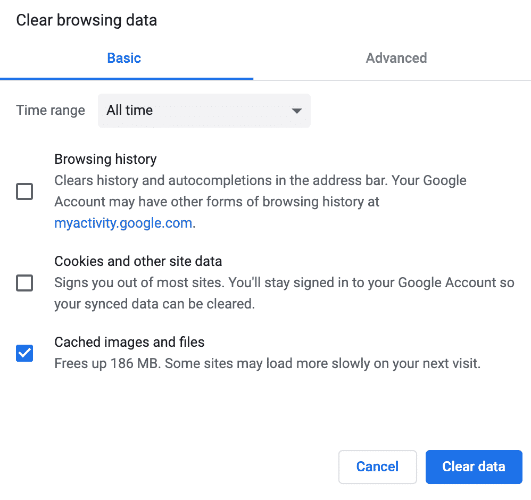
Open Google Chrome. Click the three-dot menu in the top-right corner
Select "More Tools", then click "Clear Browsing Data" or press
Shift + Cmd + Delete.
Open the "Advanced" tab. Set "Time Range' to All time.
Check "Cookies and other site data" and "Cached images and files'
Click "Clear data".
The most common way to clear cache on Mac Chrome.
4. Manually Clear System and App Caches on Mac (Access Cache Folder)
Advanced users can directly access cache folders to remove app-specific
cached files. This method allows you to delete cache Mac manually and
partially clear system cache on Mac, but caution is required to avoid
deleting essential files.
Open Finder. Click "Go" in the menu bar and then click "Go to Folder".
Enter: ~/Library/Caches
Look for folders or files related to the uninstalled app.
Move them to the "Trash", then empty it to fully clear the cache and
restart your Mac.
5. Delete Library of Cache on Mac with Terminal Command
Terminal commands allow advanced users to delete cache Mac files instantly
and flush DNS cache to resolve network or browsing issues. This method is
powerful and recommended only if you're comfortable using command-line
tools.
Steps to Flush DNS Cache:
Open Terminal. Enter:
sudo dscacheutil -flushcache; sudo killall -HUP mDNSResponder
Press "Enter".
Type your Mac password (Terminal won't show the characters) and press
"Enter" again.
Close the "Terminal" and test your internet again.
While these methods help empty cache on Mac, they are time-consuming and may
miss hidden cache files. That's why many users prefer automated tools for a
complete and safer cleanup.
Part 5. Why Cleaning Software Is the Best Way: Comparison Table
The table below clearly shows why using a dedicated Mac cache cleaner is the
best way to clear cache on Mac than common manual methods.
Please swipe to view
Feature
Common Ways
Mac Cache Cleaner (Cleamio)
Safety
Medium (human error)
High (smart cleanup)
Time Required
Long
Very Short
Space Freed
Limited
Maximum
Easy to Use
No
Yes
Clear Hidden Caches
No
Yes
System Cache
Partial
Complete
App Cache
Manual
Automatic
Cleaning software clearly offers the best way to clear cache on Mac
efficiently and safely.
Part 6. Prevention Tips to Avoid Mac Running Slow
Keeping your Mac clean and optimized helps prevent cache buildup and
performance issues. Follow these simple tips to avoid frequent slowdowns on
your MacBook Pro or MacBook Air.
Restart your Mac regularly to clear temporary system cache
Avoid installing unnecessary apps and background tools
Always update macOS and apps to the latest version
Use trusted apps only to prevent junk cache buildup
Shut down unused browser tabs and extensions
People Also Ask about Clearing Cache on Mac
Q1: Should I clear all my cache on a Mac?
Yes, it's generally safe to clear cache on a Mac. Clearing cache helps free
storage, fix app glitches, and improve performance. However, avoid deleting
critical system files and focus on browser, app, and user cache.
Q2: What is the shortcut for clearing cache and cookies on a Mac?
The most common shortcut is: ⌘ + Shift + Delete. This works in most
browsers, like Chrome and Firefox to quickly clear cache and cookies.
Q3: Is it bad to clear cache on Mac?
No, clearing cache is not bad. Cache files are temporary, and your Mac will
recreate them automatically. Clearing them can actually solve slow
performance, loading errors, and browsing issues when done properly.
Q4: How often should I clear the cache?
Clearing cache once a month is enough for most users. If you browse heavily
or notice slow performance, you can clear cache every 2–3 weeks without any
risk.
Conclusion
If your Mac feels sluggish or low on space, clearing cache is essential. The
best way to clear cache on Mac is using a reliable tool
likeTenorshare Cleamio, which safely removes system, app,
and hidden caches in one click. It saves time, avoids errors, and keeps your
Mac running fast and smooth.














By Jenefey Aaron
2026-09-15 / Mac Cleanup