When your Mac warns you about low space, do not delete random files first.
However, you should start by checking what is using your SSD. This guide
explains how to check storage on Mac, read the storage chart, understand
System Data, and free up space safely. Equally, it works for MacBook Air,
MacBook Pro, iMac, Mac mini, and Mac Pro users.
Checking storage comes before deleting files, upgrading iCloud, moving data
to an External SSD, or troubleshooting a slow Mac. Despite the fact that the
steps are somewhat different between newer and older versions of macOS, the
purpose remains the same. Find used storage, Available Storage, and the
categories that are taking up Disk Space.
Check Storage in System Settings (Latest macOS)
Here is how to check storage on Mac in newer macOS versions:
Click the Apple menu.
Open System Settings.
Select General.
Click Storage.
macOS shows a storage bar with different options such as Applications,
Documents, Photos, macOS, System Data, and other categories. If you are
asking how to see storage on Mac or how to view storage on Mac, this screen
is your starting point. Open any available category details to review large
files, unused applications, or storage suggestions.
Check Storage in About This Mac (Older macOS)
On older macOS versions, click the Apple menu, select About This Mac, and
open the Storage tab. This helps users searching how to find storage on Mac
or how to check storage space on Mac. The older panel may show fewer cleanup
options, but it tells you how your disk is divided.
Once you locate the storage screen, the next step is understanding what each
category means.
How to Understand Mac Storage Breakdown
A storage chart is only helpful when you know how to read it. A Mac having
60GB in Photos needs a different cleanup plan than one having 90GB in System
Data.
What Each Storage Category Means
Applications refers to installed apps, including large tools like games,
editors, and design software. Documents includes PDFs, spreadsheets, ZIP
files, videos, downloads, and folders in your user account. Photos refers to
media managed by the Photos app.
System Data is broader and may include cache files, logs, temporary files,
app support data, plugins, and other uncategorized macOS items. "Other" is a
similar catch-all category on some versions. So when checking how much
storage you have on Mac, consider both free space and category breakdown.
Why System Data Takes So Much Space
System Data grows, and its reason is that your Mac works in the background.
Browsers create cache. Apps leave support files after updates. macOS stores
logs, temporary files, and old update data. Similarly, creative apps may
create previews or scratch files.
That is the reason why two 256GB Macs can behave differently. A student with
office files may have room left. Meanwhile, a creator with RAW photos, 4K
clips, and editing caches may run out quickly. This also explains why
storage numbers sometimes look confusing.
Why Your Mac Storage Doesn't Look Accurate
Storage calculations are not always updated instantly. After deleting large
files, macOS may need time to refresh the storage chart. Items may also
still be in Trash, iCloud syncing, or an app rebuilding its cache.
"System Data" can take up significant space. For example, editing tools may
store render files, while browsing creates cache, attachments, and
downloads. If storage looks wrong when you check how much storage on Mac,
try emptying Trash, restarting, and waiting a few minutes.
iCloud can also cause confusion. Some files are stored in the cloud or still
downloading locally. Hidden system files and logs may also use space without
showing in folders.
Understanding this helps you clean your Mac more safely.
How to Free Up Mac Storage Quickly
Start with visible clutter. Check Downloads and remove old installers,
screenshots, PDFs, and ZIP files. Sort Documents by size and delete large
videos, outdated folders, and duplicates. Empty Trash only after confirming
nothing important is inside.
Next, uninstall unused apps. Don't just drag them to Trash, as leftovers
like caches and support files may remain. Also review large media
files---one 4K video can take more space than hundreds of documents.
In Photos, delete duplicates, blurry shots, burst photos, and exported
copies. Move finished design, CAD, or video projects to an external SSD. For
files used across devices, iCloud or other cloud storage can help reduce
local storage pressure.
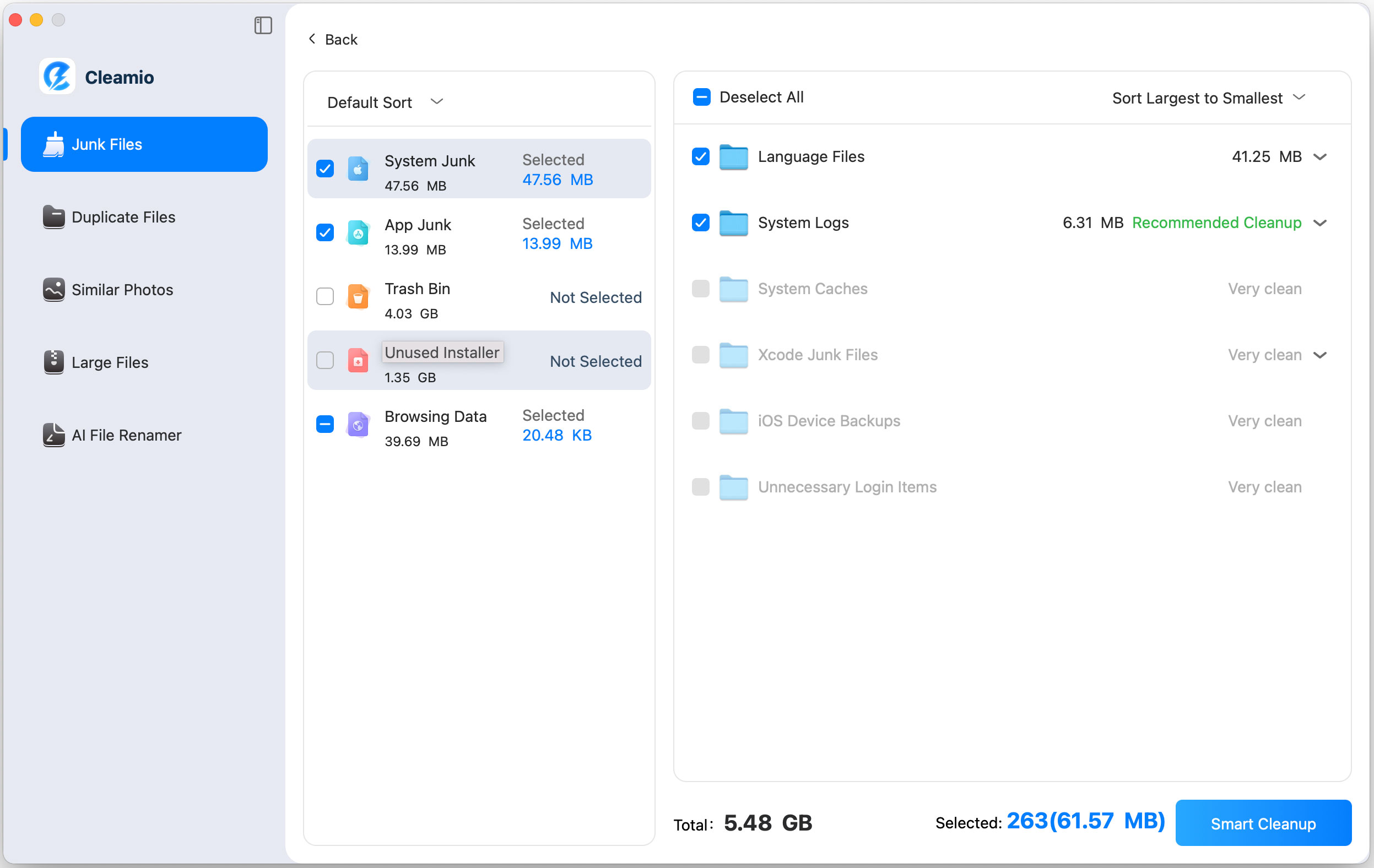
Tenorshare Cleamio fits well after this review. If your Mac fills up again
and again, Cleamio can scan junk files, system caches, duplicate files,
similar photos, large files, app leftovers, and unused apps in one place.
Instead of opening many folders manually, you can scan, preview results,
choose what to remove, and clean with more confidence. This helps users who
want how to check computer storage on Mac and act on the result without
digging through hidden folders.
Workflow is simple. Check Storage in macOS, note the largest category, open
Cleamio, scan the matching area, preview the list, and delete only what you
recognize.
Cleamio simplifies mac cleanup into a quick, beginner-friendly process:
Download and install Cleamio on your Mac, then open the app.
Run a system scan to detect junk files, cache, and leftover app data.
Review what's taking up space and confirm what can be safely removed.
Click "Smart Cleanup" to free up disk space and improve performance.
By clearing unnecessary clutter and freeing storage, Cleamio helps mac run
more smoothly. With more available disk space, apps respond faster and
system performance becomes more stable.
If System Data is high, start with junk and cache cleanup.
If Photos is high, use similar-photo detection.
If Documents is heavy, find large files first.
Before the FAQs, remember that storage cleanup should be a monthly habit.
FAQs About Mac Storage
Is 256GB of Mac Storage Enough?
Is 256GB of Mac storage enough? For light users, yes. Browsing, email,
school files, and office work can be a suitable candidate comfortably when
files are organized. For students, it might be enough unless they store many
videos, games, or offline lectures. For creators, 256GB can be tight since
Photos, video projects, design files, and app caches grow quickly.
Why Is My Mac Storage Full So Fast?
Your Mac storage fills very quickly when photos, videos, large apps,
Downloads, browser cache, and System Data grow at the same time. Here, a
better habit is to review Available Storage monthly, particularly after
large updates, media imports, or app installations.
Can I Increase Mac Storage?
Most modern Macs do not allow internal SSD Storage upgrades after purchase.
So, storage planning is important before buying. If you already own the
device, use an External SSD for large projects and Cloud Storage for files
you do not need offline. The process for how to check available storage on
Mac, how to check storage on MacBook Air, and how to check storage on Mac
Pro is mostly the same. Keep in mind that your storage needs are what
change.
Conclusion
Now you know how to check storage on Mac, read each category, spot
misleading storage numbers, and free space. Start with built-in macOS
Storage settings. Then, use Tenorshare Cleamio when junk files, duplicates,
large files, or app leftovers are hard to find. If an important file is
deleted during cleanup, Tenorshare UltData Data Recovery can help you try to
recover it.






 iOS Tips & Latest Updates
 Bug Fixes, Unlock Guides
 Giveaways & Freebies






By Jenefey Aaron
2026-09-28 / Mac Cleanup