The 10 Best Mac Disk Space Analyzers (Free & Paid with Fast Speed)
If your disk keeps filling up and you can’t identify the cause of the problem, a Mac disk space analyzer is one of the easiest ways to locate and delete large files instantly. This guide lists the 10 best disk analyzers for Mac in 2025, covering both free and paid options so you can reclaim storage with confidence.
If you want to actually free up disk space on your Mac, not just see what’s taking it, Tenorshare Cleamio is the best Mac disk space analyzer overall. Unlike traditional disk analyzers that only visualize storage usage, Cleamio finds and removes large files, System Data, duplicates, and hidden caches automatically. That’s why it’s the top choice for users dealing with “Disk Almost Full” issues.
Part 1. Common Mac Storage Issues and How Disk Analyzers Help
Macs accumulate clutter for many reasons, and most users don’t even notice until a “Your disk is almost full” warning suddenly appears.
Most Common Mac Storage Culprits
- System data & local Time Machine snapshots (50–300 GB)
- Large applications & their leftovers (Xcode, Final Cut, Adobe, VMs, GarageBand)
- Old downloads, mail attachments, duplicate files, iOS backups
- Hidden Caches & Support Files (such as Hidden caches in ~/Library)
How Disk Space Analyzers Solve These Problems Instantly
Apple’s built-in Storage tab only shows vague categories and won’t let you drill down or delete safely. However, A macOS disk usage analyzer and storage visualizer can fix this in senconds:
- Scan entire drive in under a minute
- Show interactive sunburst/treemap (biggest blocks = biggest space hogs)
- Reveal hidden files and snapshots
- Delete with one click, no Terminal needed
Part 2. Top 10 Best Mac Disk Space Analyzers: Latest List (Free & Paid)
Below are the top-rated Mac disk space analyzers in 2025 with an overview, features, pros, cons, and pricing.
➡️ Which Mac Disk Space Analyzer Should You Choose?
- If you want free & visual → DaisyDisk / Baobab
- If your System Data is huge → Cleamio
- If you want fastest scan → WizTree
- If you want automatic cleanup → Cleamio
1. Baobab Disk Usage Analyzer -- Free disk analyzer for large folders
Baobab is a lightweight, open-source disk usage tool known for its simple interface and fast scanning performance. It provides clear graphical visualizations to help Mac users quickly identify which folders and files consume the most space. If you want a free and reliable Mac disk space analyzer without unnecessary extras, Baobab is an excellent starting point.
Price: Free
Main Features:
- Folder-level disk usage analysis
- Treemap and ring chart visualization
- Quickly highlights largest directories
- Open-source and completely free
- Completely free and open-source
- Fast folder-level analysis for large directories
- Lightweight with no ads or tracking
- Cannot remove System Data or snapshots
- Manual cleanup only, no safety guidance
- Not beginner-friendly on macOS (setup required)
2. Tenorshare Cleamio -- Only disk space analyzer that actually removes large System Data
Tenorshare Cleamio is a modern all-in-one Mac cleaning toolkit notarized by Apple and designed to remove junk, duplicate, large files, and monitor & optimize overall system performance. While most tools only show you what’s taking space, Cleamio actually cleans it for you.
Powered by real AI (not just marketing buzzwords), it combines disk analysis, debloat macOS, cache cleanup, duplicate removal, and app uninstallation into one easy-to-use dashboard. For users who want deep cleaning with automation rather than manual searching, Cleamio offers both power and convenience.
Why Cleamio Converts Better Than Disk Analyzers
- Others: Show files → Cleamio: Actually cleans them
- Others: Manual selection → Cleamio: AI auto-select
- Others: No snapshots handling → Cleamio: Deletes Time Machine snapshots
- Others: One task only → Cleamio: All-in-one
Price: 7-day free trial; then starts at $24.95/month with 15 free special offers
Main Features:
Most disk analyzers show you what’s using space. Cleamio actually frees it.
- Actually removes System Data, local Time Machine snapshots, and hidden caches
- All-in-one: disk analysis, junk cleanup, duplicate removal, app uninstall
- AI-assisted auto-selection reduces risk of deleting important files
- Apple-notarized and optimized for Apple Silicon
- 7-day free trial and then 15 free special offers after trial
3. Windirstat for Mac -- Treemap-based disk usage visualizer
WinDirStat for Mac adapts the classic Windows-based visualization tool to Macs with its ARM architecture, offering a colorful treemap layout that displays disk usage at a glance. The graphical blocks make it very easy to spot extremely large files and unnecessary folders. Users who prefer storage visualizers rather than text-based lists will find this tool intuitive and informative.
Price: Free
Main Features:
- Treemap-based disk usage visualization
- Folder tree sorted by size
- File type statistics with color coding
- Visual identification of very large files
- Clear treemap visualization for spotting huge files
- Easy to understand at a glance
- Free alternative to paid visual tools
- No native macOS version or official support
- Only visualizes data, no cleanup assistance
- Slower scans on large or APFS drives
4. Wiztree for Mac -- Fastest disk space analyzer for large drives
WizTree for Mac is known for its remarkably fast scanning engine, capable of mapping disk usage in just a few seconds. It displays results in both list and treemap formats, making it easy to compare file sizes and spot space hogs immediately. If speed is your top priority, WizTree is one of the best hard drive space analyzers available.
Price: Starts at $25
Main Features:
- Extremely fast disk scanning on large drives
- File and folder size statistics
- Treemap and list views for disk usage
- Search and filter by file type or size
- Extremely fast disk scanning on large drives
- Detailed file-type and size statistics
- Good for power users who prioritize speed
- Limited macOS compatibility
- No System Data handling or smart cleanup
- Interface and workflow are not Mac-friendly
5. Treesize for Mac -- Detailed folder-level disk usage analyzer
TreeSize for Mac organizes your files in a clear, hierarchical structure that makes it easy to drill down into folders and track large or duplicate files. It provides customizable reports and filters so advanced users can analyze disk usage with precision. This macOS disk space analyzer is ideal for those who want more control and deeper insights than basic free apps offer.
Price: free version & full version starting at $24/month
Main Features:
- Hierarchical folder-size breakdown
- Detailed disk usage reports
- Advanced filters and sorting options
- Folder growth and size comparison
- Detailed hierarchical folder analysis
- Useful reports and filters for advanced users
- Familiar tool for enterprise users
- Full functionality requires paid version
- Focuses on analysis, not actual cleanup
- Overkill for users who just want to free space quickly
6. DaisyDisk -- Visual disk space analyzer for beginners
DaisyDisk is one of the most visually polished disk analyzers available, featuring an interactive sunburst map that simplifies cleaning. The drag and drop interface makes it effortless to review and delete large files without digging through Finder. Its balance of beauty, simplicity, and power makes it a favorite among everyday Mac users.
Price: One-time purchase of $9.99
Main Features:
- Interactive sunburst visualization
- Fast disk scans with intuitive drill-down
- Safe file preview before deletion
- System file protection during manual cleanup
- Very intuitive and beginner-friendly interface
- Beautiful sunburst visualization
- Safe deletion with system file protection
- Cannot automatically clean junk or System Data
- Manual deletion can be time-consuming
- No optimization beyond visualization
7. OmniDiskSweeper -- Simple large file finder for Mac
OmniDiskSweeper focuses on speed and simplicity, listing your files from largest to smallest in a clean column-based layout. There are no complex dashboards or analytics, just a straightforward view of what’s taking up precious space. For users who want a minimalist Mac OS X disk analyzer that gets the job done quickly, this app is a solid option.
Price: Free
Main Features:
- Lists files and folders from largest to smallest
- Simple column-based navigation
- Direct access to files in Finder
- Lightweight and fast scans
- Simple and lightweight
- Quickly lists largest files first
- Completely free with no ads
- No visual guidance or file previews
- High risk of accidental deletion
- No automation or system-level cleanup
8. Disk Inventory X -- Free Mac disk space analyzer with treemap
Disk Inventory X provides a visual treemap combined with a detailed file list, giving users a full picture of disk usage. Though the interface is older, the tool remains lightweight, fast, and completely free. It’s well-suited to users who want reliable results without needing a modern UI.
Price: Free
Main Features:
- Treemap visualization of disk usage
- Shows hidden files and Library data
- Zoom and filter by file size
- Free and open-source
- Free treemap visualization
- Reveals hidden files and caches
- Lightweight and offline
- Outdated and slow on modern macOS
- Frequent permission issues
- No support for System Data or snapshots
9. GrandPerspective -- Customizable Mac disk space visualizer
GrandPerspective displays your storage layout with colorful, interactive blocks that show exactly where your disk space is going. Users can zoom into specific areas and filter results to quickly find outdated or oversized files. It’s a great free option for visual learners who prefer graphs over traditional folder views.
Price: Free; $2.99 from App Store
Main Features:
- Highly customizable treemap views
- Color coding by file type, name, or age
- Real-time scan updates
- Finder integration for manual cleanup
- Highly customizable treemap views
- Actively maintained open-source project
- Good for visual learners
- Steeper learning curve for beginners
- No built-in cleanup or safety checks
- Requires manual Finder operations to delete files
10. SquirrelDisk -- Lightweight modern disk space analyzer for Mac
SquirrelDisk offers a clean, modern interface that highlights large files and folders using easy-to-read visual maps. It focuses on simplicity, guiding users through disk cleanup without requiring technical knowledge. If you want a fresh, lightweight analyzer with an intuitive design, SquirrelDisk is a strong pick.
Price: Free
Main Features:
- Fast scans with modern treemap UI
- File type and size filtering
- Drag-to-collect delete workflow
- Lightweight and cross-platform support
- Modern and clean interface
- Fast scans with low resource usage
- Free and cross-platform
- Limited advanced filtering and cleanup
- Occasional usability quirks
- Not designed for deep Mac system cleanup
Part 3. How to Analyze Disk Space Usage & Large Files to Free Up Storage on Mac
If you want to analyze your Mac’s disk space and free up storage with ease, then this section discusses the 2 most effective methods you may use:
1. Steps to find and remove large files using Tenorshare Cleamio
Tenorshare Cleamio provides a full scanning engine that automatically detects large files, duplicates, old caches, and hidden system items. Its interface guides you through safe cleanup without risking important system data.
Follow these steps to locate and delete unnecessary large files.
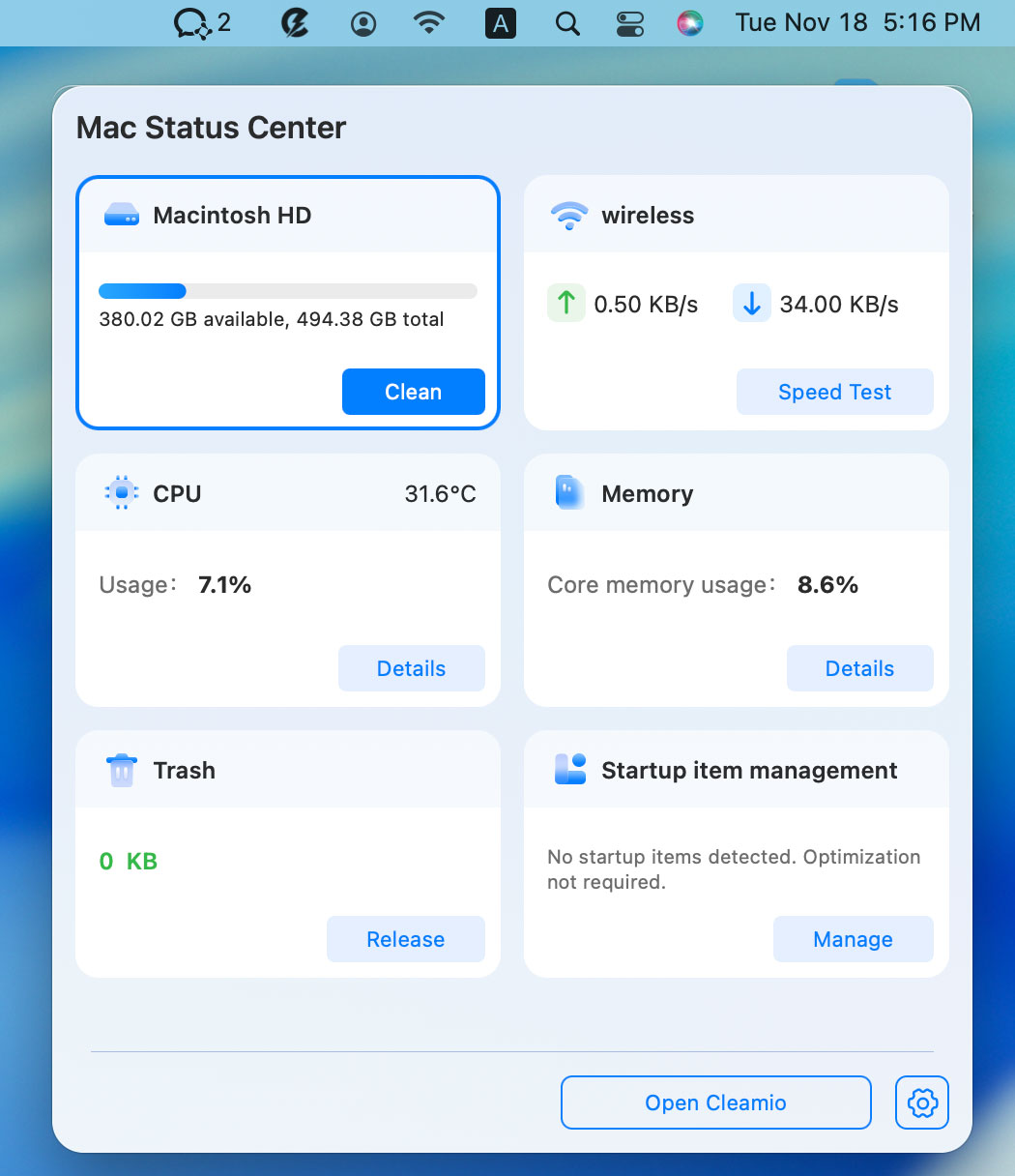
- Check Disk Space: Install and open Tenorshare Cleamio. Then tap on its logo at the top-right corner from Mac screen to launch Mac Status Center. Then view disk space usage from first box.
- Clean Junk Files on Disks: Click the "Large Files" option on the left side and click "Scan" to begin scanning. Later, use auto-select option or choose items manually and click “Smart Cleanup”.
- Find and Remove Large Files: Select “Large Files” from the left menu and click “Scan”. Then all files will sorted by File Size. Select items and click “Remove”.
People Also Ask about Mac Disk Usage Analyzer
Q1: Is a disk space analyzer safe?
Yes, most disk analyzers only read your storage. If you download from reputable sources, they’re safe.
Q2: How do I free up disk space on my Mac?
Delete large files, clear system caches, uninstall unused apps, and use tools like Cleamio for deep cleaning.
Q3: What is the app that checks disk space on Mac?
There are many options, including DaisyDisk, Cleamio, Baobab, and Disk Inventory X.
Q4: Does Mac have a disk cleanup tool?
Yes, macOS includes Storage Management, but it’s limited compared to third-party analyzers.
Q5: Can TreeSize be trusted?
Yes, TreeSize is a reputable enterprise-grade storage analysis tool.
Q6: How often should you use a disk space analyzer on your Mac?
Most users benefit from scanning once every 1–2 weeks, especially if storage runs low.
Conclusion
A reliable Mac disk space analyzer makes it easy to find large files, remove storage clutter, and keep your system running efficiently. Whether you prefer a free tool like Baobab or a polished solution like DaisyDisk, these analyzers reveal exactly what’s filling your disk.
If you want a complete all-in-one cleaner with powerful optimization tools, Tenorshare Cleamio is the best choice for effortless Mac maintenance and long-term performance.
Speak Your Mind
Leave a Comment
Create your review for Tenorshare articles











By Jenefey Aaron
2026-09-15 / Mac Cleanup