If you’re using a MacBook Pro or MacBook Air and suddenly see the alert “your
system has run out of application memory, you’re not alone. This warning can
appear even on newer Macs and often disturbs your workflow without clear
instructions on what to do next.
In this guide, we’ll explain what application memory is, why this error
happens, and provide step-by-step solutions, from instant fixes to long-term
prevention, to help your Mac run smoothly again.
Part 1. Fatest Fix: What to Do Immediately When My Mac Says System Has Run
Out of Application Memory
When macOS shows the “system has run out of application memory” warning, the
priority is freeing RAM immediatelybefore your system becomes unstable or
unresponsive. Instead of manually checking each app,
Tenorshare Cleamio
offers a faster and safer solution.
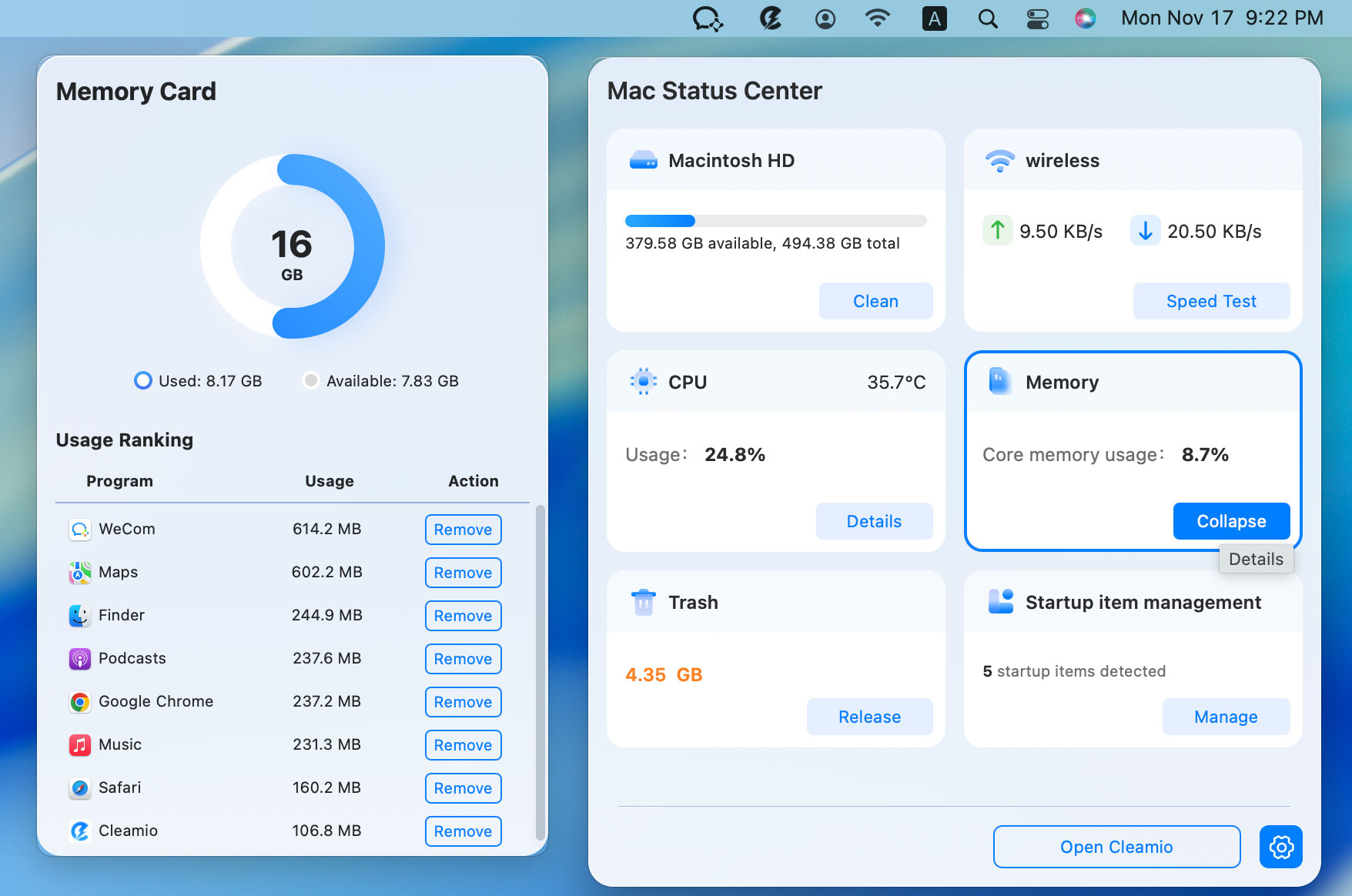
It includes a Mac Status Center that displays real-time CPU, RAM, and system
load, helping you instantly identify which apps are consuming excessive
memory. Most importantly, Cleamio allows you to
force quit high-memory applications
and free up RAM in one click, without needing to close apps one by one or
open Activity Monitor manually.
Also, it can deep scan and delete large files, duplicate files, and
junk files on Mac.
Steps to Clear Application Memory Using Cleamio
Here are the steps you need to follow.
Download and install
Tenorshare Cleamio
on your Mac. Launch the app and open the Mac Status Center.
Click the “Details” button under the “Memory” section and check for apps
taking abnormal amounts of memory on your computer.
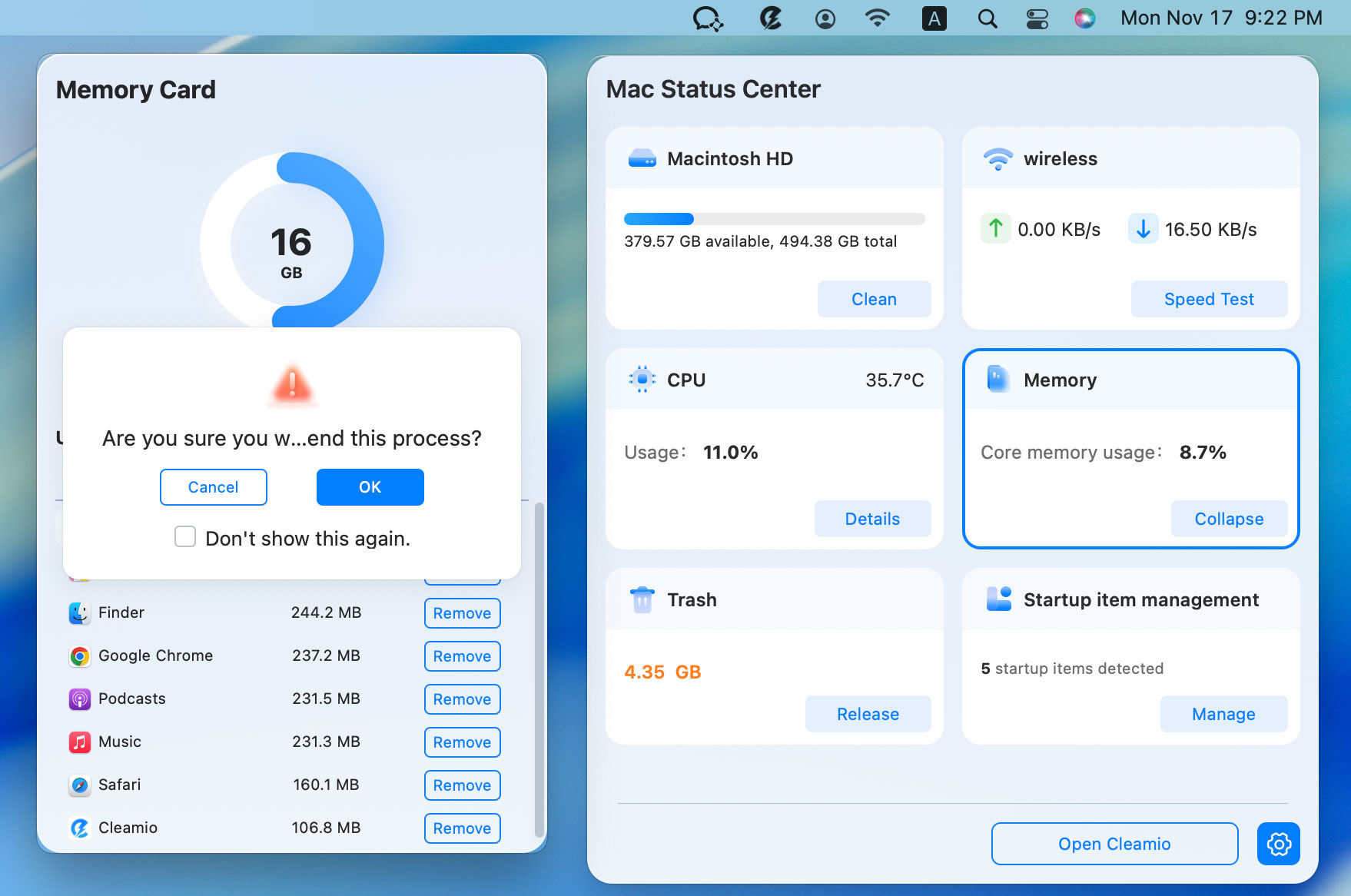
Click “Remove” against the process that takes too much memory and click
“OK” to proceed with removing it.
This method is ideal when your Mac becomes sluggish, apps freeze, or the
memory warning keeps reappearing.
Part 2. What Is Application Memory on Mac?
Application memory refers to the portion of RAM that macOS allocates to apps
and system processes while they’re running.
Common types of application memory include:
Active Memory: RAM currently being used by open apps.
Inactive Memory: Previously used memory that can be reused quickly.
Wired Memory: Essential system memory that cannot be compressed or
freed.
Compressed Memory: Data macOS compresses when RAM is running low.
When application memory exceeds available RAM and swap space, macOS triggers
the “your system has run out of application memory” alert to prevent system
crashes.
Part 3. Why Does My Mac Keep Running Out of Application Memory
This message means macOS can no longer efficiently manage running apps using
available RAM and virtual memory.
It often appears when:
Multiple memory-intensive apps are open
Browsers consume excessive RAM
Background processes fail to release memory
Disk space for swap memory is insufficient
Why Is My Mac Running Out of Application Memory?
Here are the most common reasons your Mac keeps saying the system has run
out of application memory:
Too many apps are running simultaneously
Browser memory leaks (especially Chrome or Firefox)
Heavy browser extensions or dozens of tabs
Insufficient free disk space for virtual memory
Startup apps are running unnecessarily
Poorly optimized third-party software
Part 4. How to Clear Application Memory on Mac All Models (6 Step-by-Step
Ways)
Below are six proven step-by-step methods to
check Mac CPU and memory usage
and fix memory issues on MacBook Air, MacBook Pro, and iMac models.
1. Check Activity Monitor & Quit Memory Hogs
Below are six proven step-by-step methods to fix memory issues on MacBook
Air, MacBook Pro, and iMac models. So, you can easily quit applications by
monitoring their usage.
Open “Spotlight Search” by pressing “F4” on your keyboard, then search
for "Activity Monitor" and open the app.
Click the "Memory" tab, then click the “Memory” column to sort the apps
based on their RAM consumption.
Click on an unnecessary process taking too much RAM and click the “Stop"
button at the top to quit that process.
2. Restart Your Mac (Immediate Quick Reset)
Restarting the Mac clears RAM, resets system caches, and stops runaway
processes.
Click “Apple menu" from the top left and hit "Restart”.
macOS relies on disk space to create swap memory, and freeing up disk space
allows the OS to create more virtual RAM.
Go to Apple menu, then "System Settings" and pick "General", then
"Storage”.
Ensure at least 15–20 GB of free space. Remove large files, old
downloads, or unused apps. In some cases, clearing the Bin frees up a
lot of disk space.
4. Close Unnecessary Browser Tabs / Extensions / Background Apps
Browsers are one of the biggest RAM consumers, and closing unnecessary
processes frees up a significant amount of RAM.
Close unnecessary browser tabs with the "x" button, and when you are
done using the browser, quit it completely with "CMD + Q" to prevent
background processes.
If you are using some heavy extensions, go to the Extensions page and
remove them by clicking "Remove."
5. Uninstall or Remove Problematic Third-Party Apps (Especially from Login
Items/Startup)
Some apps constantly run in the background or launch at startup, even when
you do not need them. Uninstalling them or at least removing them from the
startup list frees up a lot of RAM for you.
Open “System Settings” on Mac and go to “Login Items and Extensions” in
“General”.
Click to select an app and click “-” to remove it from login items.
6. Switch to a Different Browser or Manage Browser Memory Better
If one browser, like Firefox or Chrome, repeatedly causes memory alerts, try
Safari for better macOS optimization. Otherwise, you may use browser memory
management features to maintain seamless browsing without having to switch.
Press “CMD + Q” (twice if needed) to quit the Firefox, Chrome, or
other browser window.
Open the same page URL in Safari to enjoy a more optimized browsing
experience.
If you were using the MS Edge browser, you can enable the "Tab Sleeping"
feature to manage memory better by going to "Settings", then "System and
Performance", and going into the "Performance" tab to enable the
“Sleeping tabs” option.
Part 5. Long-Term Prevention: How to Stop Your Mac from Running Out of
Application Memory
To prevent future issues, you can follow the tips below:
Keep macOS and apps updated
Avoid running too many heavy apps at once
Monitor memory usage regularly
Remove unused login items
Maintain sufficient free disk space
Use a system management tool like Cleamio for ongoing monitoring
Part 6. How to Get More Application Memory on Mac by Increasing Virtual
Memory
While macOS manages virtual memory automatically, you can optimize it by
ensuring enough disk space.
Free up disk storage (at least 20 GB recommended) by removing unnecessary
files and apps and moving large files to external drives.
Restart your Mac to reset swap memory.
Avoid running memory-heavy apps together.
Although you can’t manually set virtual memory size, proper disk management
makes a big difference.
Conclusion
The “your system has run out of application memory on Mac” warning is
frustrating but completely fixable. From quick resets and Activity Monitor
checks to long-term optimization, managing memory is key to macOS
performance.
For the fastest and easiest solution, Tenorshare Cleamio stands out
by offering real-time monitoring, one-click force quit, and memory cleanup
without technical hassle. With the right tools and habits, your Mac can stay
fast, stable, and responsive.






 iOS Tips & Latest Updates
 Bug Fixes, Unlock Guides
 Giveaways & Freebies






By Jenefey Aaron
2026-09-28 / Mac Cleanup