Running out of space on Apple's cloud network can quickly disrupt your entire
digital workflow. If you keep seeing notifications that your cloud drive is
full, mastering how to clear iCloud storage on your Mac is essential.
This guide outlines practical strategies to reclaim your space, clean out
unnecessary clutter, and improve your system's overall storage efficiency.
How to Check What's Using Your iCloud Storage on Mac
Before you begin deleting anything, you must figure out exactly what is
consuming your cloud allocation. A detailed iCloud storage usage breakdown
gives you a transparent view of your cloud storage. Instead of guessing
which elements are bloating your account, taking a few seconds to properly
manage storage lets you target the primary culprits immediately.
To view your current status, navigate to the following path on your
computer:
System Settings → Apple ID (Click your name at the top) → iCloud → Manage
Storage
When you open this panel, you will typically see the largest portions of
space assigned to these common categories:
Photos
High-resolution video projects and massive picture libraries.
iCloud Drive
Synced desktop documents, old PDF files, and active project archives.
Messages
Years of conversational history and heavy media transfers.
Mail
Archived logs, system communications, and standard text messages.
Device Backups
Legacy system images saved from your older iOS or iPadOS hardware.
Once you have identified exactly what is taking up your precious space, you
can proceed to safely delete iCloud storage on your Mac by targeting the
highest-consuming applications first.
How to Clear iCloud Storage on Mac
If you are wondering, "How do I clear stuff out of my iCloud storage on
Mac?" the solution involves taking deliberate, practical cleanup steps in
your primary applications.
Delete Unnecessary Files from iCloud Drive
Your cloud drive acts as a catch-all for many automated file transfers. Over
time, items like forgotten ZIP archives, duplicate video projects, old PDF
files, downloaded files, and documents no longer needed begin accumulating.
Removing these hidden, heavy items from your synced folders will help you
clean out iCloud storage on your Mac in just a few clicks.
Remove Large Photos and Videos from iCloud Photos
Media files are almost always the single biggest consumer of cloud
databases. High-definition vacation video clips and burst-mode photography
can quickly eat up your data allowance. To address how to clean up iCloud
storage on Mac, open the local Photos app, browse your library to identify
duplicate media files, and clear unwanted videos that don't need cloud
syncing.
Delete Old iPhone and iPad Backups
When you switch or upgrade your mobile hardware, Apple often leaves behind
outdated backup data from devices you don't even own anymore. These legacy
device backups stay pinned to your cloud profile indefinitely. By reviewing
your backup settings, you can identify these inactive profiles and safely
clear them.
Clear Message Attachments Stored in iCloud
While conversational text takes up minimal space, the files it contains do
not. Text threads often harbor large shared files, family photos, videos,
and complex documents sent months ago. Cleaning out these heavy attachments
from your native application is an excellent way to free up iCloud storage
on Mac without losing your important text histories.
Empty Recently Deleted Folder in iCloud
Simply hitting delete on a document doesn't immediately clear up the cloud
room. Apps like Photos and iCloud Drive place files inside a temporary
"Recently Deleted" folder for up to 30 days. To immediately realize your
space savings, you must navigate to each trash bin and permanently empty its
contents.
Even after wiping out cloud clutter, many users still encounter local system
issues. Massive caches, app leftovers, duplicate files, and heavy local
downloads remain tucked away on local hard drives. This local strain
eventually pushes unwanted data back into your cloud sync paths, creating
future storage headaches.
How to Free Up Mac Storage and Prevent iCloud from Filling Up Again with
Cleamio
A common frustration for Apple users is discovering that even after purging
cloud files, their physical hard drives remain completely jammed. Macs
naturally pile up system junk over time, including:
Temporary system logs and browser cache files
Accidental duplicate files and virtually identical photos
App leftovers from programs you thought you uninstalled
Unused large downloads are buried deep inside system folders
These digital residues consume local disk space and can disrupt your
automated sync settings.
Optimize Mac Storage with Tenorshare Cleamio
To keep your computer running optimally and avoid cloud bottlenecks, a
dedicated performance utility is highly recommended. Tenorshare Cleanio is
an elite storage optimization application designed to locate, categorize,
and safely eliminate digital clutter from your macOS system.
Why Tenorshare Cleamio Stands Out
1. Clean Junk Files & Full App Uninstallation
Wipes out hidden application caches, residual temporary folders, and broken
log files while ensuring uninstalled applications leave no trace behind.
2. Manage Downloads & Unused Media Files
Easily maps out oversized files and older downloads so you can review and
delete them systematically.
3. Monitor System Performance
Delivers clear, real-time insights into your storage configuration, helping
you prevent future clutter before it impacts your workflow.
4. Remove Duplicate Files & Similar Photos
Instantly scans your system for duplicate documents, redundant downloads,
and repeated images, freeing up large chunks of space without manual
sorting.
How to Clean Up Mac Storage with Cleamio
Using the software to maximize your computer's storage space requires only a
few straightforward steps:
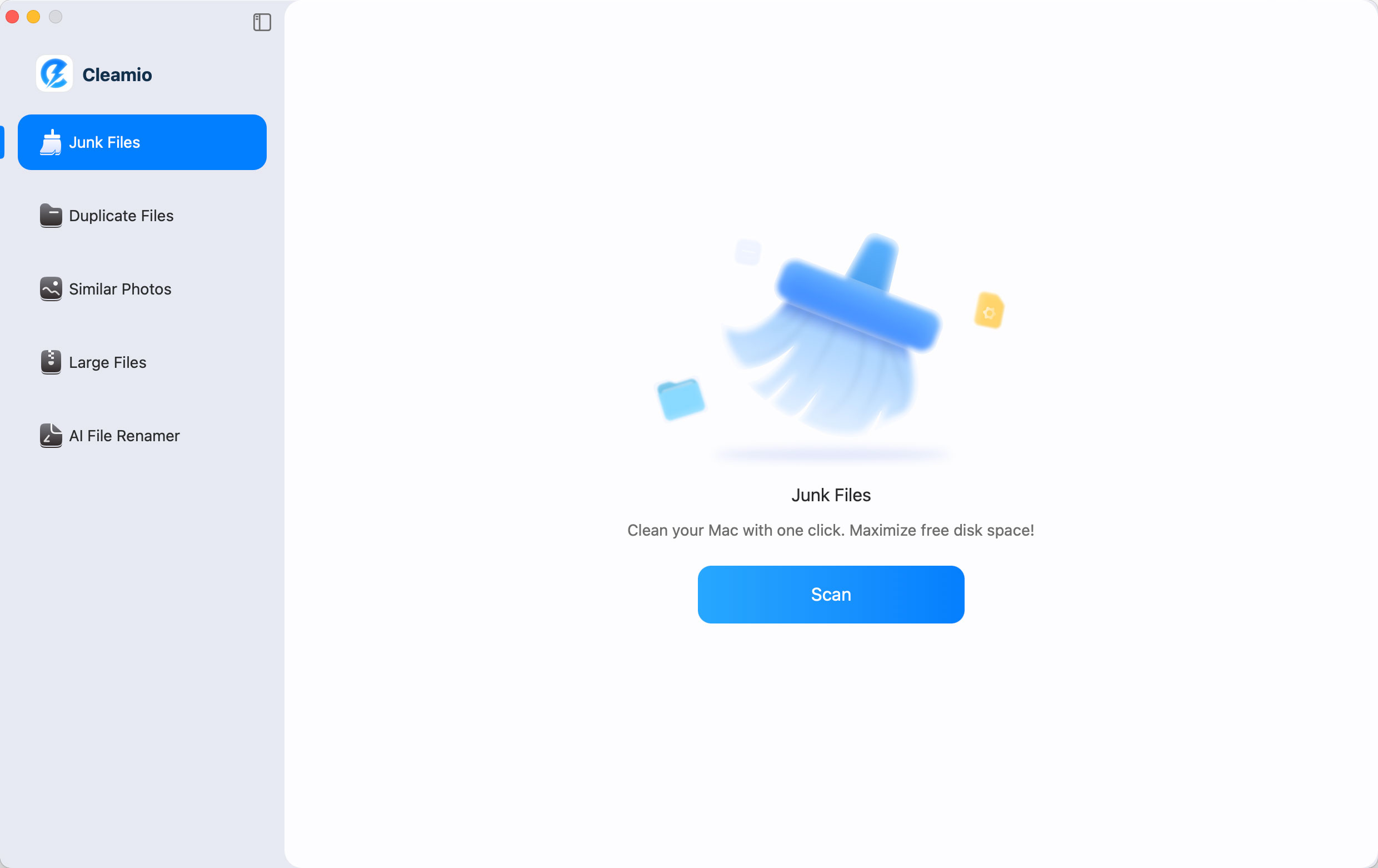
Grab the official build of Tenorshare Cleamio and set it up on your Mac.
To run a System Scan, open the program and click the scan button to
evaluate your storage configuration.
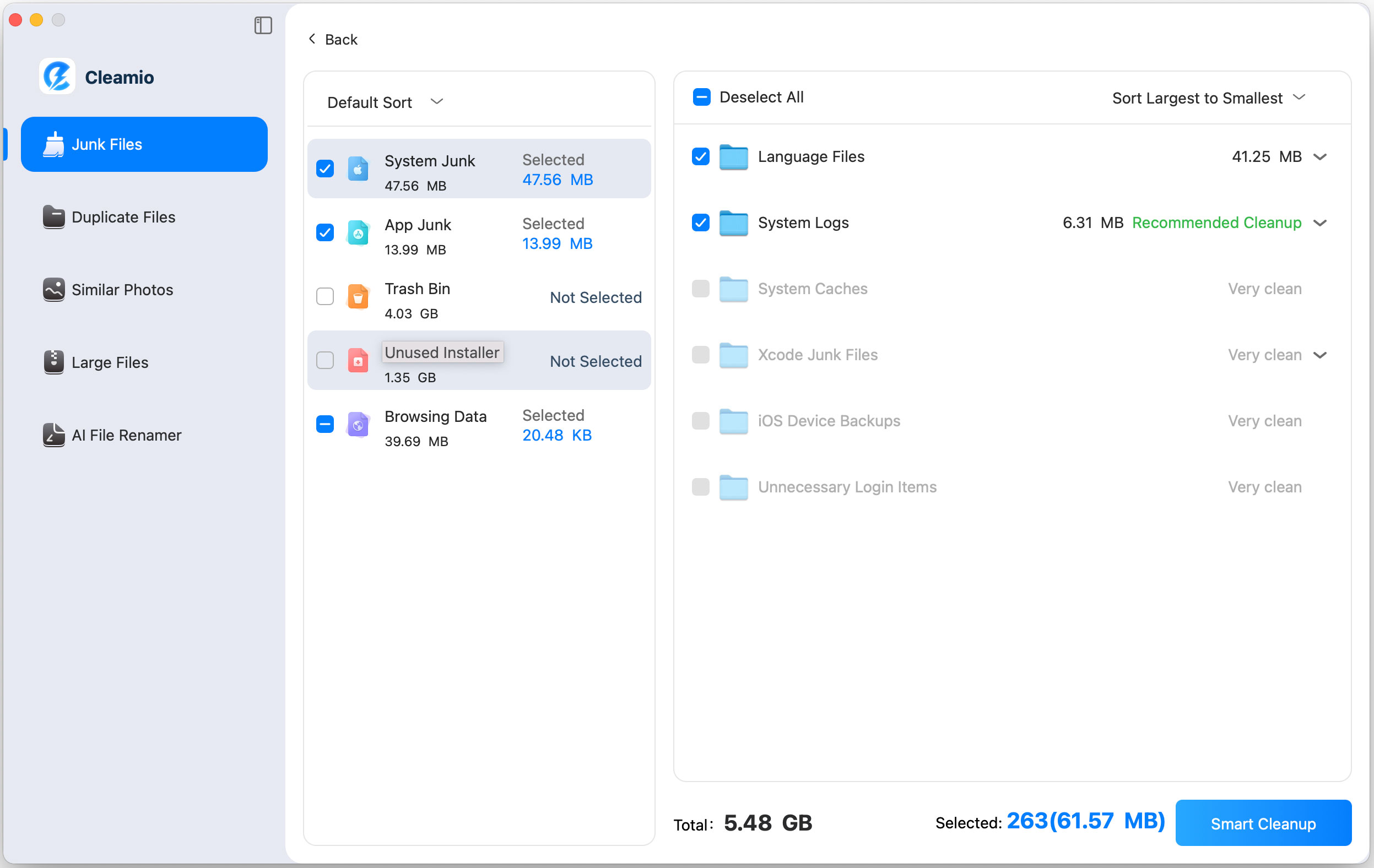
Look over the categorized list of duplicate documents, app remnants, junk
files, and similar photos. Confirm your selection and let Cleamio securely
remove the unneeded files.
Review the newly recovered storage and run regular scans to keep your
machine clear.
Cleaning up your hard drive is an excellent first step, but building
continuous digital habits ensures your cloud environment remains orderly
in the long term.
How to Prevent iCloud Storage from Filling Up Again
If you have asked yourself, "Why is my iCloud storage full so fast on Mac?"
the answer usually comes down to passive maintenance. Implementing a few
basic routines can stop automated processes from overloading your account.
1. Review iCloud Drive Monthly
Allocate a few minutes every month to review cloud folders, archive dead
projects locally, and remove temporary documents.
2. Remove Duplicate Photos Regularly
Periodically evaluate your image library, clear out accidental screenshots,
and remove duplicate media files before they sync up.
3. Clean Mac Junk Files Before Uploading to iCloud
Run regular local system cleanups to remove temporary files and unnecessary
downloads, preventing messy local folders from automatically uploading to
your cloud storage. Understanding how Apple balances your local space
against cloud networks makes it much easier to choose appropriate storage
plans for your needs.
FAQs
1. Does iCloud actually free storage on Mac?
Yes, but only if you enable the Optimize Mac Storage toggle. When active,
your Mac keeps small placeholder versions of your files locally while
transferring the full-resolution versions to the cloud. However, if your
cloud allocation fills up, this feature stops working correctly.
2. What happens when free iCloud is full on Mac?
When you hit your storage limit, automated operations pause. Device backups
will fail to update, new photos won't sync across your devices, and document
updates within iCloud Drive will freeze entirely until space is cleared.
3. Will I still get emails if my iCloud storage is full on Mac?
No. If your storage becomes completely full, your iCloud Mail service will
stop receiving new messages. Senders will generally receive a bounce-back
notice stating that your mailbox is full.
4. Should I get 50GB or 200GB iCloud storage on Mac?
50GB iCloud suits individual users with light photo usage and basic backup
needs on a single device. 200GB iCloud is better for users with large photo
libraries, multiple Apple devices, or those using Family Sharing with
iCloud+. Heavy iCloud Drive users will also find that 200GB provides much
more comfortable headroom.
Conclusion
Learning how to clear iCloud storage on Mac requires balancing managing
active synced applications with keeping your local machine organized. By
routinely cleaning out bloated photo libraries, erasing outdated device
backups, and using automated utilities like Tenorshare Cleamio, you can
effortlessly avoid storage bottlenecks.
For local Mac clutter, Tenorshare Cleamio takes the effort out of storage
cleanup by automatically detecting junk files, duplicates, and app
leftovers, keeping both your Mac and iCloud storage in great shape.





 iOS Tips & Latest Updates
 Bug Fixes, Unlock Guides
 Giveaways & Freebies





By Jenefey Aaron
2026-09-28 / Mac Cleanup