

 iOS Tips & Latest Updates
 Bug Fixes, Unlock Guides
 Giveaways & Freebies


Cleamio: All-in-One Mac Cleaner & Optimizer
Clean junk files, free up space, and boost Mac performance
No.1 Mac Cleaner & Optimizer
Clean, speed up, and optimize your Mac
If your Mac feels slow right after startup, login items are often the hidden reason. Many apps quietly launch in the background, draining memory and extending boot time without your awareness. Learning how to find, manage, and disable Mac login items helps you regain control over startup behavior, improve performance, and prevent unnecessary background activity, especially on newer macOS versions.

Mac login items are apps and background services that start automatically when you sign in.
To manage Mac login items, go to System Settings > Login Items & Extensions (or Users & Groups for older macOS). Remove items by selecting them and clicking the minus (-) button, and disable background items by toggling them off. Then you can stop apps from opening on startup in Mac.
For leftover items, use Tenorshare Cleamio to clean residual files. This improves startup speed and reduces background processes.
Mac login items are applications, helpers, or background services that macOS launches automatically when you log in. Their purpose is convenience, allowing apps like cloud storage, messaging tools, or security software to run without manual launch. However, having too many login items can slow down startup and negatively impact system performance.
In modern macOS versions, login items are divided into:
Mac login items typically fall into these categories:
Here is a quick comparison of the login items and background processes in macOS:
 Please swipe to view
Managing login items improves startup speed, lowers CPU and RAM usage, and reduces background clutter. It also helps prevent security risks caused by unknown extensions or leftover startup agents. For users concerned about login items settings, login items, and endpoint security extensions, careful management is essential.
Before disabling anything, you need to know where Mac login items are stored and how to check them safely.
macOS Ventura redesigned login item management and made background items more visible.
Open System Settings.
Go to "General" > "Login Items & Extensions".
Review "Open at Login" and "Allow in the Background".
Identify unknown or unnecessary items.

This view also flags items from unidentified developers, helping you assess risk.
Older macOS versions use a simpler structure.
Open "System Preferences".
Select "Users & Groups".
Choose your account and click "Login Items".
Review and manage the list.

This is the classic Mac login items location most longtime users recognize.
Managing login items on your Mac is not as complex as it sounds. In this section, we will explain 4 different ways to manage these on your Mac.
Many apps automatically add themselves to the startup without asking. Disabling unnecessary login apps is the fastest way to speed up your Mac and reduce clutter. This method is safe, reversible, and built directly into macOS. Here is how to remove items from the Mac startup:
Open System Settings and go to "General", then select "Login Items & Extensions".
Select an app under "Open at Login" by clicking it and clicking the "minus –" button.

Restart your Mac to confirm changes.
This stops applications from opening on startup on Mac without uninstalling them.
Background items are often invisible but consume resources continuously. Many users are surprised to see how many apps still run after being "removed". Turning these off helps stop hidden startup behavior and improves performance. Once you learn how to remove things from startup on Mac, here are the steps to remove background apps:
Go to "System Settings" then "General" and click "Login Items & Extensions" (or "Login Items").
Scroll to "Allow in the Background", then toggle off unwanted items and restart to fully apply changes.

This way, the apps that you turn off from allowing in the background will stop silently consuming your resources.
Not all login items are bad; some apps are genuinely useful at startup. macOS allows you to manually choose what launches automatically. This gives you full control over startup behavior.
Open the app you want to add to login items and let it show in Dock.
Right click on the app logo, select "Options" and enable "Open at Login" from the popup.

Quick Alternative Method:
Go to "Settings" > "General" section. Open "Login Items & Extensions" (or "Login Items").
Click the plus (+) button and select an app from Applications.
Confirm and restart.
This helps you change login items on Mac intentionally instead of letting apps decide.
Even after uninstalling apps, leftover login items can remain hidden. You may have personally seen removed apps still launching background services weeks later. For stubborn startup items, I rely on Tenorshare Cleamio to fully clean them.
Cleamio scans residual files, startup agents, and hidden helpers that macOS doesn't remove by default.
Download and install Tenorshare Cleamio on your Mac and launch it. Click "App Management" and click "Start".

Click "Residual Files" then select the files you want to remove and click "Clean".

When the process is complete, click "OK".

This is the most reliable way to stop applications from opening on startup on Mac completely.
Sometimes, login items keep coming back even after removal. This usually means background agents or extensions are re-registering themselves. When that happens, I use Cleamio's Mac Status Center to manage startup items in bulk.
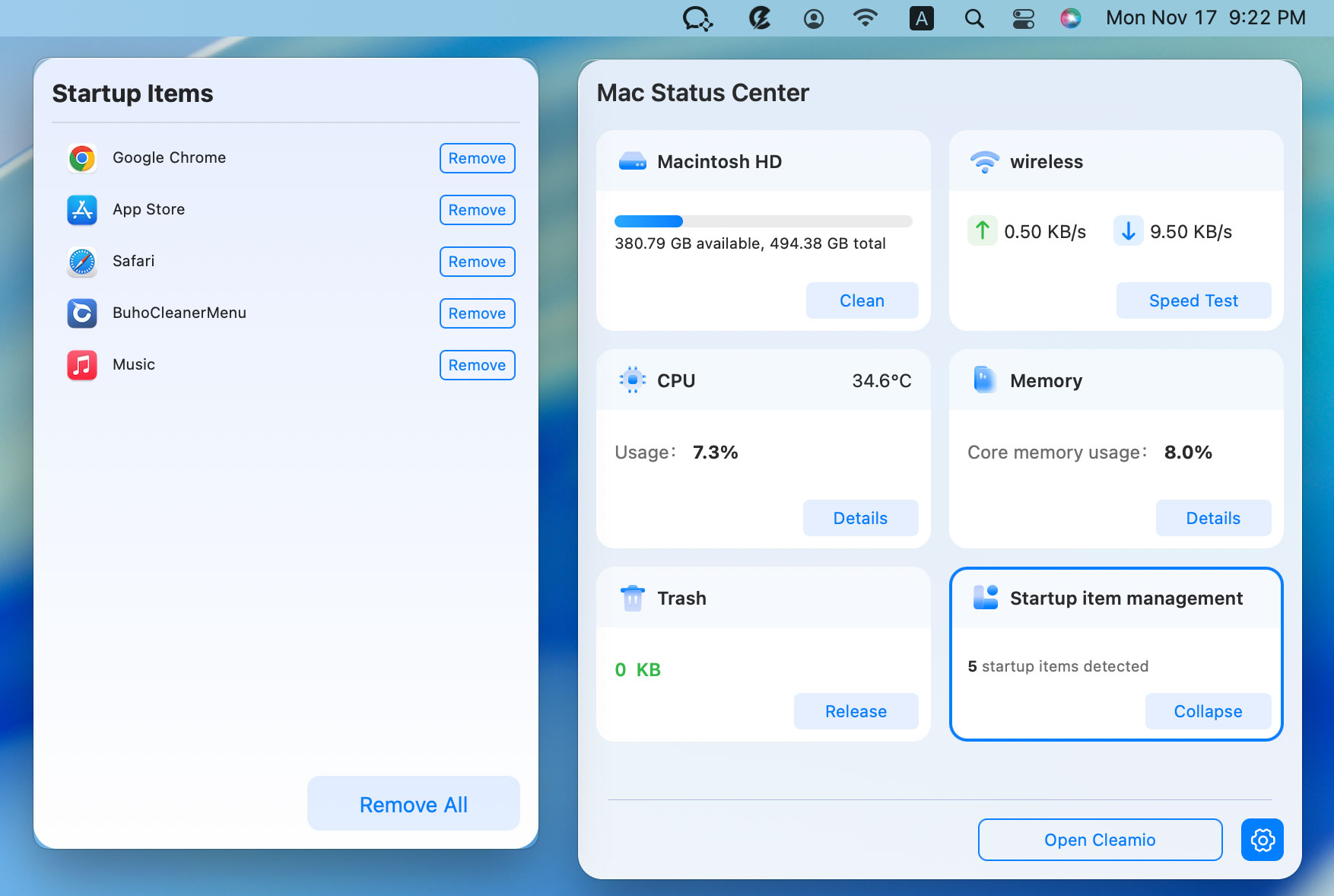
After installing Cleamio on your Mac, click its icon from the Menu Bar to launch Cleamio's Mac Status Center.

Click the "Manage" button under "Startup Item Management".
Choose the startup items you want to remove and click "Remove" or use the "Remove All" button to remove everything together and end processes.

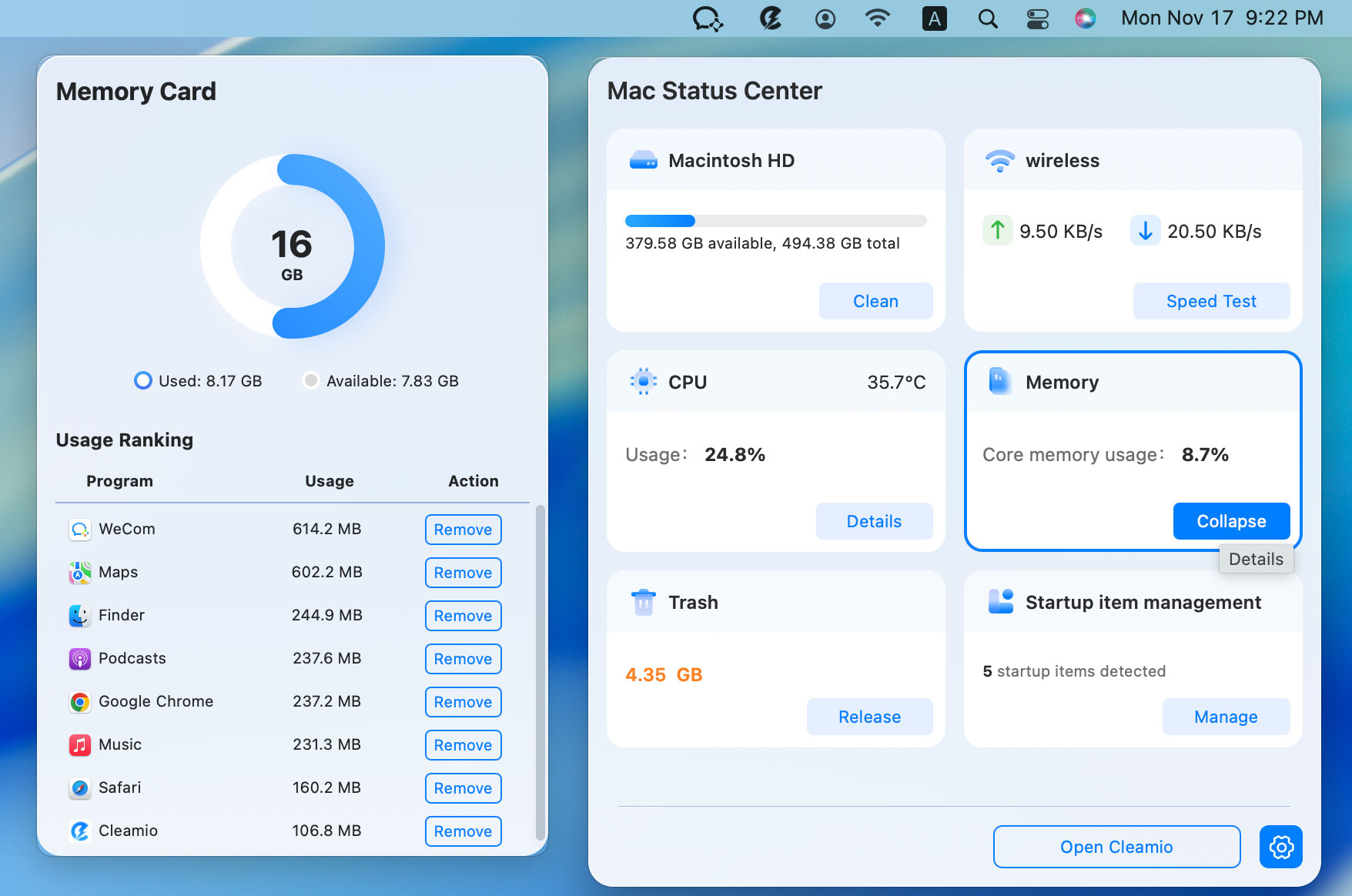
You can also choose the "CPU" and "Memory" module, select "Details", and click "Remove" to end background processes of those apps consuming high computer resources.
If you are unsure which apps to keep and which ones to remove from startup, here are some expert recommendations:
Please swipe to view
Follow the tips below to make your Mac startup faster.
No. Security tools and system extensions should remain enabled.
Use Login Items settings in System Settings or Cleamio.
They're usually background agents or extensions.
Not recommended and often restricted by macOS.
System-level protections used by security software.
Mac login items directly affect startup speed, performance, and system stability. Learning how to find, manage, and disable Mac login items gives you control over what truly runs on your Mac. For stubborn, hidden, or leftover startup items, Tenorshare Cleamio offers the safest and most complete cleanup solution.


then write your review
Leave a Comment
Create your review for Tenorshare articles
 Cleamio
All-in-One Mac Cleaner & Optimizer
Share this post


Cleamio: All-in-One Mac Cleaner & Optimizer
Clean junk files, free up space, and boost Mac performance
No.1 Mac Cleaner & Optimizer
Clean, speed up, and optimize your Mac
By Jenefey Aaron
2026-09-28 / Mac Optimization