Is your Mac taking too long to start up? A slow boot can be frustrating,
especially when you need to get work done quickly. Many users experience Mac
computer slow startup issues due to too many startup apps, low storage, or
accumulated system junk.
Even powerful Macs can feel sluggish if macOS loads unnecessary background
processes. This article explains
how to fix slow boot on Mac and shows practical methods to
speed up macOS
startup efficiently.
Understanding why your Mac boots slowly is the first step toward fixing it.
Startup delays can vary depending on the Mac model, system condition, and
software configuration.
1. Quick Boot Time Test: Is Your Mac Really Slow?
Use the benchmarks below to compare your Mac's startup speed:
Please swipe to view
Mac Type
Normal Boot Time
Apple Silicon (M1/M2/M3)
15–25 seconds
Intel Macs (2015–2020)
30–50 seconds
Older Macs (pre-2015)
45–90 seconds
If your Mac takes 30 minutes to boot, shows a stuck progress bar, or feels
unresponsive long after login, you're dealing with a genuine Mac slow boot
time issue.
2. Common Scenarios When a Mac Computer Is Slow to Boot
Slow startup problems don't always look the same. You may notice:
Progress bar stuck halfway, often caused by corrupted system files or
incompatible software
Black screen delay before the Apple logo, usually linked to hardware
conflicts or connected peripherals
Login screen hangs, where the Mac boots but freezes at the user selection
Mac is taking forever to restart afteran update, especially after major
releases like macOS Big Sur slow startup, macOS Monterey slow startup, or
Sequoia
Spinning beach ball during startup, common on Intel-based Macs
iMac slow to boot up or mac mini slow startup when external drives are
connected
These situations frequently make users feel their Mac is very slow to
startup, even if it eventually loads.
3. Why Is My Mac Booting Up So Slow?
So, why does my Mac take so long to turn on? Several factors can slow
startup dramatically:
Too many login items, causing bottlenecks before macOS finishes loading
Low available storage, making memory management inefficient during boot
Outdated hardware, especially Macs using traditional hard drives instead
of SSDs
Incompatible third-party software, such as VPNs or antivirus tools
Fragmented system files or corrupted preferences
Resource-heavy background processes launching at startup
Users often report issues like:
MacBook taking forever to turn on after it dies
Mac slow to login
My MacBook taking so long to turn on when charging
Mac Air slow startup, Mac mini slow to boot or Mac Pro slow startup
In some cases, malware or incomplete macOS updates can also cause extended
boot times until properly resolved.
Part 2. How to Fix Slow Boot on Mac in 6 Ways [Immediate Fix]
Now that we've identified why your Mac might be slow to boot, let's focus on
practical solutions. First and foremost, these six methods can dramatically
reduce Mac startup time without requiring technical expertise.
Third-party VPNs and antivirus tools often integrate deeply into macOS
system processes. While designed to protect your device, many of them run
multiple background services during startup.
This can noticeably increase mac slow to boot problems, especially on older
Macs or after system updates. Users frequently report that their Mac boots
much faster after removing unused or aggressive security tools.
To uninstall:
Open "Finder" and go to "Applications".
Locate your VPN/antivirus program (like Surfshark)
Drag the application to Trash or use its built-in uninstaller.
Empty the "Trash" and restart your Mac.
This method is a quick way to fix mac slow boot mac issues caused by
software conflicts.
Too many startup items are the No. 1 reason why a Mac startup becomes
extremely slow. Every app or background service launched at boot consumes
CPU, RAM, and disk resources, leading to mac very slow startup behavior.
Managing both login and non-login items to
stop apps from opening on startup in Mac
can dramatically reduce startup delays.
Option A: Manual Clean
This approach works well for visible apps but may miss hidden background
services.
Go to "System Settings", then "General", then "Login Items".
Review applications under "Open at Login". Click the minus (-) button to
remove unnecessary startup items.
Check hidden background processes under "Allow in Background".
Remove items you don't need at startup.
Manual cleaning helps, but it doesn't always catch system-level startup
tasks.
Option B: Automated Deep Cleaning with Cleamio
macOS only shows basic login items, but many hidden background startup
processes continue to run silently.
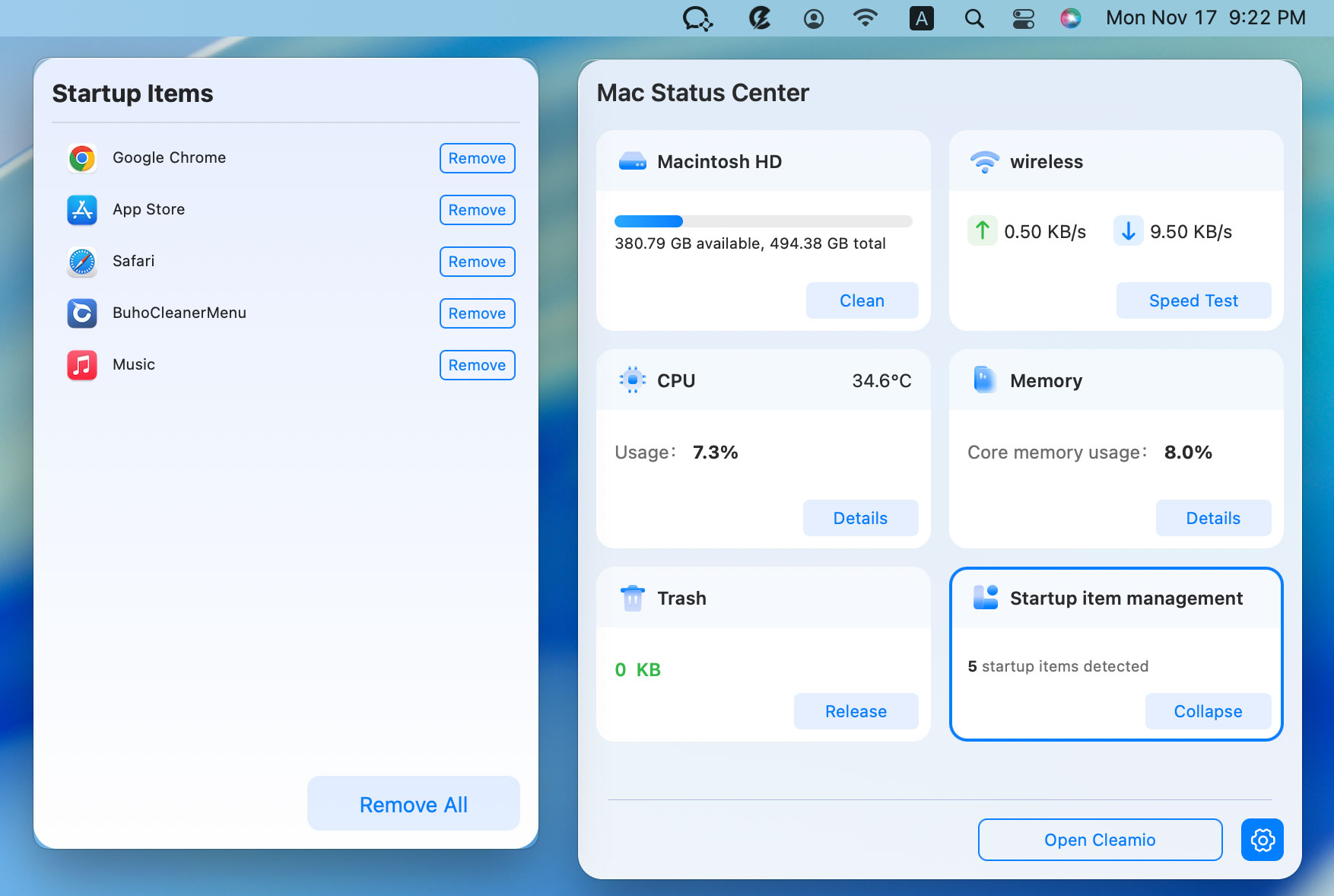
Tenorshare Cleamio's Mac Status Center solves this by giving you full visibility and control
over both login and non-login startup items.
Why Cleamio Is Effective for Boot Issues
Centralized Mac Status Center
Checks and removes hidden startup processes
One-click disable/remove
Prevents accidental system damage with smart warnings
Select "Startup Item Management" and then click "Manage" to view all
startup programs.
Choose unnecessary items and click "Remove" or Remove All.
Restart your Mac for immediate improvement.
This automated approach is ideal for users who want a Mac slow startup fix
without manual risk.
Method 3. Restart in Safe Mode Then Reboot Normally
⚡ Difficulty: Medium | Time: ~10 minutes
| Success Rate: Medium
Safe Mode prevents third-party extensions and clears system caches that may
be causing mac slow boot time. It's especially useful if your Mac becomes
slow after an update or unexpected shutdown. Many users see immediate
improvement after a Safe Mode reboot cycle.
For Intel Macs: Shut down Mac and hold
Shift until the login screen and Apple logo appear.
For Apple Silicon: Shut down Mac > hold the
Power button > select startup disk > hold
Shift > click "Continue in Safe Mode" > Log in
(look for "Safe Boot" in menu bar to confirm).
Use your Mac normally in Safe Mode, then restart again
Method 4. Free Up Disk Space & Clear System Junk
⚡ Difficulty: Easy Time: 3 minutes
Success Rate: High (Recommended)
Low storage is a silent killer of startup speed. When macOS doesn't have
enough free space to load caches and system services, it results in mac
being very slow to startup issues.
Clearing system and app junk
is one of the fastest ways to improve boot performance.
Tenorshare Cleamio is an AI-powered Mac cleaner that safely removes junk
files, app leftovers, duplicate files, and
hidden data. With one click, it can free up 20GB+ space and noticeably reduce Mac boot
and Finder lag.
Using Tenorshare Cleamio to remove system junk:
Download, install, and launch
Tenorshare Cleamio
on your Mac. Select "Junk Files" from the left panel. Click "Scan" to
detect system junk and cache files.
Review the results and click "Smart Cleanup". Wait while the tool cleans
your Mac. Click "Stop" anytime to pause.
Cleanup complete, your Mac should run faster now. Click "OK" to continue
or explore more features.
Method 5. Disconnect External Drives/Devices Before Booting
External devices can delay startup while macOS checks and mounts them. If
your Mac always boots slowly when peripherals are connected, this may be the
reason your mac slow boot problem persists.
External devices sometimes cause startup delays:
Shut down your Mac completely
Disconnect all external drives, printers, and USB devices
Power on and test boot time improvement
Reconnect devices one by one to identify problematic peripherals
Boot your Mac without these devices and reconnect them after login.
Disk errors and file system issues can significantly increase mac slow boot
time. Disk Utility's First Aid checks and repairs disk structure problems
that interfere with startup processes.
Restart and hold Command+R to enter Recovery Mode.
Select "Disk Utility".
Choose your startup disk and click "First Aid".
Allow the process to complete, which may fix disk errors slowing boot
time.
Restart normally to test improvements
Part 3. How to Keep Your Mac Booting Fast: Checklist
After fixing immediate startup issues, maintaining optimal boot performance
requires regular maintenance. The following checklist offers preventative
measures to keep your Mac starting up quickly over the long term.
Security scans often begin immediately after startup if you turn off your
Mac overnight. These background processes typically run once daily and may
temporarily impact performance. Similarly, backup software might initiate
delayed backups, consuming resources until complete.
Q2: Why is my Mac so slow when I have plenty of storage?
Storage space rarely causes slowness; limited RAM is typically the culprit.
Check Activity Monitor to identify memory-hungry processes. Other factors
include outdated software, overheating, or background processes competing
for resources.
Remove unnecessary startup items through System Settings, then Users and
Groups, then Login Items. Clear system caches, update software, and delete
unused applications. Consider running Disk Utility's First Aid to repair
permissions.
Close unused browser tabs and applications. Use Activity Monitor to identify
resource-hoggers. Reset NVRAM/PRAM for persistent issues. Consider upgrading
mechanical drives to SSDs for dramatic performance improvements.
Q5: Why is my Mac slow at startup even after updating?
Post-update processes include Spotlight reindexing, content optimization,
and background syncing. These necessary tasks typically resolve within 24-48
hours.
Q6: How to fix the Mac slow startup progress bar in Sequoia?
Reset SMC/PRAM or try safe boot to repair system files automatically. For
persistent issues, reset the security policy cache using Terminal.
Q7: Is it normal for Mac to be slow after a major update?
Yes, temporarily. New versions require optimization time and often include
background tasks that complete within 48 hours.
Conclusion
A slow-starting Mac doesn't have to be permanent. You can significantly
improve boot speed by managing startup items, clearing junk files, and
fixing disk issues. If you want an all-in-one solution,
Tenorshare Cleamio makes it easy to diagnose and fix
startup problems efficiently. Try it today to finally
fix slow boot on Mac and enjoy a faster macOS startup.











By Jenefey Aaron
2026-09-15 / Mac Optimization