If you've opened Mac storage settings lately and felt shocked by how much
space System Data is taking up, you're not alone. Many users searching for
how to clear system data on Mac discover that it can quietly
grow to tens or even hundreds of gigabytes.
The good news is that this issue is fixable. In this guide, you'll learn what
System Data really is, why it becomes so large, and how to safely reduce it in
2026.
Quick Answer Overview for Clearing System Data on Mac
To clear system data on Mac, you can manually delete cache files, remove
Time Machine local snapshots, clean system logs, and clear old device
backups. For the safest and fastest results, using a trusted Mac cleanup
tool to scan and remove unnecessary system junk automatically is the most
reliable option.
Part 1. What Is System Data on Mac? Why Is It So Large?
1. What Does System Data Mean on Mac
System Data in Mac storage refers to files that macOS
groups outside of standard categories like Apps, Documents, or Photos. It
includes cache files, system logs, temporary files, virtual memory,
Time Machine local snapshots, browser caches, old device backups, and other hidden system-level data.
When users see system data in Mac storage, it often looks vague because
macOS doesn't break it down clearly. This category acts as a catch-all for
files essential to system operation as well as junk that builds up over
time.
2. Why Is System Data So Big on Mac?
System Data becomes large mainly
because macOS prioritizes performance over cleanliness.
Cache files speed up apps, logs track system activity, and snapshots protect
your data. However, these files are rarely cleaned automatically.
Frequent software updates, heavy app usage, browser activity, and device
backups can all cause "Mac system data is large" issues. Over months or years, these hidden files accumulate faster than
users expect.
3. How Much System Data Is Normal on Mac?
So, how much space should system data take up on a Mac? Typically,
10–30 GB is normal for everyday users. Developers, creative
professionals, or long-time Mac users may see 40–60 GB without issues.
However, if your Mac system data exceeds 80–100 GB, it's usually a sign that
cleanup is needed. At that point, learning how to delete system data on Mac
becomes essential for maintaining performance and free space.
Part 2. How to Check System Data on Mac?
Before you clean up anything, you should confirm how much system data is
actually being used.
Click the top-left Apple menu.
Select "System Settings" (or System Preferences on
older versions).
Go to "General" > "Storage".
Wait for macOS to calculate storage usage.
Scroll down to "System Data" to view its size.
This overview helps you decide whether you need a quick cleanup or a deeper
solution.
Part 3. How to Clear System Data on Mac Manually in Multiple Ways?
Manually cleaning system data gives you control, but it also requires time
and caution. Below are the most effective manual methods to reduce system
data on Mac.
Method 1. Clear Cache Files on Mac (Can Free 10–30GB)
Cache files are one of the biggest contributors to "Mac system data getting
large" issues, especially on Macs that have been used for a long time. While
caches help apps load faster, they often pile far beyond what's actually
needed. Clearing cache files is a safe and effective way to delete system
data on Mac and can instantly free up a noticeable amount of space.
Open "Finder" and click "Go". Then pick "Go to Folder" (or press
Shift + Command + G).
Enter "~/Library/Caches" and press Enter.
Open folders and delete unnecessary cache files, then empty the "Trash".
Clearing caches is one of the fastest ways to free up Mac system data,
especially for long-term users.
Method 2. Remove Time Machine Local Snapshots (Can Free 20–50GB)
Even if you back up your Mac to an external drive, macOS still creates local
Time Machine snapshots in the background. These snapshots are stored as
system data and can silently consume tens of gigabytes without any obvious
warning. Removing unnecessary local snapshots is one of the most powerful
ways to reduce system data on a Mac quickly.
Open "Terminal" and type "tmutil listlocalsnapshots /"
then press "Enter".
Identify snapshot dates and use "sudo tmutil deletelocalsnapshots [ snapshot_ date]" such as "sudo tmutil deletelocalsnapshots 2021-06-26-162421" to
remove them.
Removing snapshots can dramatically lower system data on a Mac, but it must
be done carefully.
Method 3. Delete iOS Device Backups
If you regularly back up your iPhone or iPad to your Mac, old device backups
may be inflating your system data. These backups are often hidden from plain
sight and categorized under system data in Mac storage. Deleting outdated
iOS backups is an easy way to get rid of Mac system data you no longer need.
Steps for macOS Catalina or later:
Open "Settings", then go to "General" and click "Storage".
Click the "i" button against "iOS Files" and delete outdated backups.
Delete backup folders you no longer need (folders are named with long
character strings)
Empty Trash
This method is useful if you frequently back up devices but no longer need
older versions.
Method 4. Clean Up System Logs, Temp Files & Other Junk
macOS continuously generates system logs and temporary files to track
activity and improve performance. Over time, these files lose their
usefulness but remain stored as system data. Cleaning up old system data on
Mac, like logs and temp files, helps clear up storage without affecting
daily usage.
Open "Finder", then click "Go" and choose "Go to Folder".
Enter "/Library/Logs" and "~/Library/Logs".
Then delete older log files safely.
This helps clean up Mac system data without affecting core functionality.
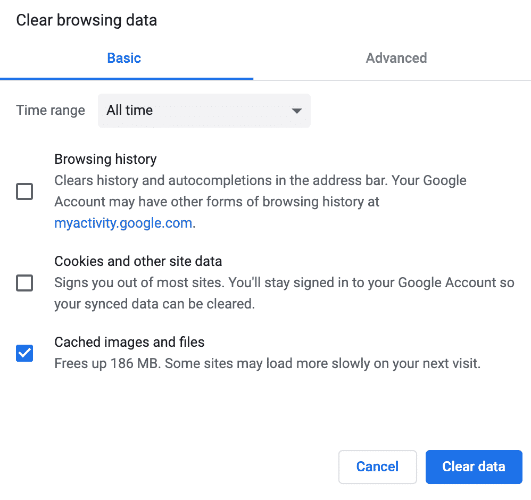
Web browsers store large amounts of cached images, scripts, and site data to
speed up browsing. When left unchecked, browser caches can significantly
contribute to system data becoming unusually large. Clearing browser cache
files is a simple but effective way to lower system data on a Mac,
especially for heavy internet users.
Open your browser settings and go to "Privacy and Security".
Click "Delete Browsing Data" and then select "Cached images and files".
Set time to "All Time", then click "Delete Data", then restart the
browser. Now you have reduced system data on Mac.
This is especially effective for users who stream or browse heavily.
Method 6. Optimize Storage with Built-in Tools
macOS includes built-in storage optimization tools designed to reduce
clutter automatically. While these tools won't remove all system data, they
can help manage files that unnecessarily take up space. Using built-in
optimization is a good starting point for users who want to lower system
data on Mac without manual file deletion.
Go to System Settings and click "General", then select "Storage".
Click "Optimise" against "Optimise Storage" to enable Optimize Storage.
Click "Turn On" against "Empty Trash Automatically" under "Optimise
Storage".
These tools help reduce system data gradually, but won't remove everything.
I have to spend a lot of time finding hidden files.
I worry about deleting something important by mistake.
Some system data comes back quickly after cleanup.
Advanced steps like Terminal commands feel risky.
Part 4. Safest & Fastest Way to Delete System Data on Mac in 2026
For users who prefer automated solutions, using a dedicated cleanup tool is
the most efficient option.
Tenorshare Cleamio
is designed specifically to scan and clean unnecessary system data safely.
It can detect cache files, system junk, app leftovers, browser cache data,
trash, unused installers, and hidden system data that manual methods often
miss.
Cleamio
clearly shows which files are safe to delete and which are not
recommended, reducing the risk of damaging macOS. Its Smart Cleanup feature allows you
to free up space with just a few clicks.
Steps to reduce system data on Mac with Cleamio:
Download and install Tenorshare Cleamio. Launch the app and start a full
system scan. Click "Junk Files" then click "Scan" to begin scanning
system and app junk files.
Review detected system junk and cache files. Select the files you want
to remove and click "Smart Cleanup".
Once the files are removed, click "OK", and you are done.
Pros of This Automatic Method (Editor's Experience)
I save hours compared to manual cleanup.
I don't need to use Terminal or dig into system folders.
I feel safer knowing important files are protected.
My Mac system data drops significantly in minutes.
Part 5. Important: What NOT to Do & Troubleshooting When System Data Is
Still Too Large
When you're removing system data, you must be careful. Here we will discuss
some do's and don'ts that you must take care of:
What You Should Not Do
Do not delete files in /System or /usr folders.
Do not remove unknown files without checking their purpose.
Do not rely on random scripts from the internet.
Key Risks
Deleting essential system files may lead to macOS crashes, boot failures,
or system instability.
Incorrect cleanup actions can cause permanent data loss or force a full
macOS reinstall.
Removing protected system components may trigger security warnings or
failed system updates.
If System Data Is Still Too Large
Restart your Mac and recheck storage.
Update macOS to allow system cleanup processes to run.
Use a professional cleanup tool to detect hidden junk.
Check for stuck Time Machine snapshots.
People Also Ask about Mac System Data
Q1: Can you delete System Data on a Mac?
Yes, but only unnecessary parts like cache files, logs, and backups should
be removed.
Q2: Will clearing System Data harm my Mac?
No, as long as you avoid deleting core system files.
Q3: How to clear system data on an iPhone using a Mac?
You can remove old iOS backups from Finder or cleanup tools on your Mac.
Q4: Mac system data 100GB – normal or fix?
It's not normal for most users and should be cleaned.
Conclusion
Learning how to clear system data on Mac is essential for
keeping your Mac fast and spacious in 2026. While manual methods can help
reduce clutter, they're time-consuming and risky.
For a safer, faster solution, Tenorshare Cleamio offers
smart cleanup, clear file identification, and reliable results, making it
the best choice to reclaim storage and keep your Mac running smoothly.








 iOS Tips & Latest Updates
 Bug Fixes, Unlock Guides
 Giveaways & Freebies






By Jenefey Aaron
2026-10-20 / Mac Cleanup