MSI Afterburner download gives you access to one of the most trusted and widely used GPU tuning tools in the world. Many PC gamers and creators don't realize their graphics card can perform better with the right settings. That's where overclocking and monitoring come in. With MSI Afterburner, you can use one-click or manual overclocking, undervolt your GPU, monitor temperatures, customize fan curves, and enable an in-game FPS overlay. This article show you how to download, install, and use MSI Afterburner to optimize your GPU.
Part 1. What Is MSI Afterburner? What Does MSI Afterburner Do?
Definition of MSI Afterburner
MSI Afterburner is a free and widely used GPU overclocking and monitoring tool designed to help users control and optimize their graphics card performance. It works with both AMD and NVIDIA GPUs. It allows you to adjust core clock, memory clock, fan speed, voltage, and more.
It also provides real-time hardware monitoring and an in-game on-screen display. It was first released in October 2009 and developed by MSI in collaboration with Alexey Nicolaychuk, the creator of RivaTuner.
Key Features of MSI Afterburner
Here's what MSI Afterburner can do and why it remains essential for PC enthusiasts:
Overclocking Tools: Provides precise access to core clock, memory clock, and voltage settings
OC Scanner: Automatically finds the highest stable overclock settings for optimal performance boost
Real-time Monitoring: Displays GPU temperatures, utilization, clock speeds, and power draw
On-Screen Display (OSD): Shows performance metrics during gameplay
Custom Fan Control: Allows creation of predefined fan speed curves for optimal cooling
Video Capture: Records gameplay footage through the integrated Predator feature
Customizable Interface: Offers various skins and themes to personalize the experience
Is MSI Afterburner Safe and Free?
Yes, just make sure you download it from the official site and use the settings carefully. It's freeware, and millions of users rely on it daily. Overclocking always carries a small risk, but Afterburner includes limits and monitoring to keep you safe when you stay within reasonable ranges.
Part 2. Full MSI Afterburner Download Guide for Windows 11/10/7 Safely
Getting your hands on MSI Afterburner requires accessing trusted sources to avoid security risks. This ensures you download and set up the software safely on your Windows system.
Where to Download MSI Afterburner
For security reasons, MSI Afterburner should only be downloaded from these official sources:
Guru3D.com - The only third-party site officially authorized to distribute MSI Afterburner
Avoid sketchy "MSI Afterburner Pro cracked" pages or unknown domains. MSI has publicly warned about malware-filled fakes.
Latest Version: MSI Afterburner 4.6.5 vs 4.6.6
Please swipe to view
Version
MSI Afterburner 4.6.5
MSI Afterburner 4.6.6
Release date
April 2023
October, 2025 (stable; betas started late 2023)
Key updates
Last stable build for older GPUs
Adds NVIDIA RTX 50 series support, quad-fan control, updated hardware/OS support, and broader compatibility for new AMD cards (RDNA4/RX 9000 series)
Best for
Older systems or RTX 30/40 only and people who want a long-tested, stable tool
Newer GPUs or users who want the newest features and support
Verdict: If you're using a modern GPU (especially an RTX 50 or new AMD cards), 4.6.6 is the better choice. If you're on older hardware and don't need new features, 4.6.5 is still a suitable option.
How to Download MSI Afterburner
Obtaining MSI Afterburner safely involves a straightforward process:
Scroll down to locate and click the "4.6.6 (Final)" button to download the MSIAfterburnerSetup.zip file.
Extract the downloaded ZIP archive.
First-time users should note that MSI Afterburner is completely free and works with graphics cards from all manufacturers, not just MSI products.
Part 3. How to Install MSI Afterburner [Quick Setup for Beginners]
Before MSI Afterburner installation, ensure your system meets these essential prerequisites:
Latest GPU drivers installed
Windows operating system (7/10/11)
Administrative rights on your computer
Basic understanding of your GPU specifications
MSI Afterburner Installation & Setup Steps
The installation process for MSI Afterburner is straightforward yet requires attention to certain details:
Run MSIAfterburnerSetup466.exe as admin after exctraction.
Click "Next" and accept license. Make sure these two are TICKED and then click "Next" > "Install":
MSI Afterburner
RivaTuner Statistics Server (RTSS) ← must be checked! (for FPS overlay)
Click through the setup wizard, avoiding optional software like Norton 360.
Allow the installer to complete both MSI Afterburner and RTSS installation.
Click "Finish" and Afterburner opens. It will start auto-detecting your GPU.
Part 4. How to Use MSI Afterburner (Best MSI Afterburner Settings)
After installation, mastering MSI Afterburner's interface unlocks its full potential for GPU optimization. This section explains essential functions to improve gaming performance and system monitoring.
1. Basic Interface & Monitoring
The main interface displays core controls with sliders for core clock, memory clock, voltage, power limit, and temperature limit. These controls allow precise adjustments to GPU performance. The monitoring section shows real-time data through customizable graphs.
2. MSI Afterburner Overlay & FPS Counter Setup
The overlay is what makes Afterburner so useful in real life. It lets you see FPS, temps, and usage while gaming. This way, you can instantly tell whether a tweak helped or hurt. Once you set it up, the MSI Afterburner on-screen display becomes your performance dashboard.
Steps for how to setup MSI Afterburner overlay:
Open MSI Afterburner and click "Settings" (the cog icon).
Go to the "Monitoring" tab.
Scroll down. Then tick these for each:
Framerate ✓
GPU temperature ✓
GPU usage ✓
VRAM usage ✓
CPU temperature (optional)
Click the little "Show in On-Screen Display" box and click "OK" once done. Do this for every stat you want visible.
Switch to the On-Screen Display tab and set a toggle hotkey (example: F10).
Ensure RivaTuner Statistics Server (RTSS) is installed and running it by clicking the green "+" in the tray (required for overlay).
Add your game (or leave default "Application detection level = Low")
Set "On-screen display support = On". Start your game and then click your hotkey to confirm that the overlay appears.
If the overlay isn't appearing, verify RTSS is installed and running, since it's essential for the OSD functionality.
3. Overclock with MSI Afterburner
The overlay (OSD) is the biggest reason people use Afterburner. It shows FPS, temps, usage, and clocks inside games, so you can instantly test tweaks. Once enabled, the MSI Afterburner on screen display becomes your live performance meter.
Steps for how to overclock with MSI Afterburner
Click "Reset" to return everything to stock settings.
Increase "Power Limit" to the maximum allowed value (110-150%) and click "Apply".
Set "Temp Limit" to 83-88°C.
Raise "Core Clock" by 25 MHz and click "Apply".
Stress test using a game or benchmark for 10 to 15 minutes.
If stable, add another 25 MHz and test again.
When you notice crashes or artifacts, reduce "Core Clock" by 25 to 50 MHz.
Now increase "Memory Clock" by 50 to 100 MHz and apply.
Keep adding: +200 MHz (RTX 30/40) or +500 MHz (RTX 50 series) and test again until you see artifacts, crashes, or temp too high. If unstable, reduce memory slightly.
Click "Save" and store your stable OC in a "profile" button.
Alternatively, use the one-click OC Scanner (accessed via Curve Editor) for automatic overclocking.
4. MSI Afterburner Undervolt & Fan Curve Control
If your GPU runs hot or loud, undervolting and fan tuning are smarter than overclocking. Undervolting lowers power draw while keeping performance steady. Custom fan curves let you balance silence and cooling using MSI Afterburner fan tools.
For undervolting:
Press Ctrl+F to open Voltage/Frequency curve
Select your desired voltage point and adjust to maintain performance at lower power
For fan control:
Click "Settings" and open the "Fan" tab.
Enable "user-defined software automatic fan control"
Create custom curve by adjusting points on the graph
Apply changes for immediate effect
5. Voltage Control on MSI Afterburner
Voltage should be treated carefully. Beginners can get big gains using only power/temp headroom, leaving voltage untouched until they're confident.
Steps (Voltage Control):
Open "Settings" by clicking the cog icon from left menubar and go to the "General" tab.
Enable "Unlock voltage control" and "Unlock voltage monitoring."
Restart MSI Afterburner.
Adjust voltage in very small increments (e.g., +10–20 mV).
Test stability and temperature immediately after every change.
If temps spike or the system becomes unstable, revert to safer values immediately.
For optimal results, maximize power and temperature limits first, then adjust clocks before considering voltage changes.
Part 5. Common MSI Afterburner Issues & Fixes
Even power users experience frustrating issues with MSI Afterburner. Understanding why can't I use MSI Afterburner properly and implementing fixes saves time and prevents hardware stress.
1. MSI Afterburner Cannot Change Specific Part of Curve
Issue causes: Curve editor settings occasionally reset or change during gameplay, particularly after using the default settings button.
Quick fixes: Save your profile after making changes, check if games are modifying settings automatically, or delete and reinstall Afterburner while preserving configurations.
2. MSI Afterburner Not Showing Anything (CPU Temp/OSD/Overlay/More)
Primary reasons: Missing CPU temperature readings often occur with newer AMD Ryzen processors.
Solutions: Install HWINFO64 and enable "Shared Memory Support" in its settings, check "CPU.dll" and "HwInfo.dll" modules in Afterburner monitoring section, or enable "Low Level IO Driver" in Afterburner's general tab.
3. MSI Afterburner Not Opening/Not Launching
Common causes: Corrupted files, OS incompatibility (especially with Windows 10/11), or RTHAL.dll errors.
Solutions: Run as administrator, completely uninstall and reinstall from official sources, or check Event Viewer for specific error codes. In extreme cases, a Windows reinstall might be necessary.
4. MSI Afterburner Failed to Start Scanning
Main issue: OC Scanner gets stuck at 99% completion.
Solution: The scan might actually be complete if the curve has been exported to Afterburner. Check if "Curve" appears in the clock section of the main tab.
Part 6. Best MSI Afterburner Alternatives Recently
MSI Afterburner remains the gold standard for NVIDIA/AMD GPU overclocking, monitoring, fan control, and on-screen displays. But it's Windows-only, can be resource-heavy, and lacks full Mac support. If you're on Mac, need something lighter/open-source, or want NVIDIA-specific tweaks without EVGA hardware, here are the top 3 alternatives lately.
EVGA Precision X1 (Rating: 4.6)
EVGA Precision X1 is one of the closest and most reliable alternatives to MSI Afterburner, especially for NVIDIA GPU users. It provides an intuitive interface for overclocking, fan curve adjustments, and real-time hardware monitoring. With its integration for NVIDIA RTX GPUs, users can fine-tune performance and cooling with high accuracy.
Main Features:
GPU, memory, and voltage overclocking
Real-time hardware monitoring and on-screen display
Custom fan curve controls
OC scanner, sleek UI with RivaTuner integration for OSD
Supports NVIDIA RTX 50-series (e.g., 5080)
Best For: NVIDIA overclockers wanting an Afterburner-like interface with auto-OC and precise tuning. Legacy EVGA users too.
Tenorshare Cleamio -- Software Like MSI Afterburner on Mac to Release CPU & RAM (Rating: 4.5)
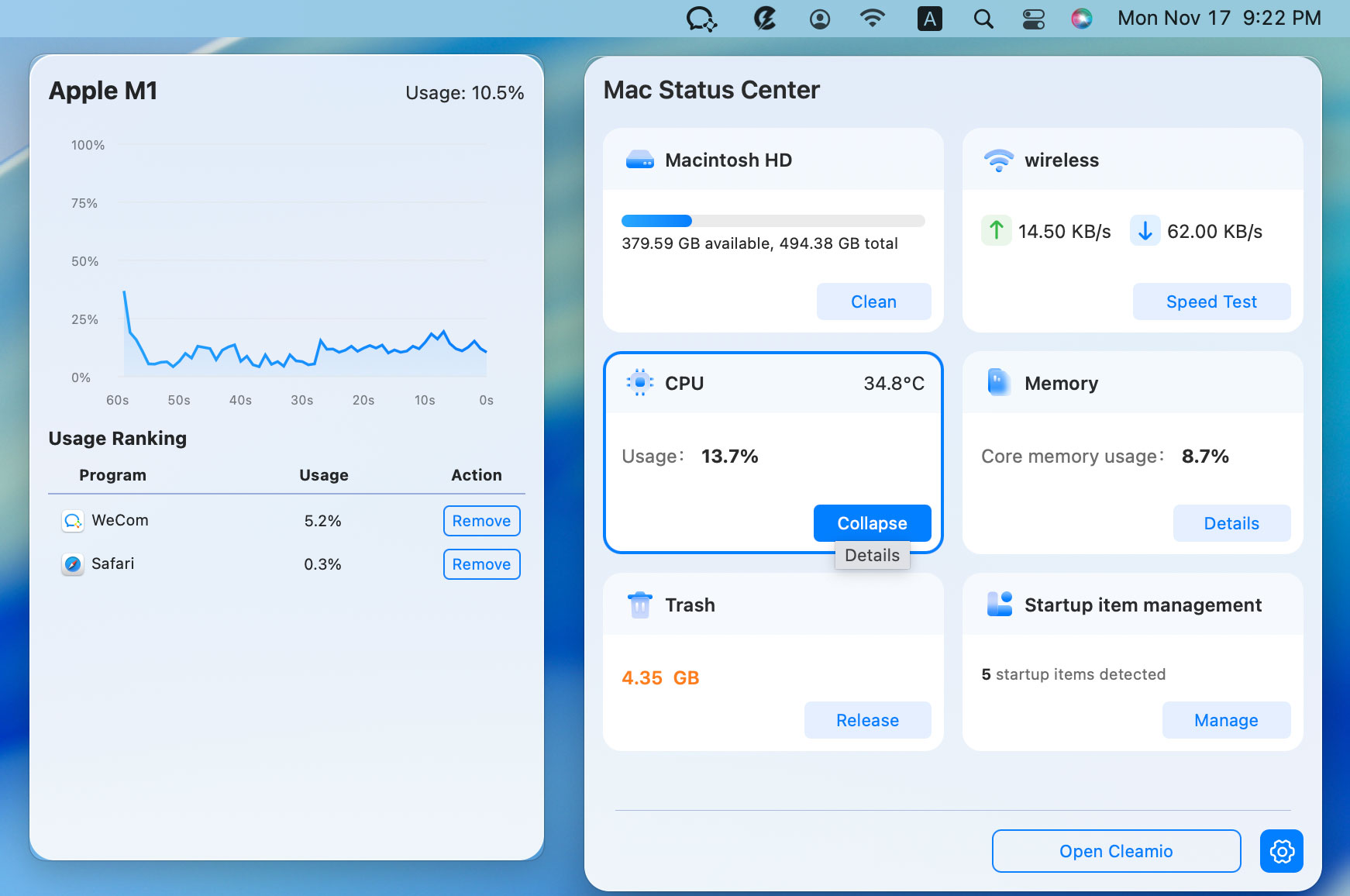
While MSI Afterburner does not support macOS, Tenorshare Cleamio, notorized by Apple, serves as one of the best Mac alternatives for monitoring system performance and optimizing resource usage. Instead of GPU overclocking, Cleamio focuses on CPU/RAM optimization, system cleaning, and real-time performance monitoring, helping macOS users maintain smooth performance during gaming, editing, or heavy workloads.
Cleamio offers several functionalities similar to MSI Afterburner's monitoring features—but designed natively for macOS. It helps you check CPU usage, RAM consumption, temperature, and disk performance in real time.
Clean up caches and remove junk, large, duplicate, and similar files
App manager to uninstall resource-heavy apps
System optimization that improves gaming and workflow smoothness
Temperature monitoring for safer device operation
Best For: Mac users who want a lightweight utility to monitor performance and free up system resources, similar to what MSI Afterburner provides on Windows.
Steps to Monitor macOS and Boost Its Performance:
Install and fire up Tenorshare Cleamio on your Macbook. Then tap on its logo on the top-right corner of Mac screen to launch its built-in Mac Status Center.
Click on the section you want to check and release: CPU, memory, disk space, network speed, Trash usage, startup items management, etc.
Besdies of Mac performance monitoring, Cleamio also cleans various cluttered files. Just select one type you want to delete: Junk Files, Duplicate Files, Similar Photos, and Large Files. Then click Scan and delete those detected files.
Open Hardware Monitor (Rating: 4.4)
Open Hardware Monitor is a free and open-source tool for tracking temperatures, voltages, fan speeds, CPU/GPU load, and clock speeds. While it doesn't offer overclocking controls like MSI Afterburner, it is an excellent replacement for users who mainly need accurate system monitoring on Windows.
Main Features:
Free/open-source: Temps, voltages, loads, clocks for CPU/GPU/HDDS/SSDs
Tracks fan RPM, voltage, and system sensors
Supports Intel, AMD, and NVIDIA hardware
Lightweight and open-source with no background bloat
Best For: Users who only need hardware monitoring without overclocking, or want a stable and open-source alternative.
People Also Asked about MSI Afterburner
Q1: Can I install MSI Afterburner on my laptop?
Yes. MSI Afterburner works on most laptops with dedicated GPUs, including NVIDIA and AMD models. However, certain OEM restrictions may limit overclocking abilities.
Q2: Can you increase rtx 5080 power limit in MSI Afterburner?
Only if the GPU BIOS allows it. Many RTX GPUs have locked power limits, so MSI Afterburner cannot exceed manufacturer restrictions.
Q3: Does MSI Afterburner need to be opended?
Yes, MSI Afterburner must run in the background if you want your custom fan curves, OSD monitoring, or voltage/frequency adjustments to remain active
Conclusion
MSI Afterburner is one of the best free tools for GPU optimization. It offers powerful features like overclocking, undervolting, monitoring, and the MSI Afterburner on-screen display. With this full MSI Afterburner download & usage guide, beginners can now safely download, install, and fine-tune their GPU settings for better performance. If you want your PC to run even smoother, remove junk files, boost speed, and clean hidden system clutter, we highly recommend Tenorshare Cleamio as an all-in-one optimization tool to pair with your gaming setup.









By Jenefey Aaron
2026-09-15 / Mac Optimization