

 iOS Tips & Latest Updates
 Bug Fixes, Unlock Guides
 Giveaways & Freebies


UltData - Best iPhone Data Recovery Tool
Recover Deleted & Lost Data from iOS Devices Easily, No Backup Needed!
UltData: Best iPhone Recovery Tool
Recover Lost iPhone Data without Backup
You spent hours editing a video, closed iMovie, and now the project is nowhere to be found. It's an unsettling moment, but an iMovie project disappeared on iPhone doesn't automatically mean the work is gone. It could happen due to an accidental deletion, a crash, low storage, an iCloud or Apple Account mismatch, or something that shifted during an update or device transfer. Below is a rundown of what to check first and the recovery methods that can bring it back.

Some of the common reasons users reported for why an iMovie project disappeared are as follows:
Sometimes a project disappears because it was accidentally deleted. Check whether the project is still available in iMovie's Recently Deleted section, if supported by the current version. It only takes a few seconds to look, but it can save a lot of time trying more advanced recovery methods.
iMovie crashed and lost my project is a common user complaint on the web. An app crash or an unexpected close can cause a project to stop showing up, even if nothing was deleted. Reopen iMovie and check the Projects screen again. If it's still not there, restart your iPhone.
When an iPhone is nearly full, it can start behaving oddly with apps and their associated data. One user reported that all my iMovie projects have disappeared because I was running low on storage.
Check your available storage under Settings → General → iPhone Storage and free up some space if it's tight. Then, reopen the app to see whether the project reappears.
Anything tied to Apple's cloud services can be affected by account or sync settings. Make sure your iPhone is signed into the same Apple Account you were using when you created the project, and take a look at your iCloud settings and available storage while you are in there.
An iMovie project may appear to be missing after an iOS update, iPhone transfer, or device restoration. Restart the phone once the process finishes and check iMovie again. If available, check the previous iPhone or another Apple device for the project.
Before attempting recovery, run through the following checks to see if the project is still available somewhere on the iPhone or another Apple device.

Open iMovie and go to the Projects section. Scroll through the available projects and folders carefully to make sure the project has not been overlooked. Also, close and reopen iMovie if the project does not appear.
Check whether the missing project is available in Recently Deleted. A project sitting in that folder can be recovered directly with no full restore needed.
How long deleted projects stick around and whether this feature is even available depend on your iMovie and iOS versions.
If you use iMovie on more than one Apple device, check whether the project shows up there. The project available on another device lets you save or export a copy from there. Plus, it helps determine whether the issue is limited to the current iPhone.
Confirm you are signed into the right Apple Account. In addition, make sure the iCloud sync is enabled and there is enough storage available.
Note that iCloud sync and iCloud backup are different and should not be treated as the same recovery method. Syncing keeps things mirrored live. Backup keeps a copy you can restore when required.
If the above checks haven't helped you recover lost iMovie project, it's time to move toward proper recovery methods.
iMovie doesn't keep its own Recently Deleted folder, but if your project was stored in iCloud Drive, there's still a place you should check.

Keep in mind this only works if the project was synced to iCloud Drive in the first place.
Check another iPhone or iPad where the project may still be available. If the project is accessible, export or save a copy immediately.
An existing copy on a second device is a far safer bet than restoring an entire iPhone from an older backup just for why my iMovie project disappeared on iPhone.
Check whether you have an iCloud Backup from before the project went missing. To do so, go to Settings > [Your Name] > iCloud > iCloud Backup, and check the date and time of your last backup.

If the backup exists, you can restore it by following the steps below. However, remember that restoring an iCloud Backup is a full-device restoration process.


Limit: Restoring an older backup may replace newer data currently stored on the iPhone, so back up important current data first.
If you have previously backed up your iPhone to a Mac or Windows computer, you may have another recovery option.
Check whether a backup from before the project disappeared is available through the Finder/iTunes app. If yes, the following steps explain how to recover iMovie project disappeared on iPhone:


Limit: Restoring a full computer backup may also replace newer data on the iPhone.
Apple's standard recovery methods can fail to recover missing data. Sometimes, you don't even have a backup to restore, or you don't want to overwrite existing data with the entire backup. In such situations, Tenorshare UltData is an additional recovery option you should try.
Tenorshare UltData is iPhone data recovery software that can recover missing data directly from the device's internal storage. The workflow involves deep scanning of the storage to pull out all recoverable data, which is then available for preview and selective recovery. The software also offers the same workflow for iCloud/iTunes backup, which means you can preview backed-up data and selectively restore the files you need.





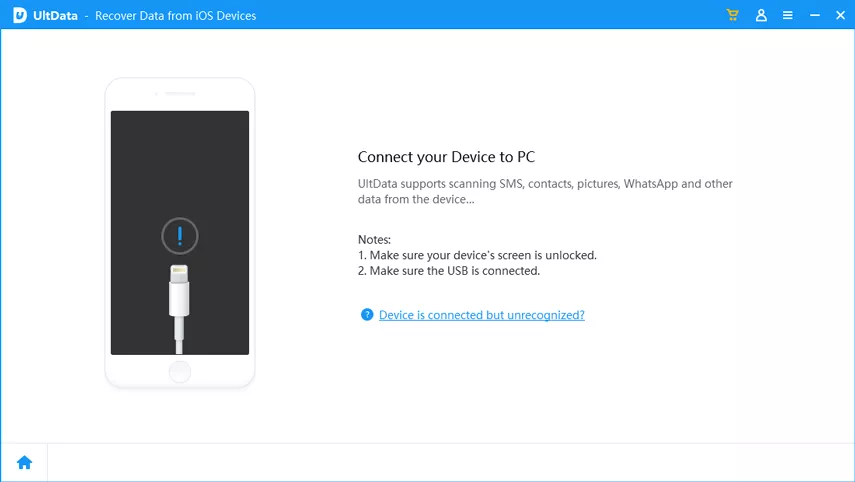


That's how simple it is to scan, preview, and recover data using Tenorshare UltData. However, remember that recovery results depend on the actual condition of the missing data and that recovery is not guaranteed.
The following are a few recommendations to prevent iMovie projects from disappearing again in the future:
Check your storage regularly and avoid letting your device run nearly full.
Keep regular iCloud or computer backups. For projects that matter, save an additional copy somewhere outside the iPhone.
After a project is done, export the finished video rather than leaving it sitting as an editable project file. Store exported videos on a computer or other reliable storage.
Before updating, transferring, or restoring an iPhone, make sure important iMovie projects and finished videos have been saved.
Restart iMovie and your iPhone, check the Projects screen and Recently Deleted, confirm your Apple Account and iCloud settings, and check another Apple device or backup if needed.
Start with Recently Deleted and any existing copy on another device. If that doesn't work, move on to an iCloud or computer backup and consider third-party recovery software like UltData as an additional option.
Reopen iMovie, restart your iPhone, and check the Projects screen and Recently Deleted. Also check for another copy on a different device or a recent backup.
Yes, sometimes. Check Recently Deleted and other Apple devices first. If neither turns anything up, third-party recovery software can offer another way in.
The recovery depends on whether the project is still sitting in Recently Deleted, saved on another device, included in a backup, or still recoverable on the device itself.
An iMovie project disappeared on iPhone does not always mean it is permanently lost. You should first check iMovie itself, Recently Deleted, your Apple Account and iCloud settings, and any other Apple devices you own. If a backup is available, restoring it is an option, though it resets the entire device rather than restoring just the one project. When none of that works, Tenorshare UltData gives you a way to scan your iPhone and recover selective data instantly.


UltData - Best iPhone Data Recovery Software






then write your review
Leave a Comment
Create your review for Tenorshare articles

Share this post


UltData - Best iPhone Data Recovery Tool
Recover Deleted & Lost Data from iOS Devices Easily, No Backup Needed!
UltData: Best iPhone Recovery Tool
Recover Lost iPhone Data without Backup
By Jenefey Aaron
2026-09-28 / iOS Data Recovery