



UltData - Best iPhone Data Recovery Tool
Recover Deleted & Lost Data from iOS Devices Easily, No Backup Needed!
UltData: Best iPhone Recovery Tool
Recover Lost iPhone Data without Backup
Did calendar data go missing after updating to iOS 27? Before you restore a backup or erase your iPhone, check whether the events are still available in iCloud, Google Calendar, Outlook, Exchange, or a shared calendar.
A calendar update issue does not always mean your events were deleted. After an iOS update, calendar data can stop appearing on one iPhone because of a sync delay, a hidden calendar list, a disconnected account, changed shared-calendar permissions, or a feature that has moved in the updated interface.
This guide helps you identify the source of your missing calendar data, fix the right type of issue, and use recovery only when the events are genuinely unavailable.

If calendar events are missing after iOS 27, first check the same calendar source on the web or another device.
The iPhone Calendar app can show events from several different sources. The correct fix depends on where the event was created.
 Please swipe to view
Before treating the issue as data loss, answer these questions:
If the answer to the first or second question is yes, your events are likely still available. Do not restore an old backup yet.
Open the Calendar app and review the calendars that are currently selected. Make sure the relevant calendars are visible, including iCloud, Google, Outlook, Exchange, subscribed, work, family, and shared calendars.
A calendar can appear to have disappeared when it is simply no longer selected in Calendar Lists. This is especially common when multiple accounts are connected to the same iPhone.
If your events are visible on iCloud.com but not in the iPhone Calendar app, see iPhone Calendar not showing events for detailed sync and display troubleshooting steps.
If your personal events are stored in iCloud, sign in to iCloud.com and open Calendar.
If the missing events appear on iCloud.com, they have not been deleted from iCloud. The problem is usually limited to the updated iPhone and may involve iCloud sync, the Apple Account connection, or hidden calendars.
Check that:
Do not restore an old iCloud archive when the events are still visible on iCloud.com. Restoring an archive is intended for genuinely deleted iCloud Calendar data, not for a one-device sync problem.
Google Calendar should be treated as a separate data source, not as iCloud Calendar data.
If Google Calendar events disappeared after updating your iPhone:
An iCloud Calendar archive will not restore events that belong to Google Calendar. If Google still has the events on the web, reconnecting or resyncing the Google account is the correct next step.
Work and school calendars often come from Outlook or Exchange. If those events disappear after iOS 27, first check Outlook on the web or contact your organization's administrator.
Possible causes include:
Do not use an iCloud Calendar restore method for Outlook or Exchange events unless you have confirmed that the events were actually stored in iCloud.
A missing shared calendar does not necessarily mean its events were deleted.
If only a family, team, school, or subscribed calendar is gone, check whether:
Ask the owner to check whether other invited users can still see the calendar. If they can, the issue is more likely related to your access or device sync than data loss.
Some users may notice that a Calendar control, view, or setting looks different after an iOS update. A moved or redesigned feature is not the same as deleted calendar data.
If you can still find your events on the web or another device, focus on the Calendar app's current lists, account settings, and display options. Do not begin recovery simply because the interface looks different after the update.
If the events are missing from the original account, iCloud.com, another device, and all connected calendars, they may have been deleted or may no longer be available through normal syncing.
Choose the recovery path according to the original source.
If the events were stored in iCloud Calendar, you may be able to restore an earlier Calendar archive through iCloud.com.
Choose an archive from before the events disappeared. Before restoring it, save any recent events that you do not want to lose.

Restoring an earlier iCloud Calendar archive can replace current calendars and reminders across devices using the same Apple Account.
For a step-by-step guide, see how to restore Calendar from iCloud.
A full iPhone backup should not be the first solution for iCloud, Google, Outlook, or Exchange Calendar data.
Check the original cloud account first. A backup may be relevant when the missing events were stored locally or in a source included in that backup, but restoring an entire backup can replace current iPhone content.
For general deleted-event recovery options, see How to Restore Deleted Calendar Events on iPhone.
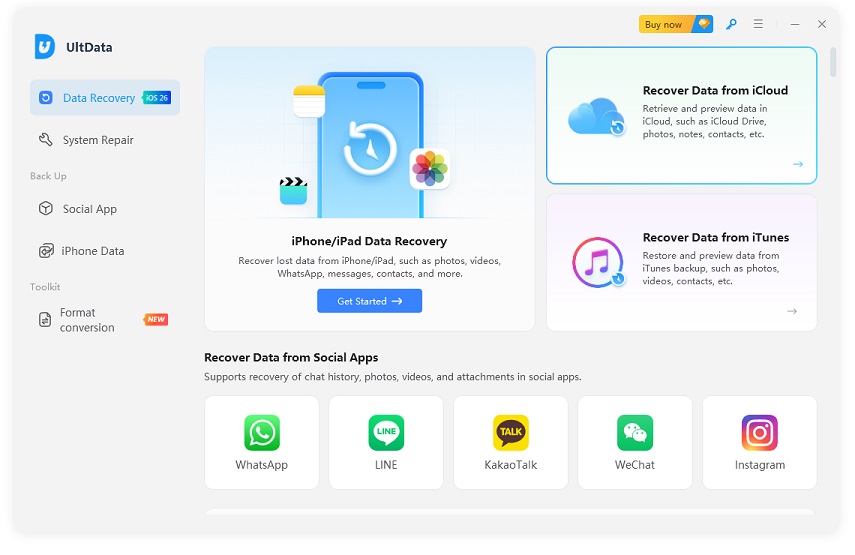
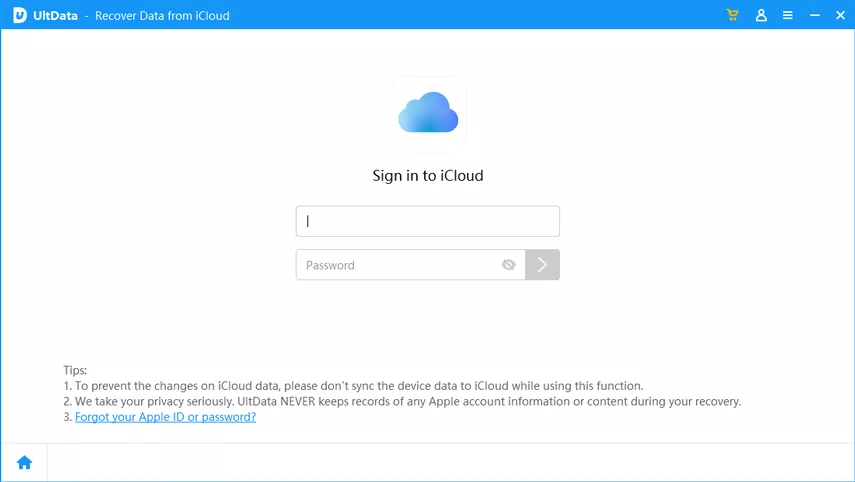
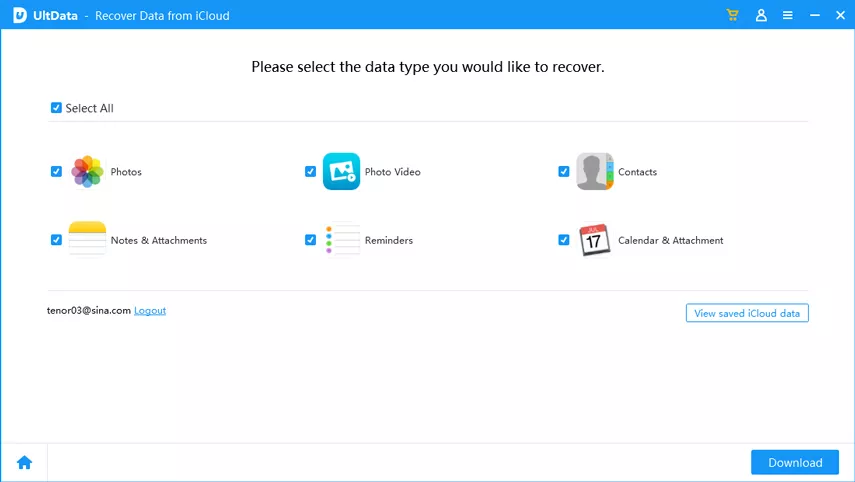
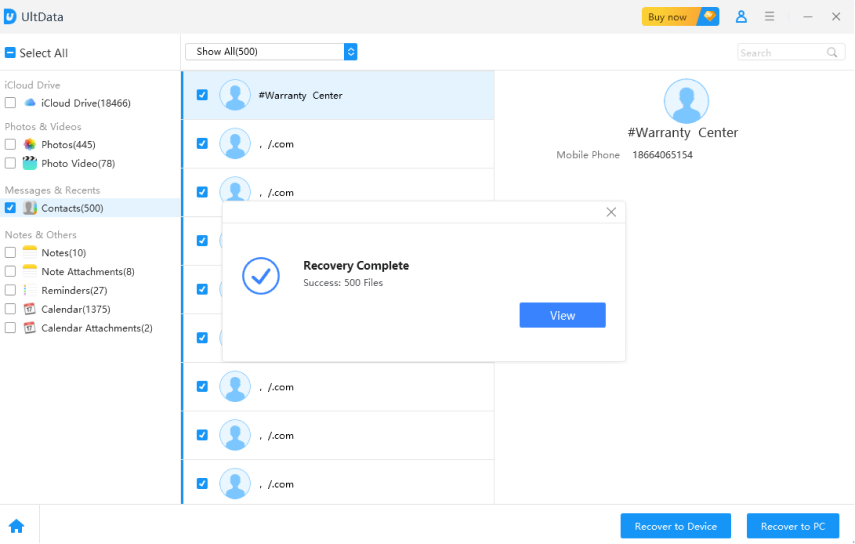
If the missing events are unavailable from iCloud.com, Google Calendar, Outlook, Exchange, other devices, and the original calendar owner, UltData can be a selective option to inspect supported iCloud or backup data sources.
As an iPhone data recovery solution, UltData lets you preview available calendar records and save selected results without resetting your iPhone. Availability depends on the data source and on records that can still be accessed.




UltData is not designed to fix events that still exist in a cloud account but are not showing on one iPhone. Complete the sync, account, and calendar-list checks first.




For additional recovery methods, visit the guide of iPhone Calendar Disappeared to Get Them Back.
An iOS update does not normally delete calendar events stored in iCloud, Google Calendar, Outlook, Exchange, or another calendar service. If events are still visible online or on another device, the issue is usually related to sync, account access, permissions, or display settings.
Your iPhone may have a sync delay, a hidden calendar list, a disconnected account, or a shared-calendar permission issue. Check the relevant calendar source and account settings before trying recovery.
No. An iCloud Calendar archive applies to iCloud Calendar data. Google Calendar events should be checked and recovered through the Google account or calendar owner.
The shared calendar may be hidden, no longer selected, or no longer shared with your account. Ask the calendar owner to verify your access before restoring anything.
Not as a first step. Check where the events were originally stored. A full backup restore can replace current iPhone data and may not be relevant for cloud-synced Calendar events.
An iCloud Calendar archive applies more broadly to calendar data rather than restoring one event at a time. A selective recovery tool may allow you to preview available records before deciding which results to save.
Calendar data missing after an iOS 27 update does not always mean permanent data loss. Start by identifying whether the events belong to iCloud, Google Calendar, Outlook, Exchange, a shared calendar, or another source.
When the events are still visible online or on another device, solve the sync or account issue first. When they are missing everywhere, choose the recovery method that matches the original calendar source and protect your current data before restoring an older version.


UltData - Best iPhone Data Recovery Software




then write your review
Leave a Comment
Create your review for Tenorshare articles

Share this post


UltData - Best iPhone Data Recovery Tool
Recover Deleted & Lost Data from iOS Devices Easily, No Backup Needed!
UltData: Best iPhone Recovery Tool
Recover Lost iPhone Data without Backup
By Jenefey Aaron
2026-09-18 / iOS Data Recovery