

 iOS Tips & Latest Updates
 Bug Fixes, Unlock Guides
 Giveaways & Freebies


UltData - Best iPhone Data Recovery Tool
Recover Deleted & Lost Data from iOS Devices Easily, No Backup Needed!
UltData: Best iPhone Recovery Tool
Recover Lost iPhone Data without Backup
Accidentally deleting or sudden disappearance of an iMovie project can be stressful, especially when it contains hours of editing. However, a missing project does not always mean the project and its associated media are gone forever.
The best way to recover deleted iMovie project on iPhone depends on whether the project is still listed in iMovie, its source videos remain in Photos, or an older backup is available. This guide covers the main recovery options, including Apple's built-in methods (Recently Deleted and backups) and data recovery software.

Some of the common reasons users reported against why their iMovie project disappeared from iPhone are as follows:
An iMovie project may have been removed from the iMovie app by mistake. Doing so will remove the project from the normal project list, but the original videos and photos used during editing may still remain in the Photos library.
iMovie projects rely on the video and photo files stored on your iPhone. If the original media was deleted from Photos, the project may show as broken or unplayable. Checking Recently Deleted in Photos before trying more advanced methods is always a smart first move.
A factory reset, iOS update gone wrong, or a restore from an unrelated backup can wipe out a project that wasn't included in the backup you used. If the project wasn't captured at backup time, it won't reappear afterward.
Insufficient iCloud or device storage may interfere with saving or editing projects. Remember that iCloud Photos and iCloud Backup serve different purposes. Having a clip stored in iCloud Photos doesn't automatically mean the full iMovie project can be pulled from an iCloud Backup.
If you previously worked on this project using an iPad or another iPhone, check that device too. The project may still exist there locally even though it's missing on your current iPhone.
Before taking any drastic steps to recover deleted iMovie project on iPhone, pause and confirm a few basics:

Open iMovie and check the Projects screen. Look through all available projects instead of assuming the project was permanently deleted. Check whether the project was moved or renamed.
Open Photos, tap Collections, then Recently Deleted, and look for the clips originally used in the project. Restoring the source media here often brings a "broken" project back to life.
Sign in with the correct Apple Account and confirm whether the original videos are syncing through iCloud Photos. If the iPhone was recently restored or set up, give syncing some time to finish.
Look for an iCloud Backup created before the project disappeared, and double-check the date. If you have ever backed up to a Mac or PC through Finder or iTunes, review that backup too. It may hold a version of the project the iPhone no longer has.
The following are a few proven ways on how to recover deleted iMovie project on iPhone:
This method is useful when the iMovie project itself is still there but its source clips have been deleted.

Limit: This only works while the deleted media is still available in Recently Deleted.
An iCloud backup can help if it was created before the project disappeared. You need to find and pick a backup created before the iMovie project disappeared. Here's how to restore an iCloud backup:


Restoring an iCloud backup requires a factory reset of the iPhone. Afterward, it restores the entire backup. This means the current data on your iPhone is removed and replaced with the backed-up data. So, back up important current data before restoring an older backup.
Limit: The backup must actually contain the relevant project or data.
Just like iCloud, an older computer backup made through Finder/iTunes can contain the lost iMovie project. Check the backup date before restoring.


This restoration process also overwrites the existing iPhone data with the backed-up data. Plus, there is no option to only selectively restore iMovie project files. So, having a backup and being able to selectively extract a specific project from it are two different things.
Limit: A full device restoration may overwrite newer data.
When the normal recovery methods cannot recover deleted iMovie project on iPhone, Tenorshare UltData comes into play. It is a dedicated iPhone data recovery software that can scan your iPhone's internal storage and extract the lost media files. Afterward, it supports "selective recovery" of only the files you need through a preview-based recovery process without overwriting the entire iPhone storage. It's a practical option when there's no usable backup, or when Apple's standard methods can't locate the missing data.





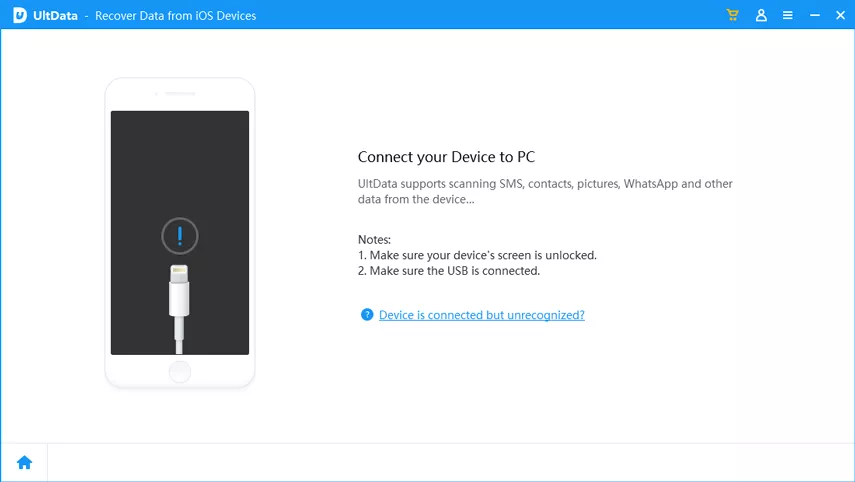


If you have an iCloud backup that contains the deleted iMovie project, Tenorshare UltData allows you to recover those files without restoring the entire backup. The steps are as follows:
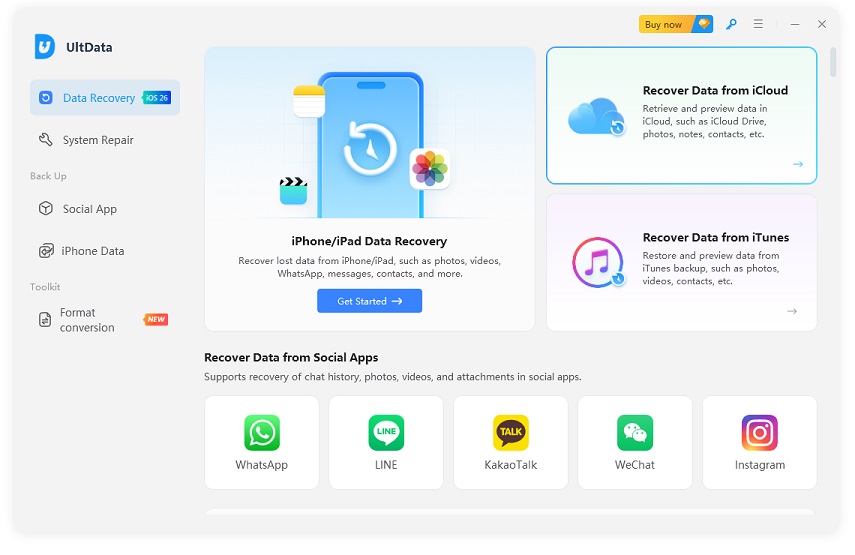


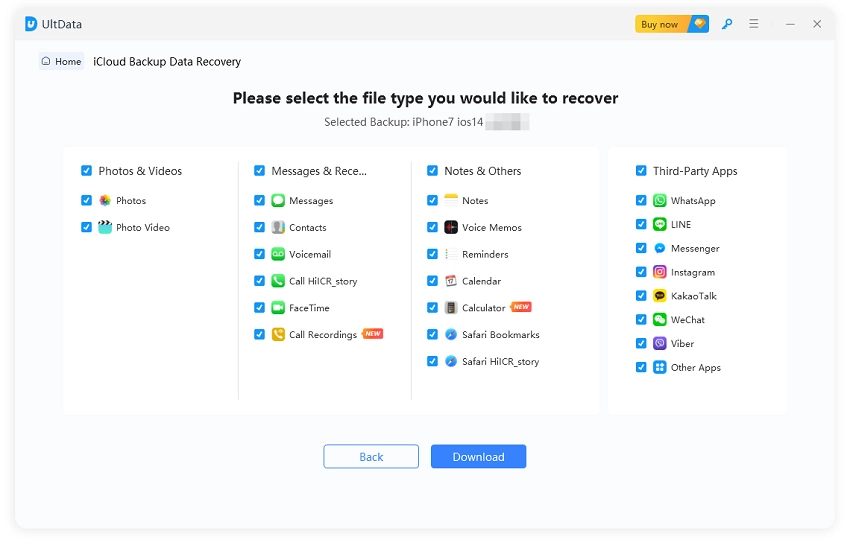

That's how Tenorshare UltData gives a click-based interface to scan, preview, and recover iMovie files in minutes without any prerequisites. Download UltData now and get started!
The troubleshooting process for how to recover deleted iMovie project on iPad is similar to iPhone.
Recovery options depend on whether the project itself or only its source media was deleted.
There's an important distinction between deleting a project and deleting the source media it relied on. If both are missing from all normal locations, check older backups before trying recovery software. Avoid using the device extensively in the meantime, since new data can overwrite what's recoverable.
Keep in mind that recovery success isn't guaranteed, particularly after a long time has passed, or heavy new data has been written to storage.
The following are some useful tips to prevent losing iMovie projects in the future:
Maintain copies of important clips through iCloud Photos or another backup method.
Keep recent iCloud or computer backups, and create a fresh one before any major device change like an update or reset.
Export completed videos to Photos or another storage location, and keep a second copy on a computer or external drive for safety.
Hold onto original clips until the project is finished and safely exported. This alone prevents most missing-media headaches during editing.
Yes, in some situations. The ability to recover deleted iMovie projects on iPhone depends on whether the project or its source media is still stored somewhere, or an older backup contains the required data.
First, check the iMovie project list and the original source media in Photos. Then check Recently Deleted, iCloud, and available backups. When Apple's built-in methods do not work, an iPhone data recovery software tool can be another option to consider.
Permanently deleted iMovie project data can be difficult to recover without a backup. You can try Tenorshare UltData to scan the iPhone for recoverable content and pull back supported files directly from the device. Results depend on whether the deleted data has already been overwritten.
Start with Apple's built-in options, including checking iMovie, Photos, Recently Deleted, iCloud Photos, and other available locations. If those options cannot locate the data, you can consider a third-party iPhone data recovery tool.
iMovie projects are accessed through the iMovie app's Projects browser, while the photos and videos used by a project may come from the device's Photos library or other supported media locations. iMovie can also export projects to Files or iCloud Drive for storage and transfer.
It depends on what was stored or synced. iCloud Photos may contain the source videos and photos, while iCloud Backup is a separate backup system. Having iCloud enabled does not guarantee that the complete iMovie project can be restored.
The best way to recover deleted iMovie projects on iPhone is to check the simplest recovery locations first and avoid unnecessary device changes. Start with the iMovie Projects browser, source media, Recently Deleted, iCloud, and available backups. If those options fail, use Tenorshare UltData's iPhone data recovery approach to scan, preview, and recover files directly from your iPhone/iPad. Also, try to keep regular backups and export finished projects to make future recovery much easier.


then write your review
Leave a Comment
Create your review for Tenorshare articles

Share this post


UltData - Best iPhone Data Recovery Tool
Recover Deleted & Lost Data from iOS Devices Easily, No Backup Needed!
UltData: Best iPhone Recovery Tool
Recover Lost iPhone Data without Backup
By Jenefey Aaron
2026-11-03 / iOS Data Recovery