

 iOS Tips & Latest Updates
 Bug Fixes, Unlock Guides
 Giveaways & Freebies

UltData - Best iPhone Data Recovery Tool
Recover Deleted & Lost Data from iOS Devices Easily, No Backup Needed!
UltData: Best iPhone Recovery Tool
Recover Lost iPhone Data without Backup
Losing a Logic Pro project can mean losing hours of recording, editing, and mixing work. Fortunately, a missing project does not always mean the data is permanently gone. If you are wondering how to recover deleted logic pro files, there are several methods worth trying.
You can check Trash, search your Mac, restore an older backup, or locate missing audio files directly in Logic Pro. The right solution depends on what disappeared and how it was stored.
This guide covers why Logic Pro Files keep missing the device and what could be the possible recovery options for those lost files. So, read more to learn more!

Before trying recovery methods, identify why your project disappeared. This helps you choose the right solution without risking other project data.
You may accidentally move a Logic Pro project to Trash while organizing your Mac. Sometimes, users delete the entire project folder instead of removing a single unnecessary file.
Logic Pro or macOS may occasionally quit unexpectedly. This can leave recent changes unsaved. Fortunately, Logic Pro has an auto-save feature. When you reopen a project after an unexpected shutdown, the application may ask whether you want to use an auto-saved version.
Moving a project to another folder or external drive can make it appear missing. The same issue may occur if you rename a project or disconnect the drive where it was stored.
Sometimes, the project opens normally, but some recordings or audio regions are unavailable. These Logic Pro X missing audio files may have been moved, renamed, or deleted separately.
Try the following methods in order, starting with the simplest options.
If you recently deleted a project, check Trash first.


macOS will return the item to its original location when that location is available. If you cannot find it, check whether you deleted a parent folder containing the project.
Sometimes, a project is not deleted but saved in an unfamiliar location. Finder can help you locate it.

If you do not remember the project name, search for related folder names or check your Documents folder, external drives, and other common storage locations.
If you regularly use Time Machine, you may have a backup containing your missing project.
Follow these steps:

You may also have saved a project on an external drive or cloud storage service.
Check the following locations:
Some cloud services offer recently deleted files or version history
If the project opens but certain recordings are missing, try locating the original audio files.
Logic Pro can help search for missing audio files.
When an audio file cannot be found, check the alert displayed by the application. Depending on the interface and situation, you may be able to search for the file or manually locate it.
Apple's documentation explains that missing media can result from disconnected drives, renamed files, moved storage locations, or deleted recordings.
If the original recordings are no longer available, check Time Machine or another backup.
Restore the missing audio files to a suitable folder. Then reopen Logic Pro and locate the restored files when prompted.
If the project has disappeared from Trash and no backup exists, recovery becomes more difficult.
Stop saving new files to the affected storage device where possible. Avoid installing unnecessary software or copying large amounts of data onto the same drive.
A data recovery tool may help in certain file-loss situations, but compatibility is essential.
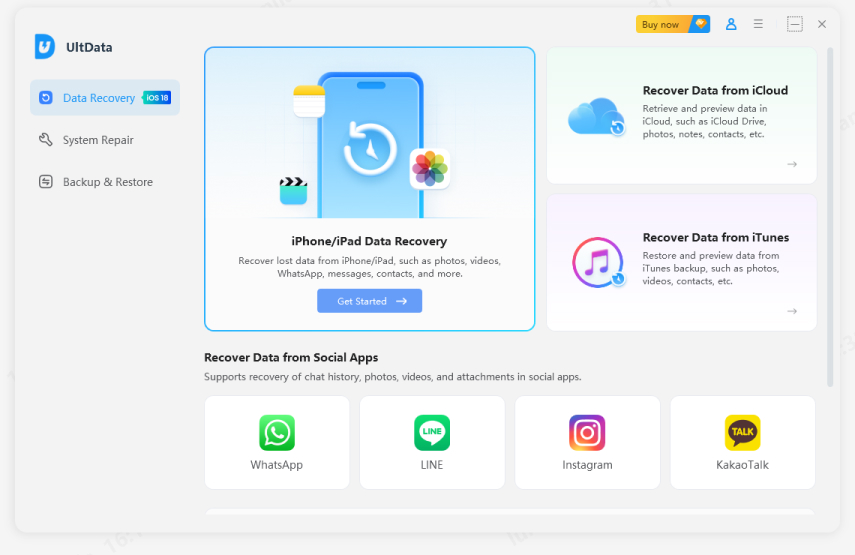
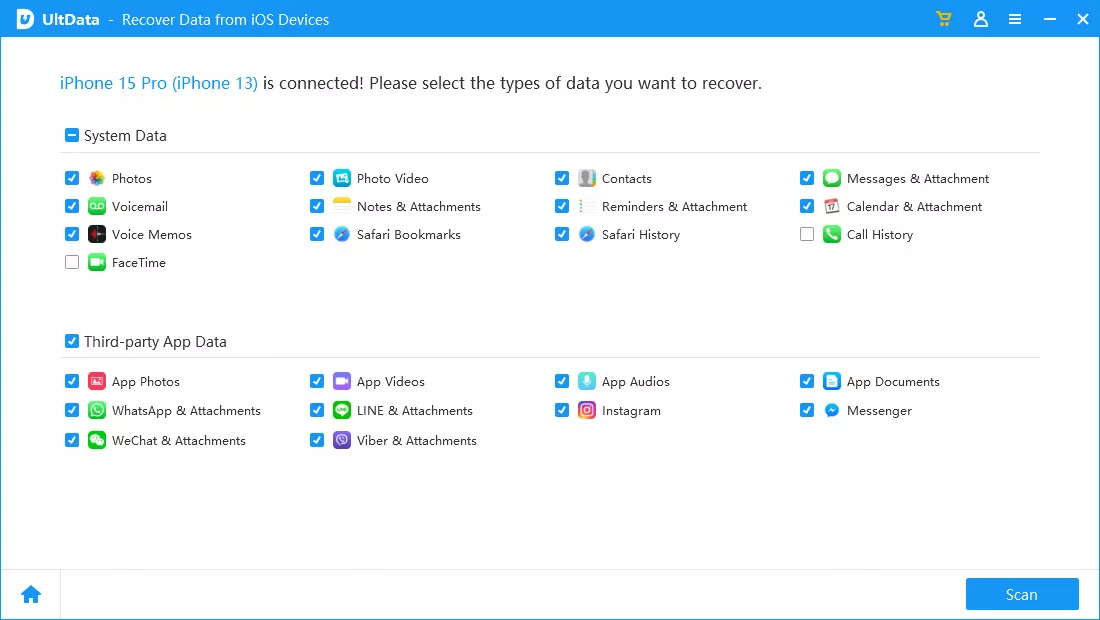
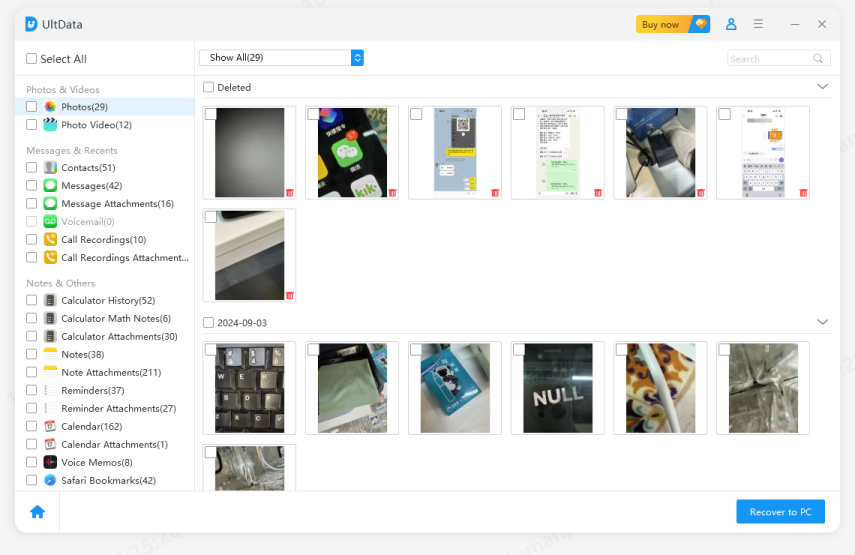
Tenorshare UltData offers iPhone data recovery solutions. It helps users recovers file that are permanently deleted from you iOS devices. Here is a step-by-step guide to recover the lost file in your iOS device.


Prevention is easier than recovering a project after data loss.
Remember that auto-save helps protect recent changes, but it should never be treated as a replacement for independent backups.
Check Trash first, then search Finder for the original project location. If the project is not available, look for a Time Machine backup or another saved copy.
Audio files may have been moved, renamed, deleted, or stored on an external drive that is no longer connected. Reconnect the drive and use Logic Pro's file-location options to search for existing recordings.
Possibly, but recovery is not guaranteed. It depends on the storage device, whether deleted data has been overwritten, and whether a compatible recovery solution supports the affected files.
Yes. Logic Pro automatically saves work and can offer an auto-saved version after an unexpected shutdown.
Losing a music project can be frustrating, but there are several ways to investigate the problem. Check Trash, search Finder, explore Time Machine backups, and use Logic Pro's missing-audio options when necessary. If you are researching how to recover deleted Logic Pro files, start with these built-in methods before considering third-party recovery solutions. Most importantly, maintain regular backups to protect your future projects.


UltData - Best iPhone Data Recovery Software




then write your review
Leave a Comment
Create your review for Tenorshare articles

Share this post


UltData - Best iPhone Data Recovery Tool
Recover Deleted & Lost Data from iOS Devices Easily, No Backup Needed!
UltData: Best iPhone Recovery Tool
Recover Lost iPhone Data without Backup
By Jenefey Aaron
2026-11-16 / iOS Data Recovery