How to Combine PDF
Merging multiple PDF files into one organized document is simple with Tenorshare PDNob. Whether you're combining a few pages or multiple files, the process is fast, structured, and easy to manage. Follow the steps below to create a single, unified PDF.
-
Open the Batch Tools Panel
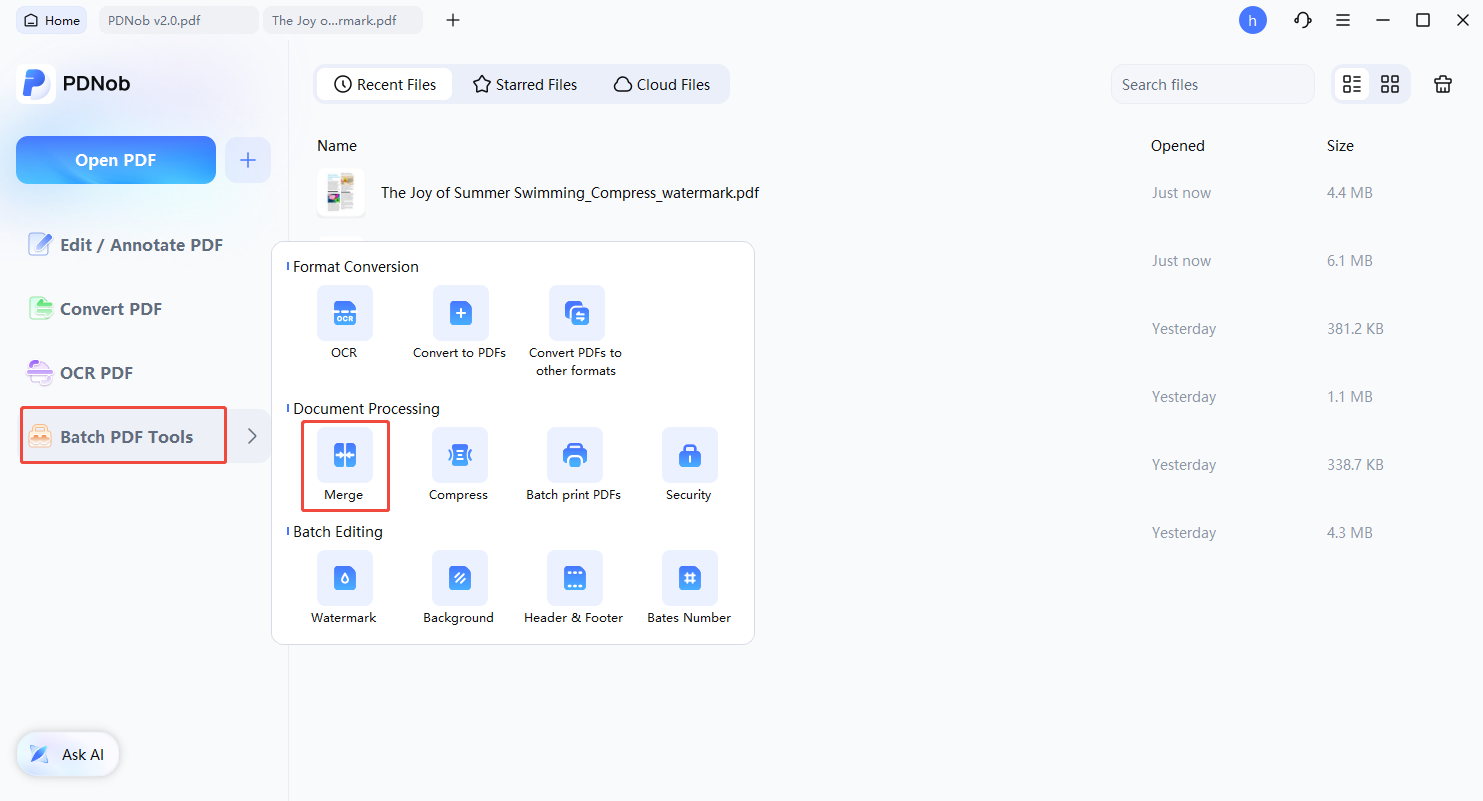
Launch PDNob PDF Editor and select the “Batch Tools” option from the main interface to access bulk processing features.

-
Select the Merge Function
In the Batch Tools panel, choose the “Merge” option. This will open a dedicated window for combining multiple PDF files.
-
Add Files for Merging
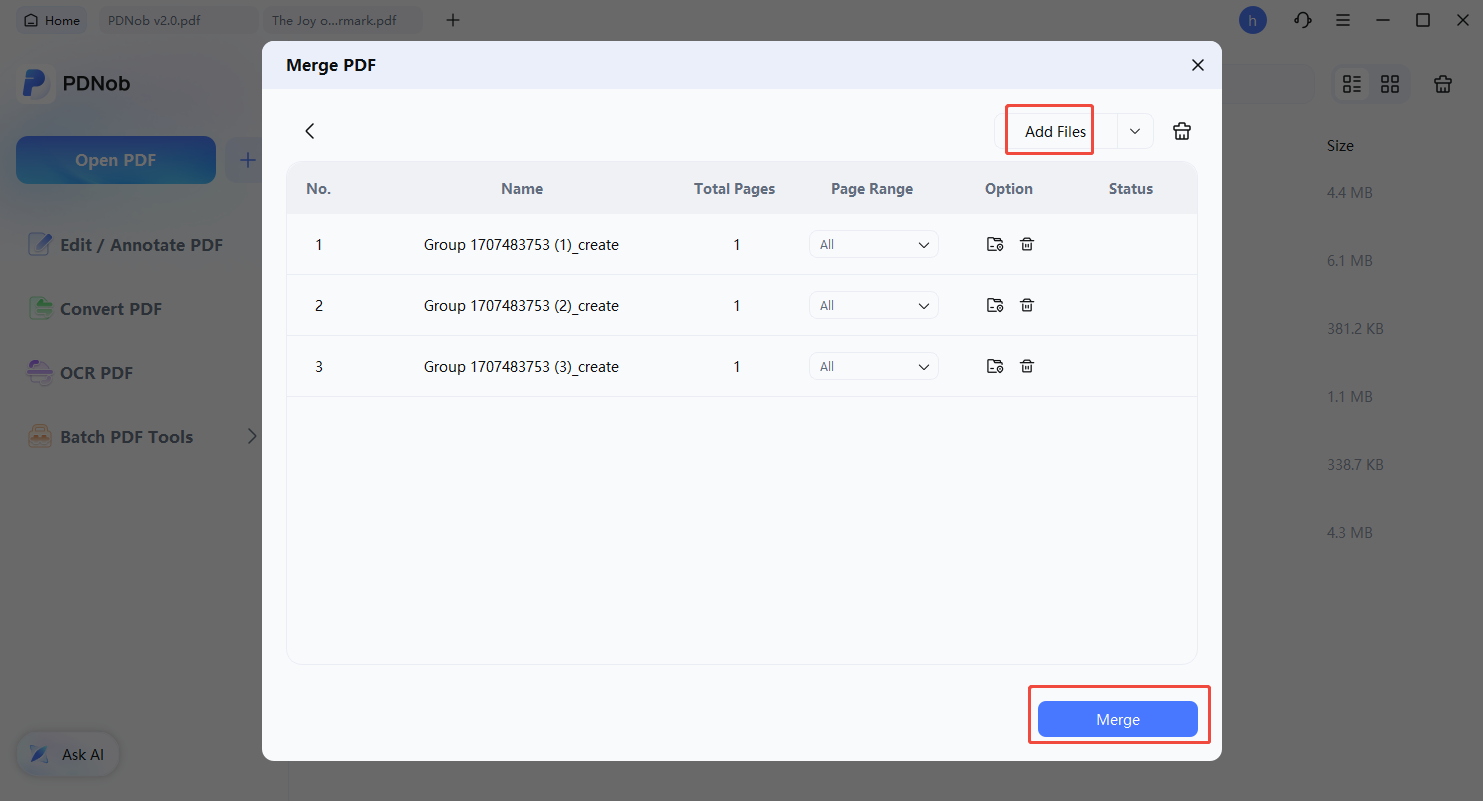
Click “Add Files” to import the PDFs you want to combine. Once added, review the file order if needed, then click “Merge” to begin the process.
-
Save the Combined File
After the merge is complete, go to “File” in the top-left menu and select “Save” to store the combined PDF on your computer. Your merged document is now ready to use.