Updated your iPhone to iOS 27 and suddenly can't find your Safari bookmarks?
If your Safari bookmarks disappeared after iOS 27 update, don't assume they
have been permanently deleted.
Missing bookmarks can result from iCloud synchronization problems, Safari
settings, a different Apple Account, or a temporary issue after updating.
Before trying advanced recovery, check your Safari and iCloud settings, other
Apple devices, and available backups. If those options don't work, a recovery
tool such as Tenorshare UltData can provide another way to look for missing
iPhone data.
Stick with this guide as we walk through the main troubleshooting steps and
recovery options to help you recover missing Safari bookmarks.
Why Did My Safari Bookmarks Disappear After iOS 27 Update?
An iOS update should not normally erase Safari bookmarks permanently. If
they suddenly disappear, several issues may be responsible.
Safari and iCloud Are Still Syncing
Safari bookmarks can be stored in iCloud and synchronized across your
iPhone/iPad and Mac. After an update, synchronization may take some time to
complete.
Keep your iPhone connected to Wi-Fi and give iCloud time to finish syncing.
Avoid repeatedly changing your Safari or iCloud settings while
synchronization is in progress, as this can make it harder to determine what
happened.
Safari Sync Is Disabled
If Safari is turned off under iCloud, your bookmarks may not appear on the
updated iPhone. We recommend checking
Settings > \your name\ > iCloud and ensuring Safari
is enabled.
Also confirm that the iPhone is signed in with the same Apple Account you
previously used.
You Signed In With a Different Apple Account
Your Safari data may be associated with the Apple Account used for iCloud
synchronization. If you accidentally sign in with another account after
updating, your previous bookmarks may appear to be missing.
Check the Apple Account before attempting recovery. If another Apple device
still contains your bookmarks, don't delete or modify its Safari data until
you have secured a copy.
The iOS 27 Update Caused a Temporary Safari Issue
A system update can sometimes cause temporary problems with Safari data or
synchronization.
Restart the iPhone and check Safari again. Install any available follow-up
iOS update if applicable.
Your Bookmarks Were Already Missing Before the Update
The timing of the update doesn't always mean it caused the data loss. A
bookmark may have been deleted or changed before the update and only noticed
afterward.
Check another iPhone, iPad, or Mac using the same Apple Account. If the
bookmarks are still there, the problem is usually related to synchronization
rather than permanent data loss. This can help distinguish a sync problem
from actual data loss.
What to Check When Safari Bookmarks Are Missing
Before heading to how to recover bookmarks on iOS, check whether the
bookmarks are still available through iCloud or another Apple device. This
can help avoid unnecessary recovery steps.
Check Safari Bookmarks on Your iPhone
Open Safari and tap the Bookmarks option.
Look through your different bookmark folders because the bookmarks may have
been moved instead of deleted.
If you have many saved websites, use Safari's search feature to locate a
specific bookmark.
Check Safari on Another Apple Device
Open Safari on another iPhone, iPad, or Mac signed in to the same Apple
Account. iCloud is designed to keep Safari bookmarks synchronized between
supported devices.
If your bookmarks are still available on another device, save or export
important ones before changing additional iCloud settings. Also, avoid
deleting Safari data from the device where the bookmarks are still
available.
Check Your iCloud and Safari Settings
Go to Settings > \your name\ > iCloud and confirm
that you're using the correct Apple Account and that Safari is enabled. Keep
the device connected to Wi-Fi while synchronization is in progress.
Apple also recommends restarting Safari and the device and checking
Apple's System Status
if iCloud bookmarks are not syncing.
Check iCloud for Your Safari Data
You can also sign in to iCloud and check whether your Safari bookmarks are
available there. Apple provides a dedicated recovery option at
iCloud.com/recovery
for restoring an earlier archived version of Safari bookmarks by name,
folder, or date deleted.
Keep in mind that iCloud synchronization and an
iCloud Backup
are different. The recovery options available to you depend on how your
Safari data was stored and synchronized.
How to Recover Safari Bookmarks After iOS 27 Update
There are multiple ways to recover Safari bookmarks disappeared after iOS 27
update. Let's go through the methods and their steps one-by-one:
Method 1: Wait for Safari to Sync with iCloud
Start with the simplest option.
Connect your iPhone to Wi-Fi and power.
Go to Settings > \your name\ > iCloud.
Make sure Safari is turned on.
Give iCloud some time to synchronize.
Reopen Safari and check your Bookmarks.
Apple specifically recommends checking Safari's iCloud setting and
restarting the device when bookmarks aren't syncing.
Method 2: Restore Safari Bookmarks from iCloud
If your bookmarks were previously synchronized with iCloud, you may be able
to restore an earlier archived version.
Go to
iCloud.com/recovery, sign in with your Apple Account, and select
Restore Bookmarks. Apple allows you to choose an available
version and restore it. The current version is archived first, so you can
return to it if necessary.
Apple's current support information says recently deleted bookmarks can be
recovered through
iCloud.com, and its support page specifies a 30-day window.
Method 3: Restore from an iPhone Backup
If you created an iCloud Backup before the bookmarks
disappeared, check its date before restoring anything.
When you are confident the backup contains the bookmarks, factory reset your
iPhone and begin restoring the iCloud backup. Keep in mind that this process
restores the entire backup, not just selective bookmarks.
A Finder or iTunes backup may also be available if you
previously backed up your iPhone to a computer. You can restore it by
connecting your iPhone to a computer and clicking
Restore Backup from the Finder/iTunes app. However,
restoring a full backup replaces newer information on the device, so protect
your current important data first.
Method 4: Recover Missing Safari Data with Tenorshare UltData
If the official Apple methods cannot help you fix Safari bookmarks
disappeared after iOS update, Tenorshare UltData provides
another recovery option. It is specialized
iPhone data recovery software
that offers three recovery modes: directly from an iPhone or iPad, from
iCloud, and from an iTunes backup.
UltData recovery is different from official Apple methods. It supports
selective recovery, which means it can scan, lets you
preview available results, and select what you want to recover. So, you
don't have to restore the entire backup.
Tenorshare also states that the software can recover data without a backup
in supported situations. However, the recovery results depend on the actual
condition of the deleted or
missing data.
Follow these steps on how to recover bookmarks on iOS with Tenorshare
UltData:
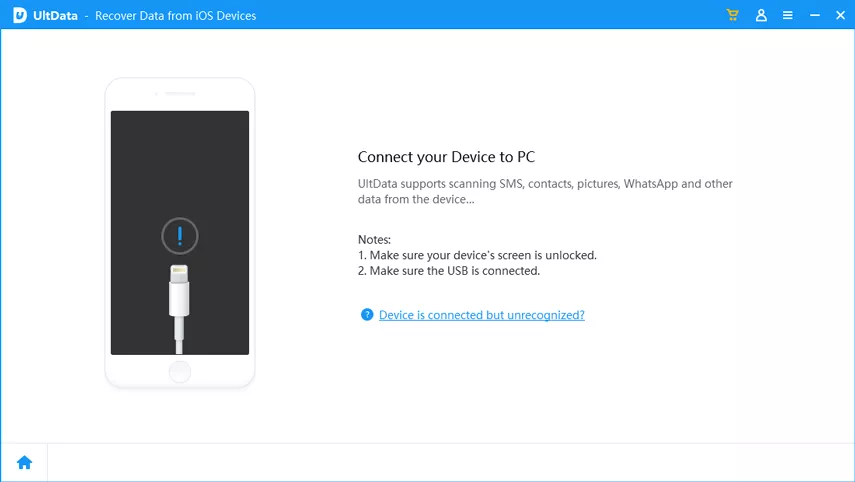
Install and launch Tenorshare UltData on a Mac/Windows computer. From the
home screen, click iPhone/iPad Data Recovery.
Connect your iPhone to the computer using a USB cable.
Select Safari and other data types you want to recover and click
Scan.
After the scan, take your time to preview and select the data you want to
retrieve, and then tap Recover to PC.
That's how you can resolve Safari bookmarks disappeared after iOS 27 update
with simple clicks and no backup.
How to Prevent Safari Bookmarks from Disappearing Again
Some of the proven useful tips to avoid the situation of Safari bookmarks
disappearing after an iOS update are as follows:
Keep Safari Synced with iCloud
Make sure Safari remains enabled under your iCloud settings and use the same
Apple Account across your Apple devices. This allows bookmarks to stay
synchronized between supported devices.
Back Up Your iPhone Regularly
Maintain recent iCloud or computer backups and occasionally check their
dates. A current backup provides an additional recovery option if important
information becomes unavailable.
Keep Important Bookmarks Organized
Create folders for important websites and avoid keeping everything in one
long bookmark list. For especially valuable URLs, consider maintaining a
separate copy outside Safari.
Export or Save Important Bookmarks
If certain bookmarks are critical, keep an additional copy whenever
possible. Apple also provides bookmark export options on Mac, which can
provide another copy of your saved websites.
FAQs About Missing Safari Bookmarks
How to recover bookmarks on iOS?
To recover bookmarks on iOS, check Safari and iCloud sync settings. Look for
the bookmarks on other Apple devices logged in with the same Apple ID. Also,
try to recover bookmarks from an existing backup. If those methods don't
work, use a third-party recovery software like UltData to scan and recover
bookmarks from your iPhone.
Why did all my Safari bookmarks disappear on my iPhone?
Some of the common causes include iCloud synchronization problems, Safari
being disabled in iCloud, using a different Apple Account, or a temporary
issue following an iOS update.
Can I recover Safari bookmarks without an iCloud backup?
Yes, you can first check iCloud synchronization, another Apple device, and
iCloud's bookmark recovery feature. If your bookmarks are still not found,
Tenorshare UltData offers an additional recovery option by directly scanning
internal storage.
Will updating to iOS 27 delete my Safari bookmarks?
An iOS update should not normally permanently delete Safari bookmarks. If
they are missing after updating, check iCloud synchronization, your Apple
Account, Safari settings, and available recovery options before assuming the
data is lost.
Conclusion
If your Safari bookmarks disappeared after iOS 27 update, don't immediately
assume they are gone forever. Check Safari, iCloud synchronization, your
Apple Account, other Apple devices, and available backups first. If Apple's
recovery options don't bring them back,
Tenorshare UltData
offers another way to scan iPhone and preview potentially recoverable
information. Its support for iOS 27, selective recovery, and multiple
recovery sources make it a useful option when conventional methods aren't
enough.











 iOS Tips & Latest Updates
 Bug Fixes, Unlock Guides
 Giveaways & Freebies






By Jenefey Aaron
2026-10-26 / iOS Data Recovery