

 iOS Tips & Latest Updates
 Bug Fixes, Unlock Guides
 Giveaways & Freebies


UltData - Best iPhone Data Recovery Tool
Recover Deleted & Lost Data from iOS Devices Easily, No Backup Needed!
UltData: Best iPhone Recovery Tool
Recover Lost iPhone Data without Backup
Transferring data to a new iPhone should be simple, but sometimes photos, messages, contacts, notes, and other files seem to disappear after the migration. If you notice data missing after transfer to iPhone Duo, you may wonder whether the transfer failed or your files are permanently lost.
The good news is that missing data does not always mean it has been deleted. Some files may still be syncing from iCloud, while others may be available in a previous backup or a recovery location.
In this guide, we'll explain how to fix missing data after transferring to iPhone Duo, starting with Apple's built-in methods before introducing a recovery tool for situations where those methods don't work.

Several factors can explain why not everything appears on your new iPhone:
Before trying recovery methods, avoid erasing your old iPhone or creating unnecessary changes to your data. If possible, keep the original device and any existing backups intact.
If you notice data missing after transfer to iPhone Duo, don't assume your files are permanently lost. First, make sure the transfer is complete and give iCloud syncing enough time to finish. Check that you're using the correct Apple Account and that iCloud Photos and other relevant sync settings are enabled. If your data is still missing, try the following recovery methods.
If some files disappeared after transferring data to your new iPhone Duo, check whether they were accidentally deleted and are still available in Recently Deleted. Follow these steps to recover them:
The available recovery period depends on the data type and circumstances. For example, photos and videos generally remain in Recently Deleted for up to 30 days. If the files are no longer available there, check your iCloud account or an existing backup before trying other recovery options.

If the missing files aren't available in Recently Deleted, you may be able to restore them from a backup created before the transfer. Choose the method that matches your backup.
Restore from an iCloud Backup

Limitations: Restoring from an iCloud backup requires erasing an already set-up iPhone before restoring. It may replace existing data on your iPhone Duo, and only data included in the selected backup can be restored.
Restore from a Computer Backup

Restoring a backup can replace data currently stored on your iPhone. Check the backup date and contents carefully before proceeding. Also, data synced separately through iCloud may not be included in a device backup. If the missing files aren't in the backup, or you want to explore recovery options without erasing your iPhone Duo, consider using a compatible data recovery tool such as Tenorshare UltData.
If you still have data missing after transfer to iPhone Duo and Apple's built-in options haven't helped, Tenorshare UltData iPhone Data Recovery is another option to consider.
The desktop software for Windows and Mac can scan a connected iPhone and help you look for recoverable data. Depending on the data type and device condition, it can also help extract supported information from compatible iTunes or iCloud backups.
With UltData, you can:




How to use Tenorshare UltData:

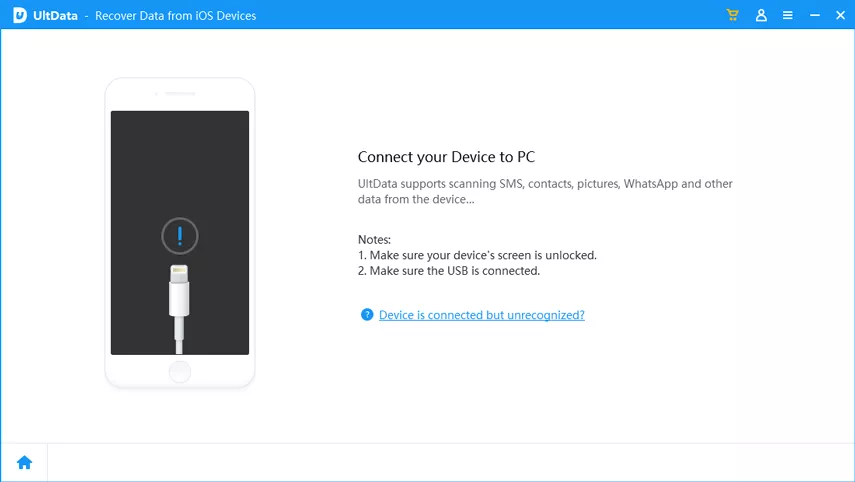


Recovery results depend on whether the data remains available or is present in a supported backup. No tool can guarantee recovery of every missing file, so check the available scan results before purchasing.
To reduce the risk of missing files during a future migration:
Keeping an independent backup is especially important when transferring large amounts of data.
Your photos may still be syncing through iCloud, or iCloud Photos may be disabled or connected to a different Apple Account. Check your iCloud photo library and syncing status first. If the photos were deleted, check Recently Deleted and any available backups.
The transfer may not have completed, some content may be downloading in the background, or certain information may be stored in iCloud rather than directly on the old device. Check your network, account settings, backup status, and individual apps.
First, check Recently Deleted folders and any synced cloud accounts. If those options fail, a recovery tool such as Tenorshare UltData may help scan your iPhone for supported recoverable data. Success depends on the file type and whether the data is still available.
Yes, potentially. Check whether the missing information is available through iCloud syncing, another account, or a previous backup. A recovery scan may also be worth trying for supported data. Avoid erasing your current device until you've protected any new files.
Finding data missing after transfer to iPhone Duo can be frustrating, but it doesn't necessarily mean your files are gone forever. Start by checking the transfer status, iCloud syncing, and Recently Deleted folders. If a suitable backup exists, consider restoring from it after protecting your current data.
When Apple's methods don't recover the files you need, Tenorshare UltData offers another way to scan for supported recoverable data and preview files before recovery. Check the available results to determine whether it can help with your particular data-loss situation.


UltData - Best iPhone Data Recovery Software






then write your review
Leave a Comment
Create your review for Tenorshare articles

Share this post


UltData - Best iPhone Data Recovery Tool
Recover Deleted & Lost Data from iOS Devices Easily, No Backup Needed!
UltData: Best iPhone Recovery Tool
Recover Lost iPhone Data without Backup
By Jenefey Aaron
2026-10-26 / iOS Data Recovery