

 iOS Tips & Latest Updates
 Bug Fixes, Unlock Guides
 Giveaways & Freebies


UltData - Best iPhone Data Recovery Tool
Recover Deleted & Lost Data from iOS Devices Easily, No Backup Needed!
UltData: Best iPhone Recovery Tool
Recover Lost iPhone Data without Backup
iOS 27 feels like the next crucial upgrade our iPhones need, but many users run into problems after the upgrade. Some of the common reported ones are system instability, random app crashes, app incompatibility, and abnormal battery drain. When these issues pile up, the next question is: "Can I downgrade my iOS without losing data?"
iOS 27 downgrade data loss is a crucial risk to consider. Apple doesn't officially support restoring your current data straight into an older system. Downgrading reinstalls firmware from scratch, so anything not backed up beforehand is at risk. So, it is critical to back up data and prepare a data recovery solution before proceeding.

Yes, downgrading your iOS version will erase everything currently on your iPhone during the installation process. Apple doesn't offer a "roll back" button, so downgrading requires you to put the iPhone in Recovery Mode and restore the older version using Finder (or iTunes on Windows).
This downgrade process treats the older firmware like a fresh install, which means it:
Another important concern is that backups are usually incompatible across different iOS versions. A backup created while running iOS 27 is made around that version's file structure, so it may not restore to a lower iOS version. Finder or iTunes may trigger an error, which may leave you with a downgraded phone and no way to bring your recent data back through normal channels.
The good news is that there are many ways to recover lost data after a downgrade. Follow these three methods one by one until you resolve the "iOS 27 downgrade data loss" problem:
Apple offers two official recovery methods: using your iCloud account or a computer backup created before the downgrade. So, if you have created one of those backups, follow the steps to restore the lost data:


After restoration, you will be able to access all the backed-up data, including settings, local files, and app data.


Wait for the restoration and then access your lost data.
Limitations:
If you have enabled iCloud sync on your iPhone, it keeps syncing data for a few apps. So, sign back into your Apple Account and check what's syncing through iCloud. This applies to:


iCloud Sync differs from iCloud Backup. Synced data lives on Apple's servers in real time and doesn't require restoring an entire backup file. The data will quietly reappear on its own when you are signed back in.
If the iOS downgrade data loss is such that you don't have a backup to restore or it fails, then don't worry. Dedicated iPhone data recovery software is the most practical option for recovering files.
Tenorshare UltData for iPhone is an advanced data recovery software that can scan your device's internal storage and recover lost/deleted data. It can recover 35+ data types, including photos, videos, messages, contacts, notes, calendar, app data, etc. It performs a deep scan and then lets you preview recoverable data and restore all or selected files.
Follow these simple steps to scan, preview, and recover data loss from iOS 27 downgrade using UltData for iPhone data recovery software:





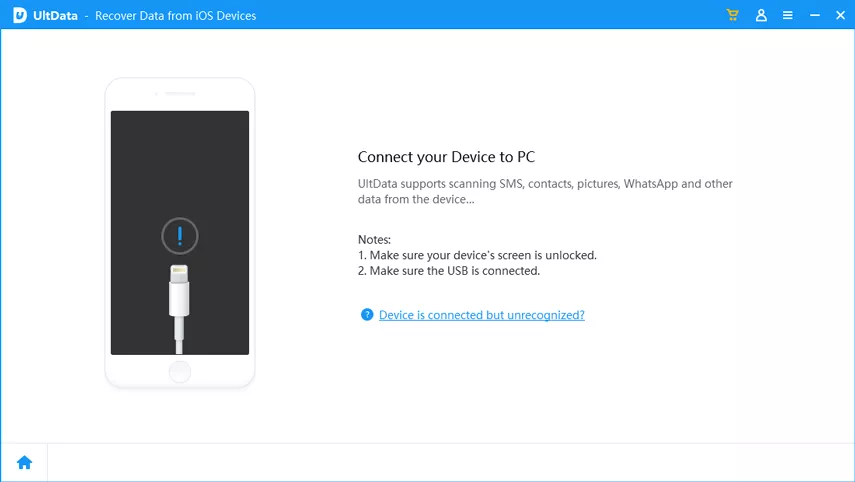



UltData for iPhone can also recover iCloud backup or iTunes backup without the need to restore the entire backup on iPhone. You can preview the backed-up data and restore selective files.
So, the answer to "can I downgrade my iOS version without losing data," is a big yes.
iOS 27 downgrade data loss only happens if you are doing the downgrade without preparing a data backup beforehand. Try to create a full phone backup first using iCloud or a computer (Finder/iTunes) and then restore it after downgrading. However, if you failed to create a backup or it didn't restore, use UltData iPhone data recovery software to pull out lost data straight from the device without a backup.


then write your review
Leave a Comment
Create your review for Tenorshare articles

Share this post


UltData - Best iPhone Data Recovery Tool
Recover Deleted & Lost Data from iOS Devices Easily, No Backup Needed!
UltData: Best iPhone Recovery Tool
Recover Lost iPhone Data without Backup
By Jenefey Aaron
2026-10-14 / iOS Data Recovery