

 iOS Tips & Latest Updates
 Bug Fixes, Unlock Guides
 Giveaways & Freebies


UltData - Best iPhone Data Recovery Tool
Recover Deleted & Lost Data from iOS Devices Easily, No Backup Needed!
UltData: Best iPhone Recovery Tool
Recover Lost iPhone Data without Backup
The emergence of iOS 27 offers outstanding upgrades to Apple's intelligence, changing how we interact with our devices. However, many users have complained about a frustrating glitch after updating to iOS 27. Users' Siri history has disappeared for nothing.
If you're looking to recover Siri history, you can recover Siri prompts on iOS 27. This post explains why data loss occurs and how to retrieve lost data on an iPhone.

Siri doesn't offer an obvious conversation log, unlike Photos or Messages. Since you can't find any built-in archive of every Siri request you've created, there is no official way to recover old prompts when they get deleted. That doesn't necessarily mean that your data is gone for good, though.
You can recover the content if you've saved it elsewhere, such as a document, screenshot, or note, rather than relying on Siri to remember it. If a copy of the lost prompts exists on your device or in iCloud, there is a good chance you can recover the data.
Upgrading to a major software version can sometimes cause temporary data chaos. If your Siri Requests and prompt histories have suddenly gone missing after the update, it is usually due to one of the following system behaviors.
During a major update like iOS 27, your iPhone rebuilds its entire database index. This deep-system organization can temporarily hide your local files and Siri History from search results, making it appear as if your data was completely wiped when it's simply being reprocessed.
Sometimes, an update partially logs you out of certain iCloud services. If your Apple ID fails to resync properly right after the update, any Siri prompts or notes stored in the cloud will not display on your device until the connection is fully restored.
Apple constantly updates its privacy protocols. The latest update might have altered how Siri Interactions are cached locally on your device, migrating older records to secure, hidden directories or changing permission settings, which causes old prompts to stop showing up.
A glitch in iOS 27's initial boot cycle can cause a temporary communication breakdown between apps. This visibility bug makes your saved text or screenshots temporarily inaccessible until the system stabilizes or receives a minor patch.

Because Siri does not currently have a dedicated, native "export history" log, power users rely on manual methods to keep track of their best Siri Prompts. Here is where most of this data usually lives on an iPhone:
The easiest way to save a great response is to copy the text straight into Apple Notes or trigger a Quick Note. It keeps everything neat and searchable.
For longer research sessions or complex workflows, users often paste their interactions directly into Pages Documents or export them as PDF Files.
Taking a quick screenshot of a Siri response is the fastest way to save visual proof of an interaction without manually highlighting text.
When executing complex, multi-step Siri workflows, capturing Screen Recordings lets you save both the voice prompt and the visual output dynamically.
If your prompts were saved via the methods above and went missing, you can try recovering them through native Apple recovery tools before resorting to advanced measures.
You can recover recently deleted notes for 30 days from Recently Deleted Folder. To recover notes, open Apple Notes and access Folder and Recent Deleted to get back deleted Notes.
If you saved screenshots of Siri and they go missing, you can open Photos, Albums, and Recently Deleted to find them. If it's less than 30 days since you've deleted or lost a Siri screenshot, recovery will be possible
iCloud Sync recovery can also help you find deleted Siri notes. Open your iPhone settings and tap on Apple ID. Next, select iCloud and turn on the Notes and Drive toggles. You can now toggle them off and on again to force a fresh sync from the cloud.
Open the Files App, go to Browse, then click Recently Deleted to see PDFs or Pages documents containing copied Siri content.
If none of these native methods work to retrieve your data, don't worry. You can confidently rely on professional Data Recovery Software if you previously saved your Siri prompts via screenshots or text files, even if they seem permanently gone from your device.
This is where Tenorshare UltData comes in as it is a dedicated Data Recovery Software built for iPhone and iCloud data, scanning deeper than Recently Deleted folders. For anyone trying to recover lost Siri prompts iOS 27 that vanished from Notes, Screenshots, or Files, UltData searches your device for traces that standard apps can no longer show.




Tenorshare UltData has the ability to get back 35+ types of file types. You can restore pages, Apple Notes, screenshots, PDF files, and even audio files or video, like screen recordings, where your Siri data was stored.
Since Siri Interactions aren't a standalone file type, UltData's strength lies in recovering the notes, Screen Recordings, and documents where you saved that content. Scanning your iPhone storage directly, it can locate Deleted Files containing old Siri exchanges, even after iOS 27 has reorganized how data appears

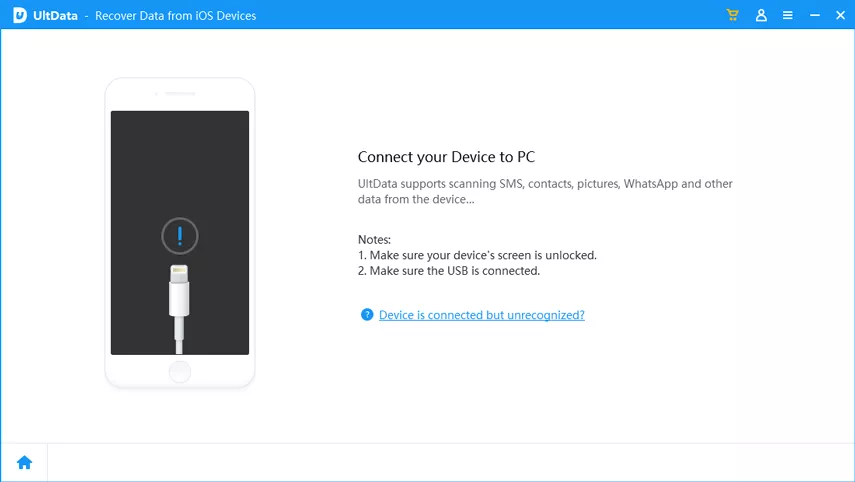


Compared to relying solely on iCloud or Apple ID syncing, UltData's biggest advantage is that it requires no existing backup. It scans your device directly, previews match first, and avoids overwriting your data, making it safer than starting over with a factory reset
No, Apple does not maintain an accessible database of your personal prompt histories on their servers due to privacy reasons. Recovery is only feasible if you have saved copies of your data locally or in your own backups.
Siri keeps a short-term local cache for context during your active session, but it currently does not support an official export feature or long-term history log.
Recovery is feasible if you have saved copies somewhere on the device. Siri doesn't currently support an official export feature. But if you took Screenshots or copied content into Apple Notes or another document, a tool like UltData can search your iPhone storage for those Deleted Files and help restore them.
Losing saved Siri responses after an update is frustrating, but rarely permanent. Check Apple Notes, Photos, and the Files App first.
When those come up empty, Tenorshare UltData offers a reliable way to recover lost Siri prompts on iOS 27 by scanning your device directly for notes, screenshots, or documents where that data is stored.


then write your review
Leave a Comment
Create your review for Tenorshare articles

Share this post


UltData - Best iPhone Data Recovery Tool
Recover Deleted & Lost Data from iOS Devices Easily, No Backup Needed!
UltData: Best iPhone Recovery Tool
Recover Lost iPhone Data without Backup
By Jenefey Aaron
2026-10-14 / iOS Data Recovery