

 iOS Tips & Latest Updates
 Bug Fixes, Unlock Guides
 Giveaways & Freebies


UltData - Best iPhone Data Recovery Tool
Recover Deleted & Lost Data from iOS Devices Easily, No Backup Needed!
UltData: Best iPhone Recovery Tool
Recover Lost iPhone Data without Backup
Ask Siri to delete a reminder or a note, and it's done in a second. Sometimes it happens too fast for you to catch that you named the wrong item.
If you are now trying to figure out how to recover files deleted by Siri, note that Siri usually isn't the one who actually stores or removes your data. It hands the request off to whichever Apple app the file lives in, which means your recovery odds depend on what was deleted and where it was stored.
For example, notes deleted by Siri are recoverable from the Recently Deleted folder in the Notes app. Stick with this guide to learn the best recovery approaches using built-in options first, then an iCloud backup restore and a dedicated recovery tool (Tenorshare UltData) for cases nothing else fixes.

Siri doesn't keep its own storage bucket or a "Recently Deleted" folder for things it removes. When you tell it to delete a note or a reminder, it's just passing that command along to Notes or Reminders and letting that app carry out the action.
Whatever happens next, whether the item lands in a recovery folder or disappears outright, is determined by that underlying app. Before you try any recovery method, identify what type of data Siri deleted.
Siri can be used to remove all sorts of content, including photos, documents, notes, text messages, calendar events, reminders, and more. Each of these lives in a different app, and each app handles deleted items on its own terms.
Some keep them around for a while, but others don't retain them at all. Don't assume that everything Siri deletes ends up in one shared location. The recovery path changes depending on what was removed.
Siri does not provide its own Recently Deleted folder. Check the Recently Deleted area inside the specific app where the content was originally stored. Whether the item is actually sitting there, and for how long, comes down to that individual app's rules.
Try Apple's built-in options first to recover files deleted by Siri. They are quick to check without any third-party software involvement. Plus, they can restore recently deleted content without changing anything else on your iPhone.
Most Apple apps provide a Recently Deleted folder where deleted files remain for a few days before being permanently deleted. Open the relevant app from which the data is removed and look for the deleted item.

If your item is there, tap it to select it, then use the built-in Recover option to restore it instantly. Keep in mind that the availability and retention periods for deleted content vary by app and data type.
If Siri deleted a document or other file, open Files → Browse → Recently Deleted and look for the missing file. You should also check the relevant iCloud Drive location if the file was stored or synchronized through iCloud.

One thing to be careful about is that deleting a file from one location may affect synced copies. So, avoid making unnecessary changes until you are confirmed where the file is stored.
If Siri deleted content from a specific Apple app, users should check that app's built-in recovery location. For example, Photos, Notes, and Messages all have Recently Deleted sections/folders where deleted data remains for ~30 days.
So, the recovery process should match the type of content Siri deleted rather than treating all deleted files the same way.
If you own more than one Apple device signed in to the same Apple Account, check whether the file is still on your other iPhone, iPad, or Mac. Synced content sometimes survives on a second device even after it's been removed from your iPhone, depending on the type of data and its sync status. If you do find it elsewhere, verify the sync status carefully before touching anything further.
Double-check that you are signed into the same Apple Account you were using when the file was originally created or synced. Then look at your iCloud and app-specific sync settings. Logging in under a different account or having sync turned off can make data appear missing when it's actually just out of view.

When the deleted data is no longer available through the app's built-in recovery features, an older iCloud backup is your advanced recovery option. However, it requires that the backup must have been created before the deletion occurred.
Keep in mind that restoring an iCloud backup restores the iPhone to an earlier state, which means the backed-up data replaces the existing iPhone data. There is no option to pull out one single file while leaving everything else untouched.
Go to Settings → \Your Name\ → iCloud → Manage Storage → Backups to see your available backups and their dates. The date is crucial, as a backup made after the deletion won't include the file you are trying to recover.


After the above steps, it is clear that this process restores the entire backup on your iPhone. So, it will replace any newer data currently stored on the iPhone. Therefore, try to back up important current data before performing a full restoration.
Apple does not provide a simple way to extract one deleted file from an iCloud backup while keeping the current iPhone state unchanged. You must consider the potential loss of newer data before restoring an older backup.
Alternatively, you can use another way to recover files deleted by Siri that lets you preview data before recovery and supports selective recovery of only the files you need. That recovery method is discussed next.
If Recently Deleted folders, iCloud syncing, a second device, and existing backups all come up empty, Tenorshare UltData comes into action.
Tenorshare UltData is an advanced iPhone data recovery tool that can scan an iPhone's internal storage and pull out all recoverable data. Afterward, it lets you preview results and recover selective files without restoring the entire iPhone.




UltData also supports scanning and recovering selected data from an iCloud backup without requiring a factory reset or a full backup restoration.
Feel impressed? Let's take a quick look at how Tenorshare UltData makes that all happen.

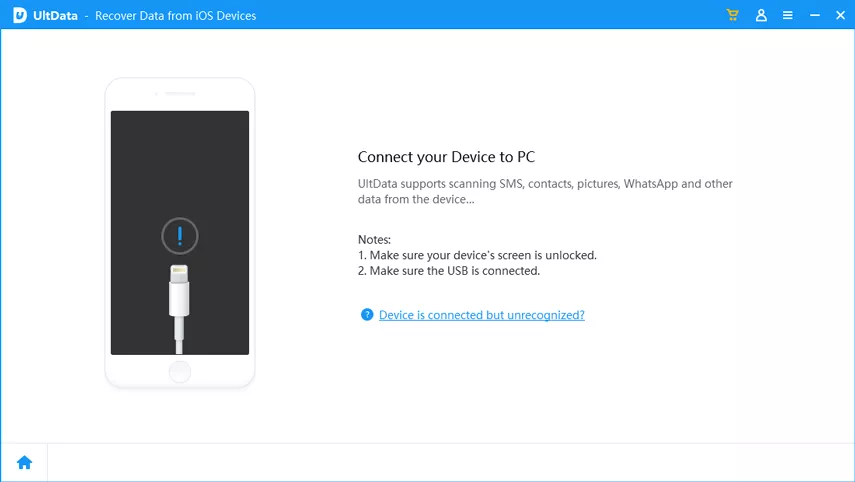


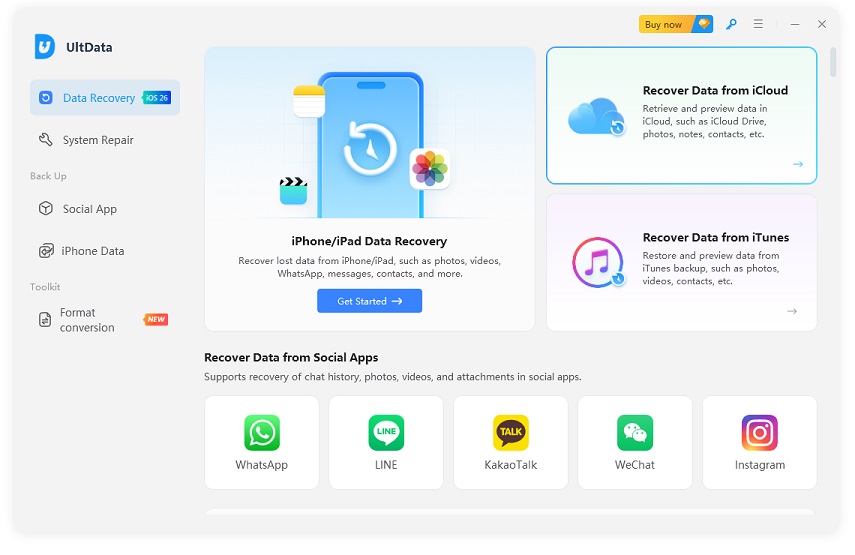


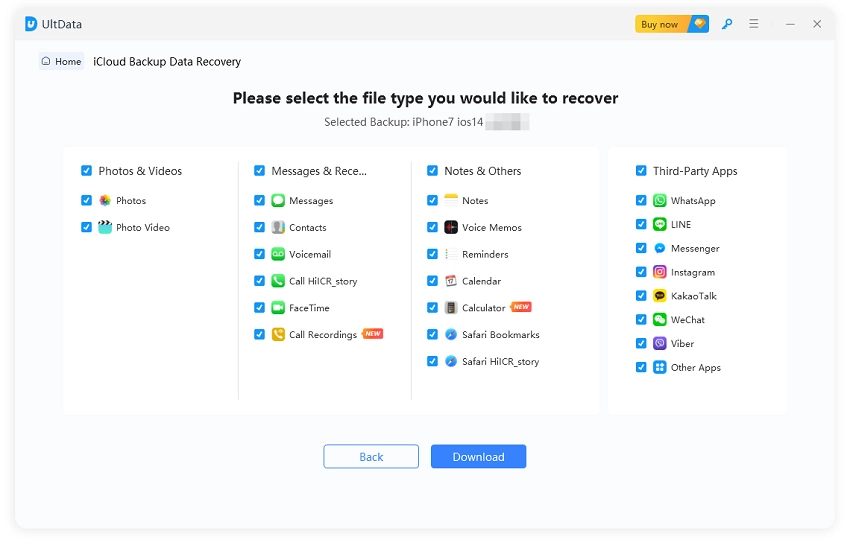

You can avoid file deletion from Siri in the future by following a few simple preventative measures:
Pay attention to what Siri repeats back before it deletes anything, especially when you have several files or notes with similar names. A second's pause before confirming can save you the whole recovery process later.
Sync and backup aren't the same feature. Syncing keeps your data mirrored in real time across your devices. A backup creates a snapshot you can restore later. Keep both turned on so that the data you care about most has two separate safety nets.
Keep a copy of important files in another trusted location when possible. A copy stored elsewhere makes accidental deletion less disruptive and reduces reliance on recovery tools.
Siri can trigger deletion, but whether it's actually permanent depends on the app and the type of data involved. Check the relevant recovery location before assuming the file is gone for good.
Figure out what was deleted, check that app's Recently Deleted folder, look at iCloud and any other Apple devices tied to your account, check an older backup, and try UltData if those steps come up short.
Yes, often. Recently Deleted folders, synced copies on other devices, and supported recoverable data through a tool like UltData can all work without needing a backup at all.
No. Siri itself isn't a recovery tool. Recovery has to go through the relevant Apple app, iCloud/backup, a synced device, or dedicated recovery software.
Not always. Check the app's built-in recovery options first before assuming anything is gone. The outcome depends on the content type and how that particular Apple service manages deleted data.
The best way to recover files deleted by Siri depends on what Siri deleted and where the data was originally stored. Start with the Recently Deleted section of the relevant app, then check iCloud and any other Apple devices connected to your account. An older iCloud backup is a further option, though it means restoring your whole device rather than pulling back just one item. When none of that works, Tenorshare UltData lets you scan, preview, and selectively recover supported iPhone data without resetting your entire phone.


UltData - Best iPhone Data Recovery Software






then write your review
Leave a Comment
Create your review for Tenorshare articles

Share this post


UltData - Best iPhone Data Recovery Tool
Recover Deleted & Lost Data from iOS Devices Easily, No Backup Needed!
UltData: Best iPhone Recovery Tool
Recover Lost iPhone Data without Backup
By Jenefey Aaron
2026-09-28 / iOS Data Recovery