

 iOS Tips & Latest Updates
 Bug Fixes, Unlock Guides
 Giveaways & Freebies


UltData - Best iPhone Data Recovery Tool
Recover Deleted & Lost Data from iOS Devices Easily, No Backup Needed!
UltData: Best iPhone Recovery Tool
Recover Lost iPhone Data without Backup
You go to play a playlist you have had for months, and it's just not there. Before you start rebuilding it from scratch, you should know that this isn't usually a lost cause.
Playlists go missing for a few common reasons, including accidental deletion, Sync Library acting up, being on the wrong Apple Account, a phone swap, or a recent iOS update.
You can recover it by working through Apple's own settings first (checking your library, Sync Library, and your Apple Account). If that doesn't work, you can try restoring from iCloud or a computer backup, or use Tenorshare UltData (iPhone data recovery software) if the built-in options don't bring it back.
Stick with this guide to learn how to recover Apple Music playlist content through Apple's own tools and Tenorshare UltData.

When an Apple Music playlist disappears, you should run through Apple's built-in checks. They don't require installing anything, and they won't touch your existing library. The following are a few effective checks on how to recover playlists on Apple Music:

Open the Apple Music app and go to Library → Playlists. Search for the missing playlist by name if it is not immediately visible.
Check playlist folders if you have previously organized playlists into folders. There is always a chance the playlist may still be available but not immediately visible where you expect it.
Sync Library keeps Apple Music library content (including playlists) synchronized across supported devices using the same Apple Account.
On iPhone, go to Settings → Apps → Music → Sync Library and check whether it's switched on. If it's off, turning it on can recover Apple Music playlist. Give it a stable internet connection and a few minutes for synced files to appear.

The playlist may be missing simply because the iPhone is signed in with a different Apple Account.
Check the Apple Account currently signed in on the iPhone (Settings > Your Name) and make sure it is the same account previously used with Apple Music.
Signing in under a different account pulls up a different Apple Music library, which can make it look like your data disappeared when it's just parked under another account.
If you have an iPad or a Mac signed into the same Apple Account, check there next. Finding the playlist alive and well on another device means nothing was actually lost. Now just allow the devices to sync, then check the affected iPhone again.
Apple Music's web player also includes your playlist. So, take a quick look there. If the playlist shows up there, that's a strong indicator the problem is isolated to the iPhone rather than the playlist itself being deleted.
If the playlist was actually deleted, Apple Music does not provide a simple Recently Deleted folder for restoring the playlist itself. Also, note that deleting a playlist does not normally delete the songs from the user's Music Library.
This means you can create a new playlist and add the previously included songs. You can check Library, Recently Played, Favorites, and other saved music information to identify the songs.
iPhone backup on iCloud or computer (via Finder/iTunes) includes the backup of Apple Music content. So, restoring an older backup is an effective way to recover an Apple Music playlist, especially when the issue occurred after an iPhone transfer, restoration, or other device change.

Apple's backup restoration is a full-device recovery process, not a simple playlist-only restore. This means that your existing iPhone data will be replaced by the backed-up data. So, consider this option only after the less disruptive Apple Music checks above.
If you have an iCloud backup from before the playlist went missing, restoring from it is an option. However, this puts your entire iPhone back into the state captured in that backup.
So, don't assume it's a way to selectively restore Apple Music alone. Because of that, anything newer on your phone could be overwritten, so back up your current data separately before you begin.
Follow these steps on how to recover Apple Music playlist by restoring an iCloud backup:


The same idea applies to local backups made through Finder/iTunes. Check whether a backup exists from before the playlist disappeared, and pay close attention to the date.
Here are the steps on how to recover playlists on Apple Music with Finder/iTunes backup:


If you haven't recovered your Apple Music playlist till now after trying Apple's built-in methods, don't worry. Let's pull out the lost playlist directly from your iPhone's internal storage without backup. This is what Tenorshare UltData software offers.
Tenorshare UltData is iPhone data recovery software that performs a deep scan of the device's internal storage to recover lost data. The main highlight is its preview-based selective data recovery. After scanning, you can preview recoverable data and select and restore only the files you need. It can also scan your existing iCloud or Finder/iTunes backup and let you recover selected files instead of a full backup restoration.




Let's take a closer look at how to use Tenorshare UltData to recover playlist on Apple Music directly from iPhone storage or iCloud backup.

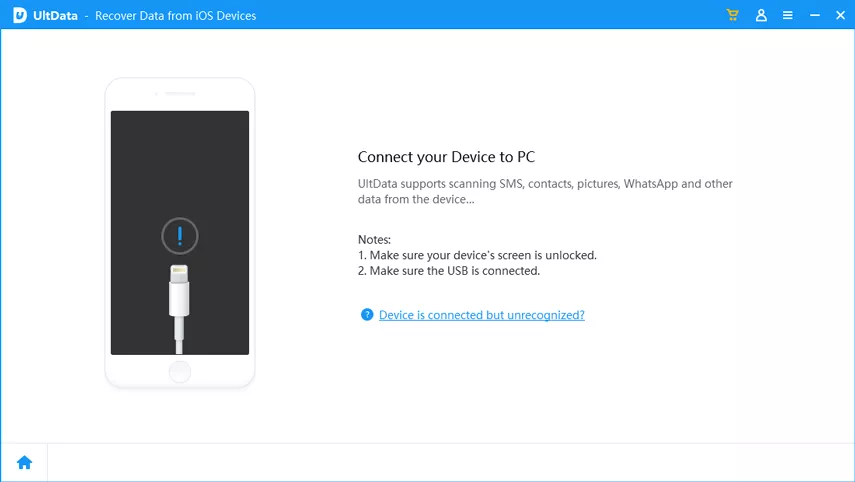


Don't assume that Tenorshare UltData can recover every deleted Apple Music playlist. The recovery depends on whether the relevant data is still available.
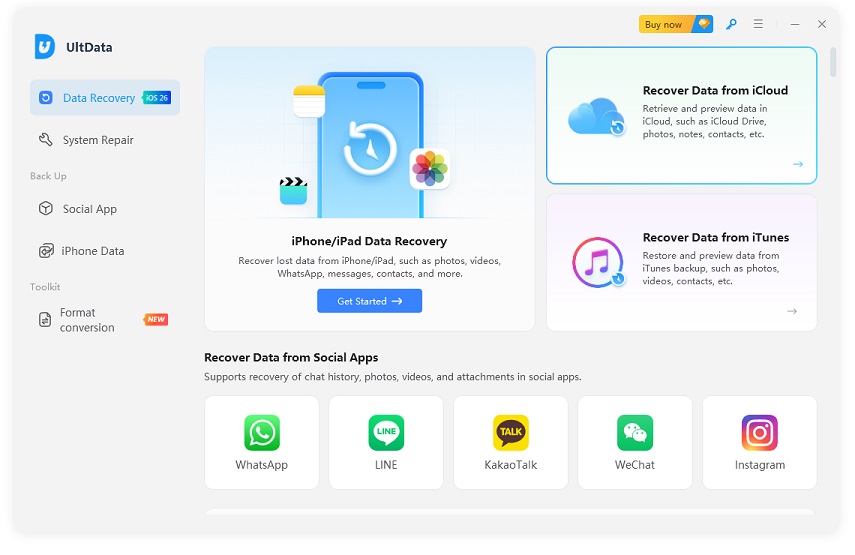


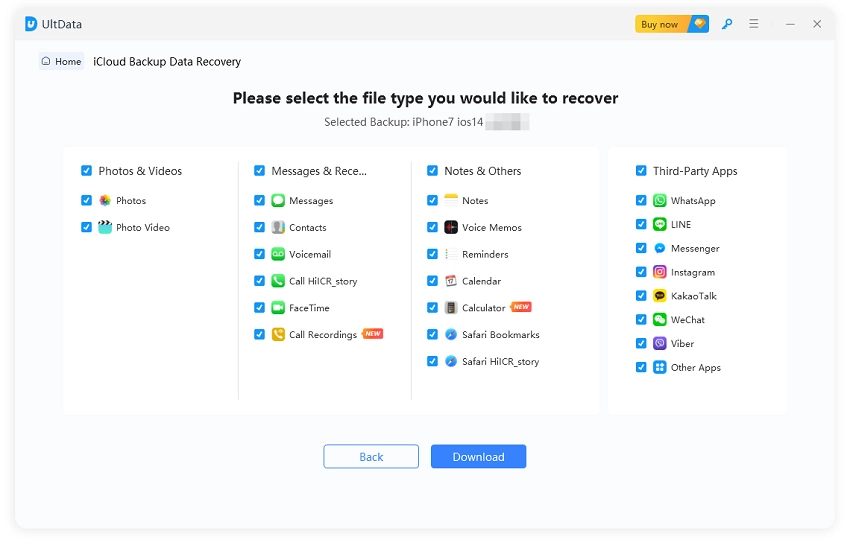

That's how simple clicks with Tenorshare UltData retrieve your lost files in minutes. Download UltData for free and get started.
If the playlist cannot be found through Apple Music, Sync Library, another Apple device, Apple Music on the web, backups, or recovery software, the original playlist may not be directly recoverable. That's not the end of the road.
You should shift the focus toward rebuilding the playlist from the songs that are still available.
Start a new playlist and pull songs back in from your library. You can also check Recently Played, Favorites, and other music history to identify songs from the original playlist.
Check the screenshots, notes, old messages, emails, or a playlist link you shared with someone. All these sources can help identify the original songs and rebuild the playlist.
Who wants to frequently end up in the situation of recovering lost Apple Music playlists? So, follow these few preventive steps to avoid this situation in the future:
Apple Music doesn't have a Recently Deleted folder for playlists the way Photos or Notes does. Check other devices signed into the same Apple Account first, as the playlist may still exist there. If it's gone everywhere, you will need to rebuild it using songs still sitting in your Music Library.
It depends on what you mean by "recover." Getting back the exact original playlist isn't always possible, but recreating it usually is, since the songs it contained often remain in your Music Library even after the playlist itself is deleted.
Often, yes. Check Sync Library, confirm you are on the right Apple Account, look at other Apple devices, and try Apple Music on the web. If the individual songs are still available in your library, you can rebuild the playlist without ever touching a backup. Tenorshare UltData is also useful when there's still supported recoverable data on the device.
No, not normally. Deleting a playlist removes that particular collection, but the songs themselves stay in your Music Library. Deleting a playlist and removing songs from your library are two separate actions.
Usually, you can. Check that you are signed into the same Apple Account and confirm Sync Library is on on your older iPhone or other synced devices. Sometimes the playlist hasn't disappeared at all. It just hasn't synced to the new phone yet.
A missing Apple Music playlist is not usually permanently lost. As discussed above on how to recover Apple Music playlist, start with Apple's built-in methods. Check Music Library, Sync Library, Apple Account, other synced devices, and Apple Music on the web. One of these resolves the issue most of the time.
If the playlist was actually deleted, rebuild it from songs that remain in the Music Library. An iCloud or computer backup restore is available as a further option, though remember that this restores your entire device rather than just the one playlist. And if you want to recover directly from internal storage or selectively from a backup, Tenorshare UltData lets you scan and preview recoverable data before attempting selective recovery.


UltData - Best iPhone Data Recovery Software






then write your review
Leave a Comment
Create your review for Tenorshare articles

Share this post


UltData - Best iPhone Data Recovery Tool
Recover Deleted & Lost Data from iOS Devices Easily, No Backup Needed!
UltData: Best iPhone Recovery Tool
Recover Lost iPhone Data without Backup
By Jenefey Aaron
2026-09-28 / iOS Data Recovery